
1. Ifihan
This manual provides essential instructions for the safe and efficient operation of your HP AF1009 Micro Cut Paper Shredder. Please read this manual thoroughly before using the shredder and retain it for future reference. This shredder is designed for home and small office use to securely dispose of sensitive documents.
2. Alaye Aabo
Láti rí i dájú pé iṣẹ́ náà wà ní ààbò àti láti dènà ìpalára tàbí ìbàjẹ́, kíyèsí àwọn ìṣọ́ra wọ̀nyí:
- Pa ọwọ́, irun àti aṣọ tí kò ní ìwúwo mọ́ kúrò ní ibi tí a ti ń tà ìwé.
- Ma ṣe fi awọn ika ọwọ tabi awọn ẹya ara miiran sinu ṣiṣi shredder.
- Remove all staples and paper clips before using the auto-feed tray. For manual feed, the shredder can handle staples.
- Pa awọn ọmọde ati awọn ohun ọsin kuro lati shredder ni gbogbo igba.
- Má ṣe fọ́n àwọn ọjà tàbí lubricants tí ó lè jóná sínú ohun èlò ìfọṣọ náà.
- Yọọ shredder kuro nigbati ko si ni lilo tabi ṣaaju ṣiṣe mimọ.
- Do not shred adhesive labels, continuous forms, or plastic sheets (other than credit cards).

Aworan: Oke view of the shredder with the auto-feed tray open, highlighting the "ATTENTION" warning regarding staples and clips.
3. Awọn ẹya Ọja
The HP AF1009 Micro Cut Paper Shredder offers advanced features for secure and convenient document disposal:
- Micro Cut Shredding: Transforms documents into tiny, unreadable particles (4x smaller than cross-cut) for enhanced security.
- Dual Feed Options:
- Atẹ Ifunni Aifọwọyi: Holds up to 100 sheets for unattended shredding.
- Iho ifunni afọwọṣe: Shreds up to 9 sheets at a time.
- Pípín Púpọ̀: Agbara ti iwe gige, awọn kaadi kirẹditi, ati awọn opo.
- Isẹ aladaaṣe: Features auto start/stop for ease of use.
- Awọn sensọ Abo: Equipped with overheat and overload sensors to protect the motor and prevent damage.
- Large Wastebasket: A 4.5-gallon pull-out wastebasket minimizes emptying frequency.
- Ferese ti o han gbangba: Allows easy monitoring of shredded waste levels.

Image: Detailed infographic illustrating the key features and capabilities of the HP AF1009 Micro Cut Shredder.
4. Eto
- Yọọ kuro: Farabalẹ yọ shredder kuro ninu apoti rẹ.
- Ipo: Place the shredder on a flat, stable surface. Ensure the wastebasket is correctly inserted into the main unit.
- Asopọ agbara: Pulọọgi okun agbara sinu kan boṣewa itanna iṣan.
- Agbara Tan: Locate the Power (On/Off) button on the control panel and press it to turn on the shredder. The "Ready" indicator light should illuminate.

Aworan: Oke view of the HP AF1009 shredder, showing the control panel with the power button and status indicators.
5. Awọn ilana Iṣiṣẹ
5.1. Using the Auto Feed Tray (up to 100 sheets)
- Ensure the shredder is powered on and the "Ready" light is illuminated.
- Gbe ideri atẹ-kikọ sii laifọwọyi.
- Fan the stack of paper to prevent sticking.
- Insert up to 100 sheets of paper into the auto-feed tray. Ensure the paper is aligned and lies flat.
- Close the auto-feed tray cover. The shredder will automatically begin shredding.
- Pataki: Remove all staples and paper clips from documents before using the auto-feed tray.
5.2. Using the Manual Feed Slot (up to 9 sheets)
- Ensure the shredder is powered on and the "Ready" light is illuminated.
- Insert up to 9 sheets of paper into the manual feed slot. The shredder will automatically detect the paper and begin shredding.
- Fun awọn kaadi kirẹditi, fi kaadi kan sii ni akoko kan si aarin ti iho kikọ sii afọwọṣe.
- The shredder will stop automatically once the material has passed through.
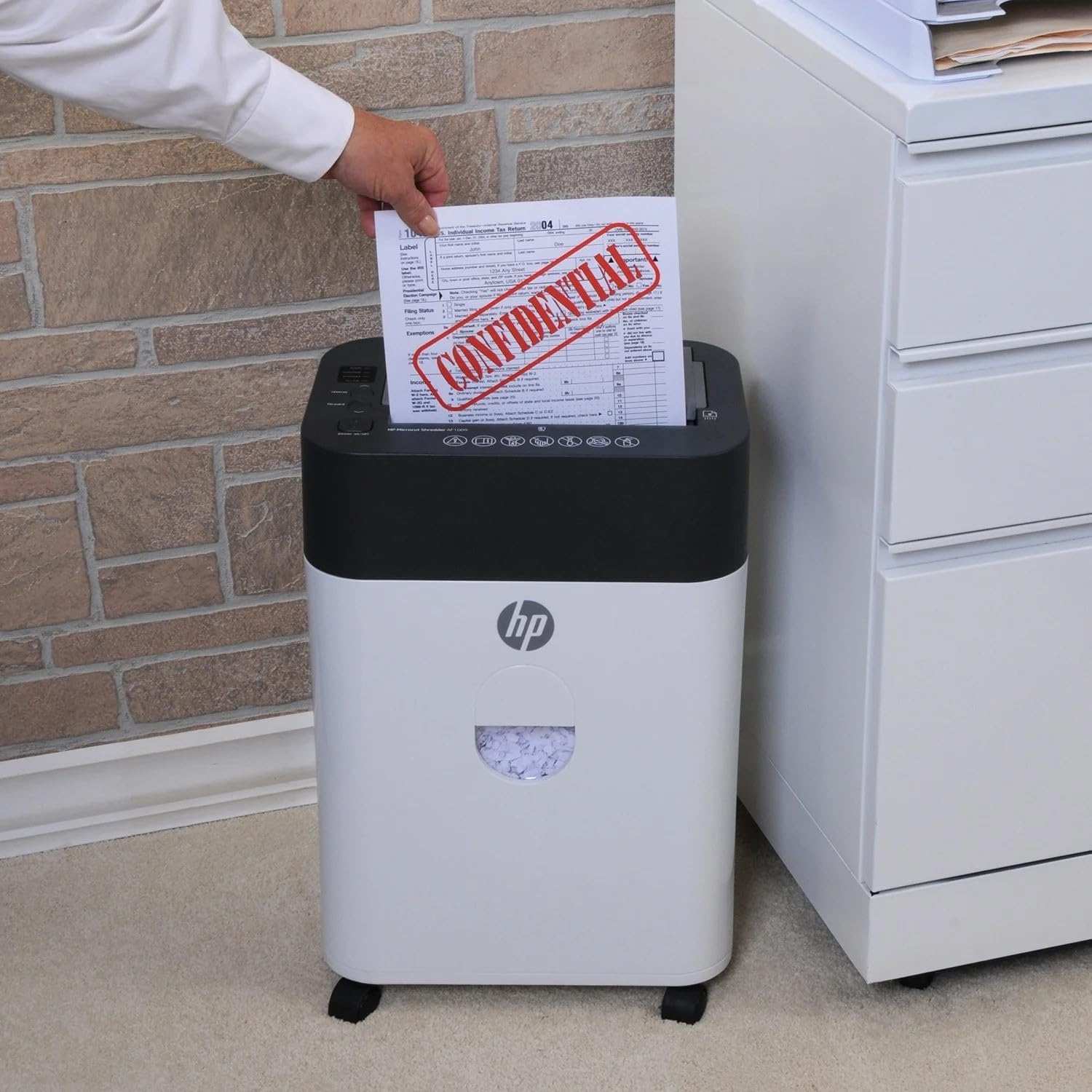
Image: Demonstrating manual paper insertion into the shredder.
5.3. Yiyipada Išė
In case of a paper jam or if you need to retrieve a document, use the reverse function. Press the "Reverse" button on the control panel to eject the paper. Once the paper is clear, press the "Forward" button or turn the shredder off and on again to resume normal operation.
6. Itọju
6.1. Emptying the Wastebasket
- Monitor the transparent window on the front of the shredder to check the waste level.
- When the "Bin Full" indicator light illuminates, or the wastebasket appears full, turn off the shredder and unplug it.
- Carefully pull out the wastebasket from the front of the unit.
- Sọ ohun elo ti a ge kuro.
- Slide the wastebasket back into the shredder until it clicks into place.
- Pulọọgi sinu ati ki o tan-an shredder.
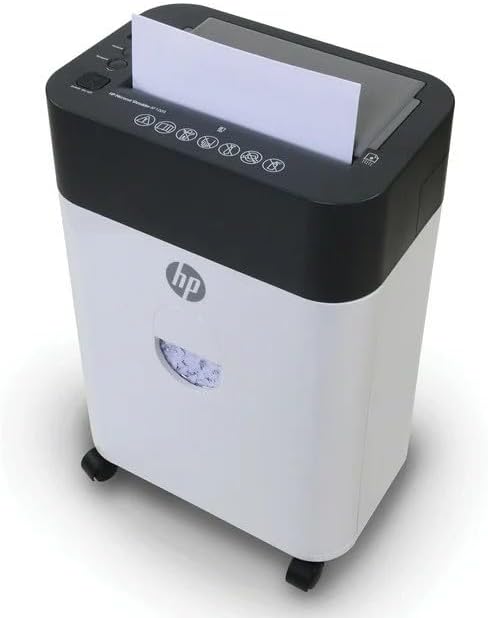
Image: The shredder's wastebasket with a transparent window, indicating when it needs emptying.
6.2. Shredder Oiling (Recommended)
Regular oiling of the shredder blades is recommended to maintain performance and extend the life of the unit. Use shredder oil (not included) and follow the instructions provided with the oil. Typically, this involves applying oil to a sheet of paper and shredding it, or directly applying oil to the blades while running in reverse (refer to oil product instructions for specifics).
7. Laasigbotitusita
Refer to the indicator lights on the control panel for common issues:
| Imọlẹ Atọka | Isoro | Ojutu |
|---|---|---|
| Ready (Blue) | Shredder is ready for operation. | Ko si igbese ti o nilo. |
| Overheat (Red) | Shredder has been used continuously for too long and is overheating. | Turn off the shredder and unplug it. Allow it to cool down for at least 30 minutes before resuming use. |
| Overload (Red) | Too much paper was inserted, causing the motor to strain. | Press the "Reverse" button to clear the jam. Reduce the amount of paper and try again. If the jam persists, unplug the shredder and carefully remove the paper manually. |
| Bin Full (Red) | The wastebasket is full and needs to be emptied. | Turn off the shredder, unplug it, and empty the wastebasket. Reinsert the wastebasket securely. |
8. Awọn pato
| Ẹya ara ẹrọ | Ẹ̀kúnrẹ́rẹ́ |
|---|---|
| Brand | HP |
| Nọmba awoṣe | AF1009 |
| Ge Iru | Micro Ge |
| Auto Feed Capacity | 100 Standard Sheets |
| Agbara ifunni Afowoyi | 9 Awọn iwe |
| Wastebasket Agbara | 4.5 galonu |
| Awọn ohun elo Shreds | Iwe, Awọn kaadi kirẹditi, Staples |
| Ipo Isẹ | Laifọwọyi |
| Pataki Awọn ẹya ara ẹrọ | Automatic Start-Stop, Overheat Sensor, Overload Sensor |
| Orisun agbara | Okun Itanna |
| Awọn iwọn Nkan (D x W x H) | 8.6" x 13.03" x 19.78" |
| Iwọn Nkan | 21.3 iwon |
9. Atilẹyin ọja
This HP AF1009 Micro Cut Paper Shredder includes a 1-odun awọn ẹya ara atilẹyin ọja ati Atilẹyin ọja iṣẹ 90 ọjọ from the date of purchase. Please retain your proof of purchase for warranty claims. For warranty service or support, please contact HP customer service.
10. Onibara Support
For further assistance, technical support, or to inquire about replacement parts, please visit the official HP website or contact their customer service department. Refer to the product packaging or the manufacturer's webAaye fun lọwọlọwọ alaye olubasọrọ.