
1. Ifihan
This manual provides detailed instructions for the setup, operation, maintenance, and troubleshooting of your j5create USB-C 4K HDMI Docking Station, model JCD533. Please read this manual thoroughly before using the device to ensure proper functionality and to prevent damage.
The j5create JCD533 is a 9-in-1 docking station designed to expand the connectivity of your USB-C enabled laptop, including MacBooks and Windows laptops. It offers a single 4K HDMI display output, multiple USB-A ports, a card reader, Gigabit Ethernet, a combo audio jack, and up to 100W Power Delivery pass-through.
2. Package Awọn akoonu
Jẹrisi pe gbogbo awọn ohun kan wa ninu package:
- j5create USB-C 4K HDMI Docking Station (JCD533)
- Quick Installation Guide (if applicable, not provided in input)
Note: A USB-C power adapter is not included and must be purchased separately for power delivery functionality.
3. Key Awọn ẹya ara ẹrọ
- 9-ni-1 Asopọmọra: Integrates essential ports into one compact device.
- 4K HDMI Ijade: Supports a single 4K display for extended or mirrored desktop.
- Awọn ibudo USB 3.0: Three SuperSpeed USB 5Gbps Type-A ports for peripherals.
- Power Delivery (PD) 100W: Charges your laptop and powers connected peripherals via USB-C (adapter not included).
- Gigabit-Eternet: Pese asopọ nẹtiwọọki onirin ti o duro ṣinṣin ati iyara.
- Oluka kaadi: Direct access to SD and microSD memory cards.
- Combo Audio Jack: Connect headphones or a microphone.
- Ipamọ USB: Double-sided cable storage compartment for organization.
- Apẹrẹ Ipilẹ Ooru: Elevated design assists with heat elimination.
- Driver-Free: Ko si awakọ afikun ti a nilo fun ọpọlọpọ awọn ọna ṣiṣe.
4. Ọja Ipariview
Familiarize yourself with the ports and components of the JCD533 docking station.

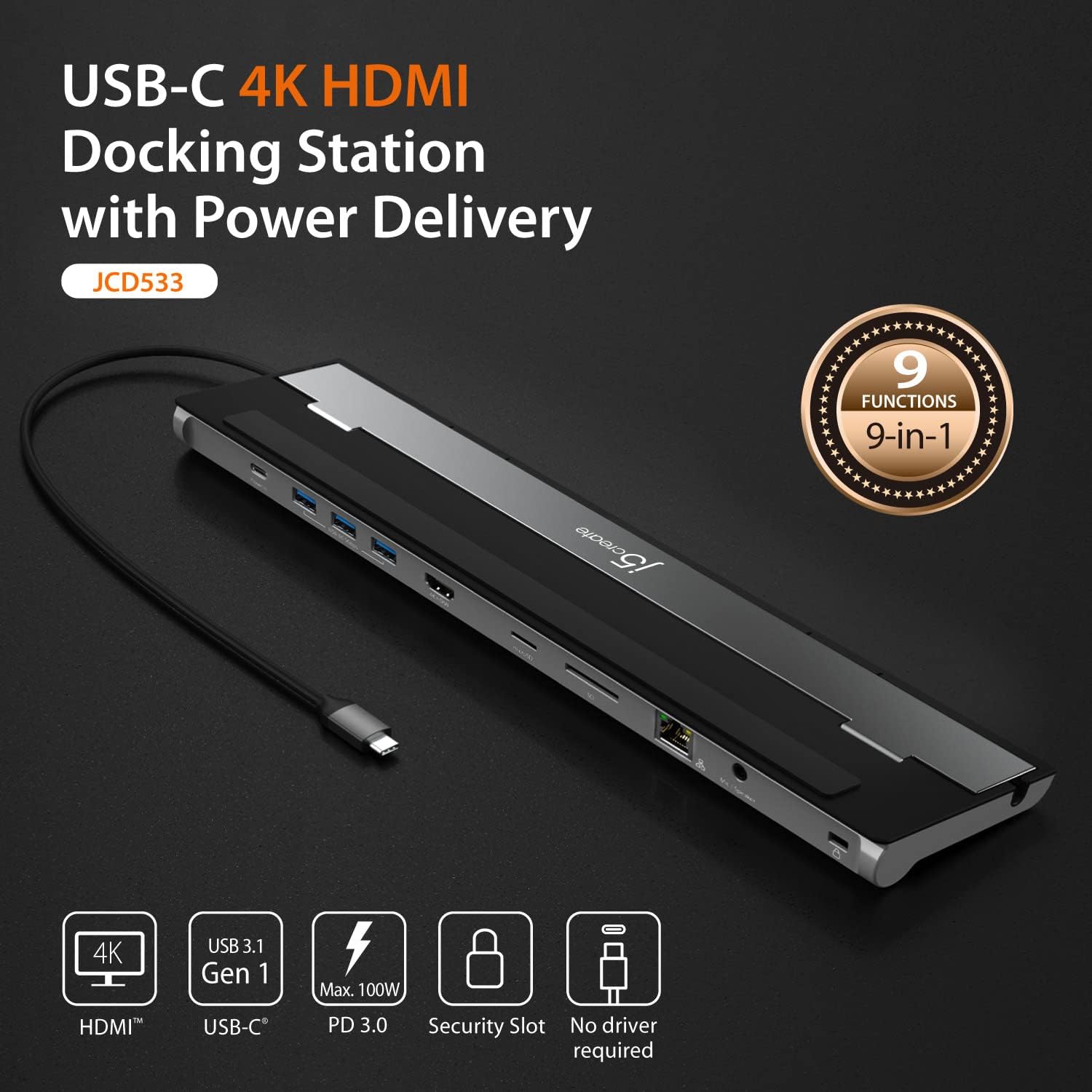

5. Awọn ilana iṣeto
Follow these steps to set up your j5create JCD533 docking station:
- Sopọ si Kọǹpútà alágbèéká: Plug the integrated USB-C cable from the docking station into an available USB-C port on your laptop.

Aworan 5.1: The JCD533 docking station connected to a laptop via its integrated USB-C cable, with an external monitor also connected via HDMI. - Connect Power (Optional, for PD): If you require laptop charging or power for high-power peripherals, connect your laptop's USB-C power adapter (up to 100W) to the "Power In" USB-C port on the docking station.
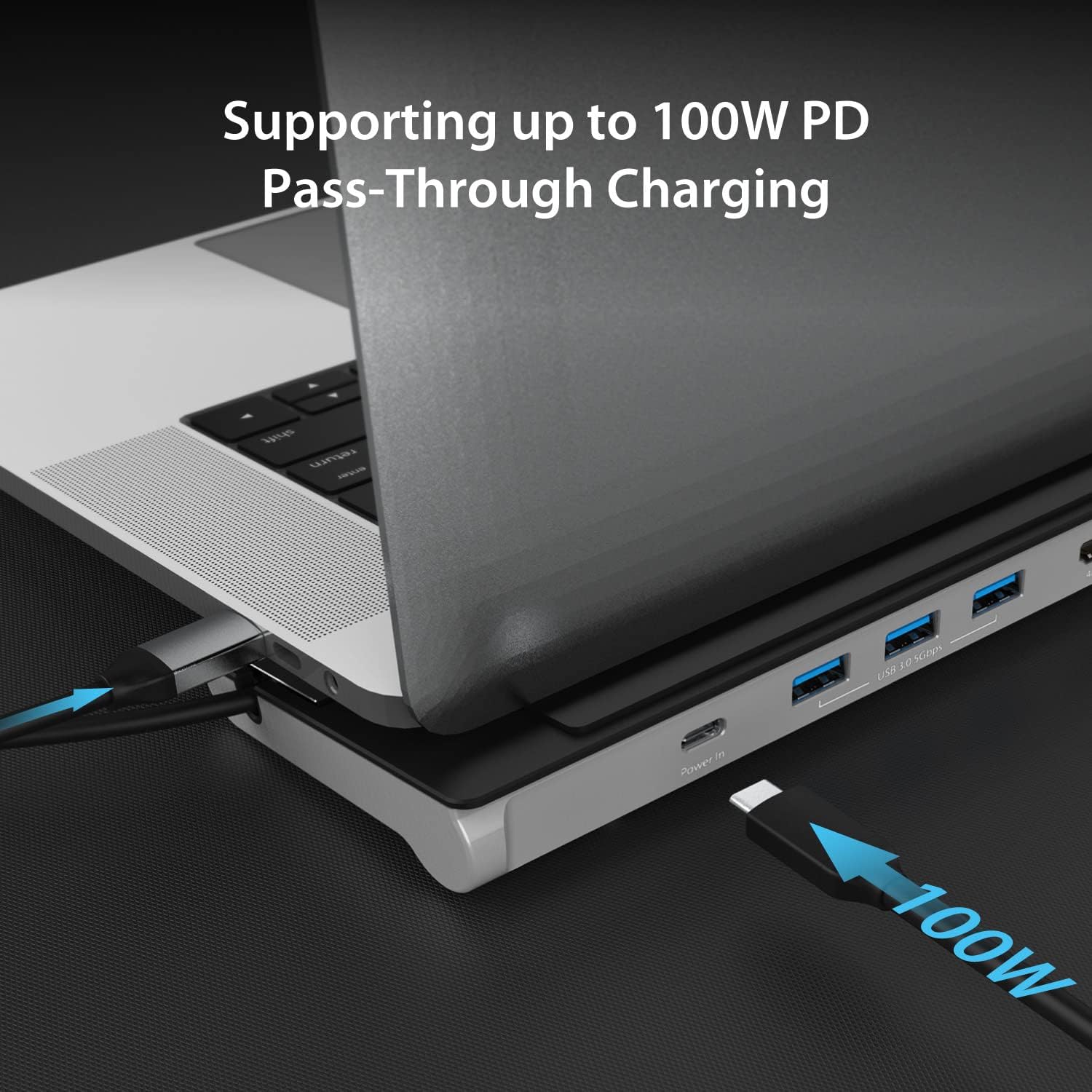
Aworan 5.2: A USB-C power adapter connected to the "Power In" port of the JCD533, illustrating 100W Power Delivery pass-through to the connected laptop. - Sopọ HDMI Ifihan: Use an HDMI cable to connect your external monitor to the 4K HDMI port on the docking station.
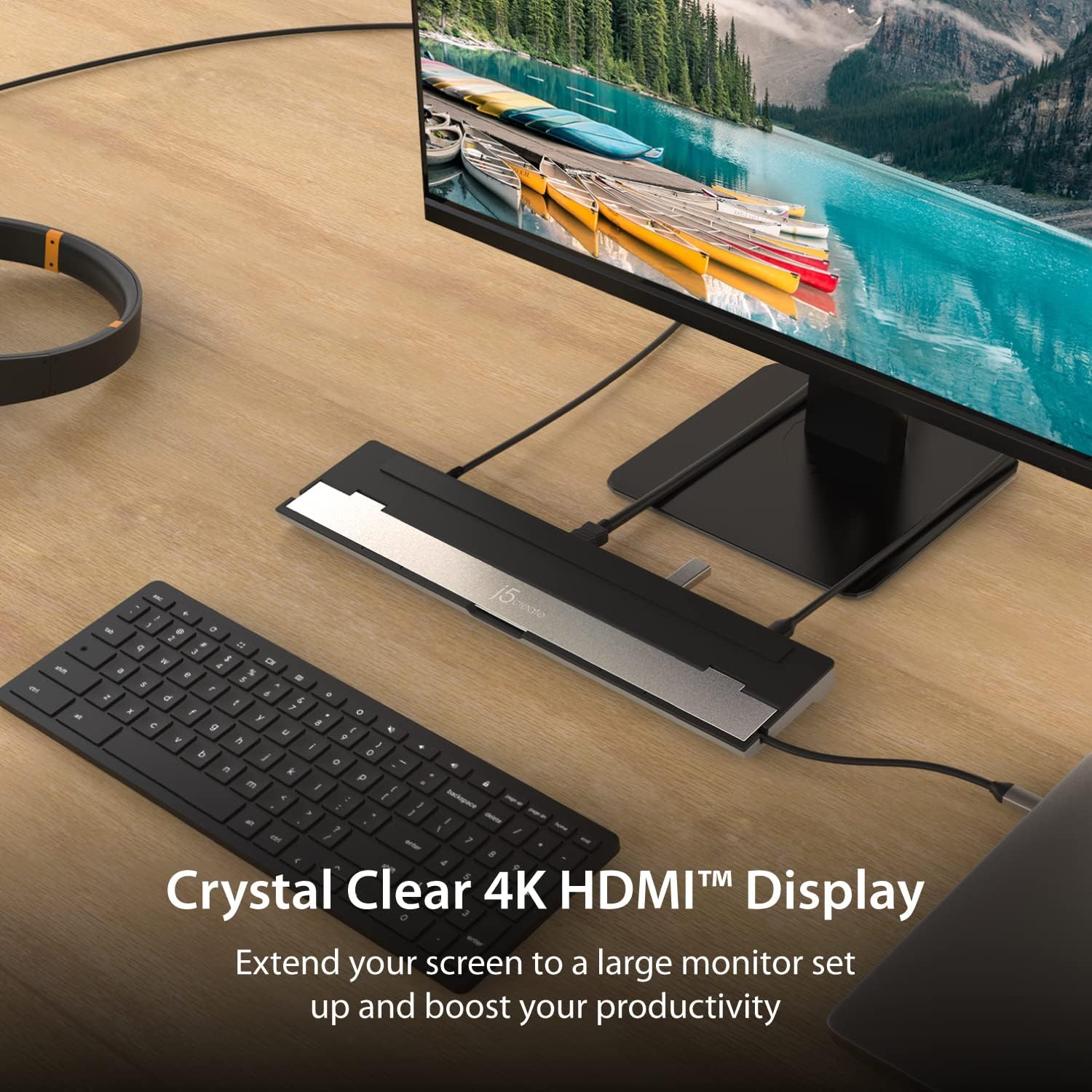
Aworan 5.3: The JCD533 docking station facilitating a 4K HDMI display connection, extending the laptop's screen to a larger monitor. - So Awọn Agbeegbe USB pọ: Plug your USB devices (e.g., keyboard, mouse, external hard drive) into the USB 3.0 Type-A ports.

Aworan 5.4: Sun mo tipetipe view of the JCD533 with multiple USB devices, such as a USB drive and a USB cable, connected to its SuperSpeed USB 5Gbps Type-A ports. - So Ethernet: For a wired network connection, plug an Ethernet cable into the Gigabit Ethernet port.
Aworan 5.5: An RJ45 Ethernet cable connected to the Gigabit Ethernet port of the JCD533, indicating stable network connectivity. - Fi awọn kaadi iranti sii: Fi SD tabi microSD awọn kaadi sinu awọn ti o baamu awọn Iho fun gbigbe data.
- So awọn ẹrọ ohun afetigbọ pọ: Plug your headphones or microphone into the 3.5mm combo audio jack.
The docking station is designed for plug-and-play operation, requiring no driver installation for basic functionality on compatible operating systems.
6. Awọn ilana Iṣiṣẹ
6.1 Ifihan iṣeto ni
After connecting your external display via HDMI, your operating system should automatically detect it. You can configure display settings (e.g., extend, duplicate, resolution) through your computer's display settings:
- Windows: Right-click on the desktop, select "Display settings."
- MacOS: Go to "System Settings" (or "System Preferences"), then "Displays."
6.2 Ifijiṣẹ agbara
When a USB-C power adapter is connected to the docking station's "Power In" port, it will pass through power to your connected laptop and provide power to the docking station's ports. Ensure your power adapter meets the wattage requirements of your laptop for optimal charging.
6.3 Data Gbigbe
The USB 3.0 ports support data transfer speeds up to 5Gbps. The SD and microSD card slots allow for direct access to memory card contents. Ensure cards are inserted correctly into their respective slots.
6.4 Asopọ Nẹtiwọọki
The Gigabit Ethernet port provides a stable wired network connection. Once connected, your operating system should automatically configure the network interface.
7. Itọju ati Itọju
- Keep the docking station in a dry environment, away from liquids and extreme temperatures.
- Clean the device with a soft, dry cloth. Avoid using harsh chemicals or abrasive cleaners.
- Ma ṣe gbiyanju lati tunto tabi tun ẹrọ naa funrararẹ. Tọkasi awọn oṣiṣẹ iṣẹ ti o peye.
- Utilize the integrated cable storage to protect the USB-C cable when not in use or during transport.

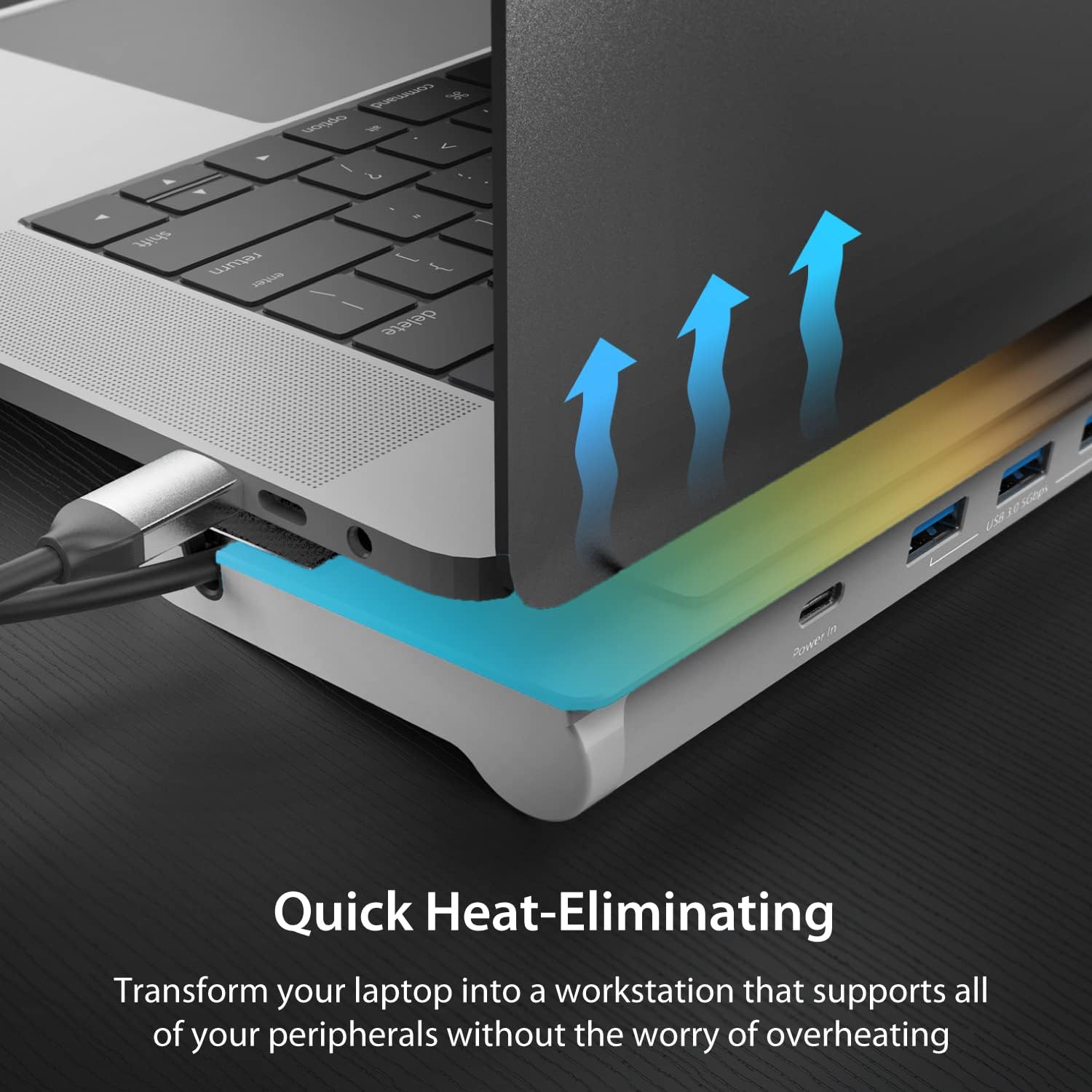
Aworan 7.1: The JCD533 docking station with its integrated USB-C cable neatly stored within the double-sided compartment, demonstrating the cable management feature. - The elevated design aids in heat dissipation. Ensure adequate airflow around the device.

Aworan 7.2: An illustration showing airflow (blue arrows) underneath a laptop placed on the elevated JCD533 docking station, highlighting its heat-eliminating design.
8. Laasigbotitusita
- Ko si ifihan ti o wu jade:
- Ensure the USB-C cable from the docking station is securely connected to your laptop.
- Verify the HDMI cable is properly connected to both the docking station and the monitor.
- Check your laptop's display settings to ensure the external monitor is detected and configured correctly.
- Gbiyanju okun tabi atẹle HDMI miiran lati yọkuro awọn iṣoro okun/atẹle.
- Ensure your laptop's USB-C port supports DisplayPort Alternate Mode (Alt Mode).
- Awọn ẹrọ USB ko mọ:
- Reconnect the USB device to a different port on the docking station.
- Ensure the docking station is receiving sufficient power, especially for high-power USB devices. Connect a USB-C power adapter if not already.
- Gbiyanju lati so ẹrọ USB pọ taara si kọǹpútà alágbèéká rẹ lati jẹrisi iṣẹ ṣiṣe.
- Laptop not charging via docking station:
- Ensure a compatible USB-C power adapter is connected to the "Power In" port of the docking station.
- Daju pe ibudo USB-C kọǹpútà alágbèéká rẹ ṣe atilẹyin Ifijiṣẹ Agbara.
- Ṣayẹwo wattage of your power adapter; it must be sufficient for your laptop's charging requirements.
- Awọn iṣoro asopọ Ethernet:
- Rii daju pe okun Ethernet ti sopọ ni aabo si mejeeji ibudo docking ati olulana/modẹmu rẹ.
- Ṣayẹwo awọn eto nẹtiwọọki ti kọǹpútà alágbèéká rẹ.
- Gbiyanju okun Ethernet ti o yatọ.
- Docking station feels warm:
- O jẹ deede fun ibudo docking lati ṣe ina diẹ ninu ooru lakoko iṣẹ, paapaa nigbati awọn ebute oko oju omi pupọ ba wa ni lilo tabi nigba gbigba agbara kọǹpútà alágbèéká kan.
- Ensure the device has adequate ventilation and is not covered. The elevated design helps with heat dissipation.
9. Awọn pato
| Ẹya ara ẹrọ | Ẹ̀kúnrẹ́rẹ́ |
|---|---|
| Nọmba awoṣe | JCD533 |
| Olumulo Ọlọpọọmídíà | USB-C |
| Ijade fidio | 1x HDMI (4K @ 30Hz) |
| Awọn ibudo USB | 3x USB 3.0 Type-A (5Gbps) |
| Ifijiṣẹ Agbara | Up to 100W Pass-Through (via USB-C Power In port) |
| Àjọlò | Gigabit Ethernet (RJ45) |
| Oluka kaadi | SD / microSD |
| Ohun | 1x 3.5mm Combo Audio Jack (Mic/Speaker) |
| Awọn iwọn | 13.78 x 3.25 x 0.92 inches (350 x 82.5 x 23.3 mm) |
| Iwọn | 14.1 iwon (401 giramu) |
| Ibamu | macOS, Windows USB-C Laptops |
10. Atilẹyin ọja ati Support
For warranty information and technical support, please visit the official j5create website or contact their customer service. The manufacturer's contact information is typically found on the product packaging or their official webojula.
Olupese: j5 ṣẹda
Olubasọrọ: service@j5create.com, Tel: 1-888-988-0488
Webojula: www.j5create.com
Note: Features and specifications are subject to change without notice.
11. Alaye Aabo
IKILO: This product may contain chemicals known to the State of California to cause cancer and reproductive harm. For more information, visit www.P65Warnings.ca.gov.
Always handle electronic devices with care. Do not expose to water or extreme temperatures. Discontinue use if the device is damaged or malfunctions.