
1. Ifihan
This manual provides essential information for the setup, operation, and maintenance of your Donner DDP-100 88-Key Weighted Action Digital Piano. Please read it thoroughly to ensure proper use and to maximize your instrument's lifespan.
Awọn ẹya pataki:
- 88 Fully-Weighted Keys: Designed to precisely match finger strength changes, restoring the feel of an acoustic piano for stable and responsive touch.
- Ohun to daju: Features a pure tone sampled from real acoustic grand pianos, utilizing AWM sampling technology for realistic and excellent sound quality.
- Asopọmọra Wapọ: Supports MP3 input, external sound systems, and headphones for varied practice and performance needs.
- Ti ṣepọ Ampolutọpa: Ti a ṣe sinu amplifier for direct sound output.
- Apẹrẹ Iṣatunṣe: Wooden cabinet with a sliding key cover for key protection and a modern aesthetic.
- 128-Note Polyphony: Ensures complex musical passages can be played without notes cutting off.

Figure 1: The Donner DDP-100 Digital Piano in white, showcasing its full 88-key keyboard, integrated music stand, and three foot pedals.
2. Awọn ilana iṣeto
2.1 Unpacking ati Ṣayẹwo paati
Fi ìṣọ́ra tú gbogbo àwọn ohun èlò inú àpótí náà. Rí i dájú pé gbogbo àwọn ohun tí a kọ sí ìsàlẹ̀ yìí wà níbẹ̀:
- Donner DDP-100 Digital Piano Unit
- Furniture Stand
- Adapter agbara
- Sisun Key Ideri
- Three-Pedal Unit
- Isinmi Orin
2.2 Apejọ
- Assemble the Furniture Stand: Follow the instructions provided with the furniture stand to securely assemble its components.
- Attach the Piano Unit: Carefully place the DDP-100 digital piano unit onto the assembled furniture stand. Secure it using the provided screws or fasteners.
- Connect the Pedal Unit: Locate the pedal unit cable and connect it to the corresponding port on the underside of the piano unit.
- Install the Music Rest: Insert the music rest into the designated slots on the top panel of the piano.
- So ohun ti nmu badọgba agbara: Plug the power adapter into the DC IN port on the piano's rear panel, then plug the adapter into a wall outlet.

Figure 2: Dimensions of the Donner DDP-100 Digital Piano, illustrating its compact design for home integration.
3. Awọn ilana Iṣiṣẹ
3.1 Agbara Tan / Pa ati Iṣakoso iwọn didun
- Agbara Tan: Locate the 'POWER' button on the left side of the keyboard. Press it to turn on the piano. A red indicator light will illuminate.
- Atunse iwọn didun: Use the 'VOLUME' knob to adjust the overall sound level. Turn clockwise to increase volume, counter-clockwise to decrease.
- Agbara Pa: Press the 'POWER' button again to turn off the piano.
Fidio 1: Pariview of the Donner DDP-100 Digital Piano, demonstrating power on, volume control, and key action.
3.2 Playing the Piano
- Weighted Keys: The 88 fully-weighted keys provide a realistic piano feel, with heavier touch in lower registers and lighter touch in higher registers.
- Awọn atẹsẹ: The three pedals (soft, sostenuto, sustain) allow for expressive playing, similar to an acoustic grand piano.
- Didara ohun: The DDP-100 features a single, high-quality grand piano tone, sampled for authenticity.

Figure 3: Diagram illustrating the graded hammer action of the 88 weighted keys, providing a realistic playing experience.
3.3 Ipo Agbekọri
For private practice, connect headphones to the 3.5mm headphone jack located on the rear panel. This mutes the internal speakers, allowing you to play without disturbing others.

Figure 4: Demonstrating the headphone mode for silent practice, ideal for shared living spaces.
3.4 Ita Device Asopọmọra
The rear panel of the DDP-100 offers various ports for connecting external devices:
- MP3 Ni wiwo: Connect an MP3 player for audio playback.
- USB Transmission Interface: Connect to a computer for MIDI data transfer.
- Audio Interface (IN/OUT): Connect to external audio systems or recording devices.
- Sustain Pedal Socket: For connecting the included three-pedal unit.
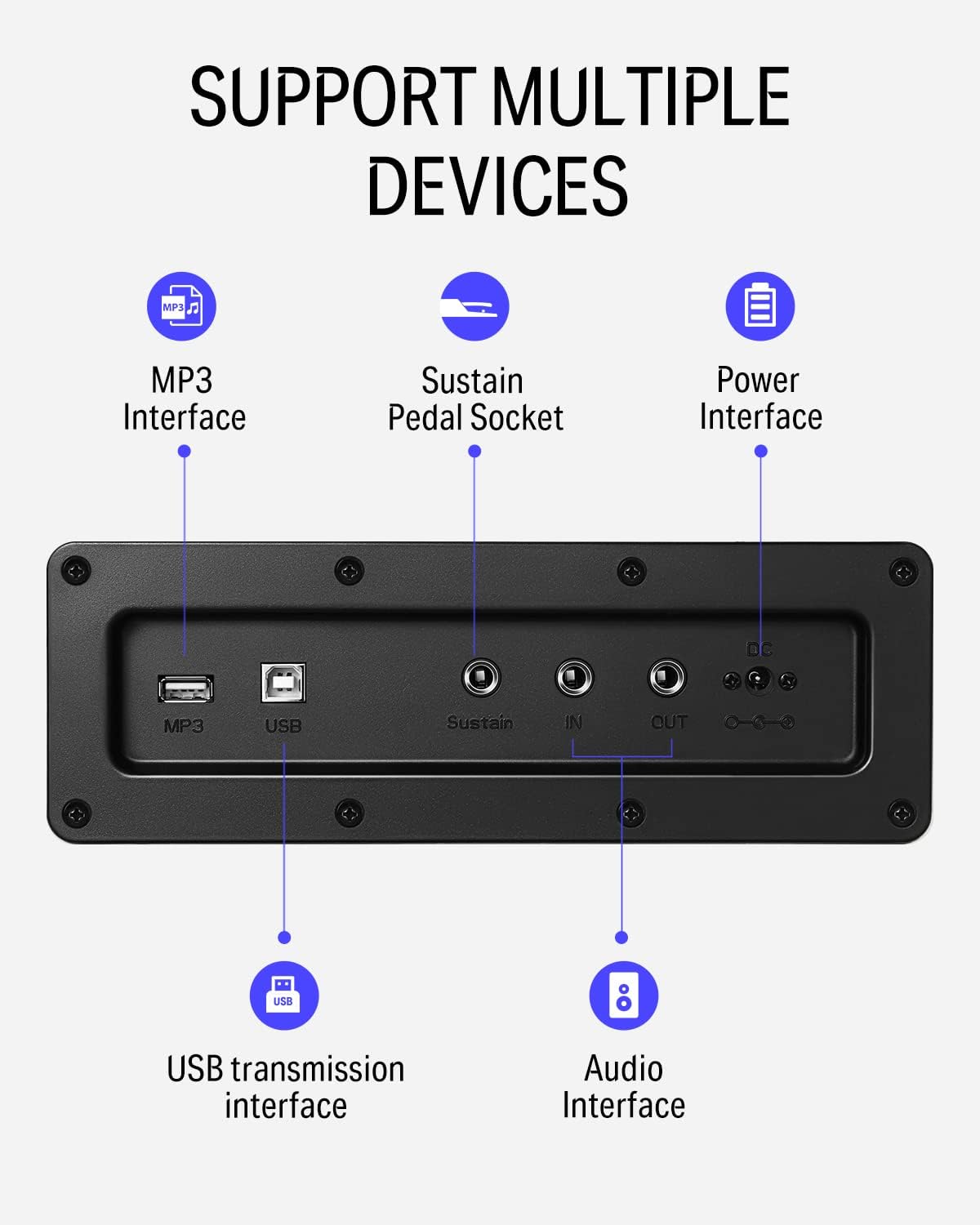
Nọmba 5: Alaye view of the rear panel connectivity options, including MP3, USB, Sustain, and Audio In/Out ports.
Video 2: Demonstrates the versatility of the DDP-100 when connected to other devices, such as DJ equipment.
4. Itọju
4.1 Ninu
- Use a soft, dry cloth to wipe the surface of the piano.
- Fun idoti alagidi, die-die dampen the cloth with water and a mild, non-abrasive cleaner. Avoid excessive moisture.
- Do not use chemical solvents, alcohol, or abrasive cleaning agents, as these can damage the finish.
4.2 Ibi ipamọ ati Itọju
- Keep the piano away from direct sunlight, heat sources, and excessive humidity to prevent damage to the wood and electronic components.
- Use the sliding key cover to protect the keys from dust and spills when not in use.
- Avoid placing heavy objects on the piano.
5. Laasigbotitusita
5.1 Ko si Ohun
- Rii daju pe ohun ti nmu badọgba agbara ti sopọ ni aabo ati pe duru ti wa ni titan.
- Check the volume knob and ensure it is turned up.
- Ti awọn agbekọri ba ti sopọ, ge asopọ wọn lati mu awọn agbọrọsọ inu ṣiṣẹ.
- If connected to an external sound system, check the system's volume and connections.
5.2 Àwọn kọ́kọ́rọ́ tí kò dáhùn
- Rii daju pe piano ti wa ni titan.
- Tí àwọn kọ́kọ́rọ́ kan bá kan, kan si ìrànlọ́wọ́ oníbàárà.
5.3 Abnormal Sound
- Check for loose connections of cables (power, pedals, audio).
- Ensure the volume is not set too high, causing distortion.
- If the issue persists, power cycle the unit (turn off, wait 10 seconds, turn on).
6. Awọn pato
| Ẹya ara ẹrọ | Ẹ̀kúnrẹ́rẹ́ |
|---|---|
| Brand | Donner |
| Orukọ awoṣe | DDP-100 |
| Nọmba ti Awọn bọtini | 88 |
| Iru bọtini | Fully-Weighted Action |
| Polyphony | 128-Note |
| Orisun Ohun | AWM Sampling Technology (Grand Piano Tone) |
| Pedals | 3-Pedal Unit (Sustain, Sostenuto, Soft) |
| Asopọmọra | MP3 Interface, USB Transmission, Audio In/Out, 3.5mm Headphone Jack |
| Orisun agbara | Adapter, Electric |
| Ọja Mefa | 54.33"D x 16.14"W x 33.27"H |
| Iwọn Nkan | 97.7 iwon |
| Ohun elo ara | Igi |
| Àwọ̀ | Funfun |
7. Atilẹyin ọja ati Support
For warranty information, please refer to the documentation included with your purchase or contact Donner customer support. General customer support is available for assistance with product inquiries, troubleshooting, and service requests.
For additional support, visit the official Donner webojula tabi kan si wọn onibara iṣẹ awọn ikanni.