
Xtorm CXX004
Xtorm Xtreme USB to USB-C Cable (1.5m, CXX004) User Manual
1. Ifihan
This manual provides essential information for the proper use and care of your Xtorm Xtreme USB to USB-C Cable. Designed for durability and efficient performance, this 1.5-meter cable facilitates fast charging and reliable data transfer between compatible USB-C and USB devices.
Awọn ẹya pataki:
- Iduroṣinṣin: Engineered to withstand extensive daily use, featuring protection against bending, kinking, and general wear.
- Fast Data Transfer & Charging: Supports high transfer rates and efficient power delivery for quick device charging.
- Asopọmọra ti o gbẹkẹle: Ensures a stable and secure connection for uninterrupted data and power flow.
- Gigun to dara julọ: A 1.5-meter length provides flexibility and convenience for various usage scenarios.
- XFLEX Technology: Combines a specially designed connector with braided nylon and a reinforced core for extreme strength and flexibility, tested to withstand over 100,000 bends and up to 100kg tensile force.

Image: An illustration highlighting the Xtreme Strength features of the cable, including its durable construction materials.
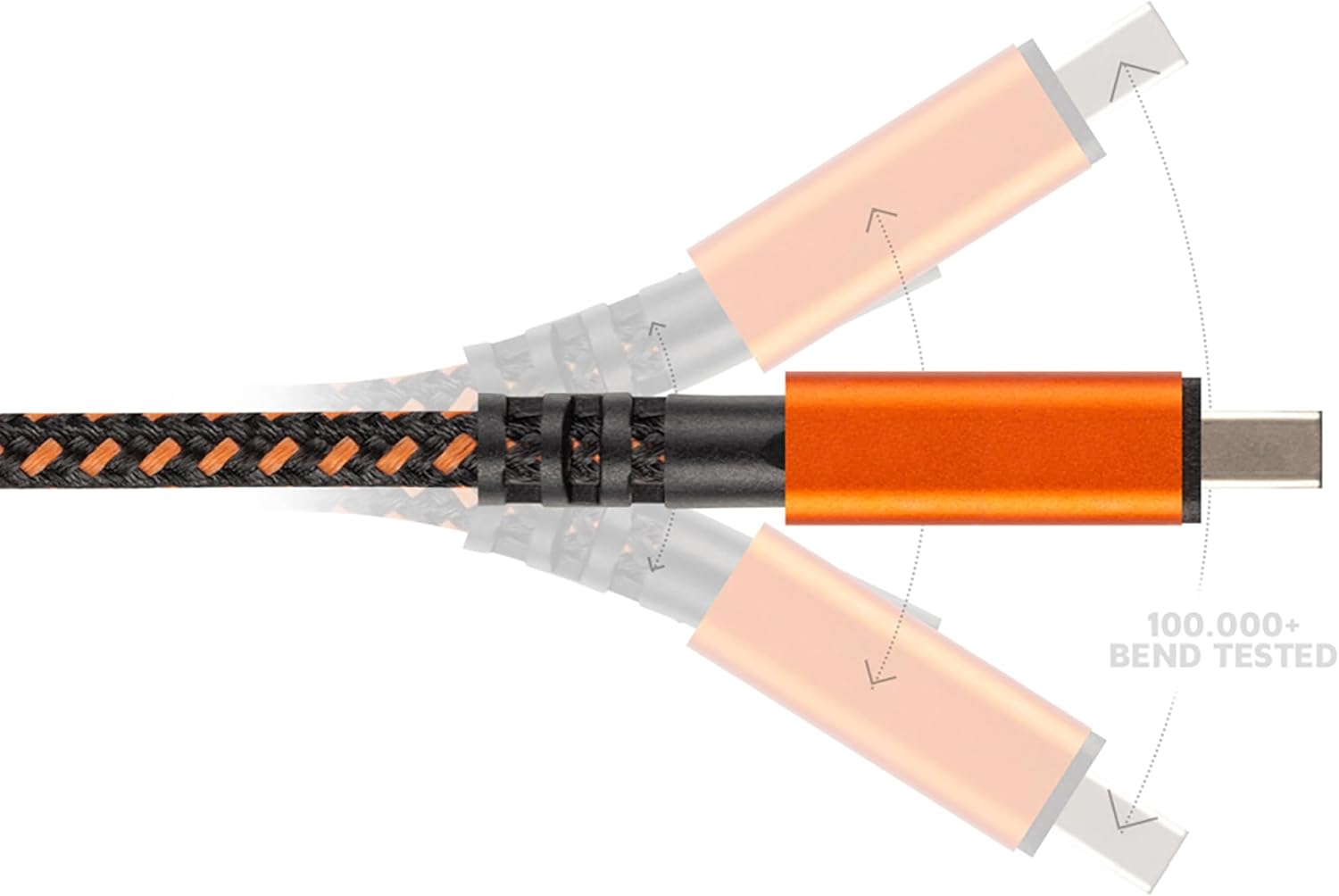
Image: An illustration demonstrating the cable's ability to withstand over 100,000 bends at the connector point.
2. Package Awọn akoonu
Apo naa ni:
- 1x Xtorm Xtreme USB to USB-C Cable (1.5m)
- 1x Integrated Cable Tie

Image: The Xtorm Xtreme USB to USB-C Cable, showcasing its braided design and durable orange connectors.
3. Eto
The Xtorm Xtreme USB to USB-C Cable is designed for plug-and-play functionality. No special software or drivers are required for basic operation.
- Ṣe idanimọ Awọn Asopọmọra: Locate the standard USB-A connector and the USB-C connector on the cable.
- Connect to Power Source or Computer: Insert the standard USB-A end of the cable into a compatible USB-A port on a power adapter, power bank, or computer.
- Sopọ si Ẹrọ: Insert the USB-C end of the cable into the USB-C port of your smartphone, tablet, laptop, or other compatible device.

Image: The Xtorm Xtreme USB to USB-C Cable laid out, clearly showing both the USB-A and USB-C connectors for easy identification.
4. Awọn ilana Iṣiṣẹ
Once connected, the cable will automatically facilitate charging or data transfer, depending on the capabilities of the connected devices.
- Fun gbigba agbara: Ensure the USB-A end is connected to a powered USB-A port (e.g., wall charger, power bank). The device connected via USB-C will begin charging.
- For Data Transfer: Connect the USB-A end to a computer's USB-A port and the USB-C end to your device. Your computer should recognize the connected device, allowing you to transfer files. Follow your device's instructions for enabling data transfer mode if prompted.
5. Itọju ati Itọju
To ensure the longevity and optimal performance of your Xtorm Xtreme cable, follow these maintenance guidelines:
- Yago fun Lilọ Lilọ: While the cable is designed for flexibility, avoid sharp or excessive bends at the connector points to prevent internal damage.
- Awọn asopọ mimọ: Periodically inspect and gently clean the metal connectors with a dry, soft cloth to remove dust or debris that could interfere with connectivity.
- Ibi ipamọ to tọ: Use the integrated cable tie to coil the cable neatly when not in use. Store it in a dry, cool place away from direct sunlight and extreme temperatures.
- Mu pẹlu Itọju: Always pull from the connector housing, not the cable itself, when disconnecting from devices or power sources.

Image: The Xtorm Xtreme USB to USB-C Cable with its integrated cable tie, demonstrating its use for neat storage and organization.
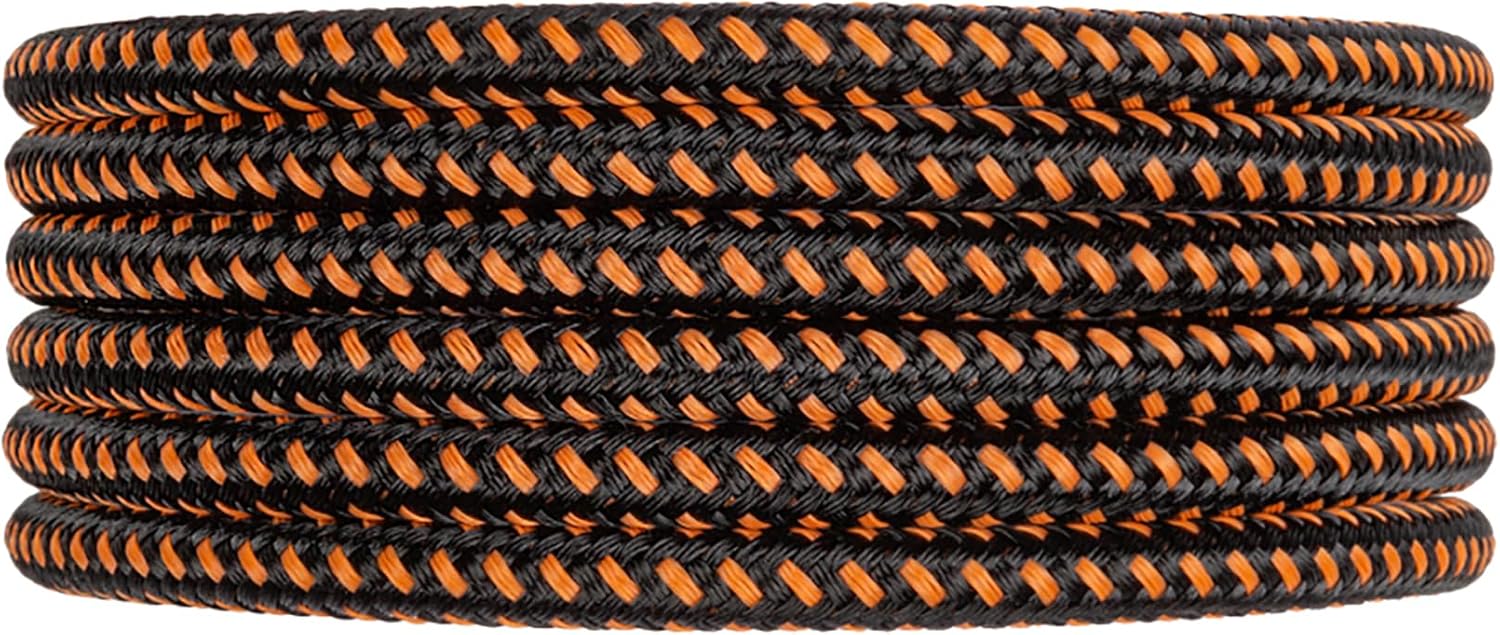
Image: The Xtorm Xtreme USB to USB-C Cable neatly coiled, illustrating proper storage practices to extend cable life.
6. Laasigbotitusita
If you encounter issues with your Xtorm Xtreme cable, consider the following troubleshooting steps:
- Ohun elo Ko Ngba agbara:
- Rii daju pe awọn opin mejeeji ti okun naa ni asopọ ni aabo.
- Gbiyanju ohun ti nmu badọgba agbara ti o yatọ tabi ibudo USB.
- Test the cable with another device to rule out a device-specific issue.
- Awọn ọran Gbigbe Data:
- Verify the cable is connected to a computer's data-enabled USB port.
- Check your device settings to ensure data transfer mode is enabled (e.g., "File Transfer" or "MTP").
- Restart both the computer and the connected device.
- Asopọmọra Laarin:
- Inspect connectors for any visible damage or debris.
- Ensure the cable is not under strain or excessive tension during use.
7. Awọn pato
| Ẹya ara ẹrọ | Ẹ̀kúnrẹ́rẹ́ |
|---|---|
| Brand | Xtorm |
| Orukọ awoṣe | CXX004 |
| Asopọmọra Iru | USB Iru A, USB Iru C |
| USB Iru | USB |
| USB Ipari | 1.5 mita |
| Awọn ẹrọ ibaramu | Personal Computer, Samsung, Google, OnePlus (etc.) |
| Niyanju Lilo | Gbigba agbara, Gbigbe Data |
| Àwọ̀ | Orange (braiding is black and orange, connectors are orange) |
| Iwọn Nkan | 21 Giramu (0.741 iwon) |
| Ọja Mefa | 3.94 x 4.72 x 0.79 inches (apoti) |
| Durability Test (Bend) | 100,000+ bends |
| Durability Test (Pull) | Up to 100kg tensile force |
8. atilẹyin ọja Information
Xtorm Xtreme cables are built to last and come with a s'aiye atilẹyin ọja. This warranty covers manufacturing defects and ensures the cable performs as intended under normal use. For specific terms and conditions, please refer to the official Xtorm webojula tabi kan si atilẹyin alabara.
9. Atilẹyin
For further assistance, technical support, or warranty claims, please visit the official Xtorm website or contact their customer service department. Contact details can typically be found on the product packaging or the Xtorm webojula.
Awọn orisun Ayelujara:
- Xtorm osise Webojula: www.xtorm.eu (tabi aaye agbegbe ti o yẹ)
- Ọja Support Pages
- FAQ Abala
Ask a question about this manual
Ask about setup, troubleshooting, compatibility, parts, safety, or missing instructions. Manuals+ will review the question and use this page’s manual context to help answer it.