
TERIOS TERIOS 5S
TERIOS Wireless Controller User Manual
Model: TERIOS 5S (ASIN: B09KLR5DCZ)
Ọrọ Iṣaaju
This user manual provides comprehensive instructions for the TERIOS Wireless Controller, designed for an enhanced gaming experience. This controller is compatible with PlayStation 4, PS4 Pro, and PS4 Slim consoles.

Aworan: Iwaju view of the green TERIOS Wireless Controller, showcasing apẹrẹ ergonomic rẹ ati ipilẹ bọtini.
Ohun ti o wa ninu Apoti
Nigbati o ba ṣii package, jọwọ rii daju pe gbogbo awọn nkan wọnyi wa:
- 1 x TERIOS Wireless Controller
- 1 x Okun Ngba agbara USB
- 1 x Controller User Manual (this document)

Image: The TERIOS Wireless Controller, USB charging cable, and user manual laid out, representing the package contents.
Ọja Awọn ẹya ara ẹrọ
The TERIOS Wireless Controller is equipped with several features designed to enhance your gaming experience:
- Asopọ Alailowaya: Connects wirelessly to your PS4 console via Bluetooth 4.2 for a stable connection up to 8 meters.
- Agbọrọsọ ti a ṣe sinu & Jack Agbekọri: Features an integrated speaker and a 3.5mm stereo headset jack for immersive audio.
- Multitouch Pad: A central multitouch pad expands gaming possibilities and interaction.
- Bọtini Pipin: Allows for live-streaming and sharing gameplay moments without interrupting your session.
- Awọn igi Analog meji: Provides pinpoint accuracy and enhanced sensitivity for precise control.
- Double Shock Vibration: Integrated motors provide haptic feedback for an immersive gaming experience.
- Turbo Feature: Enables rapid-fire functionality for certain in-game actions.
- Batiri gbigba agbara: Equipped with a 1000mAh lithium battery, offering 10-12 hours of continuous use on a single charge.
- Apẹrẹ Ergonomic: Conforms to the palm structure for comfortable extended gaming sessions.

Aworan: Isunmọ views highlighting the built-in speaker, share button, and multitouch pad functionalities of the controller.

Image: Visuals illustrating the Bluetooth 4.2 connection, ergonomic design for comfortable grip, and the placement of advanced gaming buttons.

Image: The controller with a visual emphasis on its dual analog sticks, indicating their role in providing a better gaming experience.
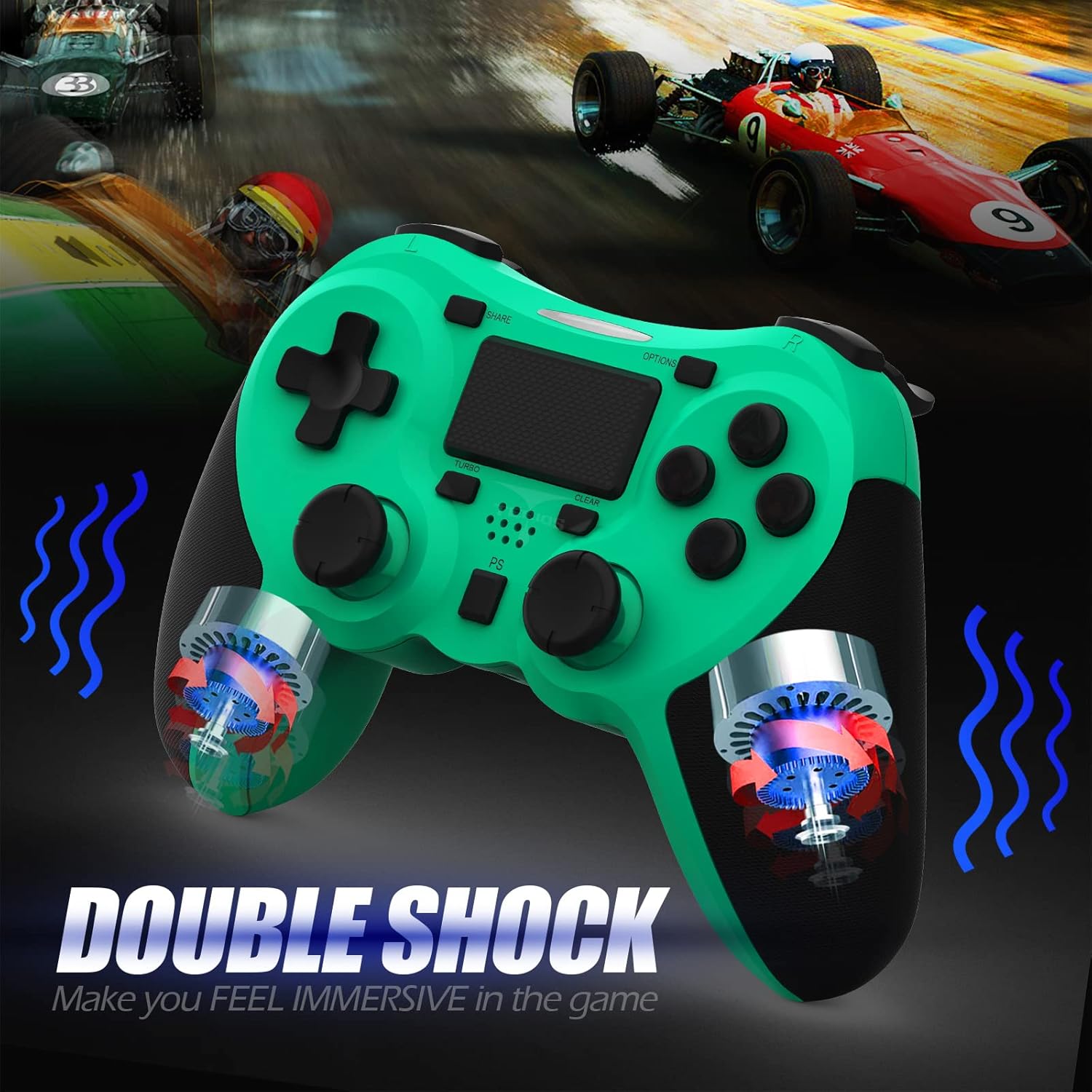
Aworan: inu view of the controller highlighting the double shock vibration motors, designed to provide immersive haptic feedback.
Eto Itọsọna
1. Gbigba agbara akọkọ
Before first use, fully charge the controller. Connect the supplied USB charging cable to the controller's micro USB port and the other end to a USB port on your PlayStation 4 console or a compatible USB wall adapter.
- Charging Time: Approximately 2-3 hours for a full charge.
- Battery Life: Up to 10-12 hours of continuous gameplay.
- Akoko Iduro: Titi di ọgbọn ọjọ.
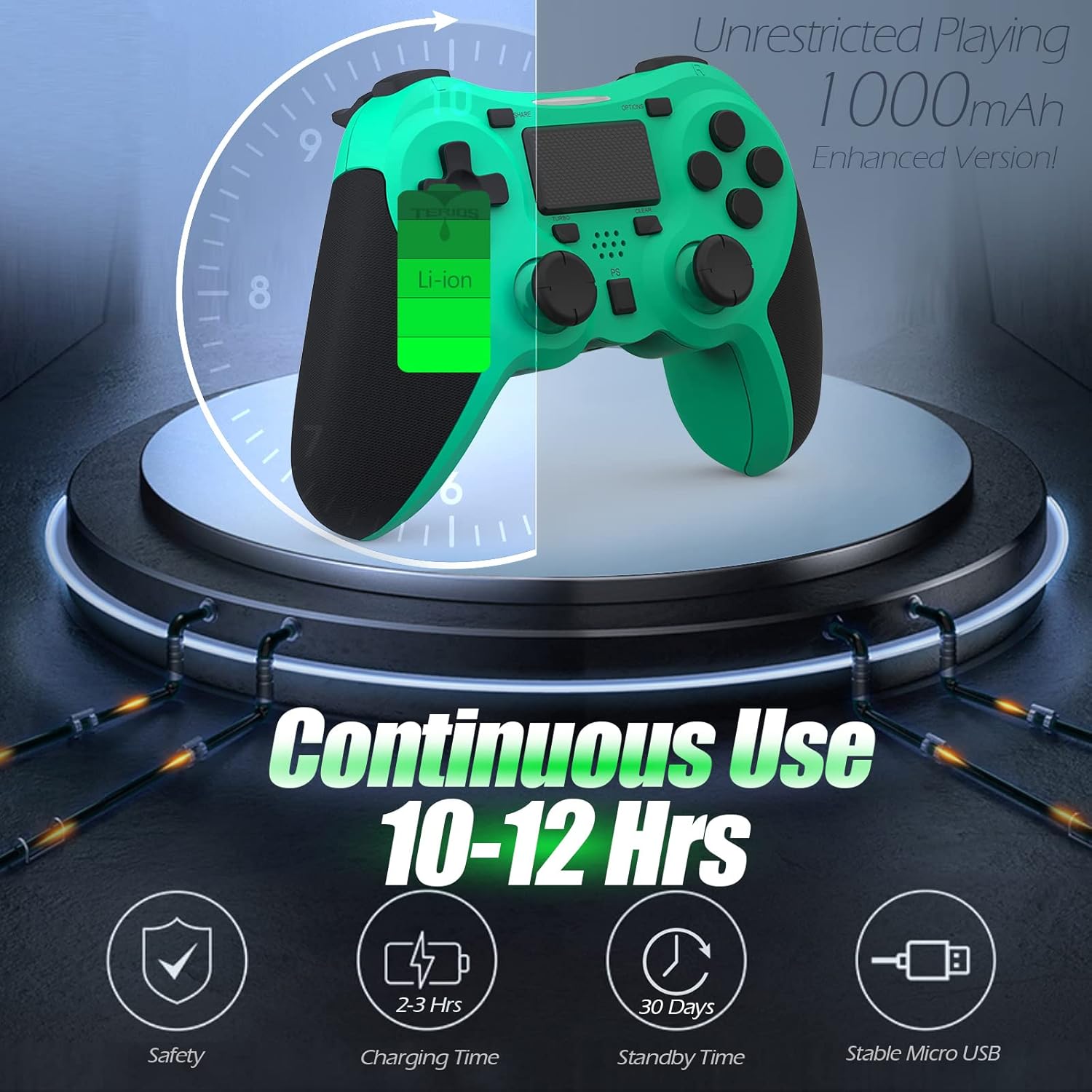
Image: A visual representation of the controller's 1000mAh battery, indicating 10-12 hours of continuous use, 2-3 hours charging time, and 30 days standby time.
2. Sopọ pẹlu PlayStation 4
Lati pa oluṣakoso pọ pẹlu console PS4 rẹ:
- Rii daju pe console PS4 rẹ ti wa ni titan.
- Connect the controller to the PS4 console using the USB charging cable.
- Tẹ awọn Bọtini PS (located in the center of the controller). The light bar on the controller will flash, then glow a solid color, indicating successful pairing.
- Ni kete ti a ba so pọ, o le ge asopọ okun USB fun ere alailowaya.
Akiyesi: If the controller does not pair, ensure it is charged and try connecting it to a different USB port on the console. For persistent issues, refer to the Troubleshooting section.
Awọn ilana Iṣiṣẹ
Awọn iṣakoso ipilẹ
| Ẹya ara ẹrọ | Išẹ |
|---|---|
| Bọtini PS | Powers on the controller, accesses the PS4 home screen, switches users, or turns off the console (long press). |
| Bọtini Pin | Accesses the Share menu to capture screenshots, record video clips, or broadcast gameplay. |
| Bọtini Awọn aṣayan | Pauses games, accesses in-game menus, or confirms selections. |
| Awọn bọtini itọsọna (D-paadi) | Navigates menus and provides directional input in games. |
| Awọn bọtini iṣe (Igun mẹta, Circle, Cross, Square) | Performs in-game actions, confirms, or cancels selections. |
| Left/Right Sticks (L3/R3) | Controls character movement, camera, or other analog inputs. Pressing down on the sticks activates L3/R3 buttons. |
| L1/R1 Buttons | Trigger various in-game actions, often for aiming or secondary functions. |
| L2/R2 Awọn okunfa | Analog triggers for actions like accelerating, braking, or firing weapons. |
| Multitouch Pad | Provides touch input for specific game interactions or navigation. |
| 3.5mm Agbekọri Jack | Connects compatible headsets for game audio and voice chat. |
Awọn iṣẹ pataki
Turbo Ẹya
The Turbo feature allows for rapid, continuous input of a button press, useful for actions like rapid firing in games.
- Tẹ mọlẹ Bọtini TURBO (located below the touchpad).
- While holding TURBO, press the action button you wish to apply the rapid-fire function to (e.g., Square, Cross, Circle, Triangle, L1, R1, L2, R2).
- Release both buttons. The selected action button will now continuously register presses as long as it is held down.
- To disable Turbo for a specific button, repeat the process: hold TURBO and press the button again.
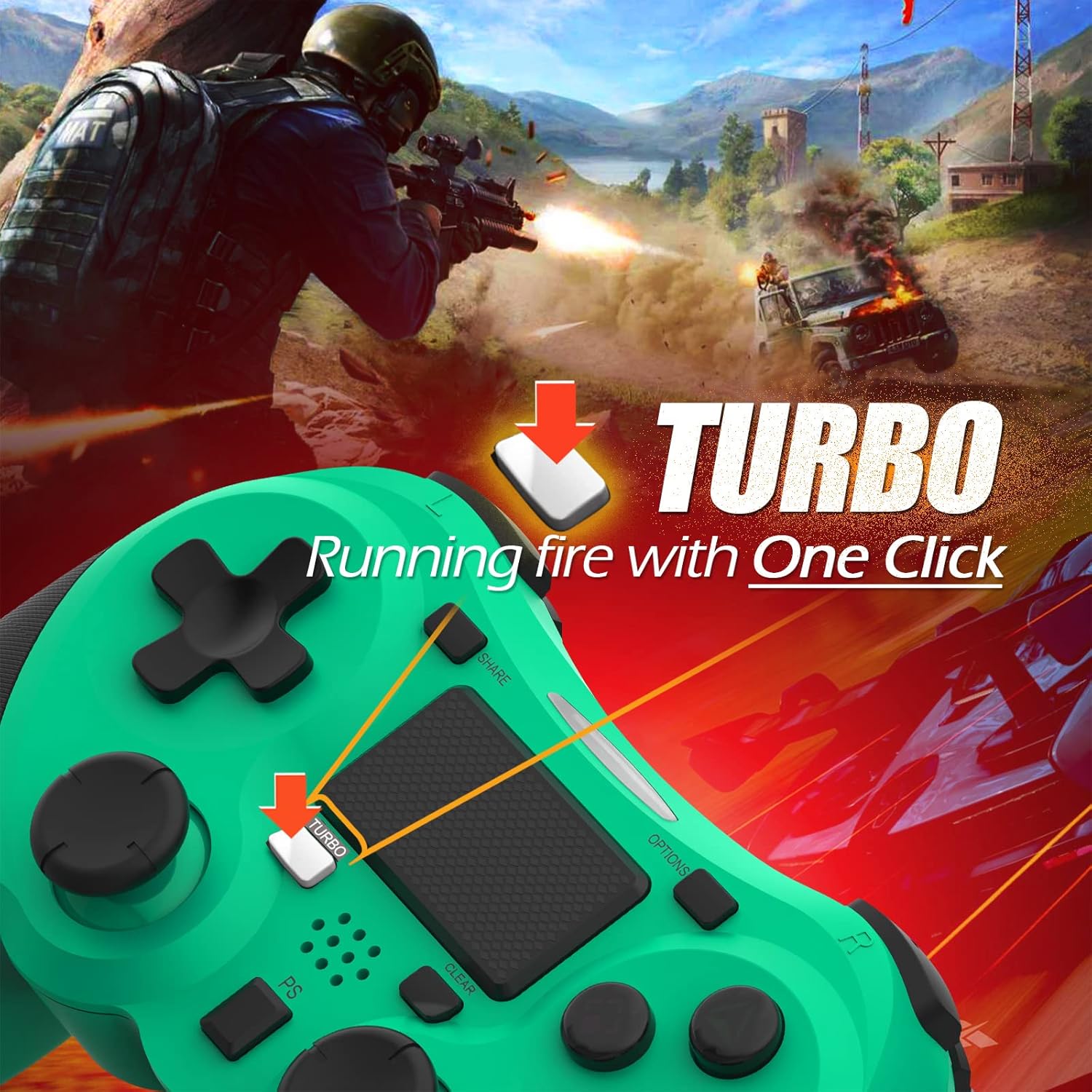
Image: A visual guide demonstrating how to activate the Turbo feature on the controller for rapid-fire actions.
Share Button Functionality
The SHARE button provides quick access to PS4's sharing features:
- Tẹ Nikan: Opens the Share menu, allowing you to save a screenshot, save a video clip, or start a broadcast.
- Long Tẹ: Takes a screenshot directly.
- Double Tẹ: Bẹrẹ/duro gbigbasilẹ fidio duro.
Itoju
Proper maintenance ensures the longevity and optimal performance of your TERIOS Wireless Controller.
Ninu
- Lo aṣọ rirọ ati gbigbẹ lati nu oju ẹrọ iṣakoso naa.
- Fun idoti alagidi, die-die dampen asọ pẹlu omi tabi a ìwọnba, ti kii-abrasive regede. Yago fun ọrinrin pupọ.
- Do not use harsh chemicals, solvents, or abrasive materials, as these can damage the controller's finish and internal components.
Ibi ipamọ
- Tọ́jú olùdarí náà sí ibi tí ó tutù tí ó sì gbẹ, tí kò sí ìmọ́lẹ̀ oòrùn tààrà, ooru líle, àti ọ̀rinrin gíga.
- Avoid placing heavy objects on the controller to prevent damage to buttons or analog sticks.
Itọju Batiri
- To preserve battery life, avoid fully discharging the controller frequently.
- Tí o bá ń tọ́jú rẹ̀ fún ìgbà pípẹ́, gba agbára bátìrì náà sí ìwọ̀n 50% kí o tó tọ́jú rẹ̀.
- Recharge the controller at least once every three months if not in use to prevent deep discharge.
Laasigbotitusita
If you encounter issues with your TERIOS Wireless Controller, please refer to the following common solutions:
Olùdarí Kò Sopọ̀/Sísopọ̀
- Ṣayẹwo Batiri: Ensure the controller is sufficiently charged. Connect it to the PS4 via USB cable to charge.
- Tun-meji: Connect the controller to the PS4 with the USB cable and press the PS button to re-establish the connection.
- Tun Oluṣakoso Tunṣe: Locate the small reset button hole on the underside of the controller (near the L2 button). Use a straightened paperclip or a similar thin object to press and hold the button for 3-5 seconds. This will reset the controller. After resetting, attempt to re-pair it with the PS4.
- Ìjánu: Move closer to the PS4 console to rule out wireless interference.
Buttons or Sticks Unresponsive/Lagging
- Tun Oluṣakoso Tunṣe: Perform a hard reset as described above.
- Mọ: Ensure no debris is lodged around the buttons or sticks. Clean the controller as per the Maintenance section.
- Firmware: Ensure your PS4 system software is up to date.
Gbigbọn ti o pọju
- Tun Oluṣakoso Tunṣe: A reset can often resolve unexpected vibration issues.
- Awọn Eto Ere: Check in-game settings for vibration intensity.
Awọn pato
| Iwa | Ẹ̀kúnrẹ́rẹ́ |
|---|---|
| Awoṣe | TERIOS 5S |
| ASIN | B09KLR5DCZ |
| Ibamu | PlayStation 4, PS4 Pro, PS4 Slim |
| Asopọmọra | Wireless (Bluetooth 4.2), USB |
| Batiri Iru | Litiumu polima (1 pẹlu) |
| Agbara Batiri | 1000mAh |
| Lemọlemọfún Lilo Aago | 10-12 wakati |
| Akoko gbigba agbara | 2-3 wakati |
| Akoko Iduro | Titi di ọjọ mẹwa 30 |
| Iwọn Nkan | 10.8 iwon (nipa 306 giramu) |
| Package Mefa | 6.69 x 5.24 x 2.72 inches |
| Olupese | TORIOS |
| Ọjọ Akọkọ Wa | Oṣu Kẹwa Ọjọ 28, Ọdun 2021 |
Atilẹyin ọja ati Support
TERIOS stands behind the quality of its products. This controller comes with a 1-odun atilẹyin ọja lati ọjọ rira, ibora awọn abawọn iṣelọpọ.
For customer support, technical assistance, or warranty claims, please contact TERIOS customer service through the platform where you purchased the product or visit the official TERIOS store page for contact information.
We are committed to providing premium customer support and ensuring your satisfaction with our products.
Ask a question about this manual
Ask about setup, troubleshooting, compatibility, parts, safety, or missing instructions. Manuals+ will review the question and use this page’s manual context to help answer it.