
1. Ifihan
This manual provides instructions for the Akko ACR61 61-Key 60% RGB Hot-swappable Wired Mechanical Gaming Keyboard. It covers setup, operation, maintenance, and troubleshooting to ensure optimal performance and longevity of your device.
The Akko ACR61 keyboard features a 60% layout, RGB backlighting, and hot-swappable switches, allowing for customization and enhanced typing experiences. It utilizes PBT double-shot keycaps for durability and N-key rollover for precise input.
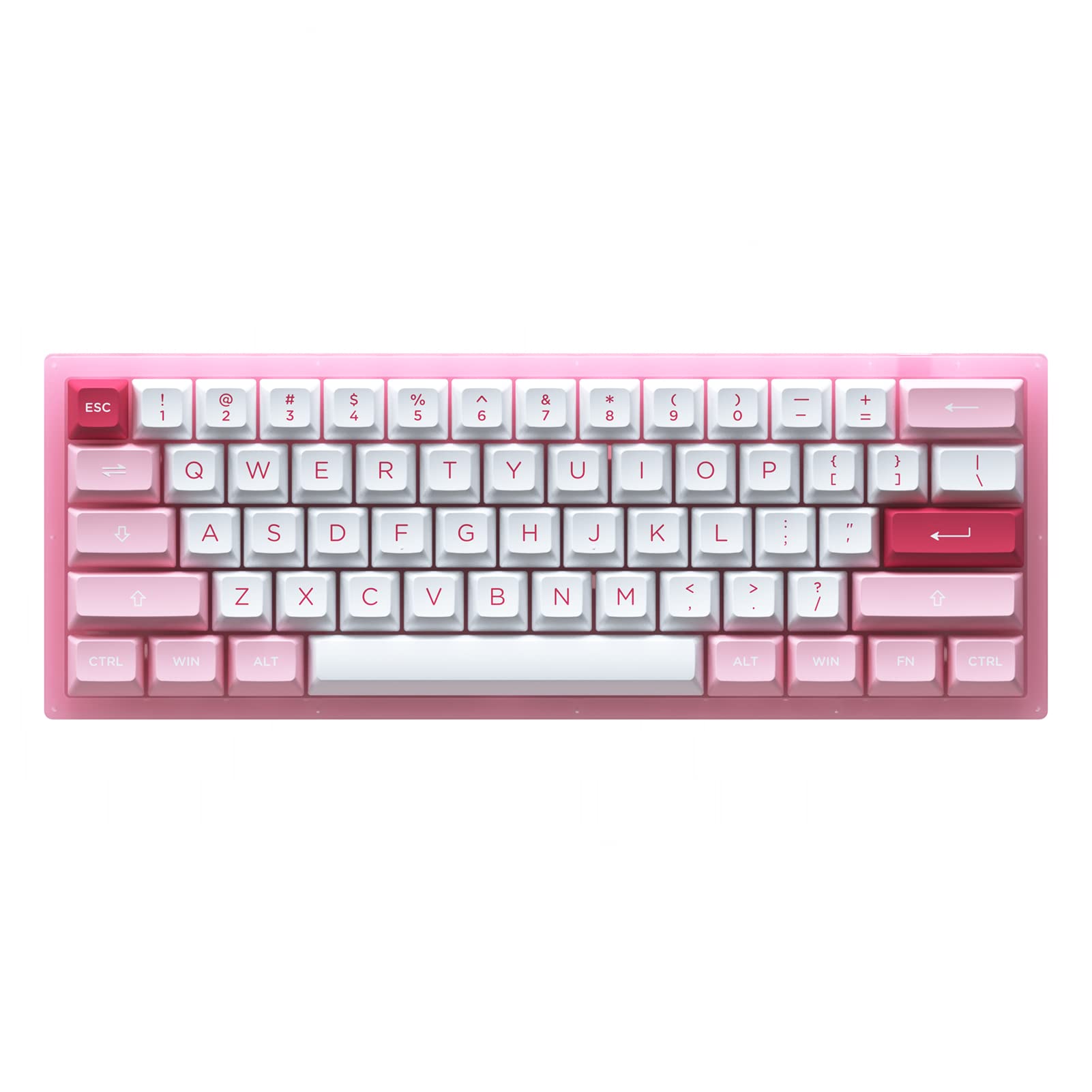
Image 1.1: Akko ACR61 keyboard showcasing the Prunus Lannesiana design and Jelly Pink switches.
2. Eto
2.1 Package Awọn akoonu
- Akko ACR61 Mechanical Keyboard
- USB-C si okun USB-A
- Keycap Puller
- Yipada Puller
- Additional Keycaps (if included)
2.2 Nsopọ Keyboard
- Locate the USB-C port on the back or side of the Akko ACR61 keyboard.
- So opin USB-C ti okun ti a pese si keyboard.
- Connect the USB-A end of the cable to an available USB port on your computer or device.
- The keyboard will be automatically recognized by most operating systems. No additional drivers are typically required for basic functionality.
3. Awọn ilana Iṣiṣẹ
3.1 Ipilẹ Key Awọn iṣẹ
The Akko ACR61 is a 60% keyboard, meaning some functions are accessed via the 'Fn' key combined with other keys. Refer to the keycap legends for specific Fn combinations.
- Fn + [Kọ́kọ́rọ́]: Accesses secondary functions printed on the front or side of keycaps (e.g., arrow keys, F-row keys, multimedia controls).
- N-Key Rollover (NKRO): The keyboard supports simultaneous key presses without conflicts, which is beneficial for fast typing and gaming.
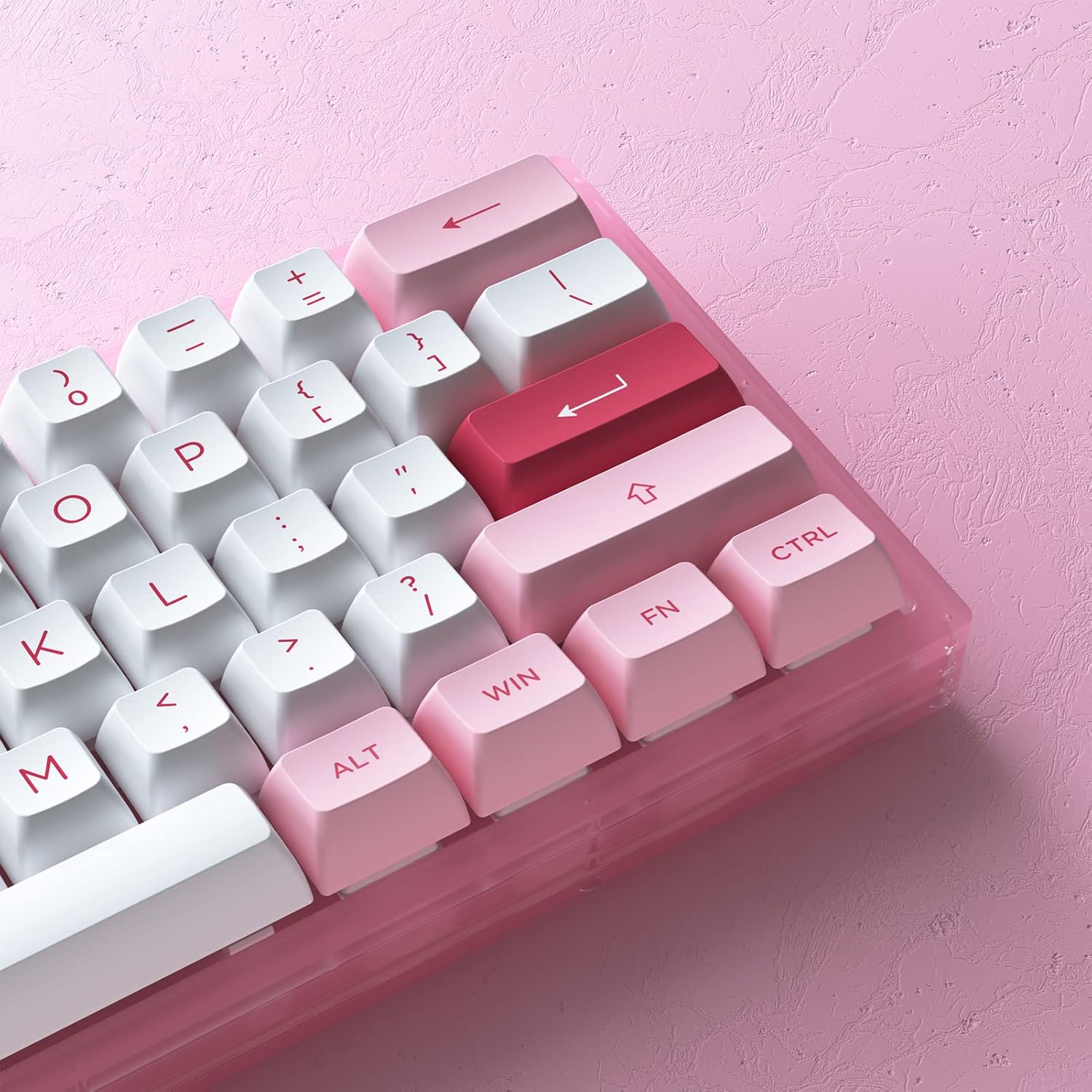
Aworan 3.1: Isunmọ view of the Akko ACR61 keycaps, illustrating primary and secondary functions.
3.2 RGB Backlighting Iṣakoso
The keyboard features built-in RGB backlighting with customizable light animation effects. Specific key combinations, often involving the 'Fn' key, are used to cycle through lighting modes, adjust brightness, and change colors.
- Fn + [Kọ́kọ́rọ́]: Typically used to change RGB effects, speed, or direction. Consult the keyboard's specific keycap legends or software for exact combinations.
- LED underglow: The keyboard also features underglow LED lighting, which can be controlled independently or in conjunction with the main RGB backlighting.
3.3 Programmability
The Akko ACR61 keyboard is programmable, allowing users to remap keys and create macro sequences. This functionality is typically managed through dedicated software provided by Akko. Keys used for controlling Macro mode (Esc/Win/Fn) cannot be remapped.
- Iyipada bọtini: Assign different functions to individual keys.
- Makiro Gbigbasilẹ: Record a sequence of keystrokes and assign it to a single key for quick execution.
4. Itọju
4.1 Ninu Keyboard
Mimọ deede ṣe iranlọwọ lati ṣetọju irisi ati iṣẹ-ṣiṣe keyboard.
- Ge asopọ keyboard kuro lati kọmputa rẹ.
- Lo búrọ́ọ̀ṣì rírọ̀ tàbí afẹ́fẹ́ tí a fi ìfúnpọ̀ mú láti mú eruku àti ìdọ̀tí kúrò láàárín àwọn ìbòrí kọ́kọ́rọ́ náà.
- For keycap cleaning, gently remove keycaps using a keycap puller. Wash them with mild soap and water, then ensure they are completely dry before reattaching.
- Nu ojú keyboard náà pẹ̀lú d díẹ̀amp, lint-free asọ. Yago fun ọrinrin pupọ.
4.2 Gbona-Swappable Yipada
The Akko ACR61 features premium TTC gaming 5-pin hot-swappable sockets, allowing you to change switches without soldering.

Image 4.1: A Jelly Pink mechanical switch, illustrating the hot-swappable design.
- Yiyọ a Yipada: Use the provided switch puller to carefully grip the top and bottom clips of the switch. Gently pull the switch straight up and out of the socket. Avoid bending the pins.
- Installing a Switch: Align the pins of the new switch with the holes in the PCB socket. Ensure the pins are straight. Gently push the switch straight down until it clicks into place. Do not force the switch; if resistance is met, check pin alignment.
5. Laasigbotitusita
5.1 Keyboard Ko fesi
- Rii daju pe okun USB ti sopọ ni aabo si keyboard mejeeji ati kọnputa naa.
- Gbiyanju lati so keyboard pọ mọ ibudo USB ti o yatọ lori kọnputa rẹ.
- Ṣe idanwo keyboard lori kọnputa miiran lati ṣe akoso awọn ọran kan pato eto.
- Ti o ba nlo ibudo USB, gbiyanju lati sopọ taara si kọnputa naa.
5.2 RGB Lighting Not Working or Incorrect
- Rii daju pe keyboard ti sopọ daradara ati agbara.
- Use the designated Fn key combinations to cycle through lighting modes or adjust brightness.
- If using Akko software, ensure it is running and configured correctly.
5.3 Àwọn Kọ́kọ́rọ́ Pàtàkì Tí Kò Ń Ṣiṣẹ́
- For hot-swappable switches, carefully remove the keycap and then the switch for the affected key. Reinstall the switch, ensuring the pins are straight and fully seated.
- Test with a known working switch in the problematic socket to determine if the issue is with the switch or the socket.
- Ensure no debris is obstructing the switch mechanism.
6. Awọn pato
| Ẹya ara ẹrọ | Ẹ̀kúnrẹ́rẹ́ |
|---|---|
| Awoṣe | ACR61 |
| Ìfilélẹ | 61-Key (60%) |
| Asopọmọra | Ti firanṣẹ (USB-C) |
| Yipada | Hot-swappable TTC Gaming 5-pin sockets (Jelly Pink Switches included) |
| Awọn bọtini itẹwe | PBT Double Shot ASA Profile |
| Imọlẹ afẹyinti | RGB with Underglow LED |
| Anti-Ghosting | N-Key Rollover (NKRO) |
| Eto siseto | Yes (via software, excluding Esc/Win/Fn) |
| Ohun elo | Polybutylene Terephthalate (Keycaps) |
| Iwọn Nkan | 15.5 iwon |
| Package Mefa | 13.7 x 8.78 x 1.93 inches |
7. Atilẹyin ọja ati Support
For warranty information and technical support, please refer to the official Akko webojula tabi kan si wọn onibara iṣẹ taara. Jeki ẹri rira rẹ fun eyikeyi awọn ibeere atilẹyin ọja.
Official Akko Store: Akko Store on Amazon