
1. Ọja Ipariview
The Macally BTNUMKEYPROSG is a slim, aluminum, rechargeable wireless numeric keypad designed to enhance data entry efficiency. It features a 35-key layout with additional shortcut and arrow keys, offering broad compatibility across various operating systems and devices.

Aworan 1.1: Oke view of the Macally Bluetooth Number Pad.
2. Package Awọn akoonu
Jẹrisi pe package rẹ ni awọn nkan wọnyi ninu:
- Macally BTNUMKEYPROSG Bluetooth Number Pad
- USB-C Ngba agbara Cable
- Afowoyi Olumulo (iwe-ipamọ yii)
3. Eto ati Sisopọ
3.1 Gbigba agbara akọkọ
Before first use, fully charge the number pad. Connect the supplied USB-C cable to the charging port on the number pad and the other end to a USB power source (e.g., computer USB port, USB wall adapter).

Image 3.1: The USB-C charging port and cable connection on the number pad.
3.2 Titan / Pa a
Locate the ON/OFF switch on the side of the number pad. Slide the switch to the 'ON' position to power on the device. Slide it to 'OFF' to conserve battery when not in use.
3.3 Sisopọ Bluetooth
Follow these steps to pair your number pad with your device:
- Ensure the number pad is charged and powered on.
- Tẹ mọlẹ Tọkọtaya button on the side of the number pad until the Bluetooth indicator light begins to flash. This indicates the number pad is in pairing mode.
- Lori kọmputa rẹ, tabulẹti, tabi foonuiyara, lilö kiri si awọn eto Bluetooth.
- Mu Bluetooth ṣiṣẹ ki o wa awọn ẹrọ to wa.
- Select "Macally BTNUMKEYPROSG" (or similar name) from the list of found devices.
- Follow any on-screen prompts to complete the pairing process. The Bluetooth indicator light on the number pad will stop flashing and remain solid or turn off once successfully paired.
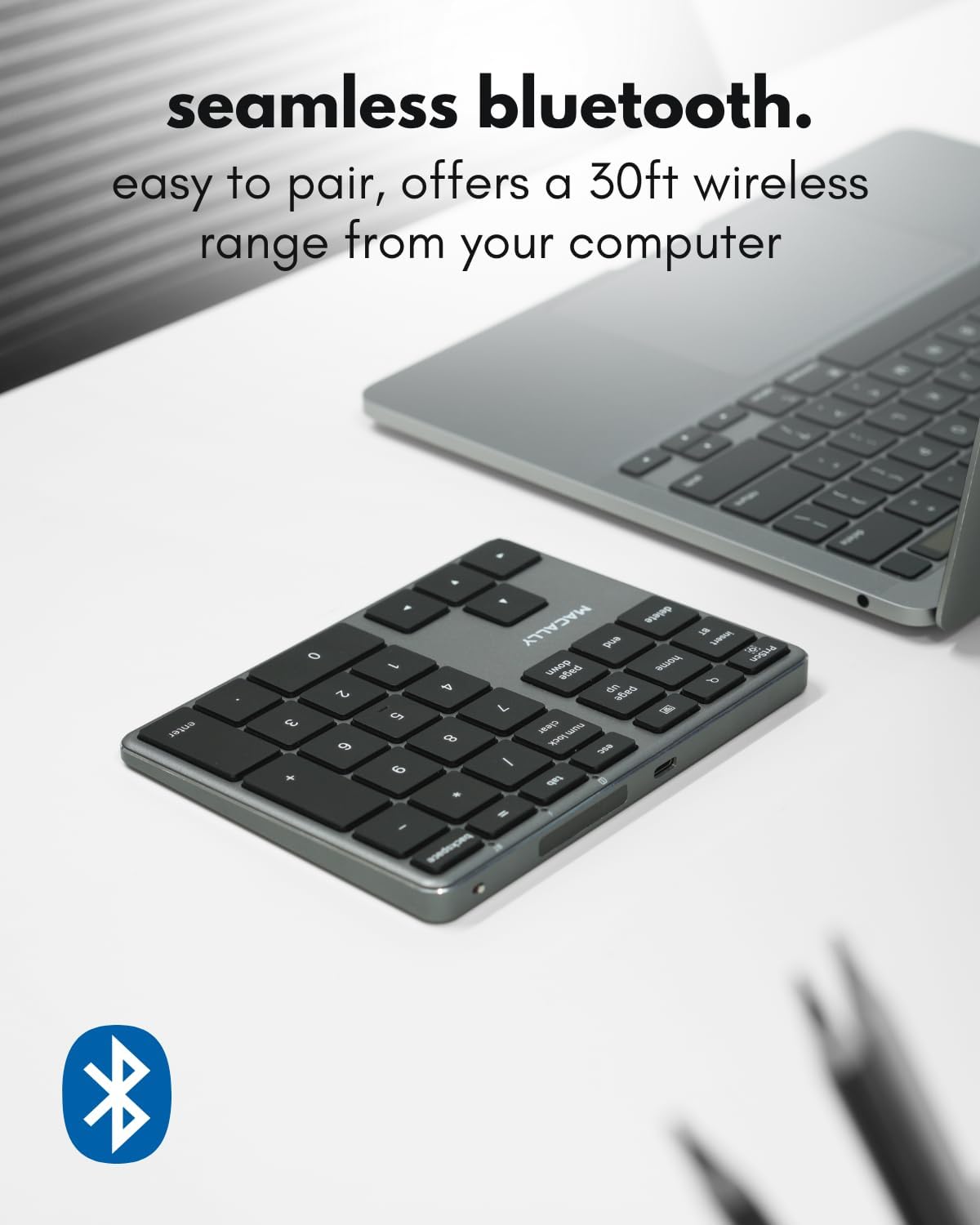
Image 3.2: The number pad connected wirelessly to a laptop.
4. Awọn ilana Iṣiṣẹ
4.1 Awọn iṣẹ bọtini
The number pad features a 35-key layout, including numeric keys, arithmetic operators, and dedicated shortcut keys. These keys are designed for efficient data entry and navigation.

Image 4.1: A user operating the number pad for data entry.
4.2 Shortcut and Arrow Keys
The number pad includes 6 shortcut keys and 4 arrow keys to improve workflow and navigation:
- Ile, Ipari, Oju-iwe Soke, Oju-iwe isalẹ: For quick document navigation.
- Paarẹ, Aaye ẹhin: Standard editing functions.
- Awọn bọtini itọka: For precise cursor movement.
- Num Lock / Clear: Toggles numeric keypad function or clears input.
4.3 Ibamu
The Macally BTNUMKEYPROSG is compatible with Bluetooth-enabled devices running the following operating systems:
- Mac OS X 10.6 Snow Leopard or later (including macOS)
- Windows 10 tabi nigbamii
- iOS (iPad, iPhone)
- Android

Image 4.2: The number pad demonstrating universal compatibility with various operating systems.
4.4 Ergonomics and Portability
The number pad features a slim and sloped design for comfortable use, reducing wrist strain during extended periods of data entry. Its compact size makes it easy to transport.

Aworan 4.3: Ẹgbẹ profile of the number pad, highlighting its ergonomic angle.

Image 4.4: The compact number pad fitting easily into a bag for portability.
5. Itọju
5.1 Batiri ati Ngba agbara
The number pad is equipped with a built-in 300mAh rechargeable battery. A full charge provides approximately one month of use, depending on usage frequency. Recharge the device using the provided USB-C cable when the battery low indicator appears or when performance degrades.
5.2 Ninu
To clean the number pad, power it off and disconnect any cables. Use a soft, lint-free cloth slightly dampened with water or a mild cleaning solution. Avoid excessive moisture and harsh chemicals.
6. Laasigbotitusita
If you encounter issues with your Macally Bluetooth Number Pad, refer to the following common solutions:
| Isoro | Ojutu |
|---|---|
| Nọmba paadi ko ni agbara lori. | Ensure the ON/OFF switch is in the 'ON' position. Charge the device using the USB-C cable. |
| Kò le sopọ̀ mọ́ ara wọn nípasẹ̀ Bluetooth. | Ensure the number pad is in pairing mode (flashing Bluetooth indicator). Check that Bluetooth is enabled on your host device. Remove any previous pairings of the number pad from your device's Bluetooth list and attempt to pair again. Ensure the number pad is within the 30ft wireless range. |
| Awọn bọtini ko dahun tabi titẹ ni aṣiṣe. | Ensure the number pad is fully charged and properly paired. Try turning the number pad off and on again. Re-pair the device if necessary. Check for any physical obstructions under the keys. |
| Aye batiri ti ko dara. | Ensure the number pad is fully charged before use. Turn off the number pad using the ON/OFF switch when not in use to conserve battery. |
Video 6.1: An official product video demonstrating the Macally Bluetooth Number Pad's features and functionality.
7. Awọn pato
| Ẹya ara ẹrọ | Ẹ̀kúnrẹ́rẹ́ |
|---|---|
| Brand | Macally |
| Nọmba awoṣe | BTNUMKEYPROSG |
| Asopọmọra Technology | Bluetooth |
| Nọmba ti Awọn bọtini | 35 |
| Yipada Iru | Scissor Switch, Tactile |
| Ohun elo | Aluminiomu |
| Orisun agbara | Batiri gbigba agbara (300mAh) |
| Awọn iwọn Ọja (L x W x H) | 5.7" x 4.5" x 0.47" |
| Ibamu Awọn ọna ṣiṣe | Mac OS X 10.6+, Windows 10+, iOS, Android |
| Pataki Awọn ẹya ara ẹrọ | Fẹ́ẹ́rẹ́fẹ́, Gbé, A lè gba agbára padà |
8. Atilẹyin ọja ati Support
Macally products are designed for reliability and performance. For warranty information or technical support, please refer to the official Macally webojula tabi kan si wọn onibara iṣẹ taara. Tọju iwe-ẹri rira rẹ fun awọn ẹtọ atilẹyin ọja.