
1. Ifihan
The FLYDIGI Vader 2 Pro is a versatile wireless game controller designed for an enhanced gaming experience across multiple platforms. This manual provides essential instructions for setting up, operating, and maintaining your controller.
The controller is compatible with Nintendo Switch, iOS, PC, and Android devices, offering a seamless transition between your preferred gaming systems.
2. Ọja Ipariview
The Vader 2 Pro controller integrates advanced features to optimize gameplay. Key components include dual vibration motors, a 6-axis gyroscope for motion sensing, and customizable RGB lighting.

Aworan 2.1: Iwaju view of the FLYDIGI Vader 2 Pro Game Controller, showcasing apẹrẹ ergonomic rẹ ati ipilẹ bọtini.
Awọn ẹya pataki:
- Ibamu Olona Platform: Supports Nintendo Switch, iOS, PC, and Android.
- Awọn ọkọ ayọkẹlẹ gbigbọn Meji: Provides immersive haptic feedback with 3 adjustable levels.
- Gyroscope Apá 6: Enables precise motion sensing for compatible games.
- Imọlẹ RGB ti a ṣe asefara: Personalize the controller's aesthetic with millions of color options.
- Configurable Buttons: Four additional M1-M4 buttons on the rear for personalized controls.
- Awọn ọna asopọ pupọ: Bluetooth, 2.4GHz wireless (with dongle), and wired USB connection.

Image 2.2: The Vader 2 Pro controller shown with various compatible devices including a Nintendo Switch, PC laptop, iOS phone, and Android phone, illustrating its multi-platform support.

Image 2.3: The controller highlighting its built-in 6-axis gyro sensor for motion control.
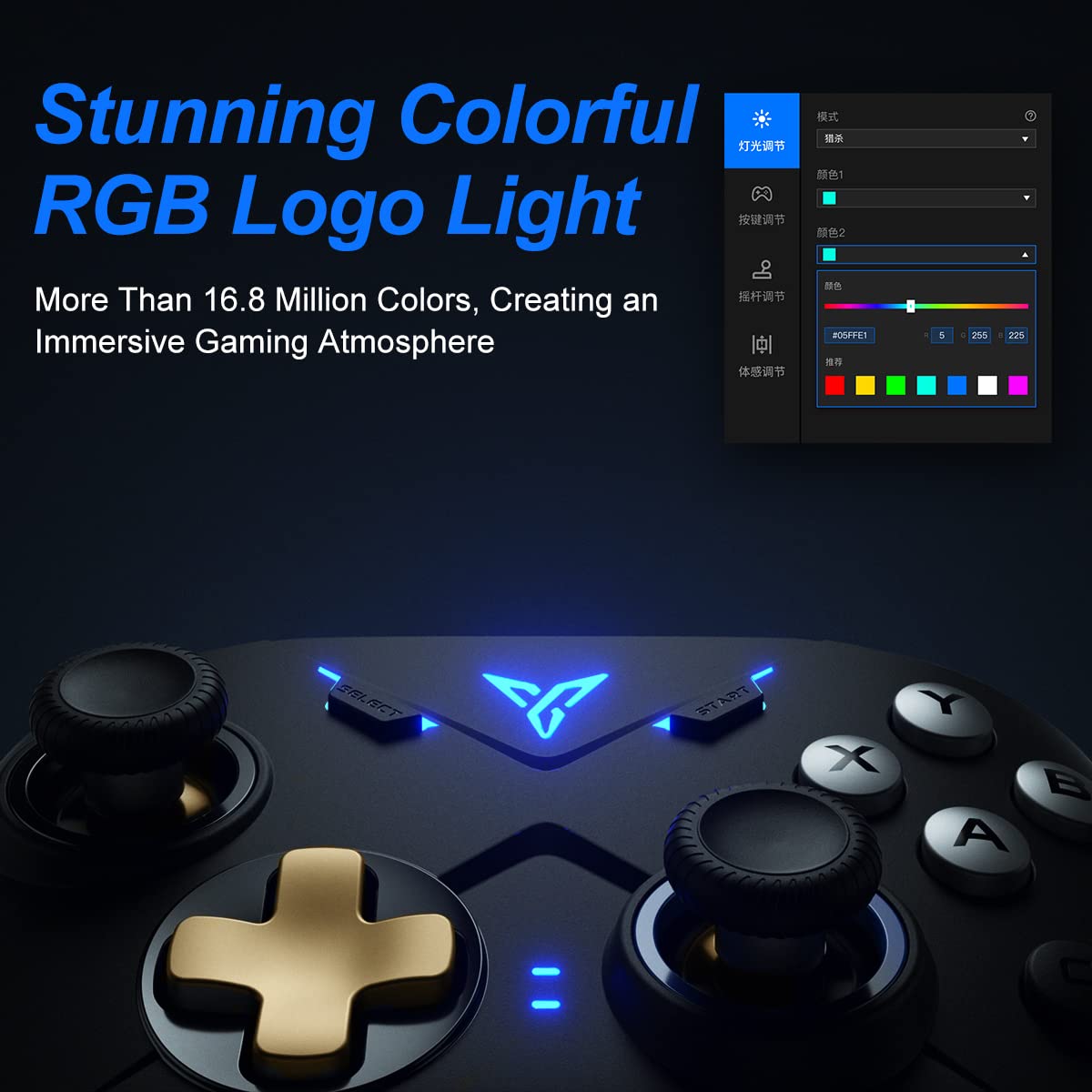
Image 2.4: Close-up of the controller's RGB logo light, demonstrating its customizable color options.

Aworan 2.5: Ẹyin view of the controller, showing the M1-M4 configurable buttons for personalized gameplay.

Image 2.6: Illustration of the controller's asymmetric dual motor design, indicating vibration feedback.
3. Eto ati Asopọ
The Vader 2 Pro controller offers multiple connection methods depending on your gaming platform. Refer to the table below for specific instructions.

Image 3.1: A table detailing connection instructions for Phone/Tablet, PC/Mac, and Nintendo Switch.
Awọn itọnisọna Asopọmọra:
| Ilana | Connect to Phone/Tablet | Connect to PC/Mac | Sopọ si Yipada |
|---|---|---|---|
| Ọna iyipada | Press "+" and "B" buttons simultaneously for 3 seconds. | Press "+" and "A" buttons simultaneously for 3 seconds. | Press "+" and "X" buttons simultaneously for 3 seconds. |
| Ọna asopọ | Bluetooth asopọ | 2.4GHz connector connection or USB wired connection | Bluetooth asopọ |
| Ipo atilẹyin | Ipo Bluetooth | 360 mode, Android mode (Press "+" and "SELECT" to switch) | Ipo yipada |
| Ipo Imọlẹ Atọka | No. 1 Indicator light on blue | No. 1 Indicator light on white (No. 2 red for Android mode) | No. 1 Indicator light on orange |
Additional Connection Notes:
- For PC/Mac, a 2.4GHz USB dongle is included for wireless connection. A USB-C to A cable is also provided for wired play.
- Ensure your device's Bluetooth is enabled when connecting wirelessly to phones, tablets, or Nintendo Switch.
- For iOS devices running iOS 13.4 or higher, follow the specific pairing instructions: Press and hold '+' and 'C' until the first light blinks orange and the second light stays red. Then, long press '+' for more than 3 seconds until the first light flashes orange. Go to your iOS Bluetooth settings and select the device to connect.

Image 3.2: The included USB wireless dongle and USB-C charging/data cable.
4. Awọn ilana Iṣiṣẹ
4.1. Button Mapping and Customization
The FLYDIGI Vader 2 Pro controller supports extensive customization through the dedicated FLYDIGI PC Space Station software. This software allows you to:
- Remap buttons, including the M1-M4 rear buttons.
- Adjust joystick curves for precision control.
- Fine-tune motion sensing sensitivity.
- Program macro combos for complex actions.
- Change RGB light settings and effects.
Up to 4 sets of custom configurations can be saved directly on the controller. Download the software from the official FLYDIGI webojula: flydigi.com/index/down?nav_id=2
4.2. Motion Sensing
The integrated 6-axis gyroscope provides accurate motion control in games that support this feature, enhancing your interactive experience.
4.3. Ìròyìn nípa gbígbìjìn
The asymmetric dual vibration motors offer tactile feedback. You can adjust the vibration intensity to one of three levels to suit your preference.
4.4. Imọlẹ RGB
The controller features a customizable RGB logo light, offering over 16.8 million colors. Use the FLYDIGI PC Space Station software to select your preferred lighting modes and colors.
5. Gbigba agbara ati batiri Life
The Vader 2 Pro controller is equipped with a rechargeable battery designed to provide up to 80 hours of gameplay on a single charge. To charge the controller, connect it to a USB power source using the provided USB-C cable.

Image 5.1: The controller positioned above a charging indicator, symbolizing its rechargeable battery.
Akiyesi: Actual battery life may vary based on usage patterns, vibration intensity, and RGB lighting settings.
6. Laasigbotitusita
If you encounter issues with your FLYDIGI Vader 2 Pro controller, refer to the following common solutions:
- Alakoso Ko Sopọ:
- Ensure the controller is in the correct switching mode for your platform (Phone/Tablet, PC/Mac, Switch) as per Section 3.
- Verify that Bluetooth is enabled on your device or that the 2.4GHz dongle is properly inserted into your PC/Mac.
- Gbiyanju lati tun ẹrọ ati oludari naa bẹrẹ.
- For PC connections, if Bluetooth fails, try using the 2.4GHz dongle or a wired USB connection.
- Buttons Not Responding/Mapping Issues:
- Ensure the FLYDIGI PC Space Station software is correctly installed and updated.
- Check your custom profiles within the software to ensure buttons are mapped as intended.
- Reset the controller to factory settings if custom mappings are causing issues (refer to software documentation for this process).
- Igbesi aye batiri kukuru:
- Rii daju pe oludari ti gba agbara ni kikun ṣaaju lilo.
- Reduce vibration intensity or RGB lighting brightness/effects to conserve battery power.
- Tí agbára bátìrì bá ń dínkù ní pàtàkì bí àkókò ti ń lọ, kan si ìrànlọ́wọ́ àwọn oníbàárà.
- Unstable Wireless Connection:
- Ensure there are no significant obstructions or sources of interference between the controller and your device/dongle.
- Keep the controller within the recommended operating range.
- Update controller firmware via the FLYDIGI PC Space Station software.
7. Awọn pato
| Ẹya ara ẹrọ | Ẹ̀kúnrẹ́rẹ́ |
|---|---|
| Nọmba awoṣe | VADER2PRO |
| ASIN | B09LCYB48V |
| Ọja Mefa | 3.5 x 7.59 x 5.5 inches |
| Iwọn Nkan | 15.84 iwon |
| Asopọmọra | Bluetooth, 2.4GHz Wireless, USB Wired |
| Ibamu | Nintendo Switch, iOS, PC, Android |
| Pataki Awọn ẹya ara ẹrọ | Dual Vibration Motors, 6-Axis Gyroscope, RGB Lighting, Configurable M1-M4 Buttons |
| Igbesi aye batiri | Titi di wakati 80 (isunmọ) |
| Ọjọ Akọkọ Wa | Oṣu kejila ọjọ 21, ọdun 2021 |
8. Itọju
To ensure the longevity and optimal performance of your FLYDIGI Vader 2 Pro controller, follow these maintenance guidelines:
- Ninu: Lo asọ asọ ti o gbẹ lati nu oludari naa. Yago fun lilo awọn kẹmika lile tabi awọn ohun elo abrasive.
- Ibi ipamọ: Tọju olutọju naa ni itura, aye gbigbẹ kuro lati orun taara ati awọn iwọn otutu to gaju.
- Mimu: Yẹra fún fífi olùdarí náà sílẹ̀ tàbí kí o fi sí àwọn ipa líle, nítorí pé èyí lè ba àwọn ẹ̀yà ara inú jẹ́.
- Gbigba agbara: Do not overcharge the battery. Disconnect the charging cable once the controller is fully charged.
9. Atilẹyin ọja ati Support
For warranty information, technical support, or further assistance, please visit the official FLYDIGI webojula tabi kan si wọn onibara iṣẹ. Tọju iwe-ẹri rira rẹ fun awọn ẹtọ atilẹyin ọja.
Official FLYDIGI Webojula: www.flydigi.com