
Ọrọ Iṣaaju
Thank you for choosing the Galax Slider-04 Optical Wired Gaming Mouse. This manual provides essential information for setting up, operating, maintaining, and troubleshooting your new gaming mouse. Please read it carefully to ensure optimal performance and longevity of your device.
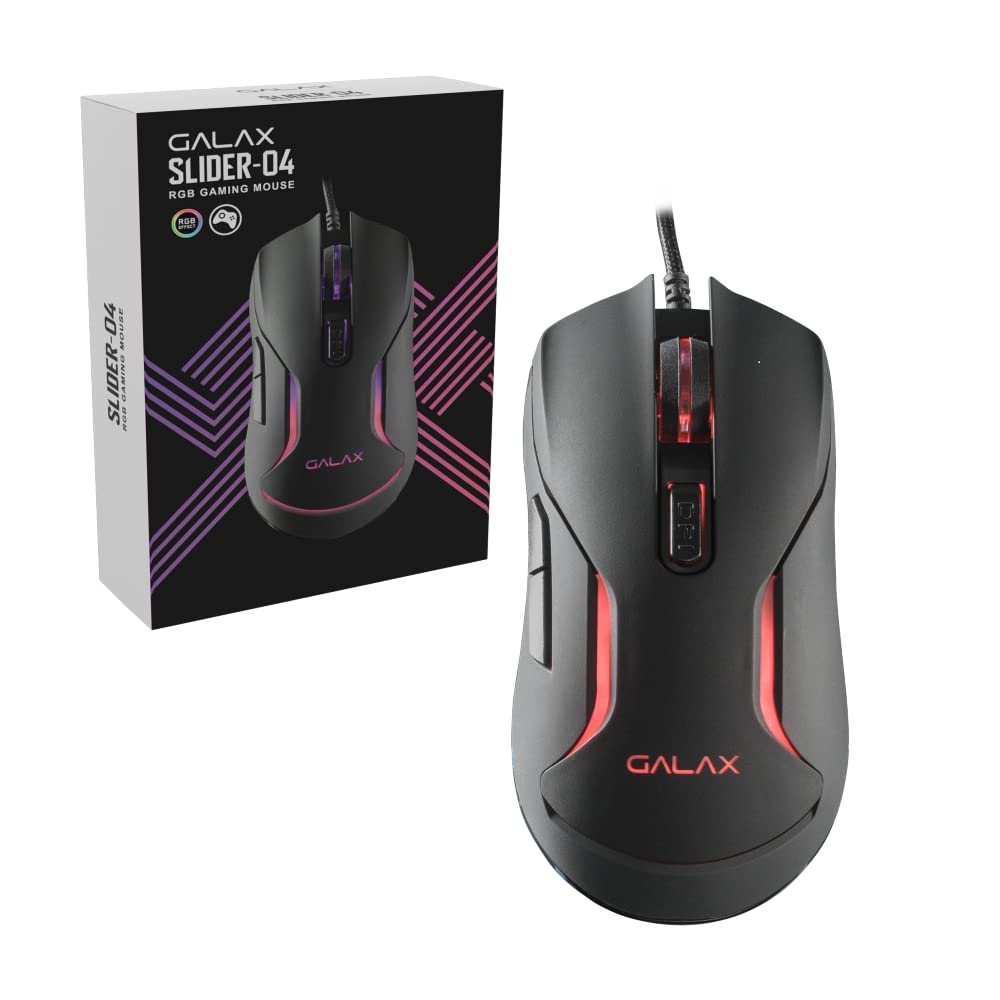
Aworan: Oke view of the Galax Slider-04 Optical Wired Gaming Mouse, showcasing apẹrẹ ergonomic rẹ ati kẹkẹ yiyi aarin.
Ṣeto
The Galax Slider-04 Gaming Mouse is designed for simple plug-and-play functionality, requiring no additional software installation for basic use.
- Yọ Asin naa kuro: Fara yọ asin kuro ninu apoti rẹ.
- Sopọ si Kọmputa: Plug the USB connector of the mouse into an available USB port on your desktop, laptop, or PC.
- Idanimọ eto: Your operating system (Windows, macOS, Unix) will automatically detect and install the necessary drivers. This process usually takes a few seconds.
- Ṣetan fun Lilo: Ni kete ti awọn awakọ ti fi sii, asin naa ti ṣetan fun lilo lẹsẹkẹsẹ.

Image: The Galax Slider-04 mouse with its braided USB cable, ready for connection to a computer.
Awọn ilana Iṣiṣẹ
The Galax Slider-04 features multiple buttons and customizable settings to enhance your gaming and productivity experience.
Awọn iṣẹ bọtini
The mouse is equipped with 6 function keys for versatile control:
- 1. Left Mouse Button: Standard jc iṣẹ tẹ.
- 2. Right Mouse Button: Standard secondary click function (context menu).
- 3. Kẹ̀kẹ́ Yípo: Scrolls up/down, and acts as a middle click button.
- 4. Forward Button: Lilọ siwaju sinu web aṣàwákiri tabi file oluwadi.
- 5. Bọtini Pada: Lilọ kiri sẹhin sinu web aṣàwákiri tabi file oluwadi.
- 6. Bọ́tìnì DPI: Awọn iyipo nipasẹ awọn eto ifamọ DPI.

Image: A detailed diagram illustrating the location and numbering of the 6 function keys on the Galax Slider-04 mouse.
DPI Atunṣe
Adjust the mouse sensitivity (DPI) to match your preference and task requirements. The Slider-04 offers four preset DPI levels:
- 1000 DPI
- 1600 DPI
- 3200 DPI
- 6400 DPI
Tẹ awọn DPI bọtini (Button 6) located behind the scroll wheel to cycle through these settings. Each change will typically be indicated by a change in the mouse's RGB lighting color.

Image: Visual representation of the four selectable DPI settings available on the Galax Slider-04 mouse.
RGB LED ina
The Galax Slider-04 features dynamic RGB LED lighting that enhances your gaming setup's aesthetics. The lighting effects cycle automatically, often changing color to indicate the current DPI setting.
Video: A short demonstration of the Galax Slider-04 mouse's RGB LED lighting effects, showcasing the dynamic color changes.

Image: The Galax Slider-04 mouse displayed with various RGB color presets, illustrating the range of lighting options.
Apẹrẹ Ergonomic
The mouse is designed with ergonomics to provide comfort and reduce hand fatigue during prolonged use. Its shape supports both fingertip and claw grip styles, promoting a natural hand posture.

Image: A diagram demonstrating how the ergonomic design of the Galax Slider-04 mouse accommodates both fingertip and claw grip styles.
Itoju
Proper care will extend the life and performance of your Galax Slider-04 Gaming Mouse.
- Ninu: Lo asọ ti o rọ, ti o gbẹ lati nu dada ti Asin naa. Fun idoti alagidi, die-die dampen awọn asọ pẹlu omi. Yẹra fun awọn kẹmika lile tabi awọn afọmọ abrasive.
- Sensọ Ojú: Jeki sensọ opiti ti o wa ni abẹlẹ ti Asin mọ ati ofe kuro ninu eruku tabi idoti lati rii daju titele deede.
- Itọju USB: Avoid sharply bending or twisting the braided USB cable. Store the cable neatly to prevent tangling and damage.
- Ibi ipamọ: Nigbati o ko ba si ni lilo, tọju asin naa sinu mimọ, agbegbe gbigbẹ kuro ni iwọn otutu to gaju.
Laasigbotitusita
If you encounter issues with your Galax Slider-04 Gaming Mouse, refer to the following common solutions:
- Mouse Not Detected:
- Rii daju pe okun USB ti wa ni edidi ni aabo sinu ibudo USB ti n ṣiṣẹ.
- Gbiyanju yiyi asin sinu ibudo USB ti o yatọ lori kọnputa rẹ.
- Tun kọmputa rẹ bẹrẹ.
- Ṣàyẹ̀wò Olùṣàkóso Ẹ̀rọ (Windows) tàbí Ìwífún nípa Ẹ̀rọ (macOS) ti kọ̀ǹpútà rẹ láti mọ̀ bóyá a ti kọ àsíá náà sílẹ̀.
- DPI Ko Yipada:
- Ensure you are pressing the dedicated DPI button (Button 6).
- Rí i dájú pé a ti so àsíì náà pọ̀ dáadáa tí ètò rẹ sì dá a mọ̀.
- Awọn imọlẹ RGB Ko Ṣiṣẹ:
- Rí i dájú pé àsín náà so mọ́ kọ̀ǹpútà rẹ dáadáa.
- The RGB lighting is typically automatic and cycles through colors. If no lights appear, try reconnecting the mouse or restarting your computer.
- Titọpa aipe:
- Nu sensọ opitika ni isalẹ ti Asin naa.
- Use the mouse on a clean, uniform surface or a quality mouse pad.
- Adjust the DPI setting to a level suitable for your surface and preference.
Awọn pato
Below are the technical specifications for the Galax Slider-04 Optical Wired Gaming Mouse:
| Ẹya ara ẹrọ | Ẹ̀kúnrẹ́rẹ́ |
|---|---|
| Brand | Galax |
| Orukọ awoṣe | SLIDER |
| Nọmba awoṣe | MGS04UX26RG2B0 |
| Àwọ̀ | Dudu |
| Asopọmọra Technology | USB (Ti firanṣẹ) |
| Imọ-ẹrọ Iwari išipopada | Opitika |
| Mouse Maximum Sensitivity | 6400 DPI |
| Awọn Eto DPI | 1000/1600/3200/6400 |
| Bọtini opoiye | 6 |
| Bọtini Igbesi aye | 3 million tẹ |
| Idibo Oṣuwọn | 125Hz |
| Pataki Awọn ẹya ara ẹrọ | Ergonomic Design, RGB LED Lights, Lightweight |
| USB Ipari | 1.5 meters (Braided) |
| Awọn ẹrọ ibaramu | Kọmputa ti ara ẹni |
| Awọn ọna System Support | Unix, Windows 7/8/10, macOS 10.12 Sierra and above |
| Iwọn Nkan | 250 giramu |
| Awọn Iwọn Nkan (L x W) | 12.9L x 4.1W sẹntimita |
| Orisun agbara | Okun Itanna |
| Ohun elo apade | Ṣiṣu |
| Product Finish Type | Matte |

Image: A table summarizing the key specifications of the Galax Slider-04 gaming mouse.
Atilẹyin ọja & Atilẹyin
The Galax Slider-04 Optical Wired Gaming Mouse comes with a 1 Odun olupese atilẹyin ọja lati ọjọ ti o ra.
Fun awọn iṣeduro atilẹyin ọja tabi atilẹyin imọ-ẹrọ, jọwọ kan si:
- Olupese: Galax Technology, Galaxy Microsystems Ltd., Hong Kong, Kowloon Bay, Sheung Yuet Rd, 3號企業廣場二期
- Oluwọle (India): Technology And Gadgets, Gala no.142/143, 1st Floor, Building no.6, Mittal Industrial Estate, Marol, Andheri (East), Mumbai - 400059., Mumbai, India, Maharashtra
Jọwọ ṣe idaduro iwe rira rẹ bi ẹri rira fun awọn idi atilẹyin ọja.