
Ọrọ Iṣaaju
This manual provides detailed instructions for the setup, operation, maintenance, and troubleshooting of your Macally UCZKEYHUBACSG Premium Wired USB C Keyboard. This full-size keyboard is designed for seamless compatibility across Mac, PC, and Chrome OS, featuring an integrated USB hub for enhanced connectivity.
Ṣeto
Nsopọ Keyboard
The Macally UCZKEYHUBACSG keyboard utilizes a simple plug-and-play USB-C wired connection. To connect your keyboard:
- Locate an available USB-C port on your computer (Mac, PC, or Chrome OS device).
- Insert the USB-C connector from the keyboard's cable firmly into the computer's USB-C port.
- The keyboard will be automatically recognized by your operating system, and no additional drivers are typically required.

Awọn ilana Iṣiṣẹ
Key Layout and Functions
The keyboard features a full-size 107-key layout, including a numeric keypad and 16 convenient shortcut/media keys. These keys provide quick access to various functions such as volume control, playback, and screen brightness, enhancing workflow efficiency.

Ese USB Ipele
The keyboard includes a built-in USB hub for connecting additional peripherals directly. This hub consists of:
- Àwọn Ibudo USB-A 2x: For connecting standard USB devices like a mouse, flash drive, or webKame.awo-ori.
- 1x USB-C Port: For connecting newer USB-C compatible devices.

Ibamu
The Macally UCZKEYHUBACSG keyboard is designed for broad compatibility with various operating systems, ensuring functionality across different computing environments:
- MacOS: Compatible with Mac OS X 10.6 (Snow Leopard) through 10.15 (Catalina) and above.
- Windows: Compatible with Windows 7, Windows 8, Windows 10, and above.
- Chrome OS: Fully functional with Chrome OS devices.
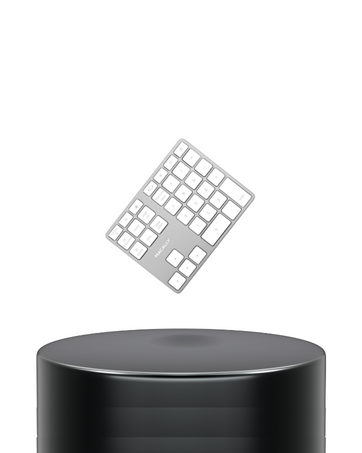
Scissor Switch Keys
The keyboard features quiet scissor switch keys, providing a responsive and tactile typing experience. This design contributes to a comfortable and efficient typing environment.

Itoju
Ninu rẹ Keyboard
To ensure the longevity and optimal performance of your keyboard, regular cleaning is recommended:
- Ge asopọ keyboard kuro lati kọnputa rẹ ṣaaju ṣiṣe mimọ.
- Lo asọ rirọ, ti ko ni lint ni sere dampened pẹlu omi tabi a ìwọnba ninu ojutu lati mu ese awọn keycaps ati dada.
- Avoid spraying liquids directly onto the keyboard or allowing moisture to seep between the keys.
- Fún ìdọ̀tí láàárín àwọn kọ́kọ́rọ́, lo afẹ́fẹ́ tí a fi ìfúnpọ̀ mú láti tú àwọn pàtákì náà jáde.
Laasigbotitusita
Wọpọ Oran ati Solusan
- Keyboard ko dahun:
Ensure the USB-C cable is securely connected to both the keyboard and the computer. Try connecting to a different USB-C port or a different computer to rule out port issues. - USB hub ports not working:
Verify that the keyboard itself is properly connected and functioning. Ensure the devices connected to the hub are compatible and powered if necessary. Try connecting devices directly to the computer to confirm their functionality. - Keys not registering or sticky:
Perform a thorough cleaning of the affected keys as described in the Maintenance section. If the issue persists, it may indicate a hardware problem. - Shortcut keys not functioning:
Ensure your operating system is up-to-date. Some shortcut keys may require specific software or system settings to be enabled. Refer to your operating system's documentation for media key functionality.
Awọn pato
| Ẹya ara ẹrọ | Ẹ̀kúnrẹ́rẹ́ |
|---|---|
| Nọmba awoṣe | UCZKEYHUBACSG |
| Asopọmọra Technology | Ti firanṣẹ (USB-C) |
| Awọn ibudo ibudo USB | 2x USB-A, 1x USB-C |
| Iru bọtini | Scissor Yipada |
| Nọmba ti Awọn bọtini | 107 (Full-size) |
| Shortcut/Media Keys | 16 |
| Ibamu System isẹ | Mac OS X 10.6+, Windows 7/8/10+, Chrome OS |
| Àwọ̀ | Aaye Grey |
| Iwọn Nkan | 1 iwon |
| Awọn iwọn Ọja (LxWxH) | 17.5 x 6 x 1.4 inches (44.45 x 15.24 x 3.56 cm) |

Atilẹyin ọja ati Support
Macally values customer satisfaction. The UCZKEYHUBACSG keyboard comes with:
- Up to 2 years of warranty.
- Lifetime support.
- Easy returns.
For technical assistance or warranty claims, please refer to the contact information provided with your product packaging or visit the official Macally support webojula.
Ohun ti o wa ninu Apoti
- Macally UCZKEYHUBACSG Wired USB C Keyboard
- Itọsọna olumulo