
Ọja Pariview
This manual provides essential information for the installation, operation, and maintenance of your new CPU Cooling Fan, model MG75120V1-B000-S99. This fan is specifically designed as a replacement part for Acer Aspire 5950 and 5950G series laptops.
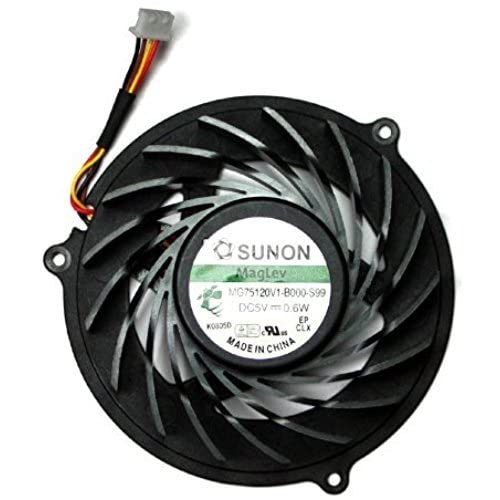
Nọmba 1: The MG75120V1-B000-S99 CPU Cooling Fan. This image shows the fan unit with its black frame, multiple blades, and the attached 4-pin power connector cable. The central label indicates "SUNON MagLev MG75120V1-B000-S99 DC5V 0.6W Made in China".
Ibamu
This CPU cooling fan is compatible nikan with the following laptop models:
- Acer Aspire 5950 Series Laptop
- Acer Aspire 5950G Series Laptop
Before installation, please verify your laptop's model number and compare your existing fan with the product image to ensure compatibility.
Eto ati fifi sori
Replacing a laptop CPU fan requires careful handling of internal components. If you are not comfortable performing this procedure, it is recommended to seek assistance from a qualified technician.
Awọn igbesẹ fifi sori ẹrọ gbogbogbo:
- Paa ati Ge asopọ: Ensure your laptop is completely powered off and disconnected from all power sources, including the AC adapter and battery.
- Disas Karo: Carefully open your laptop's casing to access the CPU cooling system. This often involves removing the back panel, keyboard, or other components depending on your specific laptop model. Refer to your laptop's service manual for precise disassembly instructions.
- Locate and Disconnect Old Fan: Identify the existing CPU fan. Gently disconnect its 4-pin power cable from the motherboard.
- Yọ afẹ́fẹ́ àtijọ́ kúrò: Unscrew any mounting screws securing the old fan and carefully remove it from its position. Note the orientation for the new fan.
- Agbegbe mimọ: Use compressed air or a soft brush to clean any dust or debris from the heatsink and surrounding area. Consider replacing thermal paste on the CPU if the heatsink was removed.
- Fi Fáàn Tuntun Sílẹ̀: Place the new MG75120V1-B000-S99 fan into position, ensuring it aligns correctly with the mounting points. Secure it with the screws removed earlier.
- So okun agbara pọ: Carefully connect the new fan's 4-pin power cable to the corresponding header on the motherboard. Ensure the connection is firm and correctly oriented.
- Atunjọ: Reassemble your laptop's components in reverse order of disassembly. Double-check all connections and ensure no cables are pinched.
- Idanwo: Reconnect the battery and AC adapter. Power on your laptop and observe the fan's operation. Check system temperatures to ensure proper cooling.
Awọn ilana Iṣiṣẹ
The CPU cooling fan operates automatically, controlled by your laptop's system. It will adjust its speed based on the CPU temperature to maintain optimal operating conditions and prevent overheating. No manual intervention is required for its normal operation.
Ensure that the laptop's vents are not obstructed to allow for proper airflow, which is crucial for the fan's effectiveness.
Itoju
Regular maintenance helps prolong the life of your cooling fan and ensures efficient heat dissipation.
- Yiyọ eruku kuro: Periodically (e.g., every 6-12 months, or more frequently in dusty environments) clean dust from the fan blades and heatsink fins. This can be done using compressed air. Ensure the laptop is powered off and disconnected before cleaning.
- Afẹfẹ: Always use your laptop on a hard, flat surface to ensure proper airflow through the vents. Avoid using it on soft surfaces like beds or carpets, which can block ventilation.
- Abojuto iwọn otutu: If your laptop has software for monitoring CPU temperatures, periodically check them to ensure they remain within normal operating ranges.
Laasigbotitusita
If you encounter issues with your cooling fan, consider the following common problems and solutions:
| Isoro | Owun to le Fa | Ojutu |
|---|---|---|
| Fan not spinning or laptop overheating |
|
|
| Ariwo dani lati fan |
|
|
If these steps do not resolve the issue, please contact customer support or a qualified technician.
Awọn pato
| Ẹya ara ẹrọ | Ẹ̀kúnrẹ́rẹ́ |
|---|---|
| Nọmba awoṣe | MG75120V1-B000-S99 |
| Compatible Laptop Models | Acer Aspire 5950, 5950G Series |
| Iru Asopọ Agbara | 4-Pin |
| Olupese | wangpeng |
| UPC | 615431647993 |
| ASIN | B09LYPL4KV |
| Ọjọ Akọkọ Wa | Oṣu kọkanla ọjọ 16, ọdun 2021 |
Atilẹyin ọja ati Support
Ọja yi wa pẹlu kan 3-osu atilẹyin ọja Láti ọjọ́ tí a rà á. Àtìlẹ́yìn yìí bo àwọn àbùkù iṣẹ́ ṣíṣe, ó sì ń rí i dájú pé ọjà náà kò ní àbùkù nínú ohun èlò àti iṣẹ́ ọwọ́ lábẹ́ lílò déédéé.
For warranty claims, technical support, or any inquiries regarding the product, please contact the seller or manufacturer directly through the platform where the purchase was made. Please have your purchase details and product model number ready when contacting support.