
MageGee V510
MageGee V510 Wireless RGB Gaming Keyboard User Manual
Awoṣe: V510
Ọrọ Iṣaaju
This manual provides detailed instructions for the setup, operation, maintenance, and troubleshooting of your MageGee V510 Wireless RGB Gaming Keyboard. Please read this manual carefully before using the product to ensure optimal performance and longevity.

Image: MageGee V510 Wireless RGB Gaming Keyboard, showcasing its full layout and vibrant backlighting.
1. Awọn ilana iṣeto
1.1 Package Awọn akoonu
- MageGee V510 Wireless RGB Gaming Keyboard
- 2.4G USB olugba
- Iru-C Ngba agbara USB
- Afowoyi Olumulo (iwe-ipamọ yii)
1.2 Nsopọ Keyboard
- Locate the 2.4G USB receiver. It is typically stored in a compartment on the keyboard or included separately in the packaging.
- Plug the 2.4G USB receiver into an available USB port on your PC or laptop.
- Turn on the keyboard using the power switch, usually located on the side or back of the keyboard.
- The keyboard should automatically connect to your device. If not, ensure the receiver is properly inserted and the keyboard is powered on.
The 2.4G wireless connection provides a stable transmission with reduced latency, offering a working distance of up to 10 meters.
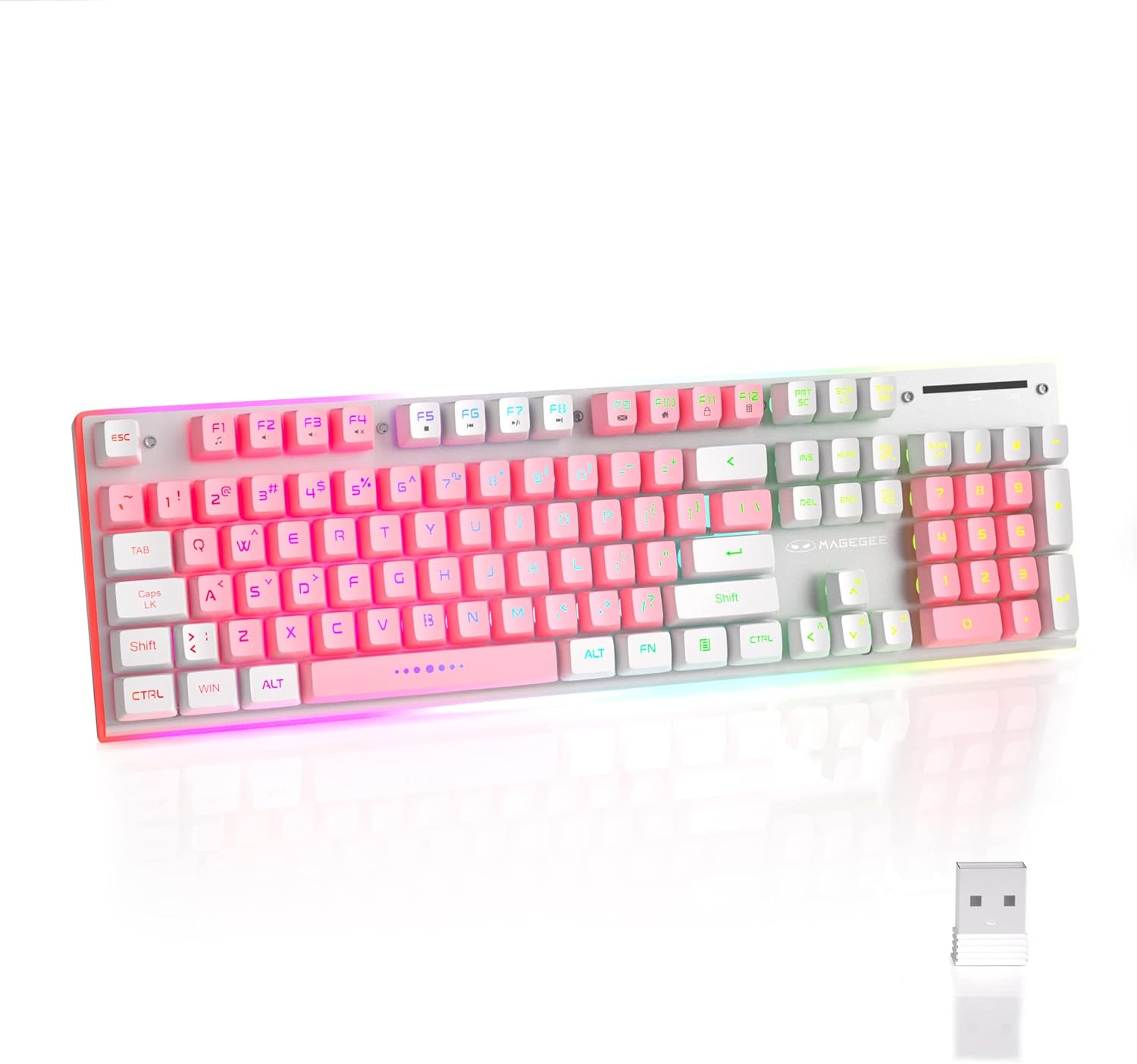
Image: The MageGee V510 keyboard shown alongside its compact 2.4G USB receiver, ready for wireless connection.

Image: Diagram illustrating the wireless connection between the keyboard and a laptop via the USB receiver, indicating a stable connection.
2. Awọn ilana Iṣiṣẹ
2.1 RGB Backlight Iṣakoso
The V510 keyboard features dynamic RGB backlighting and unique side ambient lighting.
- Switch Backlight Effect: Tẹ Fn + 1-5 to cycle through multiple backlight modes and 8 different colors.
- Tan/Pa ina Back: Tẹ Fn + Scr (Scroll Lock key) to toggle the backlight on or off. Turning off the backlight conserves battery.
- Brighten/Dim Light: Tẹ Fn + ↑ (Up Arrow) lati mu imọlẹ pọ si, ati Fn + ↓ (Ọfà isalẹ) lati dinku imọlẹ.
- Ṣàtúnṣe iyàrá ìmọ́lẹ̀: Tẹ Fn + ← (Left Arrow) to slow down the light effect speed, and Fn + → (Right Arrow) to speed up the light effect.

Image: Visual guide to RGB backlight controls on the MageGee V510 keyboard, showing key combinations for changing effects, brightness, and speed.

Image: The MageGee V510 keyboard highlighting its unique surround LED strip, providing ambient lighting around all sides, not just keycap glow.

Image: A series of MageGee V510 keyboards demonstrating various brilliant RGB backlighting modes and switchable colors.
2.2 Multimedia Awọn bọtini ọna abuja
The keyboard includes 12 multimedia shortcut keys for quick access to frequently used programs and functions.
| Apapo bọtini | Išẹ |
|---|---|
| Fn + F1 | Elere |
| Fn + F2 | Iwọn didun isalẹ |
| Fn + F3 | Iwọn didun soke |
| Fn + F4 | Pa ẹnu mọ́ |
| Fn + F5 | Orin Iyin |
| Fn + F6 | Orin t'okan |
| Fn + F7 | Ṣiṣẹ / Sinmi |
| Fn + F8 | Duro |
| Fn + F9 | Ile |
| Fn + F10 | meeli |
| Fn + F11 | Kọmputa mi |
| Fn + F12 | Awọn ayanfẹ |

Image: A diagram illustrating the 12 multimedia shortcut keys (Fn + F1-F12) and their corresponding functions on the MageGee V510 keyboard.
2.3 Ngba agbara si Keyboard
The MageGee V510 keyboard is equipped with a 2000mAh rechargeable battery.
- Connect the included Type-C charging cable to the charging port on the keyboard and to a USB power source (e.g., computer USB port, USB wall adapter).
- Charging time: Approximately 3.5 to 4 hours for fast charging, or 8 to 10 hours for slow charging.
- Battery life: Up to 20 hours of continuous use with RGB backlight, or up to 60 hours with monochrome backlight.

Aworan: Isunmọ view of the MageGee V510 keyboard's side, showing the power switch and the Type-C charging port.

Image: Graphic displaying the 2000mAh battery capacity and up to 60 hours of usage time for the MageGee V510 keyboard.
3. Itọju
3.1 Ninu Keyboard
The MageGee V510 features a waterproof design and floating keycaps for easy cleaning.
- To clean dust and debris, use a soft brush or compressed air.
- For spills, gently wipe the surface with a damp cloth. Ensure the keyboard is powered off and disconnected from any charging cable before cleaning.
- Avoid submerging the keyboard in water.

Image: The MageGee V510 keyboard with water droplets on its surface, illustrating its waterproof design and floating keycaps for easy cleaning.
3.2 Keycap Information
The keyboard uses mixed-color double-shot keycaps, which are wear-resistant, durable, and do not fade. The keycaps are removable for deeper cleaning or customization.

Aworan: Isunmọ view of the MageGee V510 keyboard's mixed-color double-shot keycaps, showing a keycap removed to reveal the underlying switch mechanism.
4. Laasigbotitusita
- Keyboard ko dahun:
- Ensure the 2.4G USB receiver is securely plugged into a USB port on your computer.
- Verify the keyboard's power switch is in the "ON" position.
- Check the battery level. If low, connect the charging cable.
- Gbiyanju lati so olugba USB sinu ibudo USB ti o yatọ.
- Tun kọmputa rẹ bẹrẹ.
- Imọlẹ ẹhin ko ṣiṣẹ:
- Rii daju pe ina ẹhin ko ni paa (tẹ Fn + Scr).
- Check backlight brightness (press Fn + ↑).
- Rii daju pe keyboard ni idiyele batiri ti o to.
- Awọn bọtini ti ko forukọsilẹ tabi ghosting:
- The keyboard features 25-key anti-ghosting. If issues persist, ensure the keyboard is clean and free of debris under the keycaps.
- Try reconnecting the USB receiver.
- Awọn iṣoro Asopọmọra:
- Ensure there are no significant obstructions between the keyboard and the USB receiver.
- Avoid placing the receiver near strong interference sources (e.g., Wi-Fi routers, other wireless devices).
If you encounter any persistent issues, please contact MageGee customer support for assistance.
5. Awọn pato
| Ẹya ara ẹrọ | Ẹ̀kúnrẹ́rẹ́ |
|---|---|
| Brand | MageGee |
| Awoṣe | V510 |
| Asopọmọra Technology | Alailowaya 2.4G (olugba USB) |
| Apejuwe Keyboard | Gaming, Standard 104-key layout |
| Pataki Awọn ẹya ara ẹrọ | Ergonomic, RGB Backlit, Waterproof, 25-key Anti-ghosting, Metal Panel, Detachable Keycaps |
| Awọn ẹrọ ibaramu | Laptop, PC (Win 2000 / XP / ME / 7 / 8 / 10 / Vista / Mac) |
| Àwọ̀ | Funfun/Pinki |
| Ìṣàkóso Àwọ̀ Ẹ̀yìn Ìmọ́lẹ̀ | RGB |
| Ohun elo | Plastic (with metal panel) |
| Agbara Batiri | 2000mAh |
| Alailowaya Ibiti | Ti o to awọn mita 10 |
| Awọn iwọn | Approx. 422mm (17.40in) x 133mm (5.37in) x 37mm (1.47in) |

Image: Technical drawing of the MageGee V510 keyboard showing its length (422mm), width (133mm), and height (37mm).

Aworan: Ẹgbẹ profile of the MageGee V510 keyboard illustrating its ergonomic design with an 8-degree tilt and adjustable foot supports.

Aworan: An loriview graphic highlighting key features of the MageGee V510 keyboard, including 2.4G Wireless, RGB Backlight, Surround Lighting, Mixed-Color Keycaps, Large Battery Capacity, Anti-Ghosting, and Ergonomic Design.
6. Atilẹyin ọja ati Support
MageGee is committed to providing quality products and customer satisfaction.
- For any product issues or inquiries, please contact MageGee customer support.
- Tọkasi iwe rira rẹ fun awọn ofin atilẹyin ọja kan pato.
Contact information for support is typically available on the official MageGee webojula tabi nipasẹ rẹ alagbata.