1. Ifihan
This manual provides instructions for the Gamrombo 2.4GHz Wireless Controller, designed for use with Xbox 360, Xbox 360 Slim consoles, and Windows 7/8/10/11 personal computers. Please read this manual thoroughly before using the product to ensure proper operation and to prevent damage.

Image 1.1: Gamrombo Wireless Controller for Xbox 360 and PC. This image displays the front view of the black wireless controller, highlighting its buttons and ergonomic shape.
2. Package Awọn akoonu
Jọwọ ṣayẹwo awọn akoonu ti package lori unboxing:
- 1 x Gamrombo Wireless Controller
- 1 x 2.4GHz USB olugba
- 1 x Ilana itọnisọna
- Note: AA batteries are required for controller operation and are not included.
3. Awọn ẹya Ọja
- Ibamu Olona Platform: Compatible with Xbox 360, Xbox 360 Slim consoles, and Windows 7/8/10/11 PCs. (Note: Not compatible with Xbox One, Xbox One X, Xbox One S, or Xbox Series X consoles.)
- Imọ-ẹrọ Alailowaya 2.4GHz: Provides a stable connection up to 32 feet (approximately 10 meters). Supports up to four controllers simultaneously on one console.
- Idahun gbigbọn: Built-in dual motors offer a realistic gaming experience through vibration effects.
- Apẹrẹ Ergonomic: Streamlined and compact design for comfortable extended gameplay sessions.
- Ifamọ giga: Enhanced responsiveness to minimize input lag, providing accurate and sensitive control.
- Awọn iṣakoso to peye: Features an 8-way D-pad, precise thumbsticks, and pressure-point triggers for accurate input.

Image 3.1: Controller with internal dual motors. This image illustrates the controller with a transparent overlay highlighting the location of the dual vibration motors inside the grips.

Aworan 3.2: Apa view of the controller demonstrating its ergonomic shape. The image shows the contoured grips designed for comfortable handling.
4. Eto ati Asopọ
Follow these steps to connect your Gamrombo Wireless Controller to your Xbox 360 console or PC:
- Fi awọn batiri sii: Open the battery compartment on the back of the controller and insert two (2) AA batteries, ensuring correct polarity.
- So olugba USB pọ: Insert the 2.4GHz USB receiver into an available USB port on your Xbox 360 console or PC.
- Receiver Identification: After the USB receiver is inserted, its indicator light will turn on, signifying successful identification. Short press the button on the USB receiver; the indicator light will flash, entering pairing mode.
- Sisopọ Adari: With the controller powered off, long press the "Home" button (the central Xbox Guide button) on the wireless controller for 3 seconds. The four LED lights around the Guide button will flash rapidly, indicating the controller is in pairing mode.
- Ìmúdájú Ìsopọ̀: Once the connection is successful, the corresponding channel light on the controller will remain solid, and the receiver's indicator light will also remain solid.

Image 4.1: Connection steps for the wireless controller. This image illustrates the process of inserting the USB dongle into an Xbox 360 or PC and then pairing the controller by pressing the Home button.
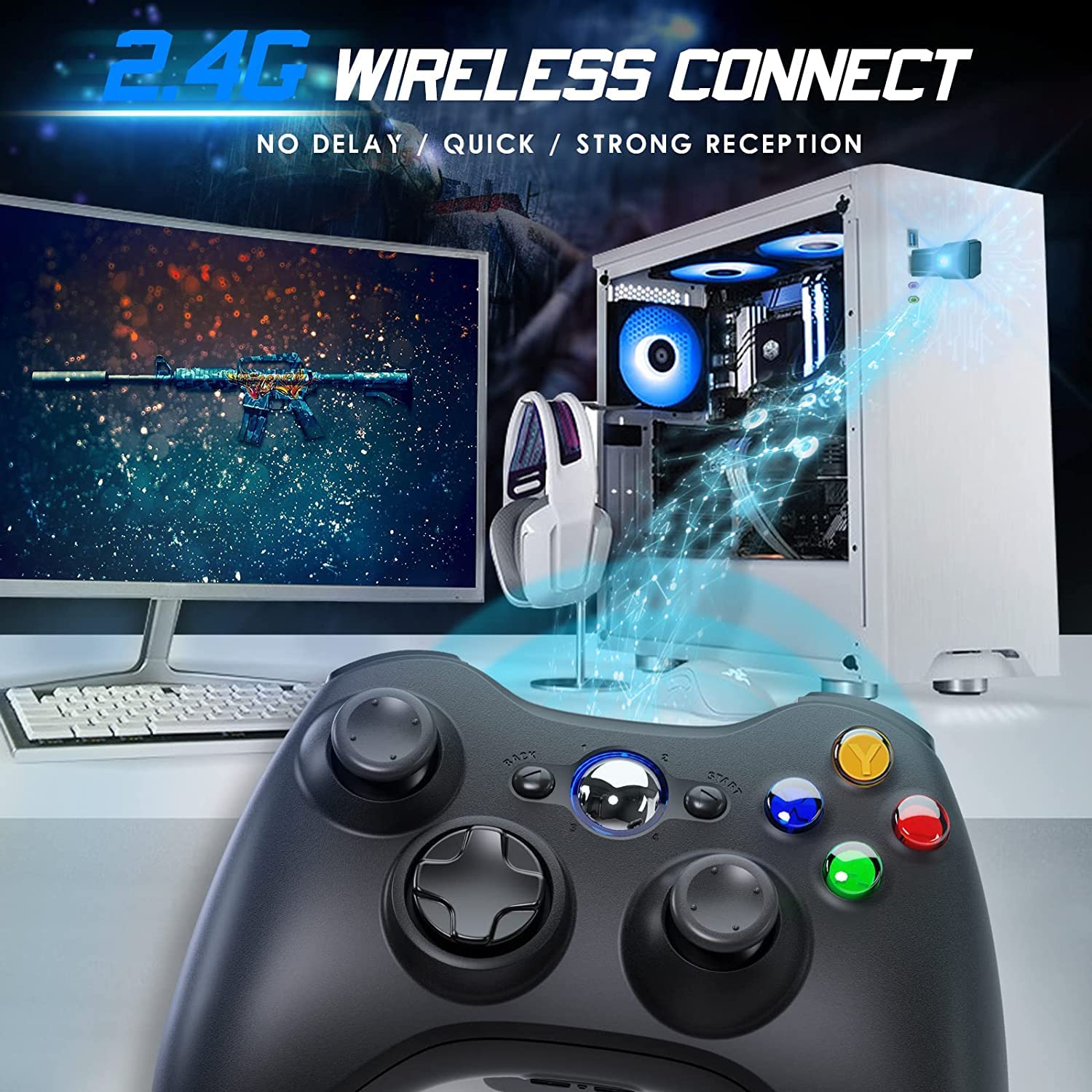
Image 4.2: Wireless controller in use with a PC. This image shows the controller on a desk in front of a computer monitor, with a visual representation of the 2.4GHz wireless connection.
5. Awọn ilana Iṣiṣẹ
- Titan/Apapa: Press and hold the "Home" button for 3 seconds to power on or power off the controller.
- Bọtini Itọsọna: The central "Home" button (Guide button) allows access to the Xbox Guide on Xbox 360, or specific game menus on PC, depending on the game and system configuration. It can also be used to power on or off the console.
- Multiple Controllers: Up to four wireless controllers can be connected to a single console or PC simultaneously. Each controller will be assigned a quadrant light around the Guide button (1, 2, 3, or 4) to indicate its player number.
- Atọka Batiri: The controller's LED lights may flash to indicate low battery power. Replace batteries when this occurs.
6. Itọju
- Ninu: Lo asọ asọ ti o gbẹ lati nu oludari naa. Ma ṣe lo awọn olutọpa olomi tabi awọn olomi.
- Ibi ipamọ: Store the controller in a dry place away from extreme temperatures and direct sunlight. If storing for an extended period, remove the batteries to prevent leakage.
- Yago fun awọn isọ silẹ: Dáàbò bo olùdarí náà kúrò lọ́wọ́ àwọn ìṣàn àti àwọn ìkọlù, èyí tí ó lè ba àwọn ẹ̀yà ara inú jẹ́.
7. Laasigbotitusita
- Alakoso Ko Sopọ:
- Ensure the USB receiver is securely plugged into the console or PC.
- Verify that the controller has fresh AA batteries installed correctly.
- Repeat the pairing process (Section 4, steps 3 and 4).
- Gbiyanju lati so olugba USB sinu ibudo USB ti o yatọ.
- If using with PC, ensure necessary drivers are installed (Windows typically installs these automatically).
- Àwọn bọ́tìnì tàbí àwọn Joysticks kò dáhùn:
- Ṣayẹwo awọn ipele batiri ki o si rọpo ti o ba kere.
- Ensure the controller is within the 32-foot wireless range of the receiver.
- Restart the console/PC and re-pair the controller.
- Gbigbọn Ko Ṣiṣẹ:
- Ensure the game supports vibration feedback.
- Check game settings to ensure vibration is enabled.
- Ṣe ayẹwo awọn ipele batiri.
8. Awọn pato
| Nọmba awoṣe | XBOX 360 |
| Brand | Gamrombo |
| Asopọmọra | Alailowaya 2.4GHz |
| Alailowaya Ibiti | Titi di 32 ẹsẹ (isunmọ 10 mita) |
| Ibamu | Xbox 360, Xbox 360 Slim, Windows 7/8/10/11 |
| Orisun agbara | Awọn batiri 2 x AA (kii ṣe pẹlu) |
| Ọja Mefa | 6.1 x 4.4 x 2.4 inches |
| Iwọn Nkan | 9.6 iwon |
9. Alaye Aabo
- Ma ṣe gbiyanju lati ṣajọpọ tabi yi oluṣakoso naa pada.
- Jeki oludari kuro lati omi ati awọn olomi miiran.
- Avoid exposing the controller to extreme heat or cold.
- Sọ awọn batiri sọnu ni ibamu si awọn ilana agbegbe.
- Ti ọja ba bajẹ, da lilo duro lẹsẹkẹsẹ.
10. Atilẹyin ọja ati Support
For warranty information or technical support, please refer to the documentation included with your purchase or contact Gamrombo customer service directly. Contact details are typically available on the manufacturer's official webojula.


