
1. Ifihan
Thank you for choosing the iPega PG-P4008 Wireless Game Controller. This manual provides detailed instructions on how to set up, operate, and maintain your controller. The PG-P4008 offers broad compatibility with PS4, PS3, Android (10.0+), iOS (13.0+), and Windows PC, connecting wirelessly via Bluetooth for an enhanced gaming experience.
2. Ọja Ipariview
The iPega PG-P4008 is designed for versatile gaming across multiple platforms. It features a comfortable ergonomic design, responsive controls, and several advanced functionalities to immerse you in your games.
Awọn ẹya pataki:
- Wireless Bluetooth connectivity (BT2.1+EDR) with up to 8 meters range.
- No driver installation required for connection.
- Integrated colored LED light indicator for operational status.
- Dual motors for realistic vibration feedback during gameplay.
- Built-in three-dimensional acceleration sensor and gyroscope sensor with six-axis induction.
- Integrated speaker and 3.5mm earphone jack for game audio.
- Dual-point capacitive touchpad for enhanced control.
- Compatible with PS4, PS3, Android (10.0+), iOS (13.0+), and Windows PC.
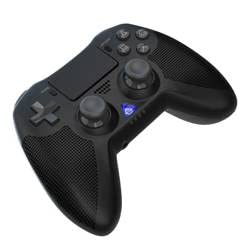
Aworan 1: Iwaju view of the iPega PG-P4008 Wireless Game Controller. This image displays the controller's ergonomic design, dual analog sticks, D-pad, action buttons, touchpad, and the central LED indicator.
3. Eto ati Asopọ
The PG-P4008 controller connects wirelessly via Bluetooth. Follow these steps to pair your controller with your device:
- Agbara Tan: Ensure the controller is charged. Press and hold the Bọtini PS (or equivalent power button) to turn on the controller.
- Ipo sisopọ:
- For PS4/PS3: Connect the controller to the console using a USB cable. Once recognized, you can disconnect the cable for wireless play. The connection method is similar to the official P4 controller.
- For Android/iOS: Activate Bluetooth on your mobile device. On the controller, press and hold the SHARE button + PS button simultaneously until the LED indicator flashes rapidly, indicating pairing mode. Select "PG-P4008" (or similar) from your device's Bluetooth list to connect.
- For Windows PC: Ensure your PC has Bluetooth capability. On the controller, press and hold the PS button + OPTIONS button simultaneously until the LED indicator flashes rapidly. On your PC, go to Bluetooth settings, add a new device, and select "PG-P4008" (or similar) to pair.
- Isopọ Aṣeyọri: Once connected, the LED indicator on the controller will change to a solid color, indicating a successful pairing.
Akiyesi: No additional driver software is required for operation. The controller supports a stable connection up to 8 meters.
4. Awọn ilana Iṣiṣẹ
Atọka LED:
The built-in colored LED light indicates the controller's operational status and player assignment, similar to the official PS4 controller. Different colors will signify different stages or player numbers.
Idahun gbigbọn:
The controller features dual motors embedded in the handles, providing tactile vibration feedback to enhance your gaming immersion. This feedback will vary based on in-game events.
Paadi ọwọ:
The dual-point capacitive touchpad allows for intuitive control in games that support touch input, offering an additional layer of interaction.
Ise Olohun:
Connect your 3.5mm earphones to the integrated jack on the controller to experience game audio directly, providing a private and immersive sound experience.
5. Itọju
- Keep the controller dry and away from moisture to prevent damage to internal components.
- Máa fọ ẹ̀rọ ìdarí náà déédéé pẹ̀lú aṣọ rírọ̀ tí ó gbẹ. Yẹra fún lílo àwọn kẹ́míkà líle tàbí àwọn ohun èlò ìpalára.
- Tọju olutọju naa ni itura, aye gbigbẹ nigbati o ko ba wa ni lilo.
- Avoid exposing the controller to extreme temperatures or direct sunlight.
- Do not attempt to disassemble or modify the controller, as this will void any potential warranty and may cause damage.
6. Laasigbotitusita
- Alakoso ko sopọ:
- Rii daju pe oludari ti gba agbara ni kikun.
- Rii daju pe Bluetooth ti ṣiṣẹ lori ẹrọ rẹ.
- Make sure the controller is in the correct pairing mode for your device (refer to Section 3).
- Gbiyanju lati tun ẹrọ ati oludari naa bẹrẹ.
- Remove previous pairings from your device's Bluetooth list and try pairing again.
- Aisun titẹ sii tabi gige asopọ:
- Ensure you are within the 8-meter operating range.
- Din kikọlu kuro lati awọn ẹrọ alailowaya miiran.
- Check for any physical obstructions between the controller and the device.
- Gbigbọn ko ṣiṣẹ:
- Rii daju pe ere ti o nṣe ṣe atilẹyin awọn esi gbigbọn.
- Ṣayẹwo awọn eto inu-ere lati rii daju pe gbigbọn ṣiṣẹ.
- Audio not working via 3.5mm jack:
- Ensure your earphones are properly plugged in.
- Check the volume settings on your device and in-game.
- Test with another pair of earphones to rule out earphone issues.
7. Awọn pato
| Nọmba awoṣe | PG-P4008 |
| Brand | iPega |
| Asopọmọra | Bluetooth (BT2.1+EDR) |
| Alailowaya Ibiti | Ti o to awọn mita 8 |
| Awọn ẹrọ ibaramu | PS4, PS3, Android (10.0+), iOS (13.0+), Windows PC |
| Pataki Awọn ẹya ara ẹrọ | Wireless, Touchpad, Vibration, 6-axis Gyroscope, Built-in Speaker, 3.5mm Audio Jack |
| Bọtini opoiye | 17 |
| Orisun agbara | Agbara Batiri |
8. Atilẹyin ọja ati Support
Information regarding product warranty and customer support is not provided within this manual. Please refer to the product packaging or the retailer's webojú òpó wẹ́ẹ̀bù fún àwọn àlàyé lórí ààbò àtìlẹ́yìn àti bí a ṣe lè kàn sí ìrànlọ́wọ́ àwọn oníbàárà.