
1. Eto
1.1 Package Awọn akoonu
Rí i dájú pé àwọn nǹkan wọ̀nyí wà nínú àpò rẹ:
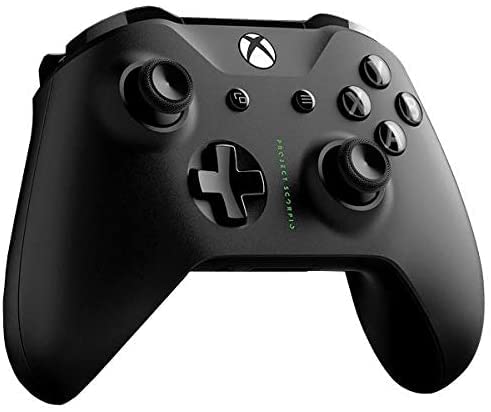
- Microsoft Xbox Wireless Controller - Project Scorpio Edition
- AA Batteries (may be included depending on retailer)
1.2 Fifi Awọn batiri sii
To power your controller:
- Ṣí ideri yàrá batiri náà ní ẹ̀yìn olùdarí náà.
- Fi awọn batiri AA meji sii, ni idaniloju polarity ti o pe (+ ati -).
- Pa ideri batiri naa ni aabo.
1.3 Connecting to Xbox One
To connect your controller wirelessly to an Xbox One console:
- Tan console Xbox One rẹ.
- Tẹ mọlẹ Xbox bọtini
 on your controller to turn it on. The Xbox button will flash.
 - Tẹ awọn Bọtini bata on your Xbox One console (located on the front or side, depending on the model).
- Laarin aaya 20, tẹ mọlẹ Bọtini bata
 on the top edge of your controller (next to the USB port). The Xbox button on the controller will flash more rapidly.
 - Once the Xbox button on the controller glows solid, it is connected.
1.4 Connecting to Windows 10 PC via Bluetooth
To connect your controller to a Windows 10 PC using Bluetooth:
- Ensure your Windows 10 PC has Bluetooth enabled.
- Tẹ mọlẹ Xbox bọtini on your controller to turn it on.
- Tẹ mọlẹ Bọtini bata on the top edge of your controller for three seconds. The Xbox button will flash rapidly.
- Lori PC rẹ, lọ si Eto > Awọn ẹrọ > Bluetooth & awọn ẹrọ miiran.
- Yan Fi Bluetooth tabi ẹrọ miiran kun > Bluetooth.
- Yan Xbox Alailowaya Adarí lati akojọ.
- Once the Xbox button on the controller glows solid, it is connected.
A black Xbox Wireless Controller, featuring the Project Scorpio Special Edition details, with textured grips and the Xbox logo button at the top center. This image illustrates the overall design of the controller.
2. Operating Your Controller
2.1 Ìṣètò àti Iṣẹ́ Olùdarí
The Xbox Wireless Controller features a standard layout for intuitive gameplay:
- Xbox bọtini: Powers on the controller/console, opens the Guide, and indicates connection status.
- View bọtini: Changes views or displays more information in games and apps.
- Bọtini akojọ aṣayan: Accesses game or app menus, such as Settings or Options.
- Awọn bọtini A, B, X, Y: Action buttons for in-game commands.
- D-paadi: Directional pad for precise input.
- Left and Right Thumbsticks: For movement and camera control. Pressing them down acts as a button.
- Left and Right Bumpers (LB, RB): Located on the top edge, typically used for quick actions.
- Left and Right Triggers (LT, RT): Analog triggers for variable input, such as acceleration or firing.
- 3.5mm Sitẹrio Agbekọri Jack: For connecting compatible headsets.
2.2 Using the 3.5mm Headset Jack
To use a headset with your controller:
- Plug any compatible 3.5mm stereo headset directly into the jack located at the bottom of the controller.
- Audio settings can be adjusted via the Xbox Guide or Windows sound settings.
3. Itọju
3.1 Cleaning Your Controller
Láti máa rí ìrísí àti iṣẹ́ olùdarí rẹ:
- Use a soft, dry, lint-free cloth to wipe the surface of the controller.
- Fun idoti alagidi, die-die dampen aṣọ pẹlu omi. Yago fun ọrinrin pupọ.
- Do not use harsh chemicals, abrasive cleaners, or solvents, as these can damage the controller's finish.
3.2 Ibi ipamọ
When not in use, store your controller in a cool, dry place away from direct sunlight and extreme temperatures. Remove batteries if storing for extended periods to prevent leakage.
4. Laasigbotitusita
4.1 Controller Not Turning On
- Ṣayẹwo awọn batiri: Ensure batteries are correctly inserted and have sufficient charge. Replace with fresh AA batteries if necessary.
- Yiyipo Agbara: Remove and reinsert the batteries, then try turning the controller on again.
4.2 Asopọ Oran
- Atunṣe-meji Adari: Follow the connection steps in Section 1.3 or 1.4 to re-pair the controller with your Xbox One or Windows 10 PC.
- Ìjánu: Ensure there are no obstructions or other wireless devices causing interference between the controller and the console/PC.
- Ṣe imudojuiwọn Firmware: Connect the controller to your Xbox One or PC via a USB cable and check for controller firmware updates.
- Bluetooth Driver (PC): Rí i dájú pé àwọn awakọ̀ Bluetooth ti PC rẹ ti ṣe àtúnṣe.
4.3 Button or Stick Malfunction
- Adarí mimọ: Ensure no debris is lodged around buttons or sticks. Refer to Section 3.1.
- Test in Different Games/Apps: Determine if the issue is specific to one application or system-wide.
- Tun Oluṣakoso Tunṣe: In some cases, removing batteries for a few minutes can reset internal components.
5. Awọn pato
| Ẹya ara ẹrọ | Ẹ̀kúnrẹ́rẹ́ |
|---|---|
| Orukọ Brand | Microsoft |
| Orukọ awoṣe | Project Scorpio |
| Awọn ẹrọ ibaramu | Xbox One, Windows 10 PCs and tablets |
| Adarí Iru | Gamepad |
| Asopọmọra Technology | Bluetooth, Alailowaya |
| Hardware Platform | Xbox Ọkan |
| Orisun agbara | Agbara Batiri (AA) |
| Àwọ̀ | Green (Project Scorpio Edition) |
6. Atilẹyin ọja ati Support
This product is a Certified Refurbished item. Certified Refurbished products are tested and certified to look and work like new, with limited to no wear, by a third-party refurbisher. The refurbishing process includes functionality testing, cosmetic inspection, and repackaging.
The product is backed by a minimum 90-day warranty from the date of purchase. For specific warranty details and claims, please refer to the documentation provided by the refurbisher or contact the seller directly.
For further technical assistance or support, please visit the official Microsoft Xbox support webojula tabi kan si wọn onibara iṣẹ.