
Plugable USB4-HUB3A
Plugable 5-in-1 Thunderbolt 4 Hub
Model: USB4-HUB3A
Ọrọ Iṣaaju
This manual provides detailed instructions for the setup, operation, and maintenance of your Plugable 5-in-1 Thunderbolt 4 Hub. This device is designed to expand the connectivity of modern Mac and Windows systems, offering Thunderbolt 4, USB4, and USB-C expansion capabilities, including support for single 8K or dual 4K displays.
Ohun ti o wa ninu Apoti
Rii daju pe gbogbo awọn paati wa ninu apoti:
- Plugable USB4-HUB3A Hub
- USB-C to HDMI Adapter
- Agbara Okun ati Adapter
- 0.8m Thunderbolt 4 Cable

Image: The retail packaging of the Plugable USB4-HUB3A Hub, showing the hub, USB-C to HDMI adapter, power cord and adapter, and a 0.8m Thunderbolt 4 cable.
Ọja Pariview
The Plugable Thunderbolt 4 Hub is built on the Intel Goshen Ridge Chipset, ensuring maximum compatibility and functionality across Thunderbolt 4, USB4, and USB-C standards. It features multiple ports for versatile connectivity.

Aworan: A alaye view of the Plugable Thunderbolt 4 Hub, highlighting the front port with Thunderbolt 60W Host Charging and USB 3.2 Gen 2 10Gbps Data Bandwidth, and the rear ports with Power Input (20V/5A) and three Thunderbolt ports (15W Power Delivery).
Awọn iṣẹ ibudo:
- Host Port (Front, Thunderbolt 4): Connects to your computer, providing up to 60W of power delivery for laptop charging.
- USB 3.2 Gen 2 Port (Front, USB-A): Offers 10Gbps data bandwidth for legacy USB devices.
- Iṣagbewọle Agbara (Tẹhin): Connects to the included power adapter (20V/5A).
- Downstream Thunderbolt 4 Ports (Rear, 3x): Each port is compatible with Thunderbolt 4, USB4, Thunderbolt 3, or USB-C devices. These ports provide 15W power delivery and support high-resolution displays and high-speed data transfer up to 40Gbps.

Image: A graphic illustrating the maximum port potential of the hub, detailing support for up to two Thunderbolt or USB-C displays, 3x Thunderbolt or USB-C devices with up to 40Gbps bandwidth, and 15W power delivery to devices.
Awọn ilana iṣeto
- So agbara: Plug the included power adapter into the Power Input port on the rear of the hub, then connect the power cord to a wall outlet.
- Sopọ mọ Kọmputa Alejo: Use the provided 0.8m Thunderbolt 4 cable to connect the host port (front) of the hub to a Thunderbolt 4, USB4, or compatible USB-C port on your computer.
- Awọn Agbeegbe Sopọ:
- For displays, use the downstream Thunderbolt 4 ports. The included USB-C to HDMI adapter can be used for HDMI displays.
- Connect high-speed storage devices (e.g., NVMe SSDs) to the downstream Thunderbolt 4 ports for optimal performance.
- Connect legacy USB devices (e.g., keyboards, mice, USB drives) to the USB 3.2 Gen 2 (USB-A) port on the front.
- Idanimọ eto: Your computer should automatically detect and configure the hub. No drivers are typically required for basic functionality.
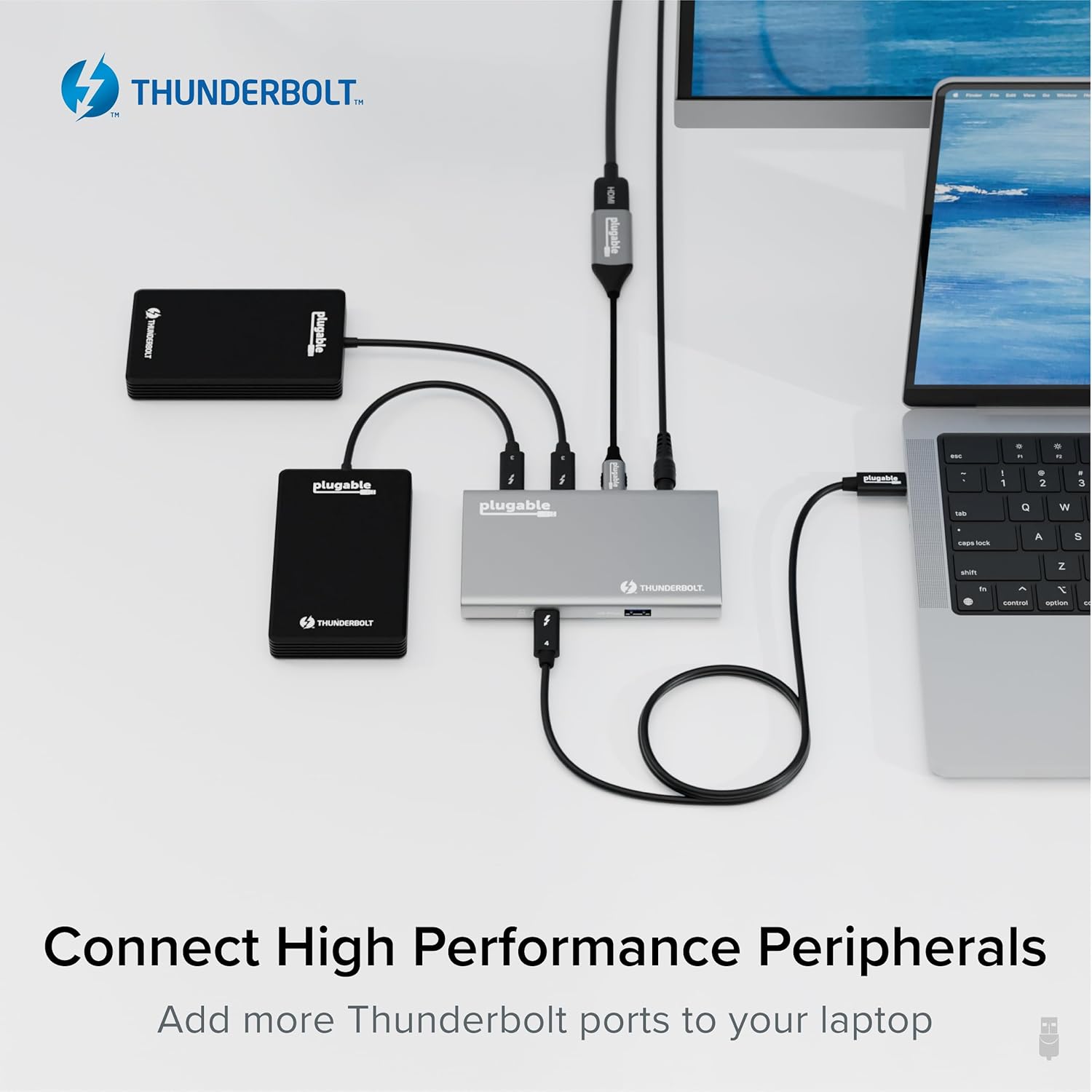
Image: An illustration demonstrating the connection of various high-performance peripherals, including external SSDs and displays, to the Plugable Thunderbolt 4 Hub, which is connected to a laptop.
Awọn ilana Iṣiṣẹ
Iṣeto ni Ifihan:
The hub supports various display configurations depending on your host system:
| Eto Iru | Nọmba ti Ifihan | Ipinnu |
|---|---|---|
| Thunderbolt 4 Windows Systems (Windows 10+) | 1 | 8K@30Hz |
| 2 | 4K@60Hz | |
| Thunderbolt 4 Macs with Apple Pro/Max Chips, M4 Macs, and M3 MacBook Air (macOS 11+) | 1 | 6K@60Hz |
| 2 | 4K@60Hz | |
| USB4 Macs with base M1/M2/M3 Chips | 1 | 6K@60Hz |
Note: M3 MacBook Air requires clamshell mode for dual extended displays. Thunderbolt 3 Windows systems are not recommended for optimal performance.

Image: A visual representation of the display compatibility and performance, showing how different Mac and Windows systems support various resolutions and numbers of displays when connected to the hub.
Awọn agbara gbigba agbara:
The hub provides up to 60W of power delivery to the connected host laptop and up to 15W of power to downstream devices, allowing you to charge your devices while working.

Image: A laptop and a smartphone are shown connected to the Plugable Thunderbolt 4 Hub, illustrating the hub's ability to charge both the laptop (60W) and additional downstream devices (15W).
Ibamu
The Plugable Thunderbolt 4 Hub is designed for broad compatibility with modern computing systems:
- Awọn ọna ṣiṣe:
- Windows 10 and later (with Thunderbolt 4 / USB4 ports)
- macOS 11 (Big Sur) and later (including Apple M1, M2, M3, M4 Pro/Max, and Thunderbolt 3 or USB4 Macs)
- Awọn ibeere Ibudo alejo: A Thunderbolt 4, USB4, or compatible USB-C port on your computer.
- Ibamu Ifihan: Supports a wide range of monitors via Thunderbolt or USB-C video adapters (one HDMI adapter included).
Itoju
To ensure the longevity and optimal performance of your Plugable Thunderbolt 4 Hub, follow these simple maintenance guidelines:
- Ninu: Use a soft, dry, lint-free cloth to wipe the exterior of the hub. Avoid using liquid cleaners, aerosols, or solvents.
- Afẹfẹ: Rí i dájú pé a gbé ibùdó náà sí ibi tí afẹ́fẹ́ ti ń yọ́ dáadáa kí ó má baà gbóná jù. Má ṣe dí àwọn ihò afẹ́fẹ́ kankan.
- Ibi ipamọ: Tí o kò bá lò ó fún ìgbà pípẹ́, tọ́jú ibi ìtọ́jú náà sí ibi gbígbẹ tí ó tutù, tí kò sí ìmọ́lẹ̀ oòrùn tààrà tàbí ooru tó le koko.
- Iṣakoso USB: Avoid sharp bends or excessive tension on the cables connected to the hub to prevent damage.
Laasigbotitusita
If you encounter issues with your Plugable Thunderbolt 4 Hub, refer to the following common solutions:
- No Power/Not Functioning:
- Rii daju pe ohun ti nmu badọgba agbara ti sopọ ni aabo si ibudo mejeeji ati iṣan ogiri ti n ṣiṣẹ.
- Verify the Thunderbolt 4 cable is firmly connected to both the hub and your computer's host port.
- Display Issues (No Signal, Flickering):
- Confirm that your display cables (e.g., HDMI, DisplayPort) are securely connected to both the hub and the monitor.
- Check your computer's display settings to ensure the external monitor is detected and configured correctly (e.g., extended or mirrored mode).
- Ensure your system meets the compatibility requirements for the desired display resolution and refresh rate (refer to the "Operating Instructions" section).
- Try connecting the display directly to your computer (if possible) to rule out monitor or cable issues.
- A ko rii Agbeegbe:
- Ensure the peripheral is properly connected to the correct port on the hub (Thunderbolt for high-speed, USB-A for legacy).
- Test the peripheral by connecting it directly to your computer to confirm it is functional.
- Tun kọmputa rẹ bẹrẹ ki o tun so ibudo naa pọ.
- Awọn iyara Gbigbe Data lọra:
- Ensure you are using a certified Thunderbolt 4 cable for the host connection.
- Verify that the connected device supports the expected speeds (e.g., NVMe SSDs for 40Gbps, USB 3.2 Gen 2 devices for 10Gbps).
- Avoid connecting multiple high-bandwidth devices simultaneously if you experience slowdowns.
If these steps do not resolve your issue, please contact Plugable Support as detailed in the "Warranty and Support" section.
Awọn pato
| Ẹya ara ẹrọ | Ẹ̀kúnrẹ́rẹ́ |
|---|---|
| Brand | Plugable |
| Nọmba awoṣe | USB4-HUB3A |
| Ni wiwo Hardware | Thunderbolt 4, USB4, USB-C, USB-A |
| Gbalejo Asopọmọra | 1x Thunderbolt 4 (60W Power Delivery) |
| Awọn Ibudo isalẹ | 3x Thunderbolt 4 (15W Power Delivery), 1x USB 3.2 Gen 2 (10Gbps USB-A) |
| Data bandiwidi | Up to 40Gbps (Thunderbolt ports), 10Gbps (USB-A port) |
| Ifihan Support | Single 8K@30Hz or Dual 4K@60Hz (Windows), Single 6K@60Hz or Dual 4K@60Hz (Mac) |
| Ibamu System isẹ | Windows 10+, macOS 11+ |
| Awọn iwọn (LxWxH) | 8.35 x 5.59 x 2.17 inches |
| Iwọn | 1.94 iwon |
| Àwọ̀ | Grẹy |
| Pataki Ẹya | Agbara |
Atilẹyin ọja ati Support
Every Plugable product, including the USB4-HUB3A, is covered by a 2-Odun Ideri against defects and comes with Atilẹyin igbesi aye.
If you have any questions, require assistance, or need to troubleshoot an issue, please contact our North American-based support team. You can find contact information on the official Plugable webojula tabi nipasẹ rẹ ra Syeed.
Fun alaye diẹ sii, ṣabẹwo: Plugable Support
Ask a question about this manual
Ask about setup, troubleshooting, compatibility, parts, safety, or missing instructions. Manuals+ will review the question and use this page’s manual context to help answer it.