
MageGee GT860
MageGee GT860 Wired Keyboard User Manual
Model: GT860 | Brand: MageGee
1. Ifihan
Thank you for choosing the MageGee GT860 Wired Keyboard. This manual provides detailed instructions for setting up, operating, and maintaining your new keyboard. The GT860 is a 96-key compact layout keyboard designed for gaming and daily use, featuring RGB backlighting and an ergonomic design.

Image: The MageGee GT860 wired keyboard showcasing awọn oniwe-iwapọ 96-bọtini akọkọ ati ki o larinrin RGB backlighting.
2. Awọn ẹya ara ẹrọ
- 92% Compact Minimalism Layout: Retains all commonly used keys in a space-saving design.
- Membrane with Mechanical Feeling: Utilizes advanced imitation mechanical technology for a tactile typing experience.
- Apẹrẹ Ergonomic: Key layout is engineered for comfortable use, reducing fatigue during long sessions.
- Upgrade RGB Backlit Lighting Effect: Features a variety of light colors and modes, with adjustable brightness and breathing speed. Letters on keys are illuminated.
- High Quality and Reliable Performance: Plug and play functionality, compatible with Windows 10/8/7/XP/VISTA and Mac OS.

Image: Visual representation of the keyboard's ergonomic design, RGB lighting effects, and adjustable foot support for improved performance.

Aworan: A sunmọ-soke view of the keyboard with some keycaps removed, illustrating the underlying membrane switch mechanism that provides a mechanical-like feel.
3. Eto Itọsọna
- Yọ Keyboard kuro: Farabalẹ yọ keyboard kuro lati apoti rẹ.
- Sopọ si Kọmputa: Locate an available USB port on your computer. Insert the USB cable from the MageGee GT860 keyboard into the USB port.
- Fifi sori Awakọ: The keyboard is plug-and-play. Your operating system (Windows, Mac OS) will automatically detect and install the necessary drivers. No additional software installation is required.
- Ibi: Place the keyboard on a stable, flat surface. Adjust the integrated feet on the underside of the keyboard for your preferred typing angle.
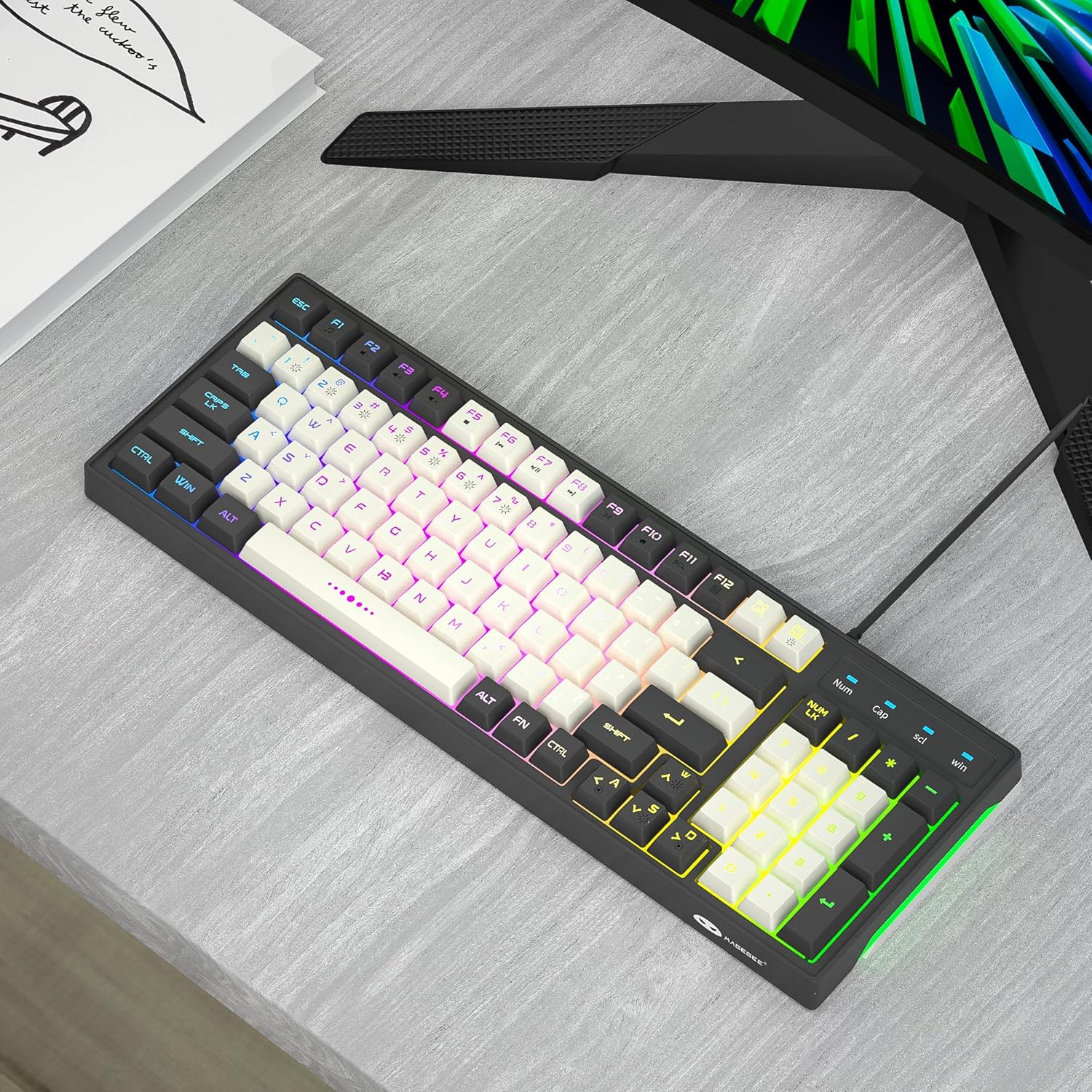
Image: The MageGee GT860 keyboard positioned on a desk, ready for use with a computer monitor, demonstrating a typical setup.
4. Awọn ilana Iṣiṣẹ
4.1 RGB Backlight Iṣakoso
The MageGee GT860 keyboard features multiple RGB lighting modes. Use the Function (Fn) key in combination with other keys to control the backlight:
- Fn + Scroll Lock (SCL): Yiyipo nipasẹ awọn ipo ina RGB oriṣiriṣi.
- Fn + Page Up (PGUP): Mu imọlẹ ina ẹhin pọ si.
- Fn + Page Down (PGDN): Din ina backlight din.
- Fn + Arrow Keys (Left/Right): Adjust lighting effect speed (for dynamic modes).

Image: The MageGee GT860 keyboard showcasing its 18 distinct RGB lighting modes, illustrating the variety of visual effects available.

Image: A detailed diagram illustrating the various Function (Fn) key combinations for controlling RGB backlight effects and accessing multimedia functions on the MageGee GT860 keyboard.
4.2 Multimedia Awọn iṣẹ
Wọlé sí àwọn ìṣàkóso multimedia nípa dídi àwọn ìṣàkóso náà mú Fn key and pressing the corresponding F-keys:
- Fn+F1: Media Player
- Fn+F2: Iwọn didun isalẹ
- Fn+F3: Iwọn didun soke
- Fn+F4: Pa ẹnu mọ́
- Fn+F5: Ti tẹlẹ Track
- Fn+F6: Next Track
- Fn+F7: Ṣiṣẹ / Sinmi
- Fn+F8: Duro
- Fn+F9: Imeeli
- Fn+F10: Oju-iwe Ile
- Fn+F11: Yi lọ Titiipa
- Fn+F12: Ẹrọ iṣiro
5. Itọju
To ensure the longevity and optimal performance of your MageGee GT860 keyboard, follow these maintenance guidelines:
- Ninu: Regularly clean the keyboard with a soft, dry cloth. For dust and debris between keys, use compressed air. For stubborn dirt, a slightly damp A le lo aṣọ pẹlu ọṣẹ kekere, ki o rii daju pe omi ko wọ inu keyboard naa.
- Yago fun Olomi: Má ṣe tú omi sí orí keyboard. Tí ìtújáde bá ṣẹlẹ̀, yọ keyboard kúrò lórí kọ̀ǹpútà rẹ lẹ́sẹ̀kẹsẹ̀ kí o sì jẹ́ kí ó gbẹ pátápátá kí o tó tún padà sípò.
- Ibi ipamọ: Nigbati o ko ba wa ni lilo fun awọn akoko ti o gbooro sii, tọju keyboard ni mimọ, agbegbe gbigbẹ kuro lati orun taara ati awọn iwọn otutu to gaju.
- Mu pẹlu Itọju: Yago fun sisọ awọn bọtini itẹwe silẹ tabi tẹriba si awọn ipa to lagbara.
6. Laasigbotitusita
If you encounter issues with your MageGee GT860 keyboard, refer to the following common problems and solutions:
| Isoro | Owun to le Solusan |
|---|---|
| Keyboard ko dahun. |
|
| Backlight is not working or is dim. |
|
| Awọn bọtini kan ko ṣiṣẹ. |
|
7. Awọn pato
| Ẹya ara ẹrọ | Ẹ̀kúnrẹ́rẹ́ |
|---|---|
| Awoṣe | GT860 |
| Asopọmọra Technology | Okun USB |
| Nọmba ti Awọn bọtini | 96 |
| Apejuwe Keyboard | Ere |
| Pataki Awọn ẹya ara ẹrọ | RGB Backlit, Ergonomic Design, Anti-Ghosting |
| Awọn ẹrọ ibaramu | PC, Gaming Console (via USB) |
| Ibamu System isẹ | Windows 10, Windows 8, Windows 7, Windows XP, Windows VISTA, Mac OS |
| Ọja Mefa | 14 x 6 x 2 inches (35.56 x 15.24 x 5.08 cm) |
| Iwọn Nkan | 1.63 poun (0.74 kg) |
| Àwọ̀ | Grey White Keycaps |
8. Atilẹyin ọja ati Support
MageGee products are designed for reliability and performance. For any product inquiries, technical support, or warranty claims, please refer to the contact information provided with your purchase or visit the official MageGee webojula. Jọwọ ṣe idaduro ẹri rira rẹ fun awọn idi atilẹyin ọja.
For further assistance, you may visit the MageGee store on Amazon: MageGee Amazon Store