
Ọrọ Iṣaaju
This manual provides detailed instructions for the installation, operation, and maintenance of your EZoneTronics Android 11 Car Stereo. Please read this manual thoroughly before using the product to ensure proper function and safety. This unit is designed for Peugeot 308 and 408 models manufactured between 2010 and 2016.
Package Awọn akoonu
Daju pe gbogbo awọn nkan ti a ṣe akojọ rẹ si isalẹ wa ninu package rẹ:
- 1 x EZoneTronics Android Player
- 1 x Eriali GPS
- 1 x Ohun-elo Agbara
- 1 x RCA Input/Output Cable
- Àwọn Adapta USB 2 x
- 1 x Okun Itẹwọle Kamẹra
- 1 x Itọsọna olumulo (iwe yii)
Eto ati fifi sori
The EZoneTronics Android 11 Car Stereo is designed for plug-and-play installation in compatible Peugeot 308/408 models. Professional installation is recommended.
Awọn sọwedowo fifi sori ẹrọ tẹlẹ
- Rii daju pe ina ọkọ ti wa ni pipa ati pe batiri naa ti ge asopọ ṣaaju ki o to bẹrẹ fifi sori ẹrọ.
- Confirm compatibility with your vehicle's make, model, and year (Peugeot 308/408, 2010-2016).
Awọn Igbesẹ fifi sori ẹrọ
- Carefully remove the original car stereo unit from your vehicle's dashboard. Refer to your vehicle's service manual for specific instructions.
- Connect the provided Power Harness to the vehicle's wiring harness. Ensure all connections are secure.
- Connect the GPS Antenna. Position the antenna in a location with a clear view ti ọrun fun ti aipe ifihan agbara gbigba.
- Connect the RCA Input/Output Cable, USB Adapters, and Camera Input Cable as needed for external devices (e.g., rear camera, USB drives).
- Carefully slide the EZoneTronics Android Player into the dashboard opening. Ensure all cables are tucked away and not pinched.
- Secure the unit in place using the appropriate mounting brackets or screws.
- Tun batiri ọkọ naa so pọ ki o si tan ina lati ṣe idanwo ẹrọ naa.
Akiyesi: Minor modifications to the vehicle's frame (e.g., removing plastic tabs) may be required for a perfect fit. Consult online resources or a professional if unsure.
Awọn ilana Iṣiṣẹ
Your EZoneTronics Android 11 Car Stereo features a 9-inch TFT Capacitive Touch Screen and an Octa Core CPU for a responsive user experience.
Ipilẹ Lilọ kiri
- Titan/Apapa: Tẹ bọtini agbara lori ẹrọ naa ki o si di mu tabi lo ina ọkọ naa.
- Afi ika te: Navigate through menus and applications by tapping, swiping, and pinching on the screen.
- Iboju ile: Access frequently used apps and widgets. Customize by long-pressing on empty areas.
- Eto: Access system settings, network configurations, display options, and more.

Image: The Android 11 interface with various application icons, highlighting the Octa Core processor for smooth operation.
Bluetooth 5.0 Asopọmọra
The unit features built-in Bluetooth 5.0 for hands-free calling and audio streaming (A2DP).
- Lọ sí àwọn ètò Bluetooth lórí sitíréò ọkọ̀ ayọ́kẹ́lẹ́.
- Mu Bluetooth ṣiṣẹ lori foonu alagbeka rẹ ki o wa awọn ẹrọ to wa.
- Select the car stereo (e.g., "EZoneTronics Car Stereo") from your phone's list and pair.
- Once paired, you can make/receive calls and stream music directly from your phone.

Image: The Bluetooth 5.0 interface displaying options for call history, dialing, hanging up, and playing music from a connected phone.
CarPlay ati Android Auto
Integrated CarPlay and Android Auto allow seamless smartphone integration via USB (wired) or wirelessly.
- Connect your iPhone (for CarPlay) or Android phone (for Android Auto) to one of the USB ports.
- Follow the on-screen prompts to initiate CarPlay or Android Auto.
- Once connected, you can access navigation, music, messages, and calls through the car stereo interface.
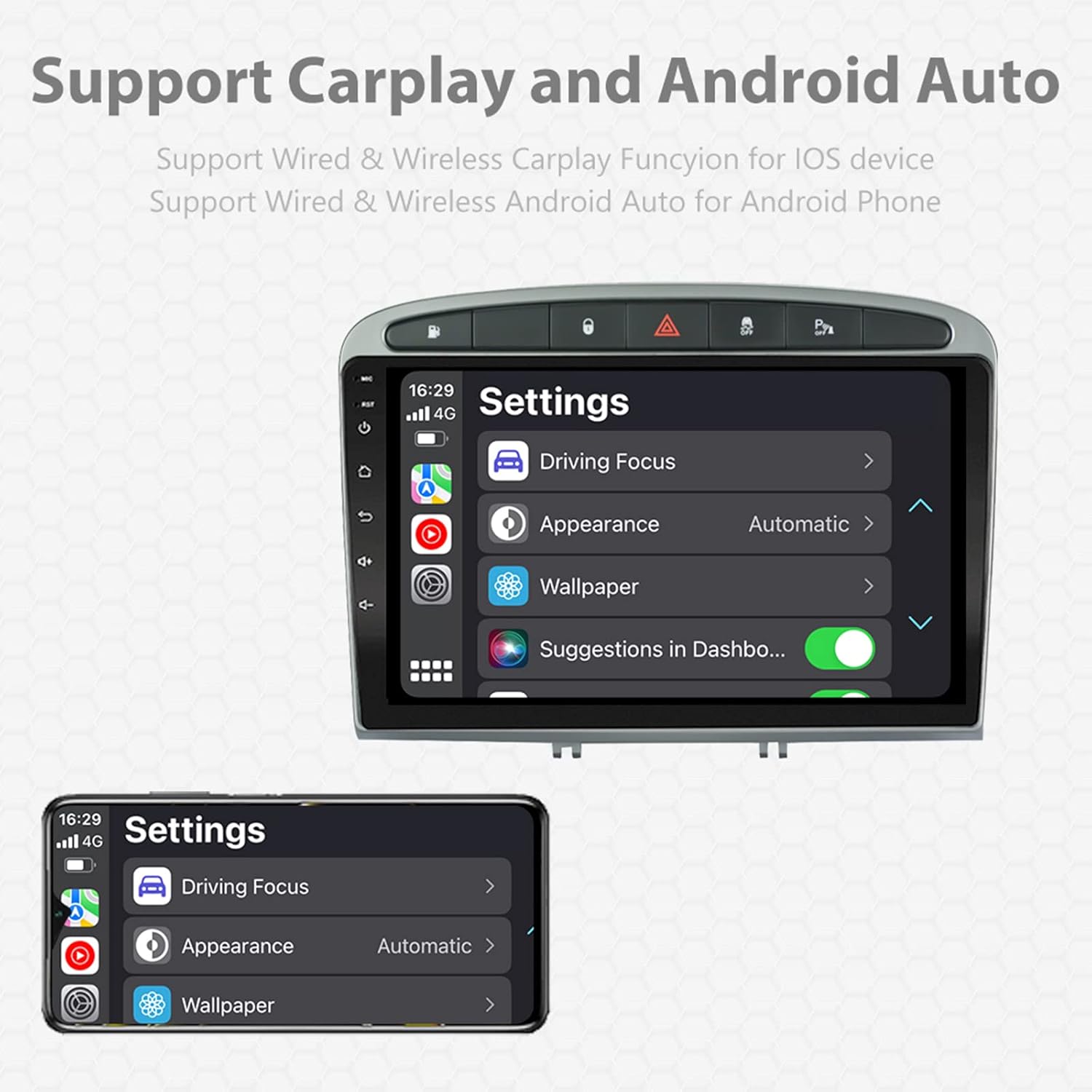
Image: A screen capture showing the settings menu for CarPlay and Android Auto, indicating support for both wired and wireless connections.
Pipin iboju Išė
The Android 11 system supports multi-tasking, allowing two applications to run side-by-side.
- To activate, open an application, then swipe up from the bottom of the screen (or use the recent apps button) and drag another app to one side of the screen.
- This enables simultaneous use of navigation and music playback, or browsing while listening to the radio.
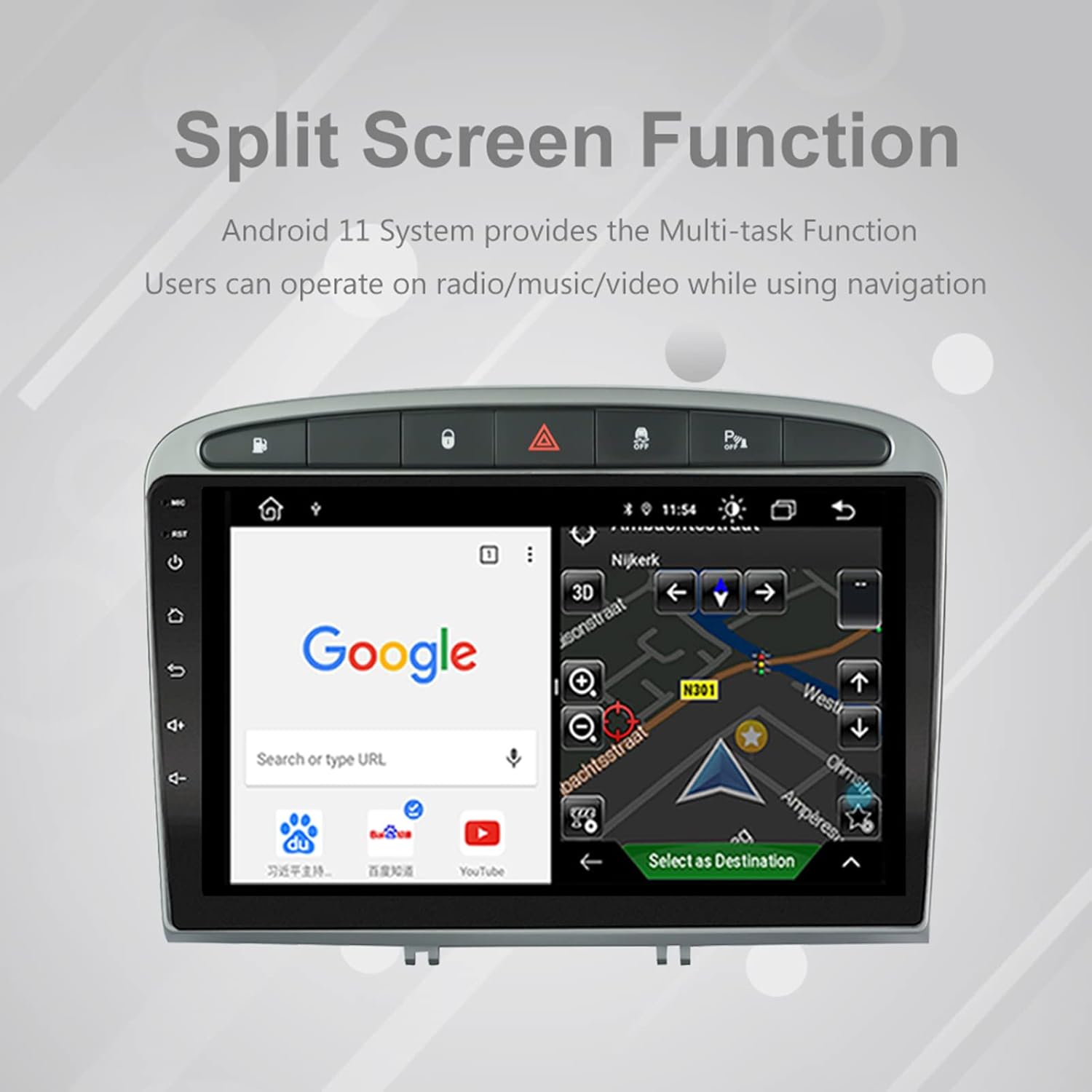
Image: The split-screen feature in action, displaying a Google search interface on one side and a navigation map on the other.
Radio (AM/FM/RDS)
The unit includes an automotive-grade chipset for optimal radio signal reception.
- Select the 'Radio' application from the home screen.
- Use the on-screen controls to scan for stations, manually tune, or select preset stations.
- RDS (Radio Data System) provides additional information like station name and program type where available.
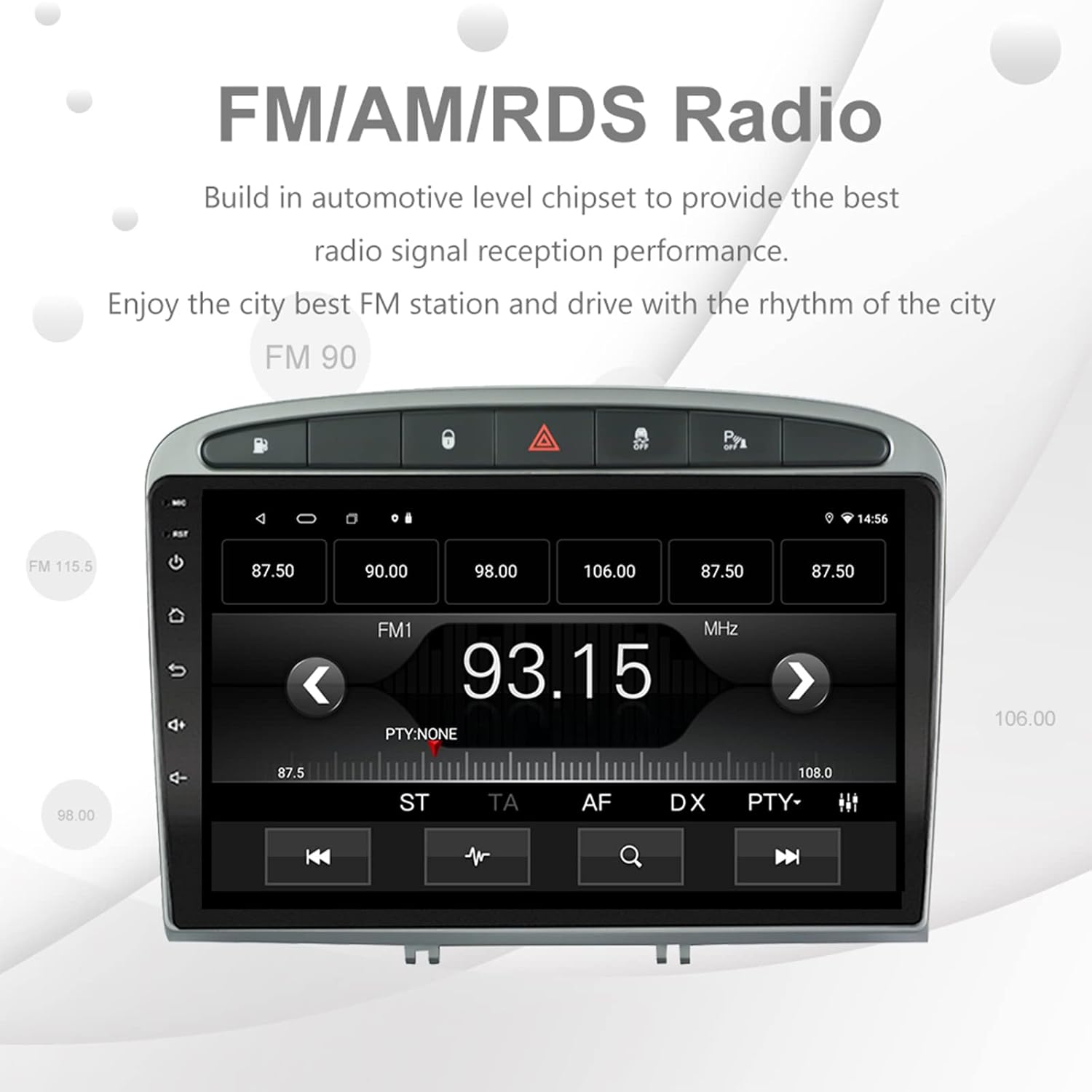
Image: The FM/AM/RDS radio interface, showing frequency display, tuning controls, and preset options.
Oluṣe ohun oni nọmba (DSP)
The built-in 32-band DSP allows for precise audio customization to match your preferences and vehicle acoustics.
- Access the 'EQ' or 'DSP' application from the home screen.
- Adjust individual frequency bands, fader, balance, treble, and bass settings.
- Select from preset EQ modes or create and save your custom profiles.

Image: The DSP system interface, illustrating the multi-band equalizer with adjustable frequency sliders for sound customization.
Multimedia Playback (Music & Video)
The unit supports various multimedia formats for music and 1080P HD video playback.
- Connect USB drives to the rear USB inputs for media files.
- Use the 'Music' or 'Video' applications to browse and play your media.
- Stream music from your mobile phone via Bluetooth or compatible apps like Spotify (requires internet connection).

Image: The multimedia player displaying a high-definition scenic image, demonstrating its capability for 1080P video and music playback.
Input kamẹra yiyipada
The unit supports a reverse camera input for enhanced parking safety. An AHD camera (optional) provides superior clarity compared to standard CVBS cameras.
- Connect a compatible reverse camera to the 'Camera Input' cable.
- Iboju naa yoo yipada laifọwọyi si kamẹra naa view nígbà tí a bá fi ọkọ̀ náà sínú jia ìyípadà.
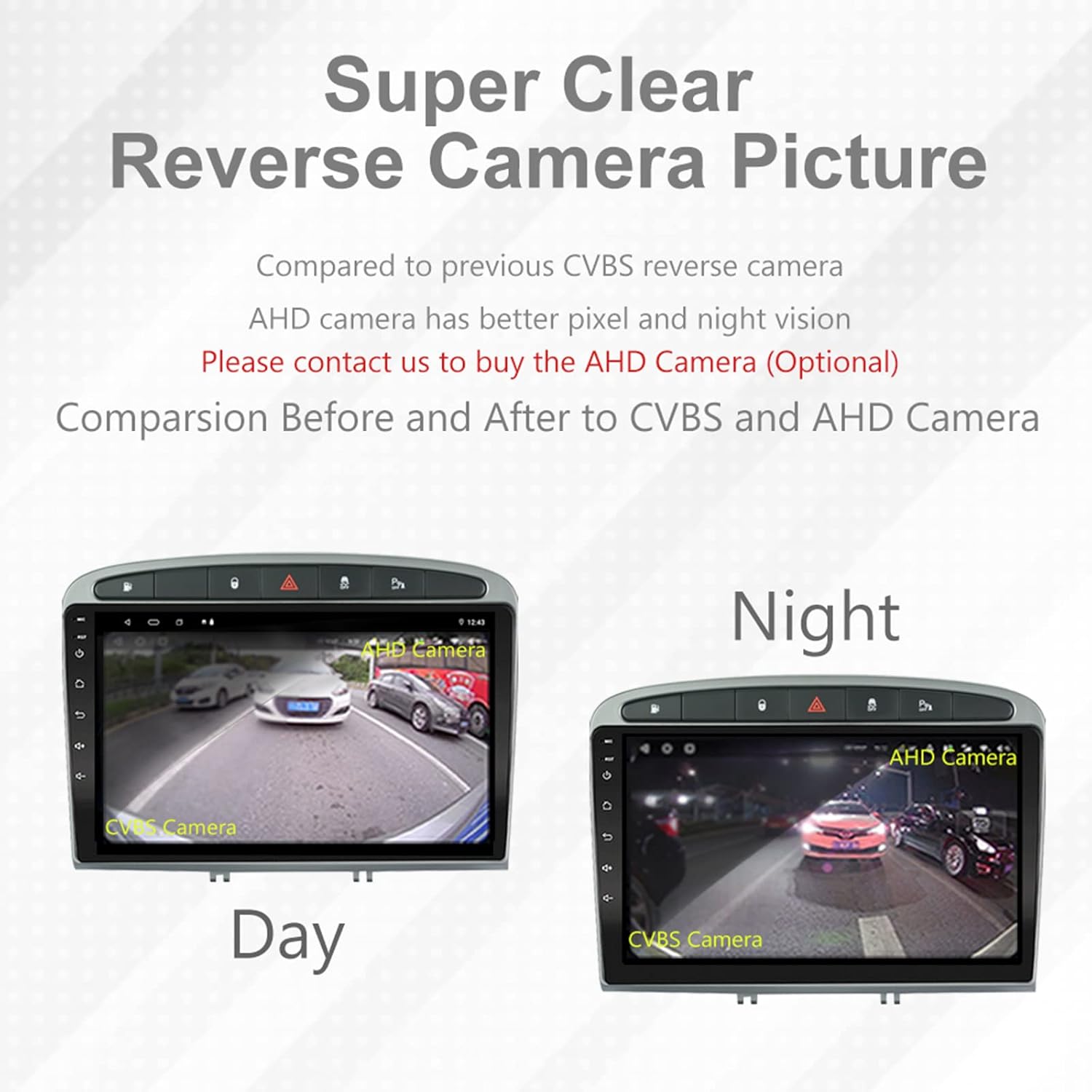
Image: A visual comparison demonstrating the clear reverse camera picture, highlighting the improved clarity of an AHD camera during both day and night conditions.
Itoju
Itọju to peye n ṣe idaniloju pe sitẹrio ọkọ ayọkẹlẹ rẹ yoo pẹ to ati pe yoo ṣiṣẹ daradara.
- Ninu iboju: Lo aṣọ rirọ, tí kò ní àwọ̀ láti nu àtẹ́wọ́gbà náà pẹ̀lú ìrọ̀rùn. Yẹra fún àwọn ohun ìfọmọ́ tàbí àwọn ohun olómi.
- Awọn imudojuiwọn sọfitiwia: Periodically check for system software updates to ensure optimal performance and access to new features. Updates can usually be found in the system settings or on the manufacturer's webojula.
- Iwọn otutu: Yago fun ṣiṣafihan ẹyọ naa si awọn iwọn otutu to gaju.
Laasigbotitusita
Ti o ba pade awọn ọran, tọka si awọn iṣoro ti o wọpọ ati awọn ojutu wọnyi:
| Isoro | Owun to le Fa | Ojutu |
|---|---|---|
| Unit ko ni agbara lori | Asopọ agbara alaimuṣinṣin, fiusi ti o fẹ, ọrọ batiri ọkọ. | Check power harness connections. Inspect vehicle fuses. Ensure vehicle battery is charged. |
| Ko si ohun | Volume too low, mute activated, speaker wiring issue, incorrect audio output settings. | Increase volume. Check mute status. Verify speaker connections. Adjust audio settings in DSP/EQ. |
| Àmì GPS kò lágbára tàbí kò péye | GPS antenna improperly placed or disconnected, environmental interference. | Rii daju pe eriali GPS ni gbangba view of the sky and is securely connected. Avoid placing near metal objects. |
| Awọn oran sisopọ Bluetooth | Bluetooth not enabled on unit or phone, incorrect pairing procedure, device interference. | Ensure Bluetooth is enabled on both devices. Restart both devices. Follow pairing instructions carefully. |
| CarPlay/Android Auto ko ṣiṣẹ | Faulty USB cable, phone software issue, app not installed/updated. | Try a different USB cable. Ensure your phone's OS and CarPlay/Android Auto apps are updated. Restart phone and stereo. |
| Unit is slow or unresponsive | Too many apps running in background, low storage, software glitch. | Close unnecessary applications. Clear cache. Perform a system restart. If persistent, a factory reset might be needed (backup data first). |
Fun awọn ọran ti ko bo nibi, jọwọ kan si atilẹyin alabara.
Awọn pato
- Nọmba awoṣe: RMS8-PGT-408-08-2G32
- Eto isesise: Android 11
- Iwọn iboju: 9 inches
- Iru ifihan: TFT Capacitive Touch Screen
- Ipinnu: 1280 x 720 pixels (Note: Some documentation may state 1024x600, but 1280x720 is the primary specification)
- Sipiyu: Octa Core with 1.6GHz Cortex A55
- Ramu: 2GB DDR3
- Ibi ipamọ inu: 32GB Flash Memory
- Bluetooth: Version 5.0 (A2DP, Hands-Free, Phonebook)
- Asopọmọra: Built-in WiFi, 4G SIM Card Compatible (requires external module/dongle for 4G), RCA, USB
- GPS: Built-in receiver, compatible with Waze/Navfree/Yandex Map etc.
- Redio: AM/FM/RDS with Auto Memory Store/Preset Scan
- Ijade ohun: 4 x 45W Power Output, 4.1 Channel RCA/Sub Output
- Ṣiṣẹ ohun: 32 Band DSP, Multi EQ Settings, Volume/Fader/Balance/Treble/Bass Control
- Input fidio: 1 Channel Video Input, Back Camera Input
- Iṣawọle Olohun: 2 Ikanni Audio Input
- Awọn ẹrọ ibaramu: Smartphone (for CarPlay/Android Auto, Bluetooth)
- Awọn iṣẹ Ayelujara ti o ni atilẹyin: Spotify
- Awọn ede: English, French, Italian, German, Spanish, Portuguese, Chinese, Japanese, and more.
- Awọn iwọn idii: 31.3 x 21.6 x 11.9 cm
- Ìwúwo Apo: 1.51 kg
Atilẹyin ọja ati Support
Your EZoneTronics car stereo comes with a 1-odun atilẹyin ọja lati ọjọ ti o ra.
For technical assistance, warranty claims, or any inquiries, please contact our customer support team:
- Imeeli: sales2@rhythmhk.com
Please provide your model number (RMS8-PGT-408-08-2G32) and a detailed description of the issue when contacting support.