
TomTom 1YB5.002.20
TomTom GO Expert Truck Sat Nav User Manual
Model: 1YB5.002.20
Ọrọ Iṣaaju
This manual provides essential information for setting up, operating, maintaining, and troubleshooting your TomTom GO Expert Truck Sat Nav. Please read it carefully to ensure optimal performance and safe use of your device.
The TomTom GO Expert is designed for professional large vehicle navigation, offering custom routing and POIs for buses, trucks, and coaches, along with live alerts for various road restrictions.
Ohun ti o wa ninu Apoti
Ni ṣiṣi package, rii daju pe gbogbo awọn paati wa:
- TomTom GO Expert Device
- Ṣaja ọkọ ayọkẹlẹ
- Tẹ-ati-Wakọ sori ẹrọ
- Quick Bẹrẹ Itọsọna

Aworan: Iwaju view of the TomTom GO Expert Sat Nav device, showing its 5-inch capacitive screen and the TomTom logo at the bottom.
Ṣeto
1. Iṣagbesori Device
- Mọ Afẹfẹ Afẹfẹ: Ensure the area where you intend to mount the device is clean and dry.
- So Oke: Securely attach the Click-and-Drive mount to your windshield or dashboard. Press the suction cup firmly against the surface and flip the lever to lock it in place.
- So ẹrọ naa pọ: Slide the TomTom GO Expert device onto the mount until it clicks securely.
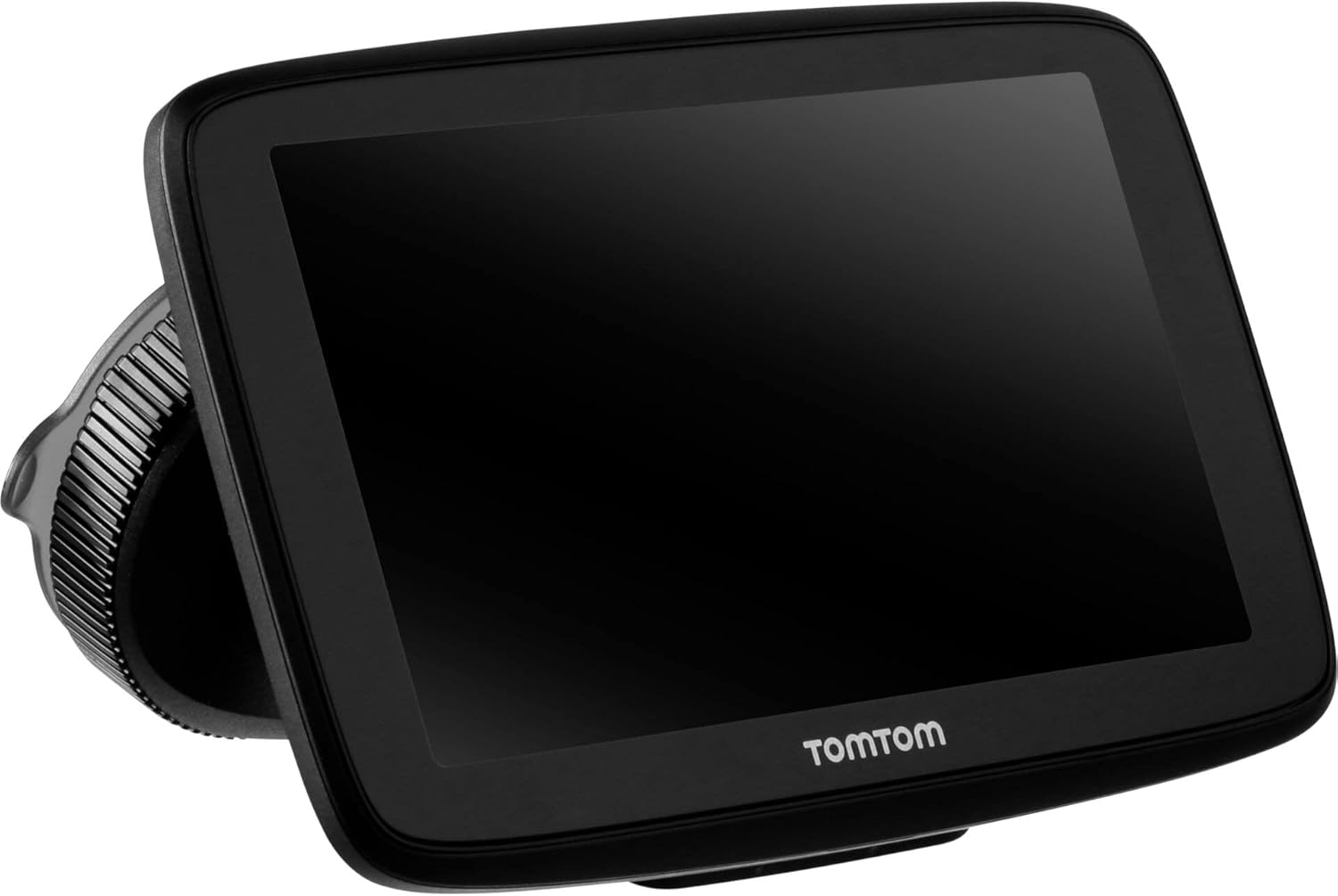
Image: The TomTom GO Expert Sat Nav device attached to its Click-and-Drive mount, viewed from an angle, showing the suction cup base.
2. Agbara lori ati gbigba agbara
- Connect the Car Charger: Pulọọgi ṣaja ọkọ ayọkẹlẹ sinu iṣan agbara 12V ọkọ rẹ.
- Sopọ si Ẹrọ: Connect the other end of the charger to the TomTom GO Expert device.
- Idiyele Ibẹrẹ: Allow the device to charge for at least 30 minutes before first use, or until the battery indicator shows sufficient charge.

Aworan: Ẹgbẹ profile of the TomTom GO Expert Sat Nav device, showing its slim design and how it connects to the Click-and-Drive mount.
3. Eto ibẹrẹ ati asopọ Wi-Fi
- Tẹle awọn itọsọna loju iboju lati yan ede ati agbegbe rẹ.
- Connect to a Wi-Fi network for quick map updates and traffic information. Navigate to Eto > Wi-Fi kí o sì yan nẹ́tíwọ́ọ̀kì rẹ.
- Configure your vehicle profile (truck, bus, coach) by entering dimensions, weight, and other relevant details. This is crucial for custom routing.
Ṣiṣẹ ẹrọ rẹ
Awọn ipilẹ Lilọ kiri
- Wọle Ibi-ipinnu kan: Tap the search icon on the main menu and enter an address, POI, or coordinates.
- Itọnisọna aṣa: The device will automatically calculate routes based on your configured vehicle profile, avoiding unsuitable roads for large vehicles.
- Live Traffic Updates: With an active Wi-Fi connection, the device provides real-time traffic information to help you avoid delays.
- Ìtọ́sọ́nà Ọ̀nà: The device displays clear lane guidance to help you prepare for exits and turns.
- Iṣakoso ohun: Use voice commands for hands-free operation. Refer to the on-screen guide for available commands.
Map Updates and Services
Your TomTom GO Expert receives 3X faster updates via Wi-Fi. Ensure your device is connected to a stable Wi-Fi network to download the latest maps and software updates conveniently and at no extra cost.
- Awọn imudojuiwọn maapu: Lilö kiri si Eto > Awọn imudojuiwọn & Awọn nkan Tuntun to check for and install map updates.
- Àwọn ìkìlọ̀ kámẹ́rà ìyára: The device includes 1 year of speed camera alerts. Ensure this service is active for safer driving.
Itoju
- Ninu: Use a soft, lint-free cloth to clean the screen and device casing. Ma ṣe lo abrasive ose tabi epo.
- Awọn imudojuiwọn sọfitiwia: Regularly check for and install software updates via Wi-Fi to ensure optimal performance and access to new features.
- Itọju Batiri: Láti mú kí batiri pẹ́ sí i, má ṣe jẹ́ kí ẹ̀rọ náà wà ní ibi tí ó gbóná gan-an. Tí o bá wà ní ìpamọ́ fún ìgbà pípẹ́, rí i dájú pé batiri náà ti gba agbára díẹ̀.
- Ibi ipamọ: When not in use, store the device in a cool, dry place, away from direct sunlight.
Laasigbotitusita
Wọpọ Oran ati Solusan
- Ẹrọ ti ko ni agbara:
- Ensure the car charger is securely connected to both the device and the vehicle's power outlet.
- Ṣayẹwo iṣan agbara ọkọ fun iṣẹ ṣiṣe.
- Try resetting the device by holding the power button for 15-20 seconds.
- Ko si ifihan agbara GPS:
- Rii daju pe ẹrọ naa ni oye view of the sky. Obstructions like tall buildings or tunnels can block the signal.
- Move to an open area and allow the device a few minutes to acquire satellites.
- Check for any pending software updates that might improve GPS performance.
- Map Not Updating:
- Verify that the device is connected to a stable Wi-Fi network.
- Ensure there is sufficient storage space on the device for the new map data.
- Tun ẹrọ naa bẹrẹ ki o tun gbiyanju imudojuiwọn naa lẹẹkansi.
- Iboju ifọwọkan Ko dahun:
- Ṣe atunto asọ nipa didimu bọtini agbara titi ẹrọ yoo tun bẹrẹ.
- Rii daju pe iboju jẹ mimọ ati laisi idoti.
Awọn pato
| Ẹya ara ẹrọ | Ẹ̀kúnrẹ́rẹ́ |
|---|---|
| Ọja Mefa | 5.51 x 0.79 x 3.54 inches |
| Iwọn Nkan | 12.7 iwon |
| Nọmba awoṣe | 1YB5.002.20 |
| Awọn batiri | Batiri Lithium ion 1 nilo (pẹlu) |
| Eto isesise | Windows (internal OS) |
| Awọn ọna ẹrọ Asopọmọra | Bluetooth, Wireless (Wi-Fi) |
| Pataki Awọn ẹya ara ẹrọ | Bluetooth, Lane Assist, Touchscreen |
| Human Interface Input | Afi ika te |
| Àwọ̀ | Dudu |
| Ọkọ Iṣẹ Iru | Bus, Truck |
| Iwon iboju | 5 inches |
| Oriṣi maapu | Ni agbaye |
| Ipo Ijade Ohun | Agbọrọsọ |
Atilẹyin ọja ati Support
For detailed warranty information and technical support, please visit the official TomTom support webaaye tabi tọka si kaadi atilẹyin ọja ti o wa pẹlu ọja rẹ.
Atilẹyin Ayelujara: www.tomtom.com/support
Ensure you have your device's serial number and model number (1YB5.002.20) ready when contacting support.
Ask a question about this manual
Ask about setup, troubleshooting, compatibility, parts, safety, or missing instructions. Manuals+ will review the question and use this page’s manual context to help answer it.