
Fnatic BOLT
Fnatic BOLT Wireless Gaming Mouse User Manual
Ọrọ Iṣaaju
This manual provides detailed instructions for the setup, operation, maintenance, and troubleshooting of your Fnatic BOLT Wireless Gaming Mouse. Please read this manual thoroughly before using the product to ensure optimal performance and longevity.
Ọja Pariview
The Fnatic BOLT is a lightweight wireless gaming mouse designed for high performance. It features a durable construction and versatile connectivity options.
Awọn eroja
- Awọn bọtini titẹ apa osi ati apa ọtun
- Yi lọ Wheel
- DPI Cycle Button (typically located on the bottom or top)
- Awọn bọtini ẹgbẹ (siwaju/ẹhin)
- Ibudo Ngba agbara USB-C
- Wireless Receiver (dongle)

olusin 1: Top view of the Fnatic BOLT Wireless Gaming Mouse, showing the main click buttons and scroll wheel.

olusin 2: Angled view of the Fnatic BOLT Wireless Gaming Mouse, highlighting the two programmable side buttons.

olusin 3: Iwaju view of the Fnatic BOLT Wireless Gaming Mouse, displaying the USB-C charging port.
Ṣeto
1. Gbigba agbara akọkọ
Before first use, it is recommended to fully charge the Fnatic BOLT mouse.
- So okùn USB-C tí a pèsè mọ́ ibudo gbigba agbara ní iwájú asin.
- Connect the other end of the USB-C cable to a powered USB port on your computer or a USB wall adapter.
- The mouse's indicator light will show charging status (refer to product documentation for specific light patterns). A full charge typically takes a few hours.
2. Nsopọ si Kọmputa Rẹ
The Fnatic BOLT supports two wireless connection modes: 2.4 GHz wireless (via USB dongle) and Bluetooth.
2.1. Ìsopọ̀ Aláìlókùn 2.4 GHz
- Locate the USB wireless receiver (dongle) that came with your mouse.
- Pulọọgi olugba USB sinu ibudo USB ti o wa lori kọnputa rẹ.
- Tan asin naa nipa lilo iyipada agbara ti o wa ni isalẹ asin naa.
- The mouse should automatically connect to the receiver. The indicator light will confirm a successful connection.
2.2. Asopọ Bluetooth
- Rii daju pe Bluetooth ti kọmputa rẹ ti ṣiṣẹ.
- Turn on the mouse and switch it to Bluetooth mode (refer to the mouse's bottom switch or button for mode selection).
- Lori kọmputa rẹ, lọ si awọn eto Bluetooth ki o wa awọn ẹrọ titun.
- Select "Fnatic BOLT" from the list of available devices to pair.
- Ina atọka Asin yoo jẹrisi isọdọkan aṣeyọri.
Awọn ilana Iṣiṣẹ
DPI Atunṣe
The Fnatic BOLT mouse allows you to adjust its Dots Per Inch (DPI) sensitivity. This mouse features 4 preset DPI levels.
- Locate the DPI cycle button, typically on the bottom of the mouse.
- Press the DPI button to cycle through the available sensitivity settings.
- An indicator light (often on the scroll wheel or top of the mouse) may change color or flash to indicate the current DPI level.
Awọn iṣẹ bọtini
- Tẹ osi: Iṣe akọkọ, aṣayan.
- Tẹ-ọtun: Akojọ ọrọ, iṣẹ keji.
- Yi lọ Kẹkẹ Tẹ: Middle click, often used for opening links in new tabs or specific in-game functions.
- Yi lọ soke/isalẹ: Navigating documents or web awọn oju-iwe.
- Awọn bọtini ẹgbẹ: Default to Forward/Back in web browsers. These can often be customized via software (if available).
Isakoso agbara
- To conserve battery life, turn off the mouse using the power switch when not in use for extended periods.
- The mouse may enter a sleep mode after a period of inactivity. Move the mouse or click a button to wake it up.
- Monitor the battery indicator (if available) to know when to recharge.
Itoju
Ninu
- Nigbagbogbo nu oju asin mọ pẹlu asọ, gbẹ, asọ ti ko ni lint.
- Fun idoti alagidi, die-die dampen awọn asọ pẹlu omi tabi kan ìwọnba ninu ojutu. Yẹra fun awọn kẹmika lile.
- Clean the optical sensor on the bottom of the mouse with a cotton swab to ensure accurate tracking.
- Má ṣe jẹ́ kí omi wọ inú àwọn èròjà inú eku náà.
Itọju Batiri
- Yago fun gbigba agbara si batiri ni kikun nigbagbogbo.
- Tọju Asin ni itura, aye gbigbẹ nigbati o ko ba lo fun awọn akoko ti o gbooro sii.
- Ma ṣe fi asin naa han si awọn iwọn otutu to gaju.
Laasigbotitusita
Asin Ko fesi
- Ṣayẹwo Batiri: Ensure the mouse is charged. Connect it to the USB-C cable and allow it to charge for a period.
- Agbara Yi pada: Verify the mouse's power switch is in the "ON" position.
- Wireless Connection (2.4 GHz):
- Rii daju pe olugba USB ti wa ni edidi ni aabo sinu ibudo USB ti n ṣiṣẹ. Gbiyanju ibudo USB ti o yatọ.
- Ensure the mouse is within range of the receiver.
- Yago fun awọn orisun kikọlu (fun apẹẹrẹ, awọn ẹrọ alailowaya miiran, awọn nkan irin nla).
- Asopọ Bluetooth:
- Rii daju pe Bluetooth ti kọmputa rẹ ti ṣiṣẹ.
- Check if the mouse is in Bluetooth pairing mode or already paired. Re-pair if necessary.
- Remove and re-add the device in your computer's Bluetooth settings.
- Tun bẹrẹ: Tun kọmputa rẹ bẹrẹ.
Titọpa aipe
- Sensọ mimọ: Nu sensọ opitika lori isalẹ ti Asin.
- Ilẹ: Rii daju pe o nlo asin lori aaye ti o dara. Afihan ti o ga julọ tabi awọn aaye aiṣedeede le ni ipa titele. A ṣe iṣeduro paadi eku kan.
- Eto DPI: Adjust the DPI setting to a level that suits your preference and task.
Igbesi aye batiri kukuru
- Gbigba agbara: Rii daju pe asin naa ti gba agbara ni kikun.
- Agbara Pa: Remember to turn off the mouse when not in use.
- Lilo: High-intensity usage or certain settings might consume more power.
Awọn pato
| Ẹya ara ẹrọ | Ẹ̀kúnrẹ́rẹ́ |
|---|---|
| Brand | Ogbontarigi |
| Orukọ awoṣe | FnaticGear BOLT |
| Nọmba Awoṣe Nkan | BOLT |
| Àwọ̀ | funfun |
| Asopọmọra Technology | Bluetooth, Wi-Fi (2.4 GHz Wireless) |
| Imọ-ẹrọ Iwari išipopada | Opitika |
| Nọmba ti Awọn bọtini | 6 |
| Ọwọ Iṣalaye | Ọtun |
| Pataki Awọn ẹya ara ẹrọ | Ìwúwo Fúyẹ́ |
| Agbara Orisun Oriṣi | Wireless (Rechargeable Battery) |
| Awọn batiri To wa | Yes (1 Lithium Metal battery) |
| Litiumu Batiri Agbara akoonu | 470 Milionuamp Awọn wakati (mAh) |
| Ọja Mefa | 12.5 x 6.5 x 0.1 cm; 69g |
| Awọn ẹrọ ibaramu | Kọǹpútà alágbèéká, Kọmputa ti ara ẹni |
| Awọn ọna ṣiṣe | Linux, Windows 7, Windows XP (and newer) |
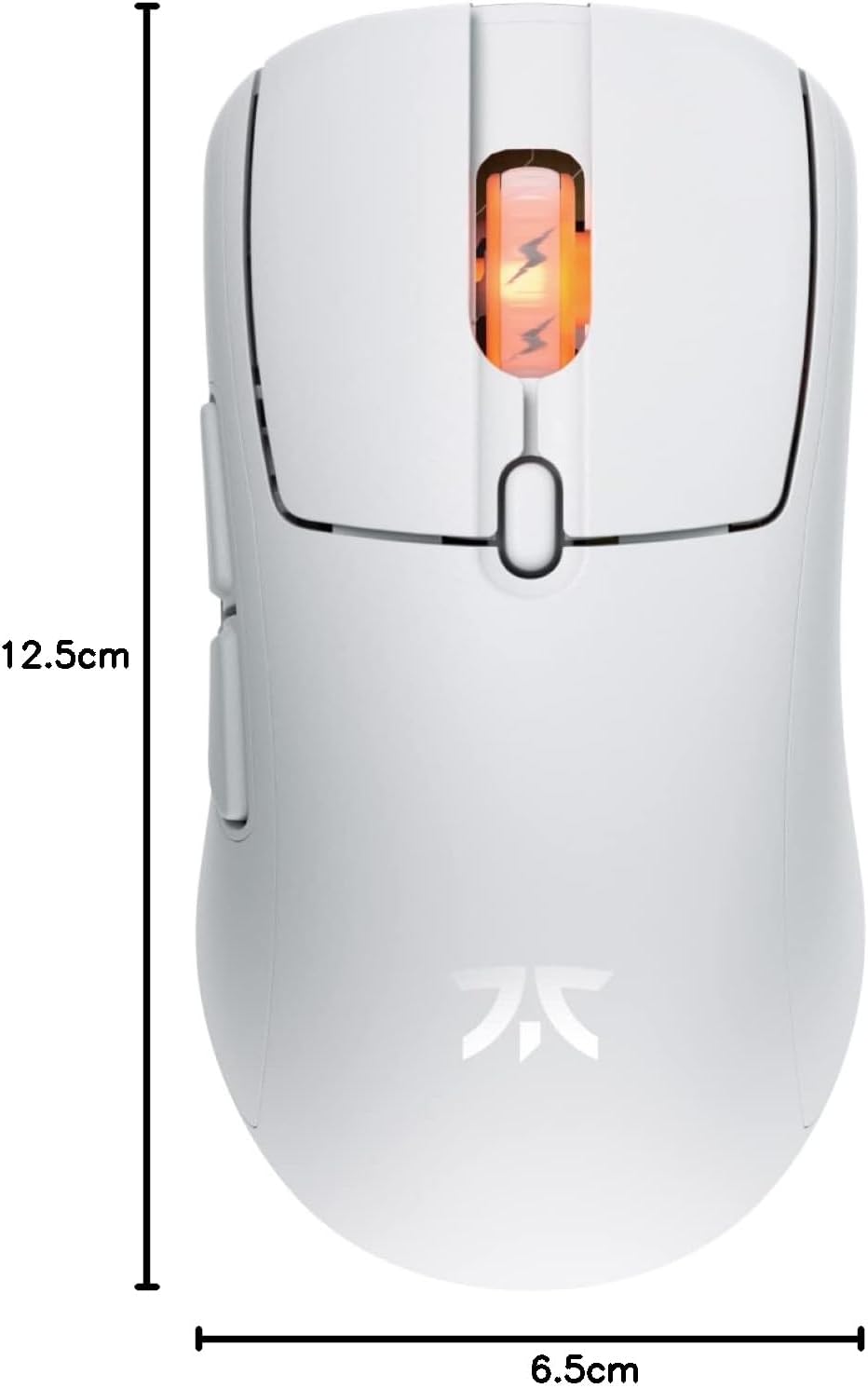
Figure 4: Diagram showing the dimensions of the Fnatic BOLT Wireless Gaming Mouse.
Atilẹyin ọja ati Support
For information regarding warranty coverage and technical support, please refer to the official Fnatic webaaye tabi kaadi atilẹyin ọja ti o wa pẹlu ọja rẹ.
You can typically find support resources, FAQs, and contact information on the manufacturer's official support pages.
Ask a question about this manual
Ask about setup, troubleshooting, compatibility, parts, safety, or missing instructions. Manuals+ will review the question and use this page’s manual context to help answer it.