
1. Eto
1.1 Unboxing ati Package Awọn akoonu
Fi iṣọra yọ tẹlifisiọnu ati gbogbo awọn paati kuro ninu apoti. Rii daju pe gbogbo awọn nkan ti o wa ni isalẹ wa:
- LG 70-Inch Class UQ9000 Series 4K Smart TV
- Magic Remote Iṣakoso
- Remote Control Batteries (AA x 2)
- Iduro TV
- Okun agbara
- Quick Bẹrẹ Itọsọna
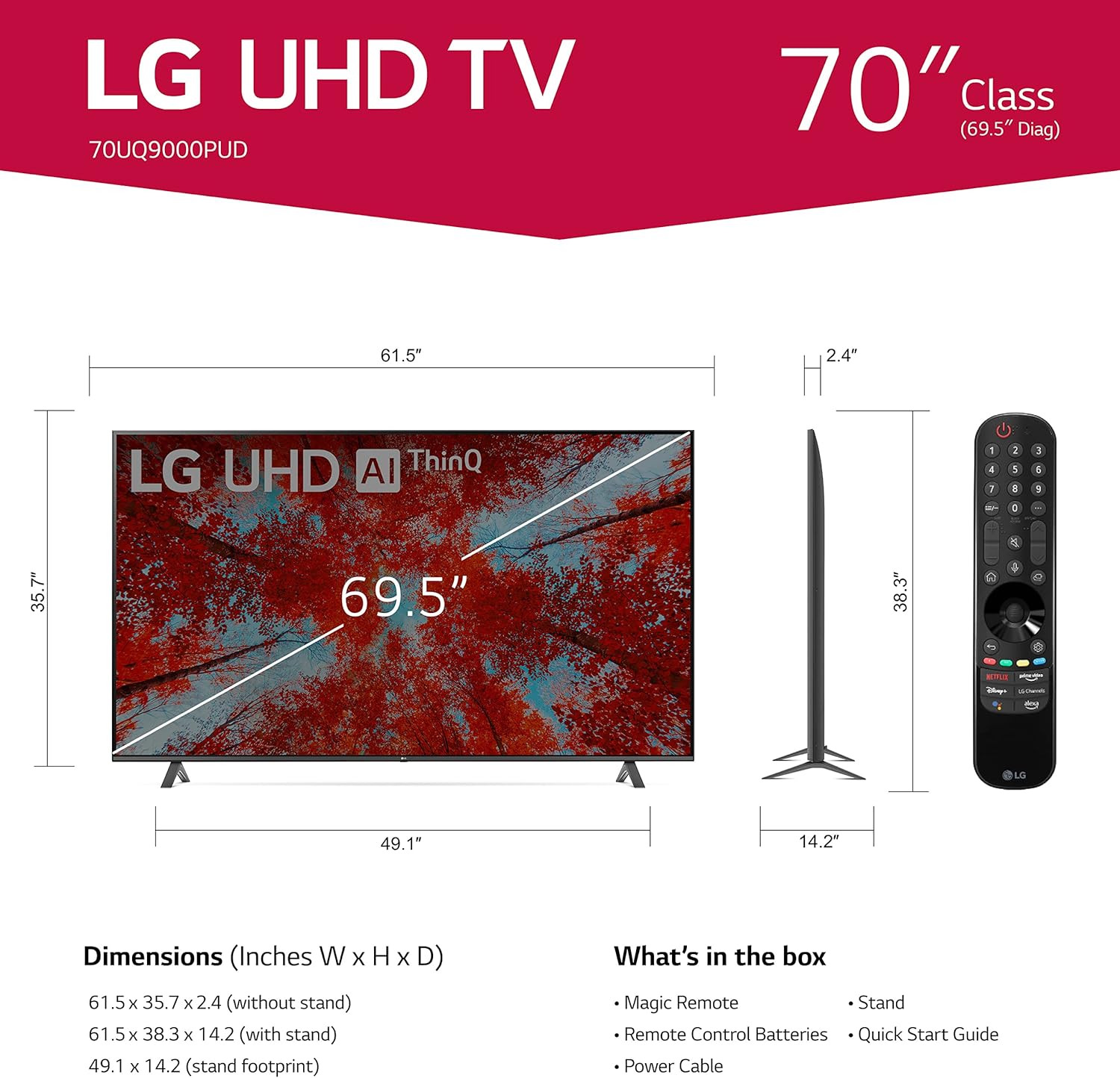
Image 1.1: LG 70UQ9000PUD TV with dimensions, Magic Remote, and a list of included accessories.
1.2 Fifi sori ti ara
The television can be installed using the included stand or mounted on a wall.
Fifi sori imurasilẹ:
- Attach the stand components to the bottom of the TV using the provided screws.
- Ensure the stand is securely fastened before placing the TV on a stable, flat surface.
Fifi sori Odi Oke:
For wall mounting, use a VESA compatible mount with a 400 x 400 mm standard. Consult a professional for wall mounting to ensure proper and safe installation.
1.3 Nsopọ Awọn ẹrọ ita
Connect your external devices to the TV's ports. The LG 70UQ9000PUD features multiple connectivity options:
- Awọn ibudo HDMI (x3): For connecting devices such as gaming consoles, Blu-ray players, and set-top boxes.
- Awọn ibudo USB (x2): Fún sísopọ̀ àwọn ẹ̀rọ ìpamọ́ USB tàbí àwọn ẹ̀rọ mìíràn tó báramu.
- Ibudo LAN: Fun asopọ intanẹẹti ti a firanṣẹ.
- Opiti Digital Audio Jade: Fun sisopọ si awọn ọna ṣiṣe ohun ita.
- Antenna/Cable Ni: Fun sisopọ eriali tabi ifihan agbara TV USB.
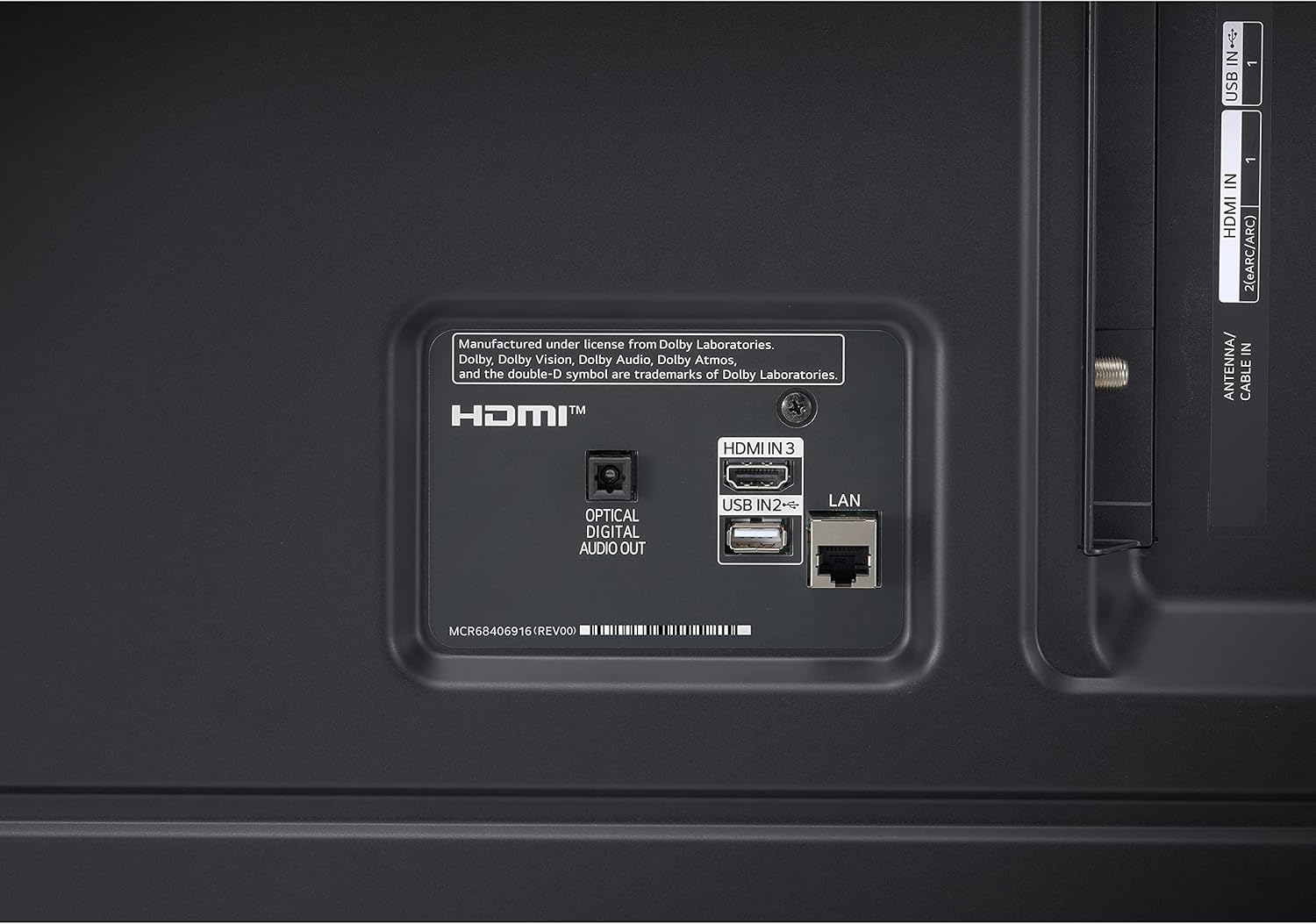
Image 1.2: Rear panel connections showing HDMI, USB, LAN, and Optical Digital Audio Out ports.
1.4 Agbara Ibẹrẹ Lori ati Awọn Eto Ipilẹ
- So okun agbara pọ mọ TV ati iṣan agbara kan.
- Tẹ bọtini agbara lori isakoṣo latọna jijin tabi TV.
- Follow the on-screen instructions to complete the initial setup, including language selection, network connection (Wi-Fi or LAN), and channel scanning.
2. Awọn ilana Iṣiṣẹ
2.1 Lilo Iṣakoso Latọna jijin Magic
The LG Magic Remote allows for intuitive control of your TV. It supports point, click, scroll, and voice commands.

Image 2.1: The LG Magic Remote, designed for easy navigation and voice control.
Awọn ẹya pataki:
- Ntọkasi: Point the remote at the screen to move the on-screen cursor.
- Títẹ̀: Press the scroll wheel (OK button) to select items.
- Yi lọ: Use the scroll wheel to move through menus and web awọn oju-iwe.
- Iṣakoso ohun: Press and hold the microphone button to activate voice commands for searching content or controlling TV functions.

Image 2.2: Using the Magic Remote for intuitive control, including voice commands.
2.2 Àwọn Ẹ̀yà Telifíṣọ̀n Ọlọ́gbọ́n (webOS with ThinQ AI)
The LG UQ9000 Series TV runs on webOS, providing a user-friendly interface for accessing various smart features and applications. ThinQ AI integrates artificial intelligence for enhanced control and personalized experiences.
Video 2.1: This video demonstrates the LG webOS interface, showcasing user profiles and personalized recommendations for a customized viewiriri iriri.
Key Smart Features:
- Àwọn Ìmọ̀ràn Tí A Yàn fún Ẹni: webOS learns your viewing habits to suggest content.
- Awọn ohun elo ṣiṣanwọle ti a ṣe sinu: Access popular services like Netflix, Prime Video, Apple TV app, Disney+, HBO Max, and over 300+ free LG Channels.
- Alexa ti a ṣe sinu: Use voice commands to control your TV and smart home devices.
Video 2.2: This video highlights various LG UHD TV features, including the α5 Gen5 AI Processor 4K, AI Brightness, and AI Sound, enhancing picture and audio quality.
2.3 Àtúnṣe Àwòrán àti Ohùn
The TV incorporates advanced technologies to optimize your viewing ati gbigbọ iriri.
- α5 Gen5 AI Processor 4K: Ó ń mú kí àwòrán àti ohùn dára síi nípasẹ̀ ọgbọ́n àtọwọ́dá.
- Igbesoke 4K: Ó ń yí àwọn akoonu tí ó ní ìpele tí ó kéré síi padà sí dídára tí ó fẹ́rẹ̀ẹ́ tó 4K fún àwọn kúlẹ̀kúlẹ̀ tí ó mú kí ó dáa.
- Iṣakoso Imọlẹ AI: Automatically adjusts screen brightness based on ambient room lighting.
- HDR Format Support: Compatible with HDR10 and HLG for improved contrast and color.
- Ipo onifiimu: Ó ń pa àwọn àwọ̀ àtilẹ̀wá olùdarí mọ́, àwọn ètò àti ìwọ̀n fírémù rẹ̀ fún ìrírí fírémù gidi.
- AI Ohun Pro: Automatically up-mixes 2-channel audio into virtual 5.1.2 channel sound for an immersive audio experience.

Image 2.3: AI Brightness Control automatically adjusts screen brightness to match room conditions.
2.4 ayo Awọn ẹya ara ẹrọ
The TV offers features designed to enhance the gaming experience.
- Ere Awọsanma: Access games directly from the cloud (GeForce Now compatible, subscription and compatible controller may be required).
- Olùmúdàgbàsókè Ere & Dásíbọ̀dù: Centralized settings for quick adjustments to game-specific parameters.
- HGiG: Delivers realistic HDR gaming with optimized tone mapping.

Image 2.4: Game Optimizer and Dashboard for quick adjustment of gaming settings.
2.5 Sports Alert
Receive real-time updates for your favorite teams and matches, ensuring you never miss important sports moments.

Image 2.5: Sports Alert feature providing real-time updates for ongoing matches.
3. Itọju
3.1 Ninu TV
- Iboju: Rọra mu ese iboju naa pẹlu asọ, asọ microfiber gbẹ. Fun awọn ami alagidi, fẹẹrẹ dampen awọn asọ pẹlu omi tabi a specialized iboju regede. Yago fun awọn kẹmika lile.
- Férémù ati Iduro: Lo asọ ti o rọ, ti o gbẹ lati nu eruku kuro lati firẹemu TV ati duro.
- Afẹfẹ: Rii daju pe awọn ṣiṣi atẹgun lori ẹhin TV ko ni idinamọ lati ṣe idiwọ igbona.
3.2 Software imudojuiwọn
The TV may receive regular software updates to improve performance, add new features, and enhance security. It is recommended to allow these updates to install when prompted to ensure optimal functionality.
3.3 Rírọ́pò Batiri Iṣakoso Latọna jijin
The Magic Remote requires two AA batteries. Replace them when the remote's performance diminishes.
- Ṣii ideri aporo batiri lori ẹhin iṣakoso latọna jijin.
- Yọ awọn batiri atijọ kuro.
- Fi awọn batiri AA tuntun meji sii, ki o rii daju pe polarity ti o tọ (+/-).
- Pa ideri iyẹwu batiri naa.
4. Laasigbotitusita
If you encounter issues with your LG 70UQ9000PUD TV, refer to the following common troubleshooting steps:
- Ko si Agbara: Ensure the power cable is securely connected to both the TV and the power outlet. Check if the outlet is functioning by plugging in another device.
- Ko si Aworan/Ohun: Rí i dájú pé a yan orísun ìtẹ̀wọlé tó tọ́. Ṣàyẹ̀wò gbogbo àwọn ìsopọ̀ okùn (HDMI, eriali, àti bẹ́ẹ̀ bẹ́ẹ̀ lọ) fún ìfọ́ tàbí ìbàjẹ́.
- Iṣakoso latọna jijin Ko Ṣiṣẹ: Rọpo awọn batiri ninu Magic Remote. Rí i dájú pé kò sí ìdènà láàárín remote àti TV.
- Awọn oran Isopọ nẹtiwọki: For Wi-Fi, restart your router and modem. For wired connections, ensure the LAN cable is properly connected. You can also try resetting network settings on the TV.
- Awọn ọran Didara Aworan: Ṣatunṣe awọn eto aworan (imọlẹ, itansan, awọ) ninu akojọ TV. Rii daju pe orisun akoonu jẹ didara ga.
For more detailed troubleshooting or persistent issues, consult the full electronic manual available through the TV's settings or contact LG customer support.
5. Awọn pato
| Ẹya ara ẹrọ | Sipesifikesonu |
|---|---|
| Nọmba awoṣe | 70UQ9000PUD |
| Brand | LG |
| Iwon iboju | 69.5 inches (kilasi 70-inch) |
| Ifihan ọna ẹrọ | LED |
| Ipinnu | 4K (3840 x 2160) |
| Oṣuwọn sọtun | 60 Hz |
| isise | α5 Gen5 AI Processor 4K |
| Eto isesise | webOS |
| Oluranlọwọ ohun | Alexa ti a ṣe sinu |
| Asopọmọra Technology | Bluetooth 5.0, Wi-Fi |
| Awọn ibudo HDMI | 3 |
| Awọn ibudo USB | 2 |
| Awọn iwọn Ọja (D x W x H) | 14.2"D x 61.5"W x 38.3"H |
| Boṣewa VESA Mount | 400 x 400 mm |
| Agbara agbara | 22 Wattis |
| Awọn batiri Iṣakoso latọna jijin | 2 AA batiri |
| UPC | 195174030073 |
6. atilẹyin ọja Information
This LG TV is covered by a Manufacturer’s Warranty. For specific details regarding warranty coverage, duration, and terms, please refer to the warranty card included with your product or visit the official LG webojula. Jeki ẹri rira rẹ fun awọn iṣeduro atilẹyin ọja.
7. Onibara Support
For further assistance, technical support, or service inquiries, please contact LG Customer Support. You can find contact information on the official LG webaaye tabi ni iwe ti a pese pẹlu tẹlifisiọnu rẹ.
Awọn orisun Ayelujara: Ṣabẹwo si atilẹyin LG website for FAQs, software downloads, and detailed product manuals.
Atilẹyin foonu: Tọkasi awọn iwe ọja rẹ fun awọn nọmba iṣẹ alabara agbegbe.