
NACON 10946680
NACON Asymmetric Wireless Controller for PlayStation 4
Awoṣe: 10946680
Ọrọ Iṣaaju
Thank you for choosing the NACON Asymmetric Wireless Controller for PlayStation 4. This controller is officially licensed for PlayStation 4 and designed to provide an immersive gaming experience with its unique asymmetric stick layout and wireless connectivity. This manual will guide you through the setup, operation, maintenance, and troubleshooting of your new controller.
Ohun ti o wa ninu Apoti
Jọwọ ṣayẹwo awọn akoonu inu package rẹ lati rii daju pe gbogbo awọn nkan wa:
- NACON Asymmetric Wireless Controller
- Olugba USB
- Okun Ngba agbara USB
- Itọsọna Ibẹrẹ iyara (ko si ninu iwe afọwọkọ oni-nọmba yii)
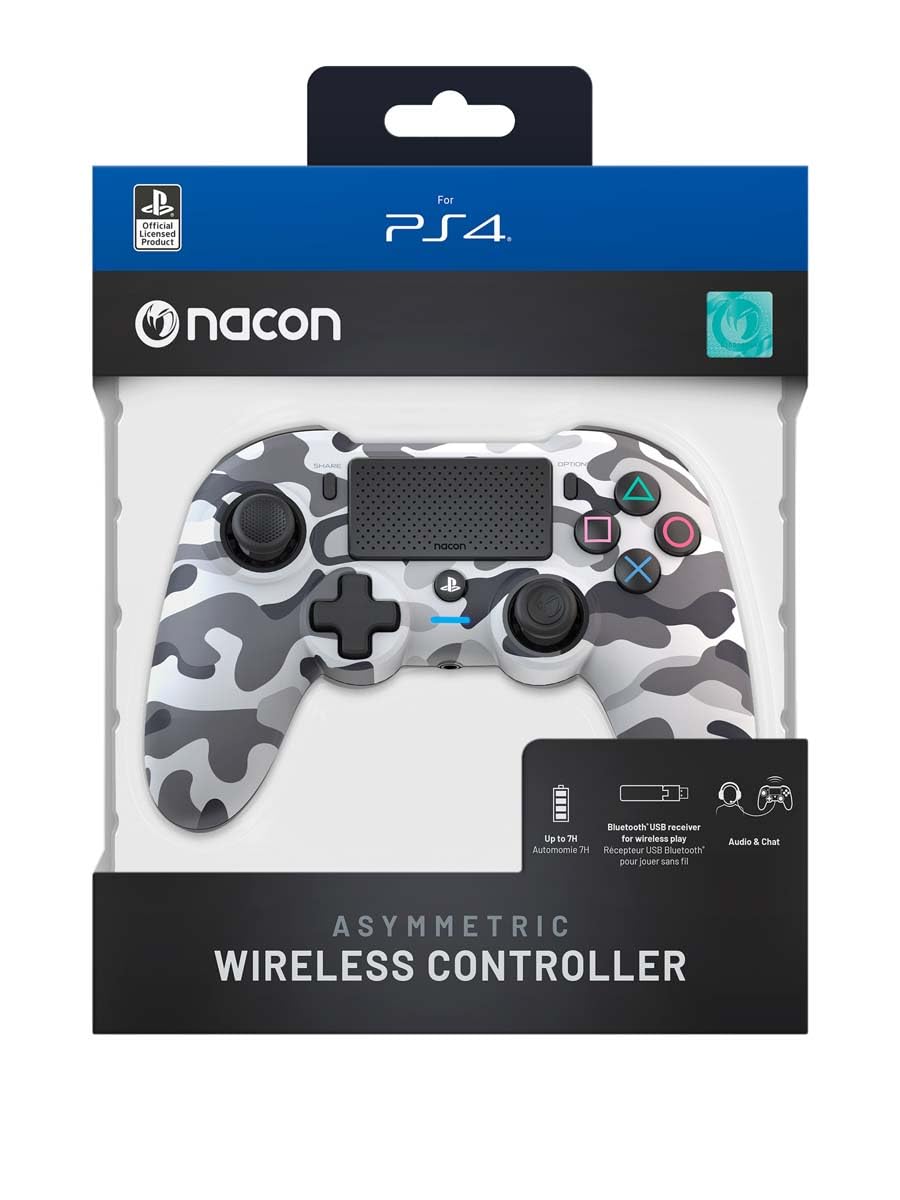
Image: The NACON Asymmetric Wireless Controller shown in its retail packaging, highlighting the product and its key features.
Ṣeto
1. Gbigba agbara Alakoso
Before first use, fully charge the controller. Connect the small end of the USB charging cable to the controller's charging port and the larger end to a USB port on your PlayStation 4 console or a compatible USB wall adapter. The LED indicator on the controller will show charging status and turn off when fully charged.
2. Connecting to PlayStation 4 (Wireless)
- Insert the USB Receiver into an available USB port on your PlayStation 4 console.
- Press the PlayStation button on the controller. The controller will automatically attempt to pair with the USB Receiver.
- Once successfully paired, the LED indicator on the controller will illuminate steadily, indicating a stable connection.
3. Nsopọ mọ PC (Alailowaya)
The controller can also be used with a PC. Insert the USB Receiver into an available USB port on your PC. The controller should be recognized automatically by Windows as a standard gamepad. Drivers may be installed automatically.

Aworan: Iwaju view of the NACON Asymmetric Wireless Controller, showcasing its button layout and asymmetric stick design.
Ṣiṣẹ Alakoso
Ifilelẹ Bọtini ati Awọn iṣẹ
The NACON Asymmetric Wireless Controller features a familiar PlayStation button layout with an ergonomic asymmetric stick configuration for enhanced comfort and precision.
- Ọpá Analog Osi: Used for movement and navigation.
- Ọpá Analog Ọtun: Used for camera control and aiming.
- Paadi itọsọna (D-paadi): Fún ìtẹ̀síwájú ìtọ́sọ́nà tó péye.
- Awọn bọtini iṣe (Igun mẹta, Circle, Cross, Square): Standard PlayStation action buttons.
- Awọn bọtini L1/R1: Awọn bọtini ejika.
- L2/R2 Triggers: Àwọn ohun tí ń fa àfikún afọwọ́ṣe fún ìtẹ̀síwájú pípé.
- Bọtini PIN: Wọle si awọn ẹya pinpin lori PS4.
- Bọtini Aṣayan: Wọle si awọn akojọ aṣayan ati awọn aṣayan inu ere.
- Bọ́tìnì PlayStation: Power on/off the controller, access PS4 Home Menu.
- Paadi Fọwọkan: Interactive surface for specific game functions.
Atọka batiri
The controller includes an LED indicator that provides information on battery status. Refer to the Quick Start Guide for specific LED patterns and their meanings (e.g., low battery, charging, fully charged).
Itoju
Ninu
To clean your controller, use a soft, dry cloth. For stubborn dirt, slightly dampen the cloth with water. Do not use harsh chemicals, abrasive cleaners, or solvents, as these can damage the controller's finish and internal components.
Ibi ipamọ
When not in use, store the controller in a cool, dry place away from direct sunlight and extreme temperatures. Avoid placing heavy objects on the controller.
Itọju Batiri
To prolong battery life, avoid fully discharging the controller frequently. If storing for an extended period, charge the battery to approximately 50% before storage and recharge every few months.
Laasigbotitusita
| Isoro | Owun to le Solusan |
|---|---|
| Oluṣakoso ko sopọ mọ. |
|
| Controller does not charge. |
|
| Awọn bọtini tabi awọn ọpá ko ni idahun. |
|
Tunto Adarí
If the controller is unresponsive or behaving erratically, a soft reset may resolve the issue. Locate the small reset button (often a pinhole) on the back or underside of the controller. Use a thin, pointed object (like a paperclip) to press and hold the button for a few seconds. Then, re-pair the controller with your console.
Awọn pato
- Nọmba awoṣe:
- 10946680
- Asopọmọra:
- Wireless (via USB Receiver)
- Ibamu:
- PLAYSTATION 4, PC
- Dimensions (Controller):
- Isunmọ 6.89 x 2.76 x 8.27 inches (17.5 x 7 x 21 cm)
- Weight (Controller):
- Isunmọ 14.1 iwon (400 giramu)
- Olupese:
- NACON
- Ọjọ akọkọ ti o wa:
- Oṣu Keje 6, Ọdun 2022
Atilẹyin ọja ati Support
For warranty information, technical support, or further assistance with your NACON Asymmetric Wireless Controller, please visit the official NACON webaaye tabi kan si atilẹyin alabara wọn taara. Jeki ẹri rira rẹ fun awọn iṣeduro atilẹyin ọja.
Official NACON Webojula: www.nacongaming.com
Ask a question about this manual
Ask about setup, troubleshooting, compatibility, parts, safety, or missing instructions. Manuals+ will review the question and use this page’s manual context to help answer it.