
1. Ifihan
Thank you for choosing the ALLDOCUBE iPlay20P Android 11 Tablet. This manual provides essential information for setting up, operating, maintaining, and troubleshooting your device. Please read it carefully to ensure optimal performance and longevity of your tablet.
2. Alaye Aabo
- Má ṣe fi tábìlẹ́ẹ̀tì náà sí ojú ọjọ́ tí ó le koko, oòrùn tààrà, tàbí ọ̀rinrin gíga.
- Yẹra fún fífi tablet náà sílẹ̀ tàbí kí o fi sí ipa líle.
- Lo awọn ṣaja ti a fọwọsi nikan ati awọn ẹya ẹrọ lati yago fun ibajẹ ati rii daju aabo.
- Pa tabulẹti naa mọ kuro ninu omi ati awọn omi miiran.
- Do not attempt to disassemble or repair the tablet yourself. Contact customer support for assistance.
3. Ọja Ipariview
The ALLDOCUBE iPlay20P is a high-performance Android 11 tablet designed for various uses, from entertainment to productivity. It features a 10.1-inch Full HD IPS display, an 8-core CPU, 6GB RAM, 128GB internal storage, and a 6000mAh battery.
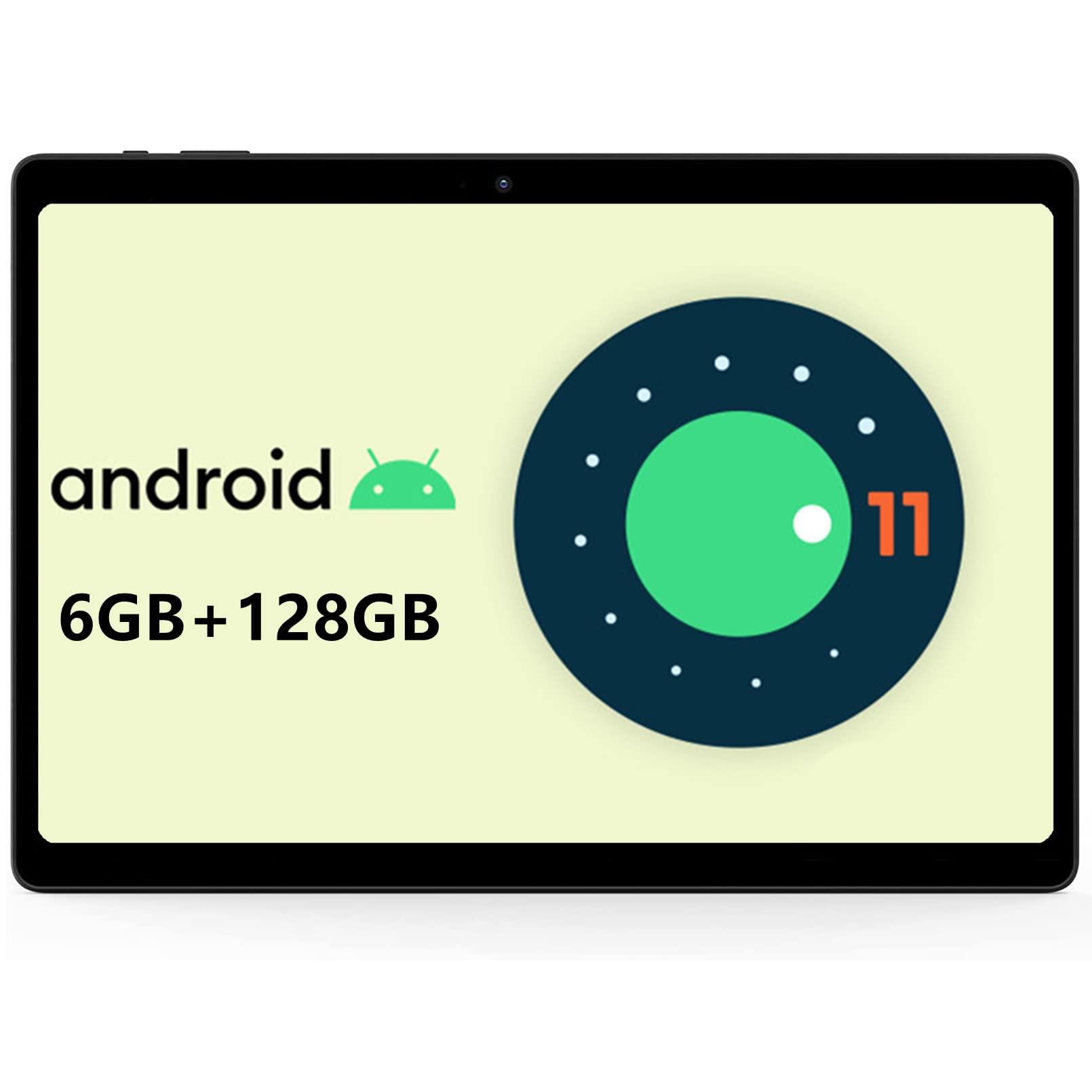
Aworan: Iwaju view of the ALLDOCUBE iPlay20P tablet.
Awọn ẹya pataki:
- High-Performance 8-Core Processor: Equipped with a powerful octa-core processor for smooth multitasking and efficient operation.
- Full HD IPS Display: A 10.1-inch screen with 1920x1200 resolution for vibrant visuals.
- AmpIranti ati Ibi ipamọ: 6GB RAM and 128GB internal storage, expandable via TF card.
- Batiri Igba pipẹ: A 6000mAh battery provides extended usage times.
- Dual 4G LTE Support: Stay connected with dual 4G LTE capabilities.
- Dual-Band Wi-Fi & Bluetooth 4.2: Fast and stable wireless connectivity.
- Awọn Kamẹra Meji: 2MP front camera and 5MP rear camera for photos and video calls.
- Ètò Ìṣiṣẹ́ Android 11: Enjoy the latest features and security enhancements of Android 11.
4. Eto
4.1 Gbigba agbara akọkọ
Before first use, fully charge your tablet using the provided charger. Connect the charger to the tablet's USB-C port and plug it into a power outlet. The battery indicator on the screen will show charging status.
4.2 Agbara Tan / Pa
- Lati Fi agbara: Tẹ bọtini agbara ki o si dimu titi aami ALLDOCUBE yoo fi han.
- Lati Paarẹ: Tẹ bọtini agbara ki o si dimu titi awọn aṣayan agbara yoo fi han loju iboju, lẹhinna yan "Pa agbara."
- Lati Tun bẹrẹ: Tẹ bọtini agbara ki o si dimu titi awọn aṣayan agbara yoo fi han, lẹhinna yan "Tun bẹrẹ."
4.3 Ede Eto
To change the system language:
- Lọ si Eto.
- Lilö kiri si Eto > Awọn ede & igbewọle > Awọn ede.
- Fọwọ ba Fi ede kan kun and select your desired language from the list.
- Once added, press and hold the icon next to your desired language and drag it to the top of the list to set it as the primary system language.
Video: This short video demonstrates how to change the system language on your ALLDOCUBE tablet.
4.4 Fifi sori ẹrọ Kaadi SIM ati Kaadi MicroSD
The tablet supports dual 4G LTE and expandable storage. Locate the SIM/MicroSD card tray on the side of the tablet. Use the provided ejector tool to open the tray. Insert your SIM card(s) and/or MicroSD card into the designated slots, ensuring correct orientation. Close the tray securely.
5. Awọn ilana Iṣiṣẹ
5.1 Ipilẹ Lilọ kiri
- Fọwọ ba: Fọwọkan iboju ni ẹẹkan lati ṣii ohun elo kan, yan ohun kan, tabi tẹ bọtini kan.
- Fọwọkan & Mu: Tẹ mọlẹ ohun kan lati wọle si awọn aṣayan diẹ sii tabi gbe e.
- Ra: Fa ika rẹ kọja iboju lati yi lọ nipasẹ awọn oju-iwe tabi akoonu.
- Fun pọ: Lo ika meji lati sun sinu tabi ita lori awọn aworan ati web awọn oju-iwe.
5.2 Nsopọ si Wi-Fi
- Lọ si Eto > Nẹtiwọọki & Intanẹẹti > Wi-Fi.
- Yipada Wi-Fi si On.
- Yan nẹtiwọki Wi-Fi ti o fẹ lati inu atokọ naa.
- Tẹ ọrọ igbaniwọle sii ti o ba ṣetan, lẹhinna tẹ ni kia kia Sopọ.
5.3 Nsopọ si awọn ẹrọ Bluetooth
- Lọ si Eto > Awọn ẹrọ ti a ti sopọ > Bluetooth.
- Toggle the Bluetooth switch to On.
- Rii daju pe ẹrọ Bluetooth rẹ wa ni ipo sisopọ.
- Yan ẹrọ rẹ lati inu akojọ awọn ẹrọ ti o wa ki o tẹle eyikeyi awọn ilana loju iboju lati pari isopọmọ.
5.4 Using 4G LTE
If you have installed a SIM card with an active data plan, your tablet will automatically connect to the 4G LTE network. You can manage mobile data settings in Eto > Nẹtiwọọki & Intanẹẹti > Nẹtiwọọki alagbeka.
5.5 kamẹra Lilo
The tablet features a 2MP front camera and a 5MP rear camera. Open the Camera app to take photos or record videos. Tap the screen to focus and press the shutter button to capture.

Image: The tablet displaying its camera interface, ready for use.
5.6 Ohun àti Multimedia
The tablet is equipped with dual speakers for clear audio output and a 3.5mm headphone jack for private listening. You can adjust volume using the physical volume buttons or through the system settings.

Image: The tablet connected to wired headphones, demonstrating audio output options.
6. Itọju
6.1 batiri Itọju
- Yago fun gbigba agbara si batiri ni kikun nigbagbogbo.
- Má ṣe fi tablet náà sílẹ̀ kí ó máa gba agbára fún ìgbà pípẹ́ lẹ́yìn tí ó bá ti gba agbára tán.
- Store the tablet in a cool, dry place if not used for a long time, with the battery charged to about 50%.
6.2 Ninu
Use a soft, lint-free cloth to clean the tablet screen and body. Avoid using harsh chemicals or abrasive materials that could damage the surface.
6.3 Software imudojuiwọn
Ṣayẹwo nigbagbogbo fun ati fi awọn imudojuiwọn eto sori ẹrọ lati rii daju pe tabulẹti rẹ ni awọn ẹya tuntun, awọn abulẹ aabo, ati awọn ilọsiwaju iṣẹ. Lọ si Eto > Eto > Imudojuiwọn eto lati ṣayẹwo fun awọn imudojuiwọn.
7. Laasigbotitusita
7.1 Tabulẹti Ko Titan
- Rii daju pe batiri ti gba agbara. So ṣaja pọ ki o duro fun iṣẹju diẹ ṣaaju ki o to gbiyanju lati tan-an.
- Tẹ bọtini agbara ki o si mu fun o kere ju awọn aaya 10-15 lati fi agbara mu lati tun bẹrẹ.
7.2 Wi-Fi Asopọ oran
- Ṣàyẹ̀wò bóyá Wi-Fi ti ṣiṣẹ́ nínú àwọn ètò.
- Tun olulana Wi-Fi rẹ bẹrẹ.
- Forget the network in your tablet's Wi-Fi settings and reconnect.
- Rii daju pe o wa laarin ifihan Wi-Fi.
7.3 o lọra Performance
- Pa awọn ohun elo abẹlẹ ti ko wulo.
- Clear cache data for apps that are frequently used.
- Rii daju pe aaye ipamọ to wa.
- Tun tabulẹti bẹrẹ.
7.4 Atunto ile-iṣẹ
If you encounter persistent issues, a factory reset may resolve them. Ikilọ: This will erase all data on your tablet. Back up important data before proceeding.
- Lọ si Eto > Eto > Tun awọn aṣayan.
- Yan Pa gbogbo data rẹ (atunṣe ile-iṣẹ).
- Confirm your choice and follow the on-screen instructions.
8. Awọn pato
| Ẹya ara ẹrọ | Sipesifikesonu |
|---|---|
| Brand | ALLDOCUBE |
| Orukọ awoṣe | iPlay20P |
| Eto isesise | Android 11 |
| Iwọn Ifihan | 10.1 inches |
| Ipinnu Ifihan | 1920x1200 awọn piksẹli |
| Sipiyu Brand | ARM (Helio P60 Octa-Core) |
| Ramu Agbara | 6 GB |
| Agbara Ibi ipamọ Iranti | 128 GB |
| Ipinnu Kamẹra iwaju | 5 MP |
| Ipinnu Kamẹra ti o kẹhin | 2 MP |
| Asopọmọra | Cellular (4G LTE), Wi-Fi (2.4G/5G), Bluetooth 4.2, GPS |
| Agbara Batiri | 6000 mAh |
| Awọn agbọrọsọ | 2 |
| Ọja Mefa | 24.2 x 16.8 x 0.87 cm |
| Iwọn Nkan | 600 g |
9. Atilẹyin ọja ati Support
9.1 akoko atilẹyin ọja
ALLDOCUBE provides a 1-year free warranty for this product.
9.2 Product Issues
If you encounter any issues with your product, please contact customer service via email first. We will send a new product free of charge or issue a full refund for your order.
9.3 Olubasọrọ Support
You can contact support through the following methods:
- Via Product Page: On the product page, click on the store name "ALLDOCUBE Global Store" below the "Add to Cart" button, then click "Ask a question" in the upper right corner to send a message.
- Nipasẹ Amazon Account: Go to your Amazon account > Order History > Select the relevant order > Contact Seller.