
PALOVUE iSound
PALOVUE Wireless Earbuds User Manual
Model: iSound
Your guide to setting up, operating, and maintaining your PALOVUE iSound Wireless Earbuds.
1. Ifihan
The PALOVUE iSound Wireless Earbuds are designed to provide a superior audio experience with advanced features for daily use. Equipped with Qualcomm CSR and Bluetooth 5.0 technology, these earbuds offer a stable and crystal-clear connection, supporting aptX HD sound quality. The CVC 8.0 Noise Cancelling technology with 4 built-in microphones ensures clear calls by effectively reducing ambient noise. Their ergonomic design and multiple ear-tip sizes provide a comfortable and secure fit for extended wear.
The iSound earbuds feature convenient one-step reconnection and intuitive one-touch operation. With up to 24 hours of playtime using the compact charging case, they are ideal for on-the-go listening. Further customization and control are available through the PALOVUE iSound APP.

Image: PALOVUE iSound Wireless Earbuds resting in their open charging case, showcasing wọn aso dudu oniru.
2. Ohun ti o wa ninu Apoti
Upon opening your PALOVUE iSound package, you will find the following components:
- Alailowaya Ngba agbara Case
- PALOVUE iSound Earbuds (Left and Right)
- Ear Tips (multiple sizes for a customizable fit)
- Okun gbigba agbara (USB-C)
- Lanyard
- Apoti Iṣakojọpọ
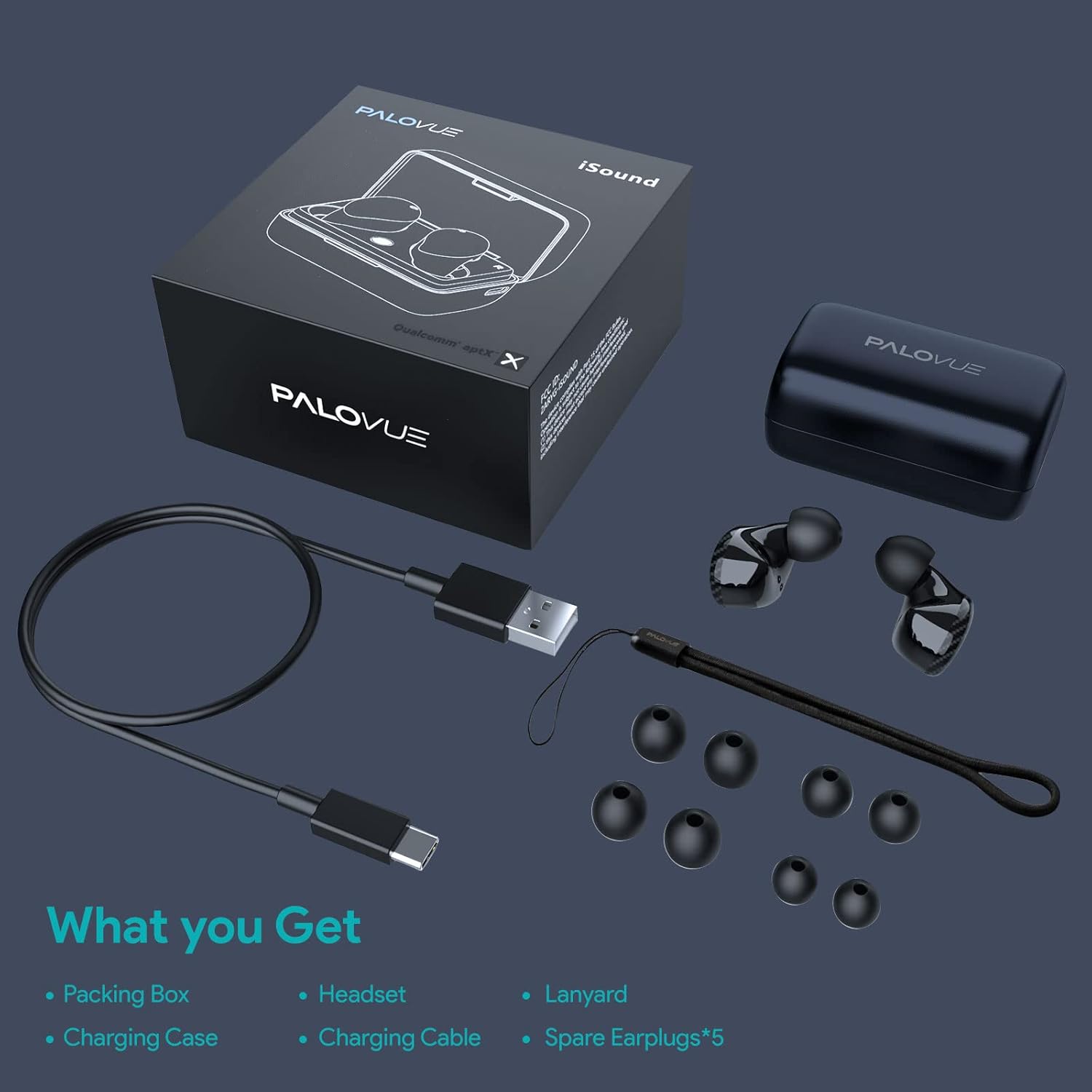
Image: A flat lay showing all items included in the PALOVUE iSound package: the packing box, charging case, earbuds, charging cable, lanyard, and five pairs of spare ear tips.
3. Eto Itọsọna
3.1 Gbigba agbara akọkọ
Before first use, ensure both the earbuds and the charging case are fully charged. Place the earbuds into the charging case. Connect the provided USB-C cable to the charging case and a power source. The indicator lights on the case will show charging status. A full charge typically takes approximately 2 hours for the case.
3.2 Sisopọ pẹlu Ẹrọ Rẹ
The PALOVUE iSound earbuds feature one-step reconnection for convenience.
- Ṣii apoti gbigba agbara. Awọn agbekọri yoo tan ina laifọwọyi ati tẹ ipo sisopọ pọ sii.
- Lori foonuiyara tabi ẹrọ Bluetooth ti o ṣiṣẹ, lọ si awọn eto Bluetooth.
- Wa fun "PALOVUE iSound" in the list of available devices and select it to connect.
- Ni kete ti o ba ti sopọ, iwọ yoo gbọ ijẹrisi igbohun kan, ati awọn agbekọri yoo ṣetan fun lilo.
- For subsequent uses, simply open the charging case, and the earbuds will automatically connect to the last paired device.
Video: A detailed guide demonstrating the connection and operation of the PALOVUE iSound earbuds, including initial pairing steps and touch control functions.
4. Ṣiṣẹ awọn agbekọri rẹ
4.1 Fọwọkan Iṣakoso
The PALOVUE iSound earbuds feature intuitive touch controls on each earbud. The specific functions can be customized via the PALOVUE iSound APP.
| Iṣe | Agbekọti Osi | Ọtun Earbud |
|---|---|---|
| Fọwọ ba Nikan | Iwọn didun isalẹ | Iwọn didun soke |
| Fọwọ ba lẹẹmeji | Mu orin ṣiṣẹ/Danuduro, Dahun/Pari ipe | Mu orin ṣiṣẹ/Danuduro, Dahun/Pari ipe |
| Gun Tẹ | Previous Song, Reject Call | Next Song, Reject Call |
Video: A short demonstration of the touch controls for the PALOVUE iSound earbuds, showing how to adjust volume, skip tracks, and manage calls.
4.2 Using the PALOVUE iSound APP
Enhance your experience by downloading the PALOVUE iSound APP. The app allows you to:
- Customize touch control functions (e.g., volume, track control, call management).
- Adjust equalizer (EQ) settings for personalized sound profiles (Male Vocals, Electronic, Jazz, Rock, Classical, Female Vocals, Original, Customize).
- Check battery levels of each earbud.
- Access device information and firmware updates.

Image: A woman wearing PALOVUE iSound earbuds, illustrating their comfortable fit and suitability for daily use.

Aworan: Ohun exploded view diagram of the PALOVUE iSound earbud, detailing its internal structure and emphasizing Qualcomm AptX and Deep Bass sound capabilities.
5. Itọju
To ensure the longevity and optimal performance of your PALOVUE iSound Wireless Earbuds, follow these maintenance guidelines:
- Ninu: Máa fọ àwọn ètí àti àpótí ìgbafẹ́ pẹ̀lú aṣọ rírọ̀, gbígbẹ, tí kò ní àwọ̀. Má ṣe lo àwọn ohun ìfọṣọ tàbí àwọn ohun èlò ìfọṣọ. Fi pẹ̀lẹ́pẹ̀lẹ́ yọ gbogbo ìdọ̀tí etí tàbí ìdọ̀tí kúrò ní etí àti ẹ̀rọ ìfọ̀rọ̀wérọ̀ pẹ̀lú búrọ́ọ̀ṣì kékeré tàbí swab owú.
- Ibi ipamọ: Tí o kò bá lò ó, fi àwọn ètí ìgbọ́rọ̀ sínú àpótí ìgbóná wọn láti dáàbò bò wọ́n kúrò lọ́wọ́ eruku, ìdọ̀tí, àti ìbàjẹ́ ara.
- Itọju Batiri: Avoid fully depleting the battery frequently. For long-term storage, charge the earbuds and case to about 50% to preserve battery health.
- Omi Resistance: The earbuds are rated IPX4 for water resistance, meaning they are protected against splashing water from any direction. They are designed for sports and can withstand sweat and light rain, but they are not suitable for swimming or submersion in water. Ensure the earbuds are dry before placing them back in the charging case.
Video: A short promotional video highlighting the compact size and powerful features of the iSound True Wireless Earbuds, including their IPX4 water resistance.
6. Laasigbotitusita
If you encounter issues with your PALOVUE iSound Wireless Earbuds, try the following solutions:
6.1 Sisọ ọrọ
- Awọn agbekọri ti ko sopọ: Ensure Bluetooth is enabled on your device. Place earbuds back in the case, close it, wait a few seconds, then open it again to re-initiate pairing mode.
- Agbekọri agbekọri kan ṣoṣo ti n ṣiṣẹ: Try placing both earbuds back in the charging case, closing the lid, and then reopening it. Ensure both earbuds have sufficient charge.
- Àwọn etí kò hàn nínú àkójọ Bluetooth: Turn off Bluetooth on your device, then turn it back on. Restart your device if necessary.
6.2 Ohun Didara oran
- Iwọn kekere: Increase the volume on both your earbuds (via touch control) and your connected device.
- Ohun ti a daru: Ensure the earbuds are within Bluetooth range of your device. Check for obstructions between the earbuds and your device.
- Didara ipe ti ko dara: Ensure the microphones are not obstructed. CVC 8.0 Noise Cancelling technology helps, but extreme noise environments can still affect clarity.
6.3 Battery and Charging Issues
- Ekọti ko gba agbara: Ensure the charging contacts on the earbuds and inside the case are clean and dry. Try a different charging cable or power adapter.
- Ọran ti ko gba agbara: Verify the charging cable and power source are working correctly.
6.4 How to Reset Your Earbuds
Ti o ba ni awọn iṣoro ti o n tẹsiwaju, atunto ile-iṣẹ le yanju wọn:
- Gbe awọn afikọti mejeeji sinu ọran gbigba agbara.
- Press and hold the reset button on the charging case (usually located inside or near the charging port) until the indicator lights on the earbuds flash red and green alternately.
- Release the button and wait until only the green light flashes, indicating the reset is complete.
- Remove the earbuds from the case and attempt to re-pair them with your device.
Refer to the "PALOVUE iSound Connection operation guide" video in the Setup section for a visual demonstration of the reset process.
7. Awọn pato
| Ẹya ara ẹrọ | Ẹ̀kúnrẹ́rẹ́ |
|---|---|
| Brand | PALOVUE |
| Orukọ awoṣe | iSound |
| Asopọmọra Technology | Ailokun (Bluetooth 5.0) |
| Imọ-ẹrọ Ibaraẹnisọrọ Alailowaya | Bluetooth |
| Chipset | Qualcomm CSR QCC3020 |
| Ariwo Iṣakoso | CVC 8.0 Noise Cancellation (for calls) |
| Awọn gbohungbohun | 4 Mics |
| Iṣakoso Iru | Iṣakoso ifọwọkan |
| Gbigbe Eti | Ninu Eti |
| Fọọmù ifosiwewe | Ninu Eti |
| Igbesi aye batiri (Earbuds) | Titi di wakati 6 (isunmọ.) |
| Lapapọ akoko ere (pẹlu ọran) | Titi di awọn wakati 24 |
| Akoko gbigba agbara (Ila) | Awọn wakati 2 |
| Bluetooth Ibiti | Titi di Mita 10 (ẹsẹ 32.8) |
| Omi Resistance Ipele | IPX4 (Asọtẹlẹ) |
| Ohun elo | Silicone (Ear Tips) |
| Iwọn Nkan | 1.76 iwon |
| Awọn ẹrọ ibaramu | Smartphones, Tablets, Laptops, Desktops, Smart TVs, Car Audio Systems |
8. Atilẹyin ọja ati Support
PALOVUE products typically come with a manufacturer's warranty. Please refer to the warranty card included in your product packaging for specific terms and conditions, including warranty period and coverage details. For technical support, troubleshooting assistance, or warranty claims, please contact PALOVUE customer service through their official webaaye tabi alaye olubasọrọ ti a pese ninu iwe ọja rẹ.
You can also visit the official PALOVUE store on Amazon for more information and support: PALOVUE Amazon Store.