
Majority Homerton
Majority Homerton 2 User Manual
Model: Homerton
Ọrọ Iṣaaju
Welcome to the user manual for your Majority Homerton 2 Internet Radio, DAB, FM, and CD Player. This comprehensive guide will assist you in setting up, operating, and maintaining your device to ensure optimal performance and enjoyment of its wide range of features, including Internet Radio, DAB/DAB+, FM, CD playback, Bluetooth connectivity, Spotify Connect, and Podcast streaming.

Image: The Majority Homerton 2 unit in oak finish, showing the front panel with display, controls, CD slot, and a remote control in the foreground.
Ṣeto
1. Unpacking ati Placement
Carefully remove the Homerton 2 from its packaging. Place the unit on a stable, flat surface away from direct sunlight, heat sources, and excessive moisture. Ensure adequate ventilation around the unit.
2. Nsopọ Agbara
Connect the provided power adapter to the DC IN port on the back of the unit, then plug the adapter into a wall outlet. The unit will power on or enter standby mode.
3. Eriali Asopọ
Extend the telescopic antenna fully for optimal DAB/DAB+ and FM radio reception. For Internet Radio and Wi-Fi features, ensure the unit is within range of your wireless router.
4. Oṣo oluṣeto akọkọ
Upon first power-on, the Homerton 2 will guide you through an initial setup wizard. This includes:
- Aṣayan ede: Choose your preferred language for the display menu.
- Isopọ nẹtiwọki: Select your Wi-Fi network and enter the password. This is crucial for Internet Radio, Spotify Connect, and Podcast features.
- Akoko ati Ọjọ: Set the current time and date, or allow the unit to synchronize automatically via network or DAB signal.
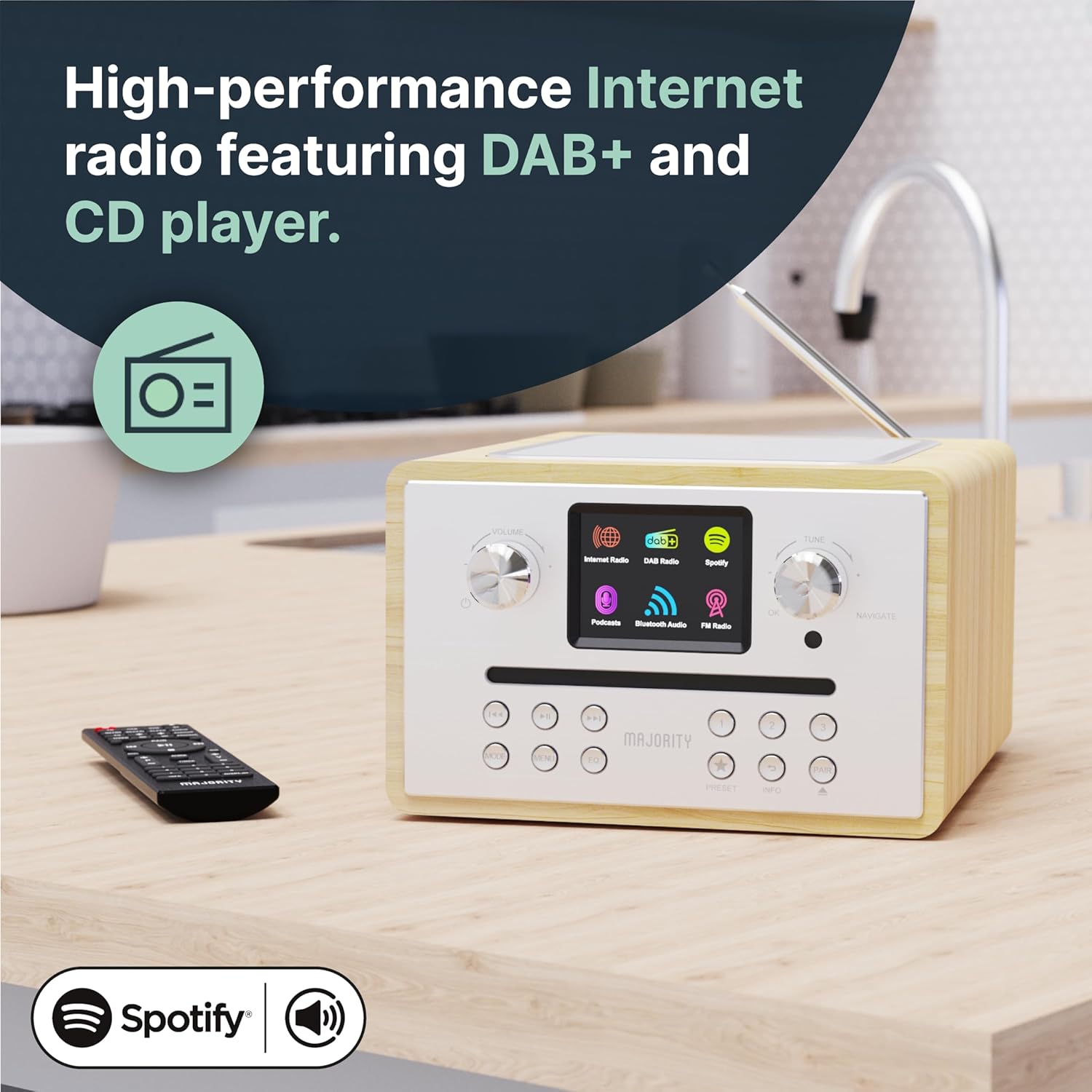
Image: The Homerton 2 unit showcasing its display and control knobs, indicating its readiness for use.
Awọn ilana Iṣiṣẹ
1. Agbara Tan / Pa ati Imurasilẹ
Tẹ awọn Agbara button on the unit or remote control to switch the unit on or off. In standby mode, the display may show the clock.
2. Aṣayan Ipo
Lo awọn Ipo button on the unit or remote to cycle through available modes: Internet Radio, DAB/DAB+, FM, CD, Bluetooth, USB (MP3), and Auxiliary Input.
3. Internet Radio
Connect to thousands of global radio stations via your Wi-Fi network. Navigate through stations by genre, location, or search. Save your favorite stations as presets for quick access.

Image: The Homerton 2 unit with its display showing the Internet Radio interface, indicating connectivity and available options.
4. DAB/DAB+ and FM Radio
Tune into digital (DAB/DAB+) or analog (FM) radio broadcasts. Perform an auto-scan to find available stations in your area. Use the tuning knob or remote control to select stations. You can store up to 40 presets for your favorite stations.
5. CD Player
Insert an audio CD or MP3 CD into the front-loading CD slot. The unit will automatically detect and begin playback. Use the playback controls (Play/Pause, Skip, Stop) on the unit or remote control. The integrated CD player allows you to enjoy your physical music collection with ease.

Image: The Homerton 2 unit with a CD being inserted into its front-loading slot, demonstrating the CD playback capability.
6. Bluetooth Asopọmọra
Pair your smartphone, tablet, or other Bluetooth-enabled device with the Homerton 2 to stream audio wirelessly. Select Bluetooth mode on the unit, then search for "Homerton 2" on your device's Bluetooth settings and connect. Enjoy high-quality audio streaming from your personal library or streaming apps.
7. Spotify Connect & Podcasts
If you have a Spotify Premium account, use Spotify Connect to control music playback directly from the Spotify app on your phone or tablet, streaming audio through the Homerton 2. Access a wide selection of podcasts directly from the unit's menu.

Image: The Homerton 2 unit next to a smartphone showing the Spotify app, illustrating its Spotify Connect and Bluetooth streaming features.
8. USB Playback (MP3)
Fi kọnputa USB ti o ni ohun MP3 sii files into the USB port. The unit will automatically switch to USB mode and begin playing the files. This allows you to enjoy your own media in HD sound.
9. Dual Alarm Clock
Set up to two independent alarms. You can choose to wake up to a buzzer, FM radio, DAB radio, or Internet radio station. Configure alarm times, sources, and recurrence (daily, weekdays, weekends).
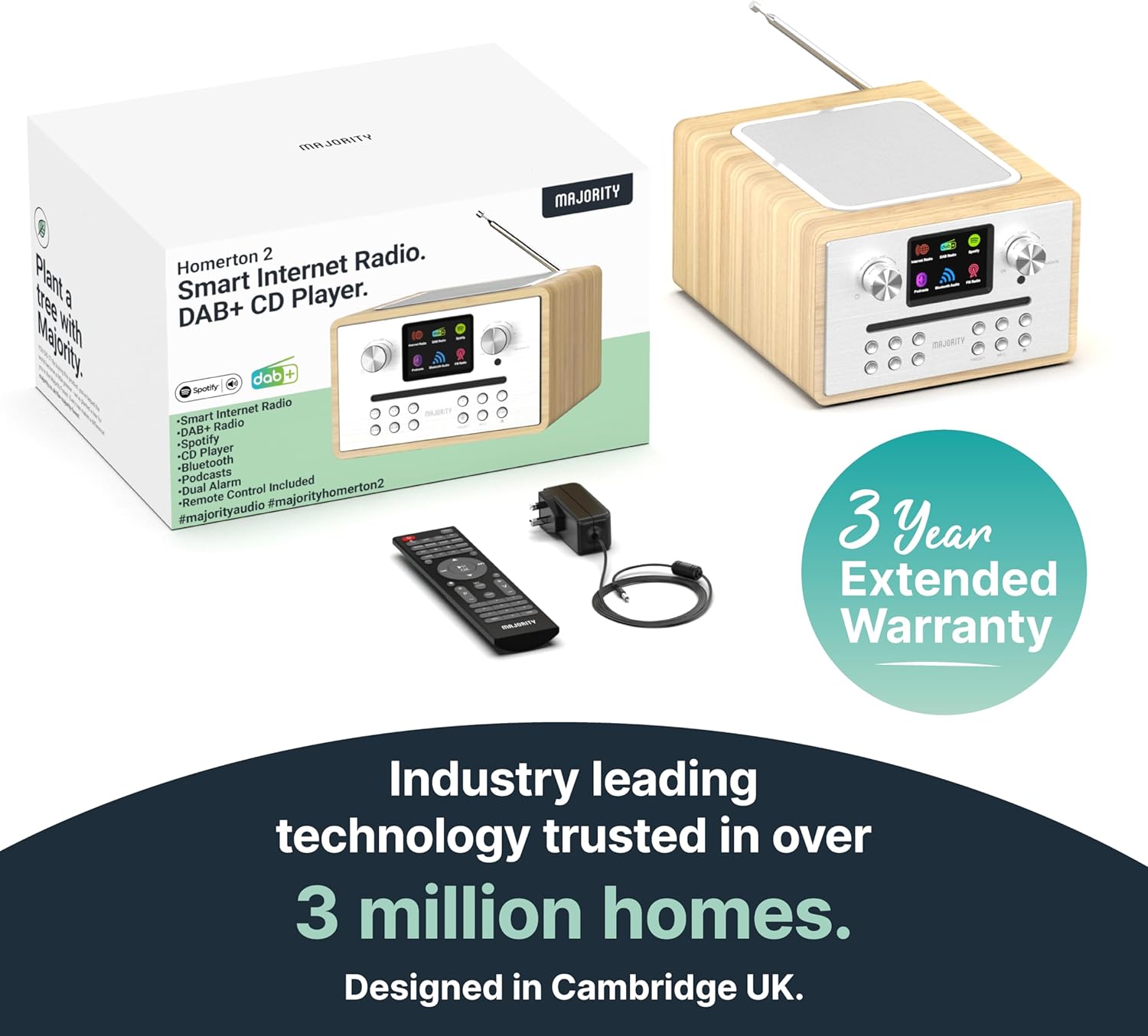
Image: The Homerton 2 unit with a graphic overlay of an alarm clock, emphasizing its dual alarm functionality.
10. Equalizer Eto
Adjust the audio output using the built-in equalizer. Select from preset equalization modes (Normal, Jazz, Rock, Classical, Pop) or customize your own 'My EQ' settings for personalized bass and treble levels.
Itoju
- Ninu: Use a soft, dry cloth to clean the unit's exterior. Do not use abrasive cleaners or solvents.
- Itọju Ẹrọ CD: Keep the CD slot free of dust and debris. Use a CD lens cleaner if playback issues occur due to a dirty lens.
- Afẹfẹ: Rii daju pe awọn šiši fentilesonu ko ni idinamọ lati ṣe idiwọ igbona.
- Ibi ipamọ: Ti o ba tọju ẹyọ naa fun akoko ti o gbooro sii, ge asopọ kuro ni agbara ki o tọju ni itura, aaye gbigbẹ.
Laasigbotitusita
| Isoro | Owun to le Fa | Ojutu |
|---|---|---|
| Ko si Agbara | Power adapter not connected; Power outlet faulty. | Ṣàyẹ̀wò àwọn ìsopọ̀ agbára; Gbìyànjú ọ̀nà ìjáde mìíràn. |
| Ko si Ohun | Iwọn ti o kere ju; Mu dakẹ ṣiṣẹ; Ti yan orisun ti ko tọ. | Increase volume; Deactivate mute; Select correct input mode. |
| Gbigba Redio ti ko dara | Eriali ko tesiwaju; Ifihan agbara; kikọlu. | Fully extend antenna; Reposition unit; Scan for stations again. |
| Awọn oran Asopọ Wi-Fi | Incorrect password; Out of range; Router issues. | Re-enter password; Move unit closer to router; Restart router. |
| CD Playback Errors | Dirty or scratched CD; Incorrect disc type. | Clean CD; Try a different CD; Ensure it's an audio or MP3 CD. |
Awọn pato
- Brand: Pupọ
- Nọmba awoṣe: Homerton
- Àwọ̀: Oak
- Imọ-ẹrọ Asopọmọra: Bluetooth, USB, WLAN (Wi-Fi)
- Awọn ẹya pataki: Integrated Clock, Portable, Dual Alarm
- Awọn ẹrọ ibaramu: MP3 ẹrọ orin
- Awọn iwọn ọja: 23L x 20.2W x 12.8H cm
- Imọ-ẹrọ Atunṣe: Rédíò Íńtánẹ́ẹ̀tì, DAB/DAB+, FM
- Awọn ẹgbẹ Redio ti o ni atilẹyin: 3 ẹgbẹ
- Orisun Agbara: Okun Itanna
- Awọn eroja To wa: Homerton CD Player, Owner's Manual, Remote Control
Atilẹyin ọja ati Support
The Majority Homerton 2 comes with a 3-odun o gbooro sii atilẹyin ọja, providing peace of mind for your audio product. For detailed warranty terms and conditions, please refer to the official Majority webaaye tabi kaadi atilẹyin ọja ti o wa pẹlu ọja rẹ.
For technical support, troubleshooting assistance, or to inquire about spare parts availability, please visit the official Majority support website or contact their customer service. Keep your purchase receipt handy as proof of purchase.

Image: An icon representing the 3-year warranty provided with Majority audio products.
Ask a question about this manual
Ask about setup, troubleshooting, compatibility, parts, safety, or missing instructions. Manuals+ will review the question and use this page’s manual context to help answer it.