
Vrabocry SP621E
SP621E Bluetooth Pixel Controller User Manual
Àwòṣe: SP621E
Ọrọ Iṣaaju
The Vrabocry SP621E Mini Bluetooth LED Controller is designed for controlling addressable LED strips such as WS2811, WS2812B, and WS2813. It offers stable operation, ease of use, and simple connectivity, making it ideal for various lighting applications. This controller supports a wide voltage input range of DC5V to 24V and features onboard current of 2.9A.
Awọn ẹya pataki pẹlu:
- Certified by FCC, CE, RoHS, ensuring high quality and safety.
- Flame retardant shell resistant to high temperatures.
- Supports APP control for automatic device connection and re-connection.
- Built-in 142 dynamic effects with adjustable length.
- Function to collect and save favorite effects.
- Automatic saving of setting parameters.
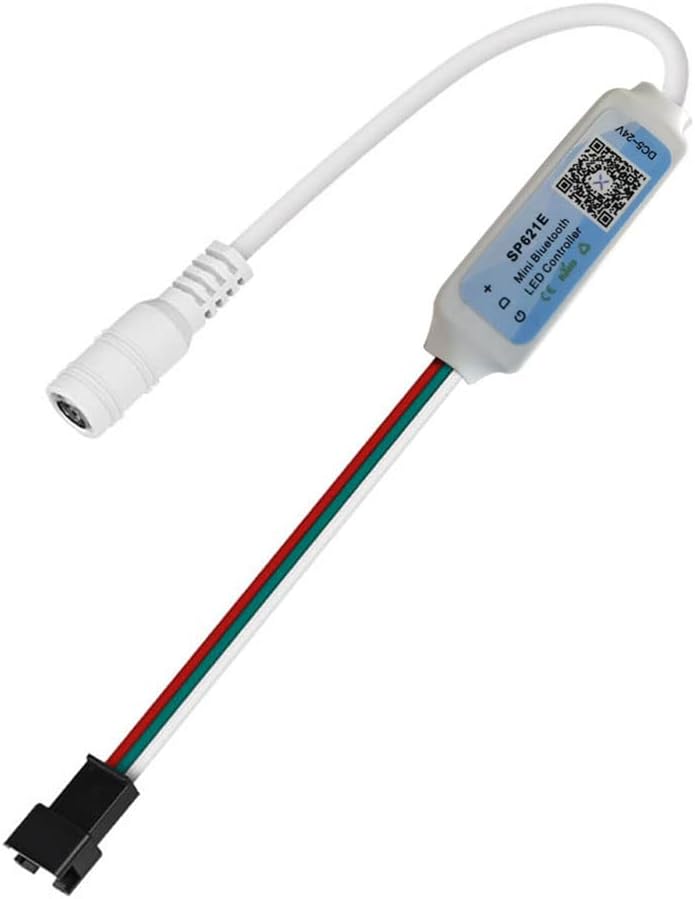
Image: The SP621E Mini Bluetooth LED Controller, showing its compact size and integrated cables for power and LED strip connection.
Package Awọn akoonu
Jọwọ rii daju pe gbogbo awọn nkan wa ninu package:
- 1 x SP621E Mini Controller
- 1 x Okun USB
Alaye Aabo
- Ṣe idaniloju vol ṣiṣẹtage is within the specified DC5V~24V range. Exceeding this range may damage the device.
- The controller is designed for indoor use. Avoid exposure to water or high humidity.
- Do not disassemble or modify the controller. This may void the warranty and pose safety risks.
- Jeki kuro ni arọwọto awọn ọmọde.
- Ensure proper ventilation around the controller during operation.
- The power supply has an anti-reverse connection function, but always double-check polarity before connecting.
Ṣeto
1. Asopọ agbara
Connect a DC5V~24V power adapter to the male DC power input connector of the SP621E controller. Ensure the power supply is appropriate for both the controller and the connected LED strip.
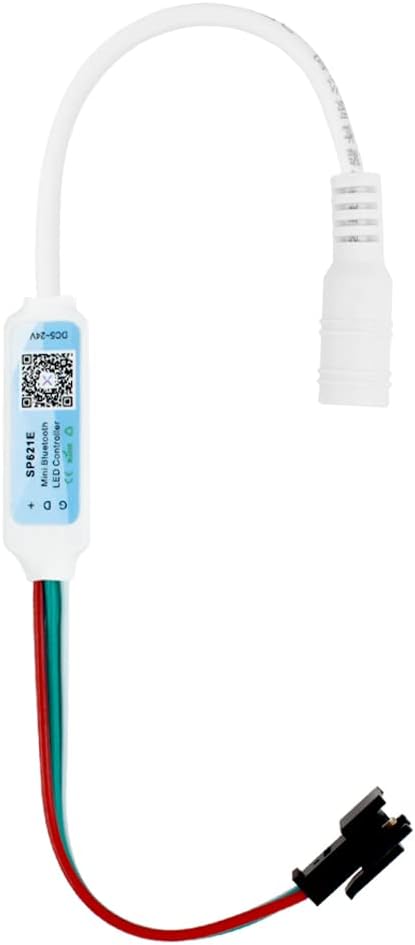
Image: The SP621E controller showing its male DC power input connector, ready to receive power from an external adapter.
2. Asopọ LED Strip
Connect your compatible LED strip (e.g., WS2811, WS2812B, WS2813) to the 3-pin output connector of the SP621E controller. Ensure the correct polarity (Data, Ground, VCC) matches the LED strip's input.

Image: The SP621E controller displaying its female DC power output connector and the 3-pin connector for connecting to an LED strip.
3. Fifi sori ẹrọ ati Asopọ Bluetooth
Download the dedicated control application for the SP621E controller from your smartphone's app store (usually by scanning the QR code on the controller or packaging). Once installed, enable Bluetooth on your device and open the app. The app should automatically detect and connect to the SP621E controller. If not, follow the in-app instructions for manual pairing.

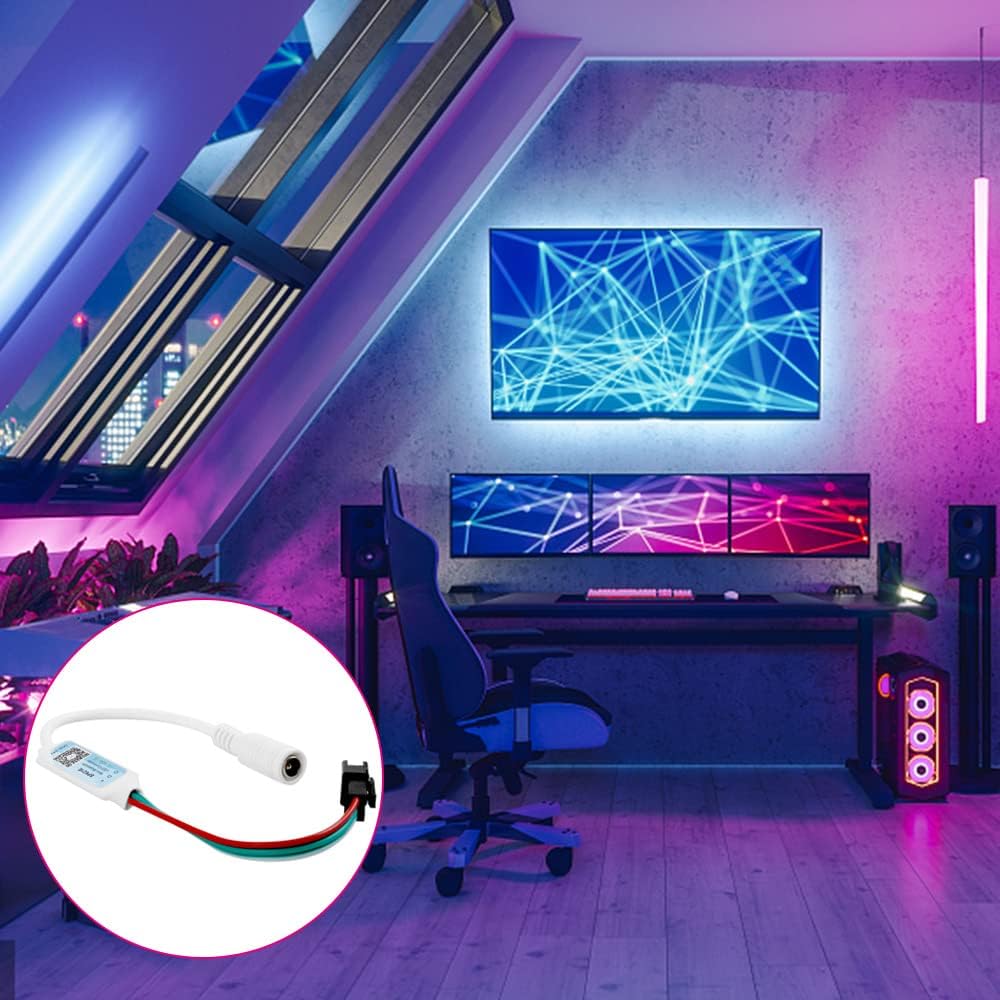
Image: A visual representation of the SP621E controller connected to a power source and an LED strip, with a smartphone displaying the control application interface.
Awọn ilana Iṣiṣẹ
Once connected via the app, you can control various aspects of your LED lighting:
- Awọn Ipa Yiyi: The controller comes with 142 built-in dynamic effects. Browse through them and select your preferred lighting pattern.
- Effect Length Adjustment: Adjust the speed or duration of the selected dynamic effects to customize the lighting experience.
- Favorite Effects: Save your most frequently used or preferred effects for quick access.
- Iṣẹ Aago: Set schedules for your LED lights to turn on or off automatically.
- Aṣayan awọ: Choose from a wide range of colors for static lighting modes.
Aworan: A alaye view of the SP621E control application interface on a smartphone, illustrating options for dynamic effects, color selection, and other settings.
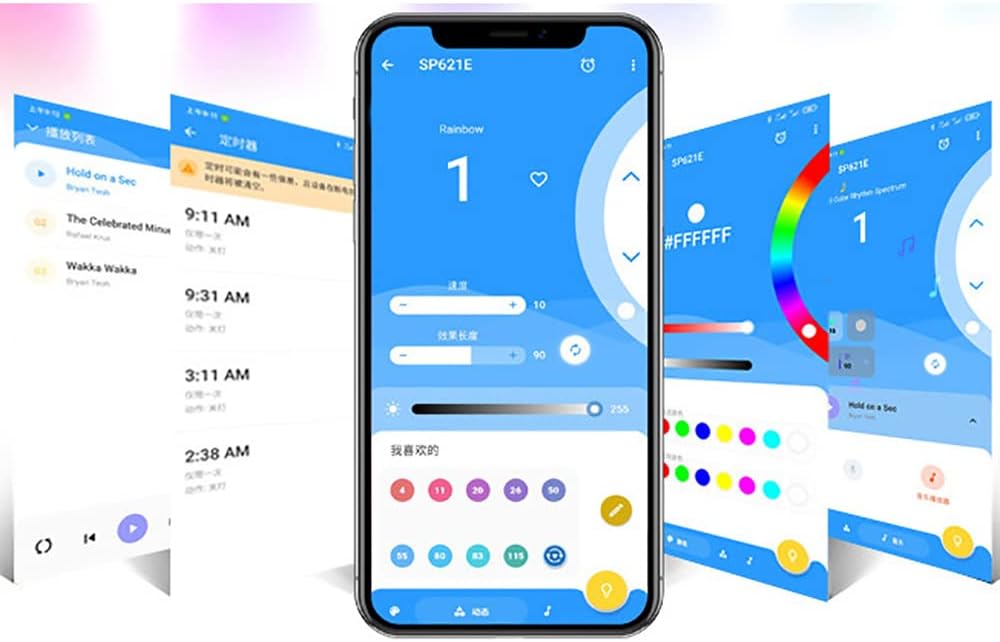
Àwòrán: Òmíràn view of the SP621E control application, highlighting the timer function and the ability to save favorite lighting effects for easy recall.
Itoju
- Jeki oludari ni mimọ ati ofe kuro ninu eruku. Lo asọ asọ ti o gbẹ fun mimọ.
- Avoid placing the controller in direct sunlight or near heat sources.
- Ensure all connections are secure to prevent intermittent operation.
- Tọju ni itura, aye gbigbẹ nigbati o ko ba wa ni lilo fun awọn akoko gigun.
Laasigbotitusita
- Controller not powering on:
- Check if the power adapter is correctly connected and providing DC5V~24V.
- Rii daju pe iṣan agbara jẹ iṣẹ-ṣiṣe.
- Okun LED ko tan ina:
- Verify the LED strip is compatible (WS2811, WS2812B, WS2813).
- Check the connection between the controller and the LED strip for correct polarity and secure fit.
- Rii daju pe okun LED funrararẹ ṣiṣẹ.
- Awọn iṣoro asopọ Bluetooth:
- Rii daju pe Bluetooth ti ṣiṣẹ lori foonuiyara rẹ.
- Tun app bẹrẹ ki o gbiyanju lati sopọ lẹẹkansi.
- If the app does not remember the pairing, you may need to disconnect and reconnect the controller's power to re-establish a connection.
- Ensure the controller is within Bluetooth range.
- Effects not changing or responding:
- Check if the app is properly connected to the controller.
- Rii daju pe ohun elo naa ti ni imudojuiwọn si ẹya tuntun.
- Try restarting the controller by disconnecting and reconnecting its power.
Awọn pato
| Paramita | Iye |
|---|---|
| Awoṣe | SP621E |
| Awọn iwọn otutu ṣiṣẹ | -20℃ ~ 60℃ (-4°F ~ 140°F) |
| Ṣiṣẹ Voltage | DC5V ~ 24V |
| Onboard Current | 2.9A |
| Ọna Iṣakoso | Iṣakoso ohun elo Bluetooth |
| Ilana Asopọmọra | Bluetooth |
| Compatible LED Types | WS2811, WS2812B, WS2813 Pixel RGB SMD5050 LED Strip/Module/Lamp |
| Ohun elo | Ṣiṣu |
| Pataki Awọn ẹya ara ẹrọ | Color Changing, Timer, 142 Dynamic Effects, Favorite Effects Collection, Automatic Parameter Saving |
| inu ile / ita gbangba Lilo | Ninu ile |
Alaye atilẹyin ọja
For specific warranty terms and conditions, please refer to the documentation provided with your purchase or contact the manufacturer, Vrabocry, directly. Typically, warranty covers defects in materials and workmanship under normal use.
Onibara Support
If you encounter any issues or have questions regarding your SP621E Bluetooth Pixel Controller that are not covered in this manual, please contact Vrabocry customer support through their official website or the retailer from whom you purchased the product. Please have your product model number (SP621E) and purchase details ready when contacting support.
Ask a question about this manual
Ask about setup, troubleshooting, compatibility, parts, safety, or missing instructions. Manuals+ will review the question and use this page’s manual context to help answer it.