
Jectse Jectseb1khrxqgn71182
Jectse Air Mouse User Manual
2.4GHz Keyboard with USB Receiver and Cable
Ọja Pariview
The Jectse Air Mouse is a versatile 2.4GHz wireless device that combines the functionalities of a keyboard, multimedia controller, and an air mouse. It is designed for intuitive control across various platforms, offering a seamless user experience for PC, TV, set-top boxes, network media players, tablet PCs, and gaming consoles.

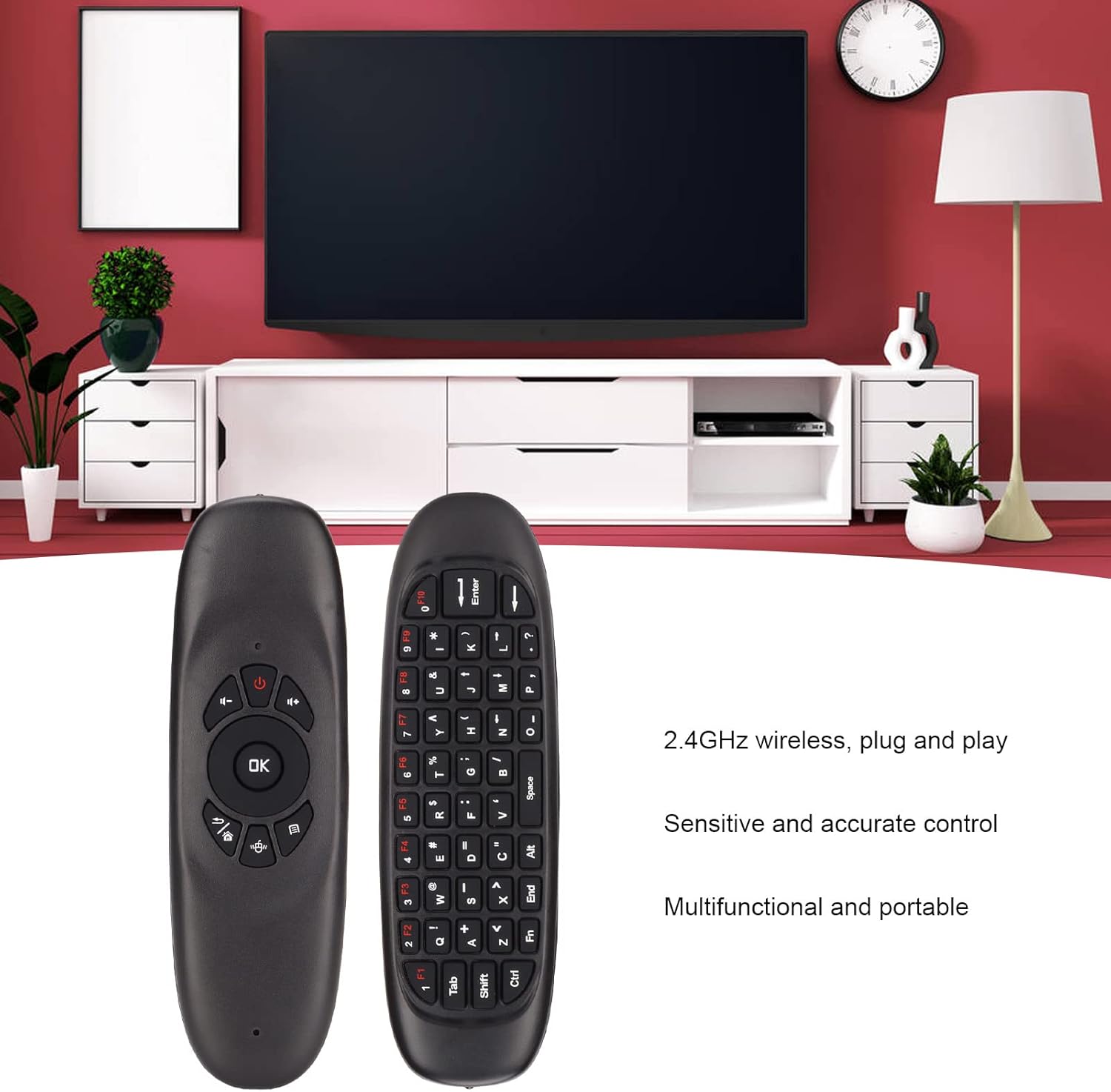
Nọmba 1: Pariview of the Jectse Air Mouse, including the remote control unit, USB receiver, and USB charging cable.
Package Awọn akoonu
- 1 x Jectse Air Mouse
- 1 x Olugba USB
- 1 x Okun Ngba agbara USB
- 1 x Itọsọna olumulo (iwe yii)
Eto ati fifi sori
The Jectse Air Mouse is designed for plug-and-play operation, requiring minimal setup. Follow these steps to begin using your device.
1. Charging the Air Mouse
Before first use, ensure the air mouse is fully charged. Connect the provided USB charging cable to the air mouse's charging port and the other end to a standard USB power source (e.g., computer USB port, USB wall adapter). The LED indicator light will show charging status and turn off when fully charged.

Nọmba 2: The USB receiver and charging cable. Use the cable to charge the air mouse.
2. Nsopọ Olugba USB
Locate an available USB 2.0 port on your target device (PC, Smart TV, set-top box, etc.). Insert the provided USB receiver into the USB port. The device will automatically detect and install the necessary drivers. No manual driver installation is typically required.
Nọmba 3: The Jectse Air Mouse, USB receiver, and charging cable. The USB receiver is essential for wireless connectivity.
Once the receiver is connected, the air mouse is ready for use. The 2.4GHz wireless connection provides a working distance of approximately 10 meters (11 yards).
Awọn ilana Iṣiṣẹ
The Jectse Air Mouse offers intuitive control through its dual-sided design, featuring a remote control interface on one side and a full QWERTY keyboard on the other.
Air Mouse Iṣẹ
The air mouse utilizes a three-axis sensor and three-axis gyroscope for 360° space motion recognition. To activate the air mouse function, simply hold the device and move your wrist. The cursor on your screen will follow your hand movements. Press the "OK" button to click or select items.
Nọmba 4: The Jectse Air Mouse held in hand, illustrating its comfortable grip for air mouse control.
Lilo Keyboard
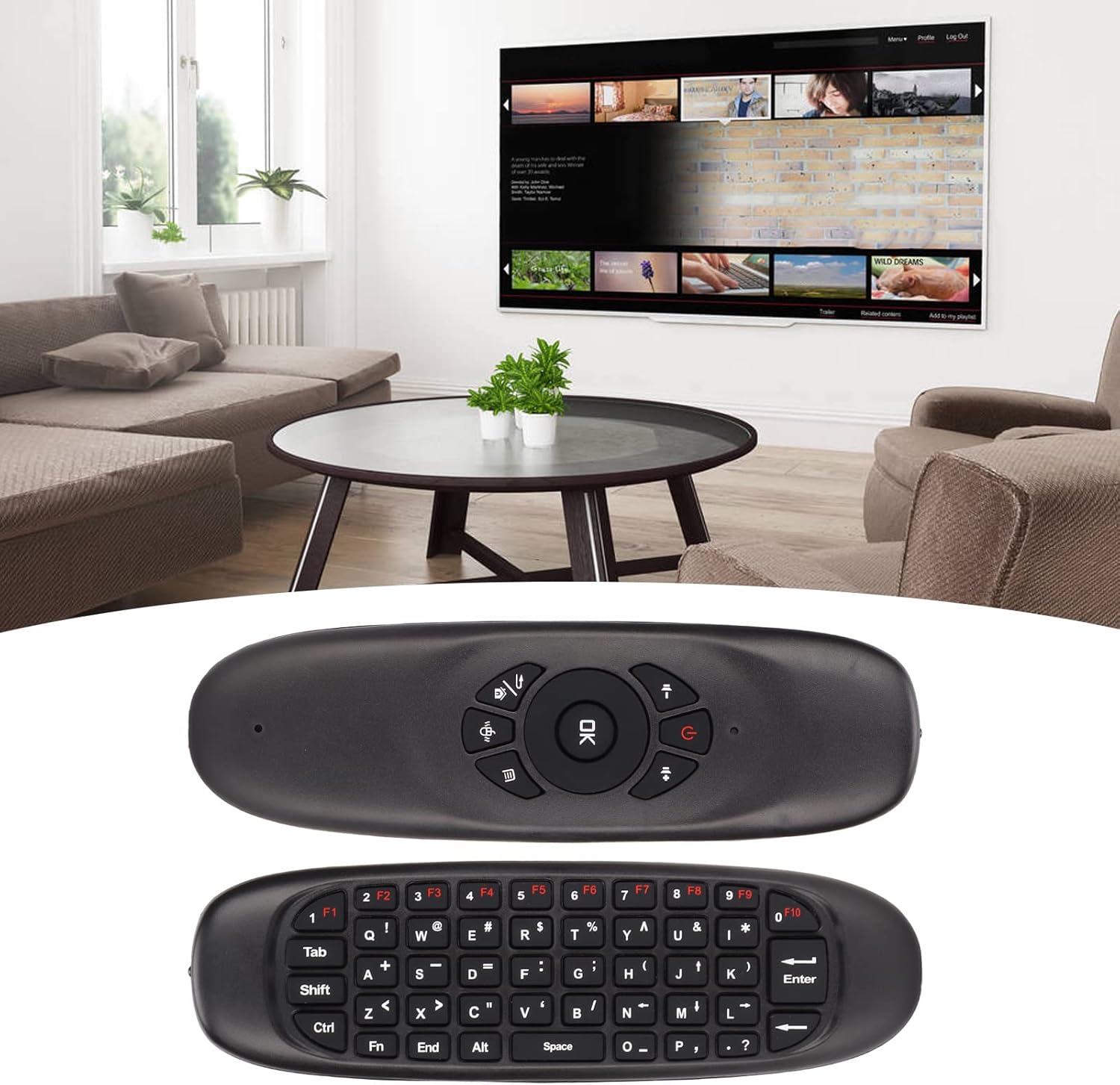
Flip the air mouse over to access the full QWERTY keyboard. This allows for easy text input, searching, and navigation within applications. The keyboard includes function keys (F1-F10) and standard alphanumeric keys.

Nọmba 5: The two sides of the Jectse Air Mouse, highlighting the remote control interface and the full QWERTY keyboard.
Multimedia Iṣakoso
The remote side of the air mouse features dedicated multimedia control buttons, including volume up/down, mute, and navigation keys, for convenient media playback management.
Ibamu
The Jectse Air Mouse is compatible with a wide range of operating systems, including:
- Windows (Win)
- OS X (macOS)
- Lainos
- Android
It is widely used with personal computers, televisions, set-top boxes, network media players, tablet PCs, and game consoles.
Itoju
Proper care and maintenance will ensure the longevity and optimal performance of your Jectse Air Mouse.
Itọju Batiri
The air mouse is equipped with a 500mAh rechargeable lithium-ion battery. To maximize battery life:
- Gba agbara si ẹrọ ni kikun ṣaaju lilo akọkọ.
- Yago fun mimu batiri kuro patapata nigbagbogbo.
- Tọju ẹrọ naa ni itura, aye gbigbẹ ti ko ba lo fun awọn akoko gigun.
- Lo okun USB ti a pese nikan fun gbigba agbara.
Ninu
To clean the air mouse, gently wipe its surface with a soft, dry, or slightly damp cloth. Do not use harsh chemicals, abrasive cleaners, or excessive moisture, as this may damage the device.
Ibi ipamọ
When not in use, store the air mouse and its USB receiver in a safe place to prevent loss or damage. Avoid exposing the device to extreme temperatures, direct sunlight, or high humidity.
Laasigbotitusita
If you encounter issues with your Jectse Air Mouse, refer to the following common problems and their solutions.
Device Not Responding / Not Loading
- Ṣayẹwo Batiri: Ensure the air mouse is sufficiently charged. Connect it to a power source using the USB cable and allow it to charge for at least 30 minutes.
- Verify USB Receiver Connection: Make sure the USB receiver is securely plugged into a working USB port on your device. Try a different USB port if available.
- Tun ẹrọ bẹrẹ: Sometimes, restarting the connected PC, TV, or set-top box can resolve connectivity issues.
- Re-pair (if applicable): While typically plug-and-play, if the connection is lost, try unplugging and re-plugging the USB receiver.
Mouse Cursor Jumps or is Unstable
- Recalibrate Gyroscope: If the cursor is erratic, try recalibrating the gyroscope. This is usually done by placing the air mouse on a flat, stable surface for a few seconds until the cursor stabilizes. Refer to the device's specific instructions if a dedicated calibration button or sequence exists (not explicitly mentioned in provided data, but common for air mice).
- Ṣayẹwo fun kikọlu: Other 2.4GHz wireless devices or strong electromagnetic fields nearby can cause interference. Try moving the air mouse closer to the USB receiver or away from other wireless devices.
- Sensọ mimọ: Ensure the optical sensor (if visible) is clean and free from dust or debris.
Keyboard Input Not Working
- Ensure Correct Side Up: Make sure the keyboard side of the air mouse is facing upwards when attempting to type.
- Ṣayẹwo Asopọmọra: Confirm the air mouse is connected to the USB receiver as described above.
Awọn pato
| Nkan Iru | Asin afẹfẹ |
| Brand | Jectse |
| Nọmba awoṣe | Jectseb1khrxqgn71182 |
| Ohun elo | ABS |
| Ifọwọsi Ifunijẹ | Three Axis Sensor |
| Sensọ Gyroscope | Three Axis Gyroscope |
| Ibaraẹnisọrọ | RF 2.4 GHz |
| Ijinna iṣẹ | Approx. 10 Meters / 11 Yards |
| Igbohunsafẹfẹ | 2.400 to 2.483 GHz |
| Ṣiṣẹ lọwọlọwọ | <20mA |
| Batiri | 500mAh Lithium Ion Battery (Rechargeable) |
| Atọka | Imọlẹ Atọka LED |
| Iwọn ọja (L x W x H) | Nǹkan bíi 151 x 45 x 14mm / 5.94 x 1.77 x 0.55in |
| Iwọn Nkan | 2.82 iwon |
| Plug olugba | USB2.0 |
| Ibamu eto | Win, OS X, Linux, Android |
| Awọn ẹrọ ibaramu | Gaming Console, Television, Personal Computer, Tablet |
Atilẹyin ọja ati Support
For warranty information and technical support, please refer to the official Jectse webojula tabi kan si wọn onibara iṣẹ taara. Awọn ofin atilẹyin ọja le yatọ nipasẹ agbegbe ati alagbata.
Jectse Official Store: Visit Jectse Store on Amazon
Ask a question about this manual
Ask about setup, troubleshooting, compatibility, parts, safety, or missing instructions. Manuals+ will review the question and use this page’s manual context to help answer it.