Ọja Pariview
The CalDigit Thunderbolt 4 Element Hub is a versatile multi-port hub designed to expand the connectivity of your computer. This bundle includes the Thunderbolt 4 Element Hub and a USB-C to DisplayPort 1.4 video adapter, providing comprehensive solutions for display and peripheral connections.
It offers ultimate compatibility with Thunderbolt 4, Thunderbolt 3, USB 4, and USB-C Gen. 1 & 2 devices, making it a flexible solution for various setups.

Image: The CalDigit Thunderbolt 4 Element Hub shown with the included USB-C to DisplayPort adapter. The hub is a compact, silver-colored device with multiple ports on its sides, designed for desktop use.
Awọn ẹya pataki:
- Ibamu Gbẹhin: Works with Thunderbolt 4, Thunderbolt 3, USB 4, USB-C Gen. 1 & 2.
- 4 x Thunderbolt 4 40Gb/s Ports: Ideal for high-resolution displays and high-speed NVMe SSD storage devices.
- 4 x USB 3.2 Gen 2 10Gb Ports: Perfect for USB accessories such as keyboards, mice, SSD, or HDD storage devices.
- Ifijiṣẹ Agbara 60W: Charge your computer or tablet while connecting up to 7 additional devices.
- USB-C to DisplayPort 1.4 Adapter: Included for easy connection of high-resolution displays, supporting 8K, dual 4K, or 1440p extended displays.
Eto Itọsọna
Follow these steps to set up your CalDigit Thunderbolt 4 Element Hub:
1. Unpacking ati ayewo
Carefully remove all components from the packaging. Ensure you have the CalDigit Thunderbolt 4 Element Hub, the power adapter, and the USB-C to DisplayPort 1.4 adapter. Inspect all items for any signs of damage.
2. Asopọ agbara
- Connect the power adapter to the DC In port on the back of the CalDigit Element Hub.
- Plug the power adapter into a wall outlet. The hub requires 19V 7.89A DC input.

Aworan: Oke-isalẹ view of the CalDigit Thunderbolt 4 Element Hub, showing the four USB-A ports on one side and the four Thunderbolt 4 ports and DC power input on the other. Various cables are depicted, illustrating connection types.
3. Nsopọ si Kọmputa Rẹ
- Use a Thunderbolt 4 or USB4 cable (not included, typically comes with your computer or hub) to connect one of the Thunderbolt 4 ports on the hub to a Thunderbolt 4, Thunderbolt 3, or USB4 port on your computer.
- Ensure the connection is secure. The hub will provide up to 60W of power delivery to charge your connected laptop or tablet.
4. Sísopọ̀ àwọn ẹ̀gbẹ́ àti àwọn ìfihàn
- Awọn ẹrọ USB: Connect your USB accessories (keyboards, mice, external SSDs/HDDs) to the four USB 3.2 Gen 2 10Gb/s ports.
- Awọn ẹrọ Thunderbolt: Connect additional Thunderbolt devices, such as external GPUs or high-speed storage, to the remaining Thunderbolt 4 ports.
- Awọn ifihan:
- For display connectivity, use the included USB-C to DisplayPort 1.4 adapter. Connect the USB-C end of the adapter to one of the Thunderbolt 4 ports on the hub.
- Connect a DisplayPort cable from the adapter to your monitor.
- The hub supports a single display up to 8K resolution or dual 4K 60Hz displays. Ensure your computer and monitors support these resolutions.
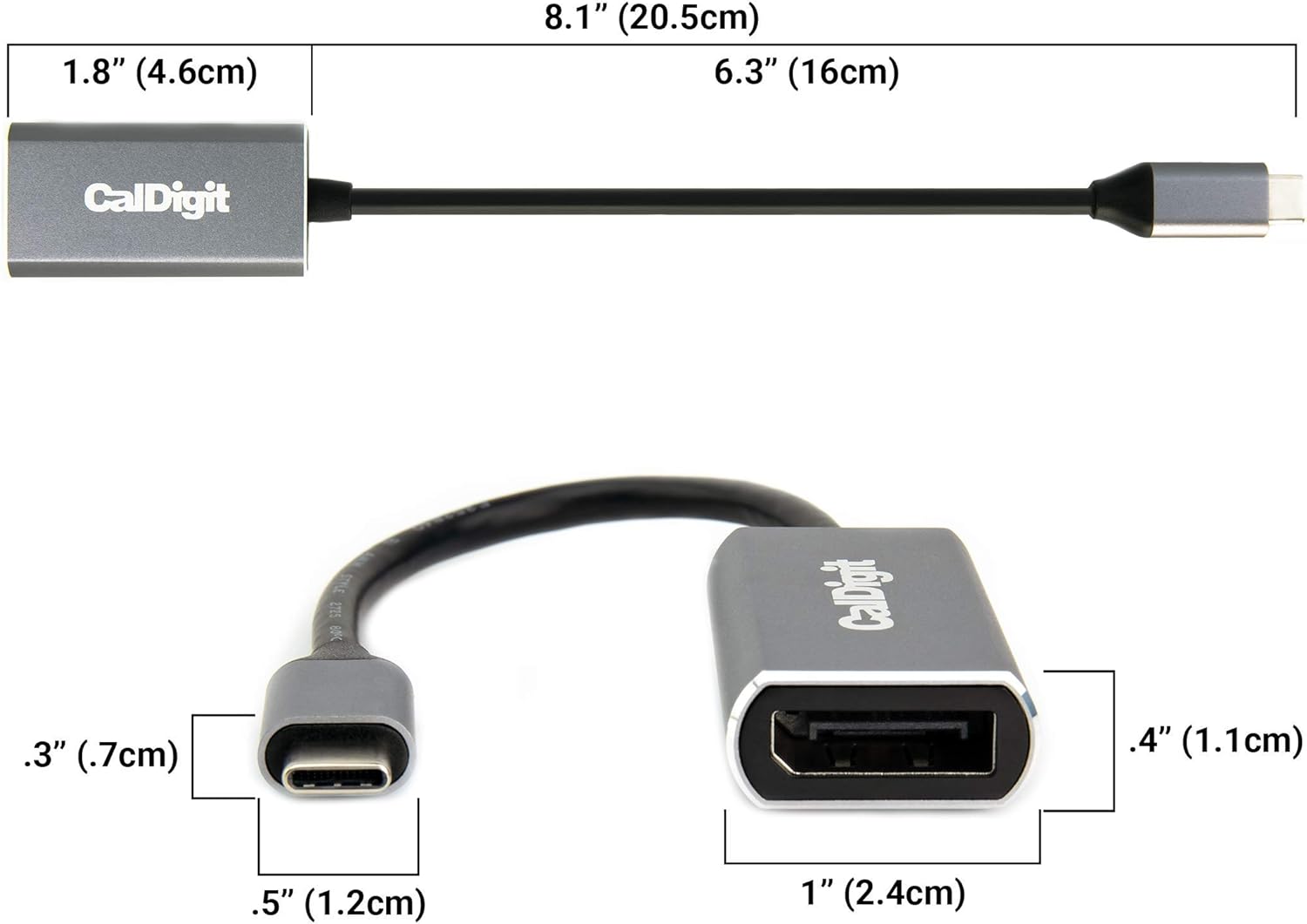
Aworan: Alaye view of the CalDigit USB-C to DisplayPort 1.4 adapter, showing its dimensions. The adapter has a USB-C connector on one end and a DisplayPort connector on the other, with a short cable connecting them.
Awọn ilana Iṣiṣẹ
Once the CalDigit Thunderbolt 4 Element Hub is set up, it operates automatically. Here are some key operational aspects:
Ifihan Asopọmọra
The Element Hub, in conjunction with the USB-C to DisplayPort adapter, allows for flexible display configurations:
- Ifihan Nikan: Connect a single monitor up to 8K resolution.
- Awọn ifihan meji: Connect two 4K monitors at 60Hz. Note that dual 4K 60Hz monitors require a Thunderbolt 3, Thunderbolt 4, or USB4 host computer. Some Windows PC manufacturers may limit Thunderbolt 3 ports to a single external monitor. Apple M1 based laptops only support a single display through their Thunderbolt 3 port.

Image: A setup showing a laptop connected to the CalDigit Thunderbolt 4 Element Hub, which in turn is connected to two external 4K monitors. This illustrates the dual display capability of the hub.
Ifijiṣẹ Agbara
The hub provides up to 60W of power delivery to your connected host computer (laptop or tablet) through the Thunderbolt 4 connection. This allows you to charge your device while using the hub, reducing cable clutter.
Thunderbolt Daisy-Chain
You can expand your connectivity further by daisy-chaining additional Thunderbolt 3 or Thunderbolt 4 devices through the available Thunderbolt 4 downstream ports on the hub. This allows for a more complex and integrated workflow.

Image: A visual representation of Thunderbolt daisy-chaining, showing a laptop connected to the CalDigit Element Hub, which is then connected to another Thunderbolt device. This demonstrates how to expand your Thunderbolt workflow.
Ga-iyara Data Gbigbe
The Thunderbolt 4 ports offer 40Gb/s bandwidth, ideal for high-speed NVMe SSDs and other demanding peripherals. The USB 3.2 Gen 2 ports provide 10Gb/s for standard USB accessories and storage devices.

Aworan: A sunmọ-soke view of the CalDigit Thunderbolt 4 Element Hub connected to a laptop and an external SSD, highlighting its capability to connect blazing fast SSDs with up to 3,000MB/s performance.
Ibamu
The CalDigit Thunderbolt 4 Element Hub is designed for broad compatibility, working with a range of devices including iPad Pro, iPad Air (4th Gen), and Windows tablets, in addition to laptops. Users on tablets may experience reduced functionality compared to full desktop operating systems.

Image: An illustration showing the CalDigit Thunderbolt 4 Element Hub connected to an iPad Pro, demonstrating its compatibility with iPad Pro, iPad Air (4th Gen), and Windows Tablet devices. The image emphasizes display, charge, and connect functionalities.
Atilẹyin ọja ati Support
For detailed warranty information, product registration, and technical support, please visit the official CalDigit website. You can find the most up-to-date resources, FAQs, and contact options there.
Official CalDigit Store: CalDigit Store on Amazon
Always refer to the manufacturer's website for the latest drivers, firmware updates, and support documentation to ensure optimal performance and compatibility.


