
1. Ifihan
The V8 Live Sound Card is a versatile audio mixer and external sound card designed for live broadcasting, KTV, and voice chat. It offers multiple sound effects, adjustable audio controls, and broad compatibility with various devices, enhancing your audio experience for entertainment and professional use.
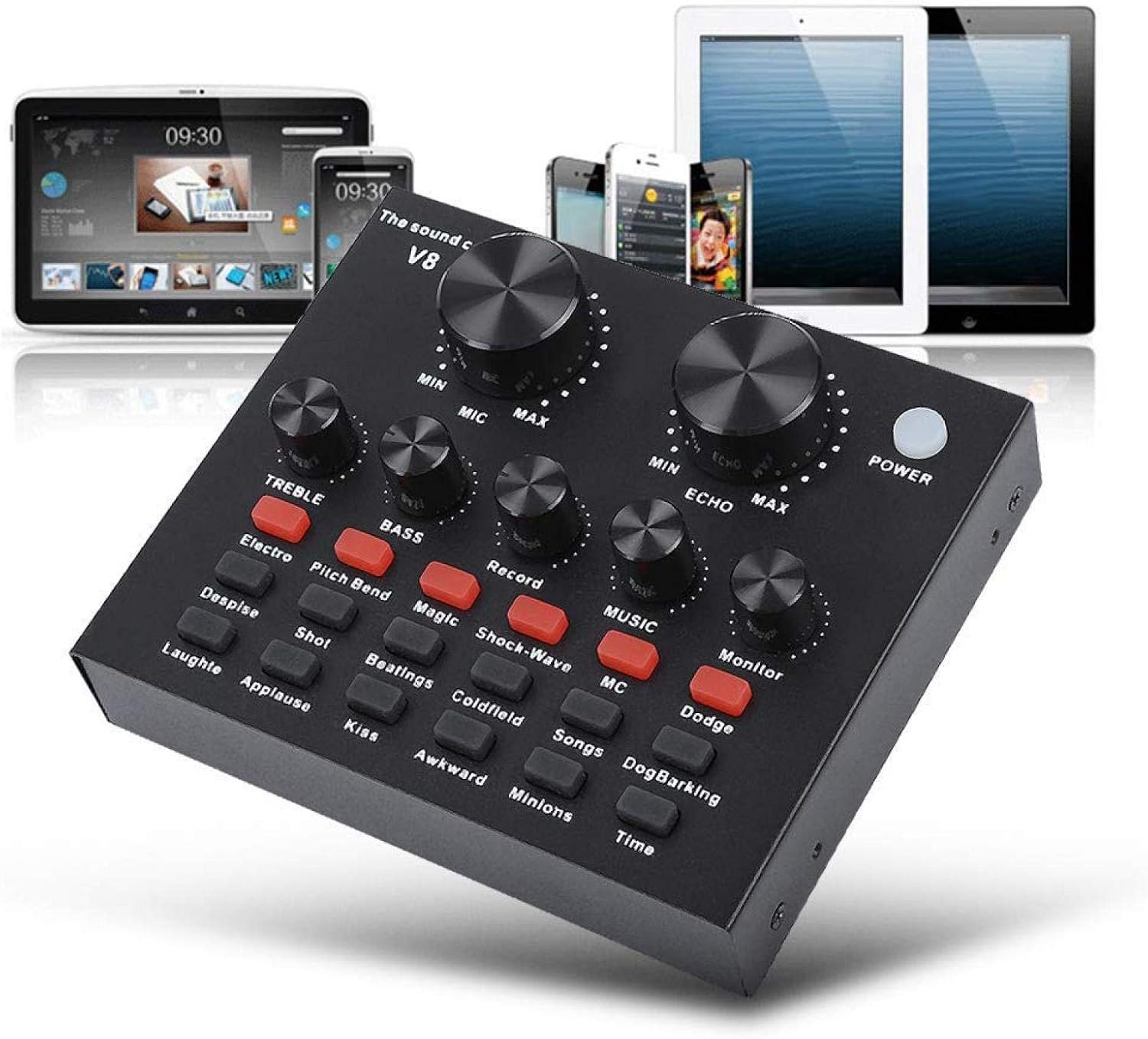
Figure 1: V8 Live Sound Card connected to various devices.
2. Awọn ẹya ara ẹrọ
- Atilẹyin Ẹrọ pupọ: Compatible with mobile phones, computers (laptops, desktops), and single headsets. Supports dual cell phone live, mobile phone computer synchronous live, one computer live, computer accompaniment cell phone live, and instrument input cell phone live.
- Professional Noise Reduction Technology: Features adjustable volume controls for various needs, including reverberation size, microphone volume, high/bass, recording volume, music volume, and monitoring volume (earphone function).
- Multiple Effects, Modes, and Gameplay: Includes 12 kinds of electric sound, 12 kinds of sound effects, and 10 kinds of effect modes. Silicone buttons allow for real-time volume adjustments without software.
- Gbigbe ati iwuwo fẹẹrẹ: Designed for portability, allowing users to enjoy singing or speech anywhere.
- Ohun elo jakejado: Suitable for Home KTV, Voice Chat, Live streaming (Facebook, Periscope, Livestream, Wechat, Smule), and more. Plug and Play functionality, no driver downloads required.
3. Package Awọn akoonu
Nígbà tí o bá ṣí àpò náà, jọ̀wọ́ rí i dájú pé gbogbo àwọn èròjà náà wà níbẹ̀ àti pé wọ́n wà ní ipò tó dára:
- 1 x V8 Live Sound Card Unit
- 2 x Audio Cables
- 1 x Okun USB
- 1 x Afowoyi olumulo Gẹẹsi

Figure 2: V8 Live Sound Card and its included accessories.
4. Ọja Ipariview
Familiarize yourself with the V8 Live Sound Card's layout and ports:
Awọn iṣakoso Igbimọ iwaju:

Figure 3: Front panel of the V8 Live Sound Card.

Nọmba 4: Alaye view of control panel labels.
- MIC (Microphone Volume): Adjusts the input volume of the microphone.
- ECHO (Echo Effect): Controls the intensity of the echo effect.
- TREBLE (Treble Adjustment): Adjusts the high-frequency sound.
- BASS (Bass Adjustment): Adjusts the low-frequency sound.
- RECORD (Recording Volume): Controls the volume of the recorded output.
- MUSIC (Music Volume): Ó ń ṣe àtúnṣe ohùn orin ìsàlẹ̀.
- MONITOR (Monitoring Volume): Controls the volume heard through connected headphones/earphones.
- Bọtini AGBARA: Yipada ẹrọ si tan/pa.
- Àwọn bọ́tìnì ipa ohùn: Various buttons for specific sound effects (e.g., Electro, Pitch Bend, Magic, Shock-Wave, MC, Dodge, Despise, Shot, Beatings, Coldfield, Songs, Dog Barking, Laughter, Applause, Kiss, Awkward, Minions, Time, Reverb Delay, Voice Change, Elimination, Crack, 9277, Yell, Slash, PUBG).
Awọn Ibudo Panel Tẹhin:

Figure 5: Rear panel ports of the V8 Live Sound Card.
- Charging / Computer Interface: USB port for charging and connecting to a computer.
- Live 1 / Live 2: Ports for connecting mobile phones for live broadcasting.
- Àwòrán Abánisọ̀rọ̀: For connecting an external audio source for background music.
- Agbọrọsọ Agbọrọsọ: Output for connecting external speakers or headphones.
- Ni wiwo Agbekọri: For connecting a headset with a combined microphone and headphone jack.
- Agbohunsafẹfẹ Condenser: Iṣagbewọle fun awọn microphones condenser.
- Dynamic Mic: Input for dynamic microphones.
5. Eto
Follow these steps to set up your V8 Live Sound Card:
Agbara Ibẹrẹ Tan:
- Ensure the sound card is charged or connected to a power source via the USB cable.
- Tẹ awọn AGBARA button on the front panel to turn on the device.
Awọn ọna asopọ:

Figure 6: Computer Live/Accompaniment connection method.
- For Computer Live/Accompaniment:
- Connect the USB cable from the sound card's Charging / Computer Interface to your computer. The sound card should be automatically recognized.
- So gbohungbohun rẹ pọ si Kondenser Gbohungbo or Gbohungbo Yiyi igbewọle.
- Connect your headphones or speakers to the Agbọrọsọ Agbọrọsọ or Agbekọri Interface.
- If using an accompaniment device (e.g., another phone for music), connect it to the Accompaniment Interface using an audio cable.
- For Single Mobile Phone Live Broadcast:
- Connect one audio cable from the sound card's Gbe 1 or Gbe 2 port to your mobile phone's audio jack. If your phone does not have a 3.5mm audio jack, use an audio adapter cable (not included).
- Connect your microphone to the appropriate mic input.
- So awọn agbekọri rẹ pọ si Agbekọri Interface or Agbọrọsọ Agbọrọsọ.
- For Dual Mobile Phone Live Broadcast:
- Connect one audio cable from the sound card's Gbe 1 port to your first mobile phone.
- Connect a second audio cable from the sound card's Gbe 2 port to your second mobile phone.
- Connect your microphone and headphones as described above.
6. Awọn ilana Iṣiṣẹ
Once connected, you can begin using your V8 Live Sound Card:
- Adjusting Volumes: Use the large knobs for MIC ati ECHO. Use the smaller knobs for TREK., Bass, Igbasilẹ, ORIN, ati MONITOR to fine-tune your audio levels.
- Applying Sound Effects: Press the various sound effect buttons on the front panel to activate different effects. Experiment with each button to find the desired sound.
- Iyipada ohun: Lo awọn
Ask a question about this manual
Ask about setup, troubleshooting, compatibility, parts, safety, or missing instructions. Manuals+ will review the question and use this page’s manual context to help answer it.