
1. Ifihan
This manual provides detailed instructions for the Minno Maverick A10 Rugged 10-inch Android 10 Tablet. It covers initial setup, operation, maintenance, and troubleshooting to ensure optimal performance and longevity of your device. Please read this manual thoroughly before using the tablet.
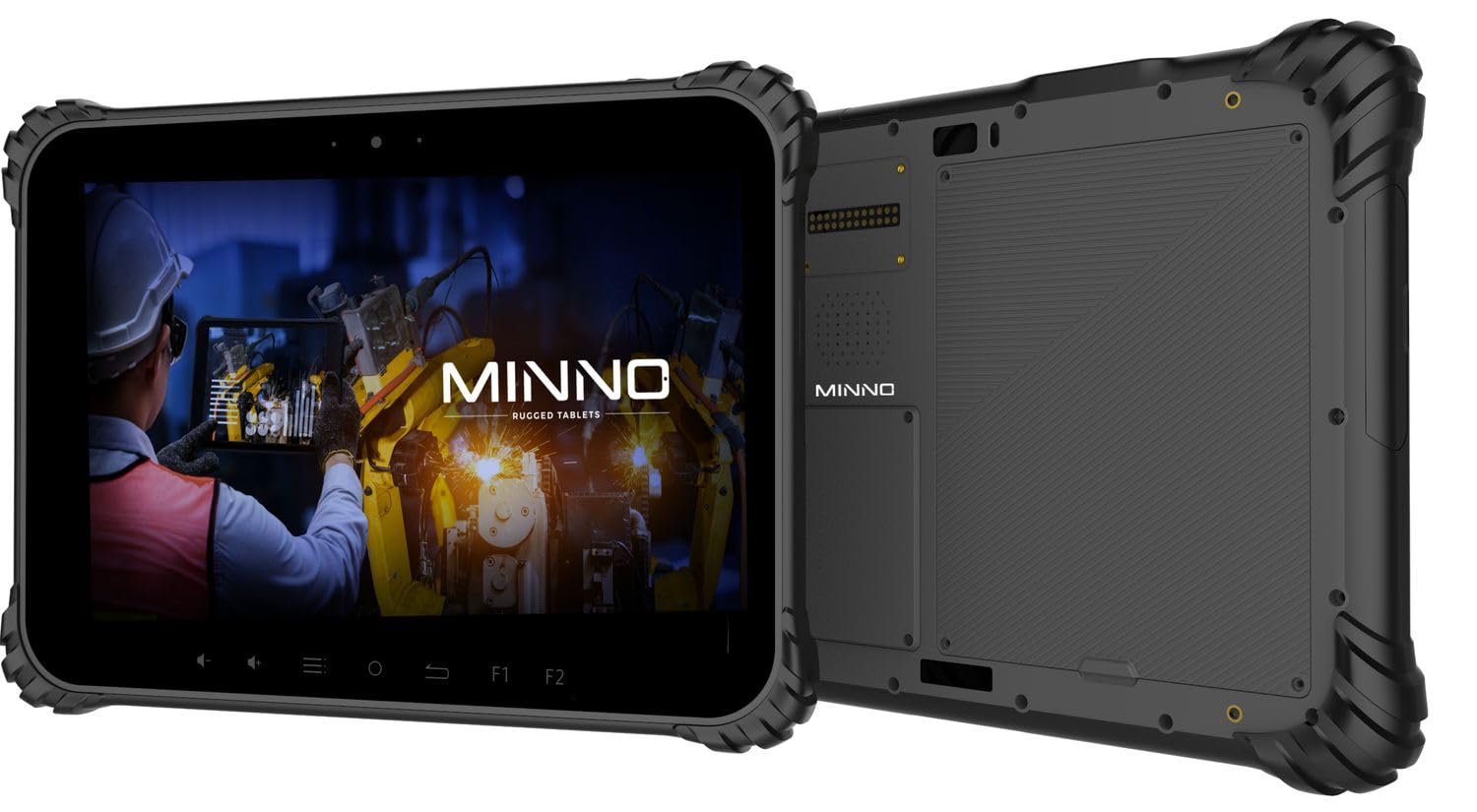
Figure 1.1: Minno Maverick A10 Rugged Tablet
2. Package Awọn akoonu
Jẹrisi pe gbogbo awọn ohun kan wa ninu package:
- Minno Maverick A10 Rugged Android Tablet
- Adapter agbara
- Briefcase Handle
- Hand Strap (pre-installed)
3. Ẹrọ Loriview
3.1 Key Awọn ẹya ara ẹrọ
- Apẹrẹ alagidi: IP67 dust and waterproof, MIL-STD-810H certified for drop, shock, and vibration resistance.
- Ifihan: 10-inch sunlight-readable touchscreen.
- Iṣe: Android 10 operating system, 4GB RAM, 64GB internal storage.
- Asopọmọra: LTE (unlocked for AT&T & T-Mobile), Wi-Fi, Bluetooth, NFC, GPS.
- Batiri: 11,700 mAh swappable battery for extended use.
- Awọn kamẹra: 13 MP rear camera, 5 MP front camera.
- Awọn bọtini Ti ara: Dedicated buttons for easy access to functions.

Figure 3.1: Minno Maverick A10 with core specifications
3.2 Àwọn Bọ́tìnì àti Àwọn Ìbùdó Ìfọwọ́sowọ́pọ̀
The tablet features physical buttons for common functions and easy access, even in demanding environments.

Figure 3.2: Tablet cameras and easy access buttons
- Bọtini agbara: Ó wà ní ẹ̀gbẹ́, a máa ń lò ó láti tan/pa tàbí jí/sùn ẹ̀rọ náà.
- Iwọn didun Soke/Isalẹ: Ṣe atunṣe iwọn didun ohun.
- Function Buttons (F1, F2): Customizable buttons for quick access to specific applications or features.
- Bọtini Pada: Lilọ kiri pada si iboju ti tẹlẹ.
- Bọtini Ile: Pada si iboju ile.
- Bọtini Akojọ: Accesses application options or recent apps.
- Awọn ibudo USB: Fun gbigba agbara ati gbigbe data.
- Awọn ibudo ti a bo: Designed to protect against dust and water ingress.
4. Ni ibẹrẹ Oṣo
4.1 Ngba agbara si Batiri naa
Before first use, fully charge the tablet battery. Connect the provided power adapter to the tablet's charging port and plug it into a power outlet. The charging indicator will show the charging status.
4.2 Titan / Pa a
- Lati Fi agbara: Press and hold the Power button until the Minno logo appears on the screen.
- Lati Paarẹ: Tẹ mọlẹ bọtini agbara titi ti akojọ aṣayan agbara yoo han. Yan "Agbara kuro" ki o jẹrisi.
- Lati Sun/Ji: Tẹ bọtini agbara ni kukuru lati fi tabulẹti sinu ipo oorun tabi ji i dide.
4.3 Iṣeto ni ibẹrẹ
Nígbà tí o bá kọ́kọ́ tan-an, tẹ̀lé àwọn ìtọ́ni tó wà lójú ìbòjú láti parí ìṣètò àkọ́kọ́, pẹ̀lú:
- Aṣayan ede
- Wi-Fi asopọ nẹtiwọki
- Google account setup
- Ọjọ ati akoko eto
4.4 Installing SIM/SD Card
The tablet supports a SIM card for LTE connectivity and an SD card for expanded storage. Locate the covered slot on the side of the tablet. Carefully open the cover, insert the SIM card and/or SD card into their respective slots, ensuring correct orientation. Close the cover securely to maintain IP67 rating.
5. Ipilẹ isẹ
5.1 Lilọ kiri Iboju ifọwọkan
The 10-inch display is a multi-touch screen. Use standard Android gestures:
- Fọwọ ba: Yan ohun kan tabi ṣii ohun elo kan.
- Fọwọ ba Mu: Wọle si awọn akojọ aṣayan ọrọ-ọrọ tabi gbe awọn aami.
- Ra: Yi lọ nipasẹ awọn akojọ tabi yipada laarin awọn iboju.
- Fun pọ-si- Sun-un: Sun-un sinu tabi jade lori awọn aworan ati web awọn oju-iwe.
5.2 Asopọmọra
- Wi-Fi: Lọ si Eto> Nẹtiwọọki & intanẹẹti> Wi-Fi lati sopọ si awọn nẹtiwọọki to wa.
- LTE: Ensure a valid SIM card is installed. Go to Settings > Network & internet > Mobile network to enable mobile data.
- Bluetooth: Lọ si Eto > Awọn ẹrọ ti a ti so pọ > Bluetooth lati so pọ pẹlu awọn ẹya ẹrọ Bluetooth.
6. Awọn ẹya ara ẹrọ ti ilọsiwaju
6.1 kamẹra Lilo
The tablet is equipped with a 13 MP rear camera and a 5 MP front camera. Open the Camera application to capture photos and videos. Adjust settings such as flash, timer, and mode within the app.
6.2 GPS Lilọ kiri
The integrated GPS module allows for location tracking and navigation. Ensure location services are enabled in Settings > Location for optimal performance with mapping applications.
6.3 Iṣẹ́ NFC
NFC (Near Field Communication) allows for short-range wireless communication. Enable NFC in Settings > Connected devices > Connection preferences > NFC to use features like contactless payments or quick data sharing with compatible devices.
7. Itọju ati Itọju
7.1 Ninu tabulẹti
Use a soft, lint-free cloth to clean the screen and body of the tablet. For stubborn marks, slightly dampen awọn asọ pẹlu omi tabi a iboju-ninu ojutu. Yago fun awọn kẹmika lile tabi awọn ohun elo abrasive.
7.2 batiri Itọju
The tablet features a swappable 11,700 mAh battery. To maximize battery life:
- Yago fun awọn iwọn otutu to gaju.
- Ma ṣe mu batiri silẹ ni kikun nigbagbogbo.
- Lo oluyipada agbara ti a pese nikan.
- If replacing the battery, ensure it is an official Minno replacement part.
7.3 Ayika Idaabobo
The Minno Maverick A10 is designed for harsh environments with IP67 and MIL-STD-810H certifications.

Figure 7.1: IP67 Dustproof and Spillproof Protection

Figure 7.2: MIL-STD-810H Certified Durability
- Idiwon IP67: Provides protection against dust ingress and immersion in water up to 1 meter for 30 minutes. Ensure all port covers are securely closed.
- MIL-STD-810H: Certified to resist drops up to 4 feet, withstand prolonged intense vibrations, and operate in extreme temperatures from -4°F to 150°F.
8. Laasigbotitusita
If you encounter issues with your Minno Maverick A10, refer to the following common solutions:
| Isoro | Owun to le Solusan |
|---|---|
| Tabulẹti ko ni agbara lori | Ensure the battery is charged. Connect the power adapter and try again. If the battery is swappable, ensure it is correctly seated. |
| Iboju ifọwọkan ko dahun | Restart the tablet by holding the power button. If the issue persists, perform a factory reset (data will be lost). |
| Ko le sopọ si Wi-Fi | Check if Wi-Fi is enabled in settings. Restart your router. Ensure you are entering the correct password. |
| LTE/Mobile data not working | Ensure a valid SIM card is properly inserted. Check mobile data settings and APN configurations. Contact your service provider. |
| Applications are crashing | Clear the cache of the problematic application (Settings > Apps > [App Name] > Storage & cache). Update the app or the Android system. |
9. Awọn pato
Detailed technical specifications for the Minno Maverick A10 Rugged Tablet:
| Ẹya ara ẹrọ | Sipesifikesonu |
|---|---|
| Nọmba awoṣe | A10Z03001 |
| Eto isesise | Android 10 |
| Iwon iboju | 10 inches |
| Ipinnu iboju | 1280x800 (Max: 1920x1200 Pixels) |
| Àgbo | 4 GB |
| Ibi ipamọ inu | 64 GB |
| isise Brand | MediaTek |
| Alailowaya Iru | 802.11ac (Wi-Fi), Bluetooth, NFC, GPS, 4G LTE |
| Ẹyìn WebKame.awo-ori Ipinnu | 13 MP |
| Ipinnu Kamẹra iwaju | 5 MP |
| Batiri | 11,700 mAh Lithium-ion polymer (swappable) |
| Iwọn Nkan | 3.89 iwon |
| Ọja Mefa | 10 x 1 x 8 inches |
| Àwọ̀ | Dudu |
| Àwọn Ìwé-ẹ̀rí Àìlágbára | IP67, MIL-STD-810H |
10. Atilẹyin ọja ati Support
10.1 atilẹyin ọja Alaye
Minno warrants its products to be free from material and workmanship defects for ọdun meji 2 from the date of purchase. This warranty covers manufacturing defects under normal use. It does not cover damage caused by misuse, accidents, unauthorized modifications, or natural disasters.
10.2 Onibara Support
For technical assistance, warranty claims, or further inquiries, please contact Minno customer support through the official Minno website or your point of purchase. Have your model number (A10Z03001) and purchase date ready when contacting support.