
1. Ifihan
The Milesight MS-N5016-E is a 4K H.265+ Pro Network Video Recorder (NVR) from the 5000 Series, designed for advanced video surveillance systems. This NVR offers robust 4K decoding and display capabilities, supporting synchronous decoding of up to 3-channel 4K UHD or 12-channel 1080P video streams. It features 16-channel input and an 80Mbps bandwidth, making it suitable for comprehensive security solutions.
Key features include intelligent Video Content Analysis (VCA) management, AI VCA alarm settings, event search, real-time data and statistical reports for business intelligence, POS integration, and Automatic Network Replenishment (ANR) for data reliability.
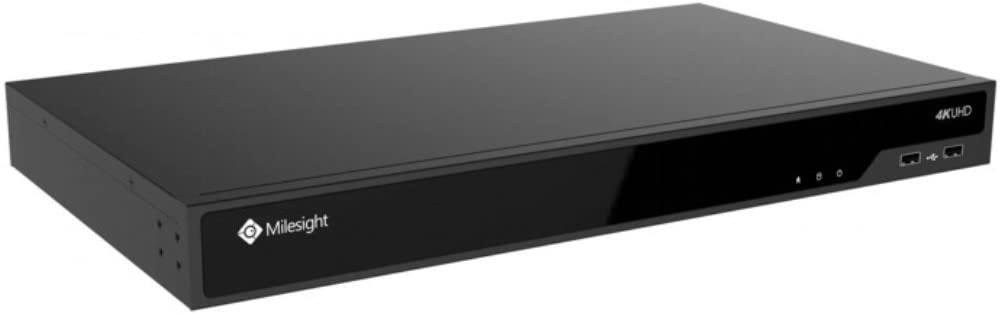
olusin 1: Iwaju view of the Milesight MS-N5016-E NVR unit.
2. Eto Itọsọna
Follow these steps to set up your Milesight MS-N5016-E NVR:
- Ṣiṣii ati Ṣiṣayẹwo: Carefully unpack the NVR and all accessories. Inspect for any signs of damage.
- Fifi sori ẹrọ Hard Drive (ti o ba wulo): If hard drives are not pre-installed, refer to the separate hard drive installation guide. Ensure drives are securely mounted.
- So agbara: Connect the provided power adapter to the NVR and then to a power outlet.
- Asopọmọra Ifihan: Connect a monitor to the NVR's VGA or HDMI output port.
- So Nẹtiwọọki pọ: Connect an Ethernet cable from the NVR's LAN port to your network router or switch.
- So awọn kamẹra IP pọ: Connect your IP cameras to the NVR's PoE ports (if available) or to the same network as the NVR.
- Ibẹrẹ ibẹrẹ: Power on the NVR. Follow the on-screen wizard for initial configuration, including setting up administrator passwords and network settings.
- Camera Detection and Addition: Use the NVR interface to search for and add connected IP cameras.
3. Awọn ilana Iṣiṣẹ
This section covers the basic operation of your NVR.
3.1 Live View ati Gbigbasilẹ
- Iwọle si Live View: After logging in, the NVR will typically display the live view àwọn kámẹ́rà tí a so pọ̀. O le yípadà láàrín kámẹ́rà kan ṣoṣo view ati olona-kamẹra akoj views.
- Awọn ọna Gbigbasilẹ: Configure recording schedules (continuous, motion-triggered, alarm-triggered) for each camera via the NVR's menu.
- Dual Stream Recording: The NVR supports dual-stream recording, allowing for high-resolution recording and lower-resolution viewing for efficient bandwidth usage.
3.2 Playback and Event Search
- Sisisẹsẹhin: Navigate to the playback menu to review foo ti o ti gbasilẹtage. Use the timeline to select specific times and dates.
- Event Search: Utilize the event search function to quickly find footage related to specific events, such as motion detection, alarm triggers, or VCA events.
3.3 Intelligent VCA and AI Features
The NVR supports advanced Video Content Analysis (VCA) and AI features:
- AI VCA Alarm Settings: Configure intelligent VCA rules (e.g., line crossing, intrusion detection, people counting) for your cameras. The NVR can trigger alarms and recordings based on these events.
- Smart People Counting Analysis: Access real-time data and statistical reports for people counting, useful for business operations and security management.
3.4 POS Integration
The NVR supports Point-of-Sale (POS) integration, allowing you to combine retail transaction data with surveillance video. This feature helps in easily identifying product checkout, miscalculations, or shortages in retail environments.
3.5 Automatic Network Replenishment (ANR)
ANR ensures video data integrity. When the network connection between an IPC (IP Camera) and the NVR is interrupted, the IPC stores video data on its local storage (e.g., SD card). Once the network connection is restored, the NVR automatically retrieves and transfers the recorded video from the IPC, preventing data loss.
4. Itọju
Itọju deedee n ṣe idaniloju pe eto NVR rẹ yoo pẹ to ati pe yoo ṣiṣẹ daradara.
- Awọn imudojuiwọn famuwia: Periodically check the Milesight official webaaye fun famuwia awọn imudojuiwọn. Ṣiṣe imudojuiwọn famuwia le mu iṣẹ dara si, ṣafikun awọn ẹya tuntun, ati ṣatunṣe awọn idun.
- Hard Drive Health Check: Monitor the health status of your hard drives through the NVR's system settings. Replace failing drives promptly to avoid data loss.
- Awọn akọọlẹ eto: Nigbagbogbo tunview Àkọsílẹ̀ ètò fún àwọn àṣìṣe tàbí ìkìlọ̀ èyíkéyìí tí ó lè fi àwọn ìṣòro tó lè ṣẹlẹ̀ hàn.
- Ninu: Keep the NVR unit clean and free from dust to ensure proper ventilation and prevent overheating. Use a soft, dry cloth.
- Iṣeto Afẹyinti: Periodically back up your NVR's configuration settings to an external storage device.
5. Laasigbotitusita
Abala yii n pese awọn ojutu si awọn ọran ti o wọpọ ti o le ba pade.
| Isoro | Owun to le Fa | Ojutu |
|---|---|---|
| Ko si ifihan fidio lori atẹle. | Loose cable connection, incorrect input source, NVR not powered on. | Check VGA/HDMI cable connections. Ensure monitor is on correct input. Verify NVR power. |
| Cameras not recording. | Hard drive full or faulty, recording schedule not set, camera disconnected. | Check hard drive status and capacity. Verify recording schedules. Ensure cameras are connected and online. |
| Ko le wọle si NVR latọna jijin. | Awọn iṣoro iṣeto nẹtiwọọki, a ko ṣeto gbigbe ibudo, idilọwọ ogiriina. | Verify NVR network settings. Check router for port forwarding rules. Temporarily disable firewall for testing. |
| Didara fidio ti ko dara. | Camera resolution settings, network bandwidth issues, dirty camera lens. | Adjust camera resolution settings. Check network load. Clean camera lenses. |
6. Awọn pato
Below are the technical specifications for the Milesight MS-N5016-E NVR:
| Ẹya ara ẹrọ | Ẹ̀kúnrẹ́rẹ́ |
|---|---|
| Nọmba awoṣe | MS-N5016-E |
| Brand | Milesight |
| Awọn ikanni | 16 |
| O pọju. Agbara ipamọ | 10 TB (per drive, actual capacity depends on number of drive bays) |
| Awọn ibudo USB | 3 |
| Asopọmọra Technology | USB, VGA |
| Awọn ẹrọ ibaramu | Awọn kamẹra |
| Àwọ̀ | Multi-color (Standard NVR casing) |
7. Atilẹyin ọja ati Support
For detailed warranty information, please refer to the warranty card included with your product or visit the official Milesight webojula. Awọn ofin atilẹyin ọja ni igbagbogbo bo awọn abawọn iṣelọpọ fun akoko kan pato lati ọjọ rira.
For technical support, product inquiries, or service requests, please contact Milesight customer support through their official channels. Ensure you have your product model number (MS-N5016-E) and purchase details ready when contacting support.
Official Milesight Webojula: www.milesight.com
8. Awọn fidio ọja
Ko si awọn fidio ọja osise lati ọdọ olutaja ti o wa fun ifibọ ninu afọwọṣe yii.