
1. Ifihan
Welcome to the HyperX Armada 25 Gaming Monitor user manual. This document provides essential information for setting up, operating, maintaining, and troubleshooting your new monitor. The HyperX Armada 25 is designed for competitive gaming, featuring a 24.5-inch Full HD (1920x1080) IPS panel, a 240Hz refresh rate, and a 1ms response time, ensuring smooth and responsive visuals. It also includes NVIDIA G-SYNC compatibility to eliminate screen tearing and minimize input latency. A desk mount is included for convenient setup and to maximize desk space.
Awọn ẹya pataki:
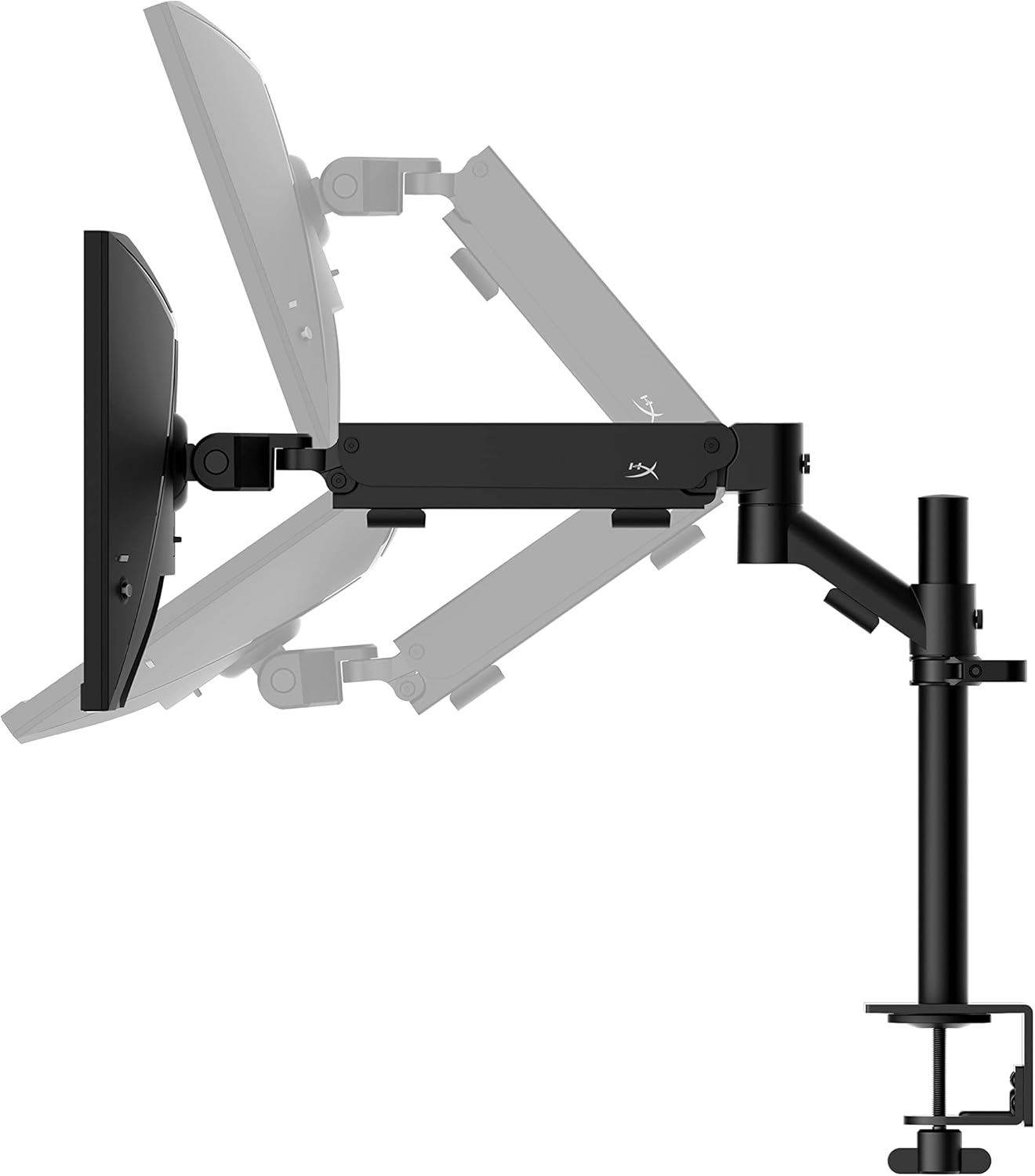
- Apapọ Gbogbo-ni-Ọkan: Includes an ergonomic arm and desk mount for easy setup and space-saving.
- High Refresh Rate & Response Time: 240Hz refresh rate and 1ms response time for ultra-smooth gaming.
- Vibrant IPS Panel: 24.5-inch Full HD (1920x1080) IPS panel delivers stunning visuals with accurate colors and wide viewing awọn igun.
- Ibamu NVIDIA G-SYNC: Eliminates screen tearing and reduces stuttering for a fluid gaming experience.

Fidio Ọja Oṣiṣẹ:
2. Eto
This section guides you through the initial setup of your HyperX Armada 25 Gaming Monitor, including assembly and connection to your computer.
2.1. Assembling the Desk Mount
The HyperX Armada 25 comes with an integrated ergonomic desk mount. Follow the instructions provided in the separate quick start guide for detailed assembly steps. The monitor head easily snaps into the arm, allowing for quick and secure installation.

2.2. Nsopọ Atẹle
Connect the monitor to your computer using the appropriate cables. The HyperX Armada 25 supports both HDMI and DisplayPort connections.
- Connect one end of the HDMI or DisplayPort cable to the corresponding port on your computer's graphics card.
- Connect the other end of the cable to an available HDMI 2.0 or DisplayPort 1.4 port on the back of your monitor.
- So okùn agbára mọ́ monitor náà, lẹ́yìn náà so mọ́ outlet iná.
- Tẹ bọtini agbara lori atẹle lati tan-an.

3. Ṣiṣẹ Atẹle
This section covers basic operation and navigation of the monitor's On-Screen Display (OSD) menu.
3.1. Oju-iboju Ifihan (OSD) Lilọ kiri
The OSD menu is controlled using a joystick located on the back of the monitor. This joystick allows you to power on/off the monitor and navigate through various settings.
- Tẹ joystick naa: To open the OSD menu or confirm a selection.
- Move the joystick Up/Down/Left/Right: To navigate through menu options and adjust settings.
- Hold the joystick: To power off the monitor.

3.2. Siṣàtúnṣe Atẹle Ipo
The ergonomic desk mount allows for flexible positioning of your monitor. You can adjust the height, tilt, swivel, and pivot to find your optimal viewigun igun.

4. Itọju
Proper maintenance ensures the longevity and optimal performance of your HyperX Armada 25 Gaming Monitor.
- Ninu iboju: Lo asọ rirọ, ti ko ni lint ni sere dampened with water or a specialized screen cleaner. Avoid using harsh chemicals, abrasive materials, or direct spraying onto the screen.
- Ninu ile Casing: Pa atẹle naa nu casing pẹlu asọ ti o gbẹ.
- Afẹfẹ: Rii daju pe awọn ṣiṣi atẹgun ti atẹle naa ko ni idinamọ lati ṣe idiwọ igbona.
- Agbara Paa Nigbati Ko Si Lo: Pa atẹle naa nigbati o ko ba wa ni lilo fun awọn akoko gigun lati fi agbara pamọ ati gigun igbesi aye rẹ.
5. Laasigbotitusita
Tí o bá ní ìṣòro pẹ̀lú àtẹ̀gùn rẹ, wo àwọn ìgbésẹ̀ àtúnṣe tí ó wọ́pọ̀ wọ̀nyí.
- Ko si Agbara:
- Ṣayẹwo boya okun agbara ti sopọ ni aabo si atẹle mejeeji ati iṣan agbara.
- Rí i dájú pé ibi tí agbára iná ń ṣiṣẹ́ dáadáa.
- Tẹ bọtini agbara lori atẹle naa.
- Ko si ifihan agbara:
- Daju pe okun HDMI tabi DisplayPort ti sopọ ni aabo si atẹle mejeeji ati kọnputa rẹ.
- Rii daju pe kọmputa rẹ ti wa ni titan ko si si ni ipo oorun.
- Yan orisun titẹ sii to tọ nipa lilo akojọ OSD.
- Flickering Screen or Image Issues:
- Ṣayẹwo okun ifihan fun ibajẹ tabi awọn asopọ alaimuṣinṣin.
- Rii daju pe awọn awakọ kaadi eya rẹ ti wa ni imudojuiwọn.
- Ṣatunṣe oṣuwọn isọdọtun ninu awọn eto ifihan kọnputa rẹ.
- If G-SYNC is enabled, try disabling it temporarily to see if the issue persists.
- Buttons Not Responding (OSD Joystick):
- Rii daju pe atẹle ti wa ni titan.
- Try restarting the monitor by unplugging and replugging the power cable.
- Clean around the joystick to ensure no debris is obstructing its movement.
6. Awọn pato
Detailed technical specifications for the HyperX Armada 25 Gaming Monitor.
| Ẹya ara ẹrọ | Ẹ̀kúnrẹ́rẹ́ |
|---|---|
| Ọja Mefa | 21.94 x 25.79 x 31.12 inches; 16.98 iwon |
| Nọmba Awoṣe Nkan | HyperX Armada 25 |
| Ọjọ Akọkọ Wa | Oṣu Kẹjọ Ọjọ 24, Ọdun 2022 |
| Olupese | HP Inc. |
| ASIN | B0B2C1G356 |
| Iwọn Ifihan | 24.5-inch Aguntan |
| Ipinnu | FHD (1920x1080) |
| Oṣuwọn sọtun | 240Hz |
| Panel Iru | IPS nronu |
| Akoko Idahun | 1ms |
| Iṣẹ-ẹrọ Sync | NVIDIA® G-SYNC® ibamu |
| Included Mount | Desk Mount Included |
| Asopọmọra | HDMI and Display Port |
7. Atilẹyin ọja ati Support
For warranty information, technical support, or to access additional resources, please visit the official HyperX webojula tabi kan si wọn onibara iṣẹ.
- HyperX osise Webojula: www.hyperx.com
- Oju-iwe Atilẹyin Ọja: Refer to the support section on the HyperX webojula fun rẹ kan pato awoṣe.