
1. Eto Itọsọna
This section provides instructions for the initial setup of your Kinhank Super Console X King. Please follow these steps carefully to ensure proper functionality.
1.1 Unboxing ati Idanimọ paati
Fi ìṣọ́ra yọ gbogbo àwọn ohun èlò kúrò nínú àpótí náà. Rí i dájú pé gbogbo àwọn ohun tí a kọ sínú àkójọ ìkópamọ́ wà níbẹ̀.

Aworan: The packing list for the Kinhank Super Console X King, showing the console unit, remote control, two gamepads, HDMI cable, power adapter, and an SD card.
1.2 Nsopọ si Telifisonu Rẹ
- Locate the HDMI port on the back of your Super Console X King.
- Connect one end of the provided HDMI cable to the console's HDMI port.
- Connect the other end of the HDMI cable to an available HDMI input on your television. Note the HDMI input number (e.g., HDMI 1, HDMI 2) for later selection.
1.3 Asopọ agbara
- Connect the power adapter to the DC-in port on the console.
- Plug the power adapter into a standard electrical outlet. The console should power on automatically or can be powered on using the remote control.
1.4 Nsopọ Adarí
The console supports wireless controllers. Insert the USB receiver for the wireless controllers into one of the USB ports on the console. The controllers should automatically pair. If not, refer to the troubleshooting section.
1.5 Asopọ Nẹtiwọọki
The Super Console X King supports both Wi-Fi (2.4G+5G) and Gigabit Ethernet for internet connectivity.
- Wi-Fi: Navigate to the system settings, select Network, and choose your Wi-Fi network. Enter the password to connect.
- Àjọlò: Connect an Ethernet cable from your router to the RJ45 port on the console. The connection should be established automatically.

Aworan: A diagram illustrating the various ports on the Kinhank Super Console X King, including DC-in, USB 2.0, HD 2.1, RJ45, Audio SPDIF, AV (CVBS), USB 3.0, and Micro SD Card Slot.
2. Awọn ilana Iṣiṣẹ
Your Super Console X King features three operating systems: Android 9.0, EmuELEC 4.5, and CoreELEC. This section explains how to navigate and use each system.
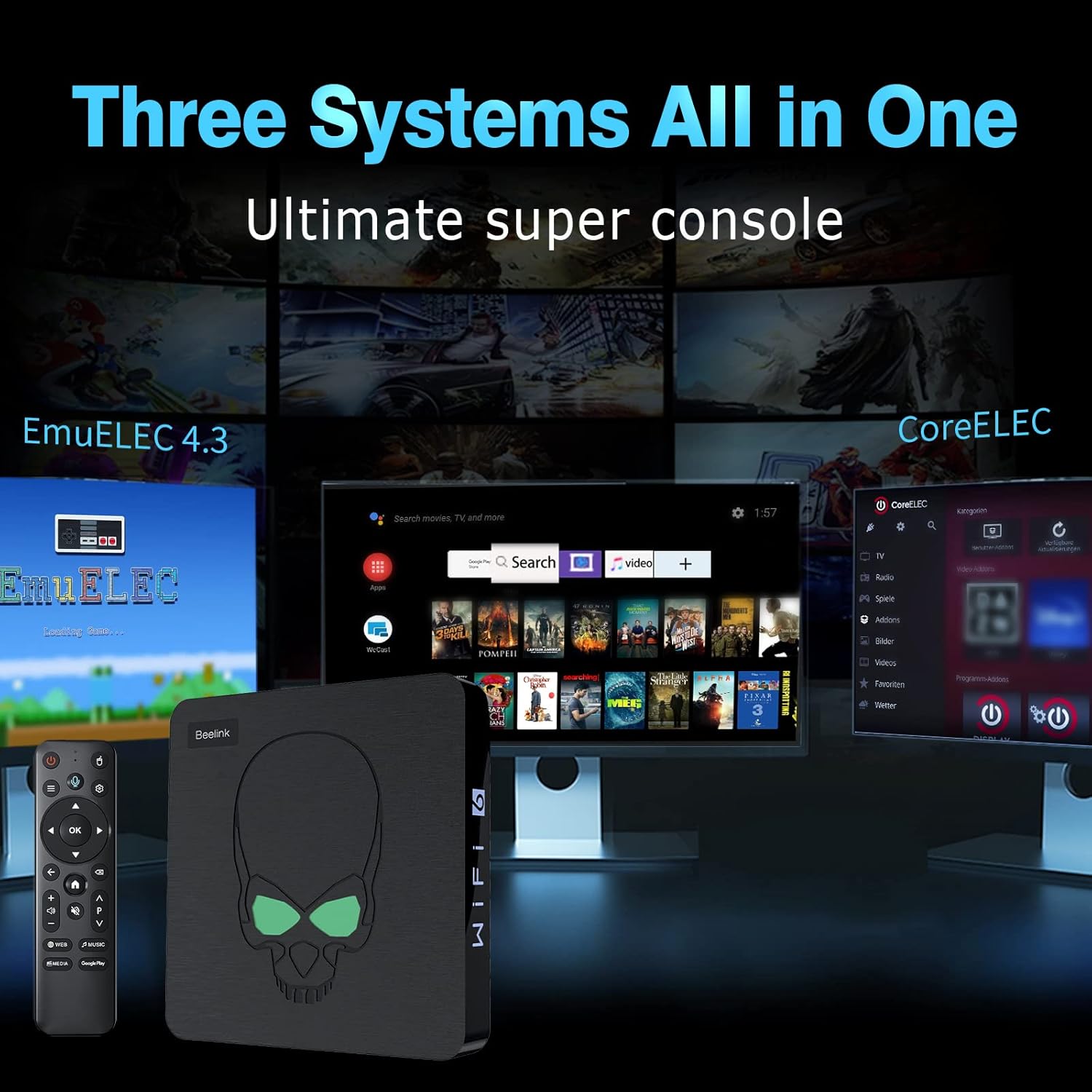
Aworan: A visual representation of the three systems (EmuELEC, Android, CoreELEC) integrated into the Kinhank Super Console X King, highlighting its versatility.
2.1 System Yiyan
Upon booting, you will typically be presented with an option to select your desired operating system. Use the remote control or gamepad to navigate and choose between Android, EmuELEC, or CoreELEC.

Aworan: Ipariview showing the interfaces of Android 9.0, EmuELEC 4.5, and CoreELEC systems running on the console.
2.2 EmuELEC (Gaming System)
- Aṣayan Ere: EmuELEC provides access to over 117,000 pre-installed classic games across 70+ emulators. Use the gamepad to navigate through the game libraries.
- Bibẹrẹ Ere kan: Select a game from the list and press the designated button (usually 'A' or 'X') to launch it.
- Saving Game Progress: Most emulators allow you to save your game progress (save states). Refer to the in-emulator menu for specific instructions, typically accessed by a combination of buttons on the gamepad.
- Fifi Awọn Ere kun: The console supports adding additional games. This usually involves transferring ROM files to the appropriate folders on the SD card or internal storage. Detailed instructions for adding games can be found in advanced user guides online.

Aworan: The Kinhank Super Console X King console with a remote, showcasing its capability to run over 117,000 classic games.
2.3 Android 9.0 (Smart TV System)
- Lilọ kiri: Use the remote control to navigate the Android interface. The remote often functions as an air mouse for easier selection.
- Awọn ohun elo: Access pre-installed apps like YouTube, Google Play, Netflix, and more. You can download additional applications from the Google Play Store.
- Sisisẹsẹhin Media: Use Android apps to stream videos, music, and view photos on your 4K television.

Aworan: A user playing a game on a 4K television, demonstrating the 4K HD output capability of the Kinhank Super Console X King.
2.4 CoreELEC (Media Center System)
CoreELEC is a lightweight operating system designed for media playback. It is ideal for users who primarily want to use the console as a dedicated media center. Navigate using the remote control to access your media files and streaming services.
2.5 Osise Video ọja
Fidio: Ifihan fidio ọja osise kanasing the features and capabilities of the Kinhank Super Console X King, including its design, S922X chip, game system, 4K output, and included accessories.
3. Itọju
Itọju to dara ṣe idaniloju pe igba pipẹ ati iṣẹ ṣiṣe to dara julọ ti console rẹ.
3.1 Ninu
- Lo asọ ti o rọ, ti o gbẹ lati nu ita ti console.
- Má ṣe lo àwọn ohun èlò ìfọmọ́ omi tàbí àwọn ohun èlò ìpara, nítorí wọ́n lè ba ìparí rẹ̀ jẹ́.
- Jeki awọn ṣiṣi atẹgun kuro ninu eruku ati idoti lati yago fun igbona.
3.2 Software imudojuiwọn
Periodically check for software updates for Android, EmuELEC, and CoreELEC. Updates can provide performance improvements, new features, and bug fixes. Follow the on-screen prompts within each system's settings menu to perform updates.
3.3 Ibi Management
Regularly manage your storage to ensure sufficient space for new games and applications. Delete unused files or applications to free up space. The console supports external storage via USB drives or additional SD cards.
4. Laasigbotitusita
This section addresses common issues you might encounter with your Kinhank Super Console X King.
4.1 Ko si Agbara
- Ensure the power adapter is securely connected to both the console and a working electrical outlet.
- Gbiyanju iṣan agbara ti o yatọ.
- Verify the power adapter is the correct one supplied with the console.
4.2 Ko si Ifihan lori TV
- Check that the HDMI cable is securely connected to both the console and the TV.
- Ensure your TV input is set to the correct HDMI port (e.g., HDMI 1, HDMI 2).
- Gbiyanju okun HDMI ti o yatọ tabi ibudo HDMI ti o yatọ lori TV rẹ.
- Restart the console and the TV.
4.3 Controllers Not Responding
- Ensure the USB receiver for the wireless controllers is firmly plugged into a USB port on the console.
- Check if the controllers have sufficient battery charge.
- If the controllers are not pairing, try unplugging and re-plugging the USB receiver. Some systems may require manual pairing through their settings menu.
- If you experience difficulty with controller setup, refer to the specific system's (e.g., EmuELEC) configuration options for input devices.
4.4 Network Asopọ oran
- Wi-Fi: Double-check your Wi-Fi password. Ensure the console is within range of your Wi-Fi router. Restart your router and the console.
- Àjọlò: Verify the Ethernet cable is properly connected. Check your router's status.
5. Awọn pato
Key technical specifications for the Kinhank Super Console X King:
| Ẹya ara ẹrọ | Apejuwe |
|---|---|
| isise | Amlogic S922X Hexa-Core (Quad-core A73 + Dual-core A53) |
| GPU | Mali G52MP6 |
| Àgbo | 4GB LPDDR4 |
| Ibi ipamọ inu | 64GB eMMC |
| Awọn ọna ṣiṣe | Android 9.0, EmuELEC 4.5, CoreELEC |
| Àwọn eré tí a ti fi sori ẹrọ tẹ́lẹ̀ | 117,000+ classic games (70+ emulators) |
| Ijade fidio | 4K UHD (HD/AV 1080P/720P supported) |
| Asopọmọra | 2.4G + 5G Wi-Fi 6, Bluetooth 4.1, Gigabit Ethernet |
| Awọn iwọn | 3.9 x 3.9 x 1.3 inches |
| Iwọn | 2.25 iwon |

Aworan: A sunmọ-soke view of the S922X Hexa-Core Amlogic CPU, highlighting the powerful processing unit of the console.
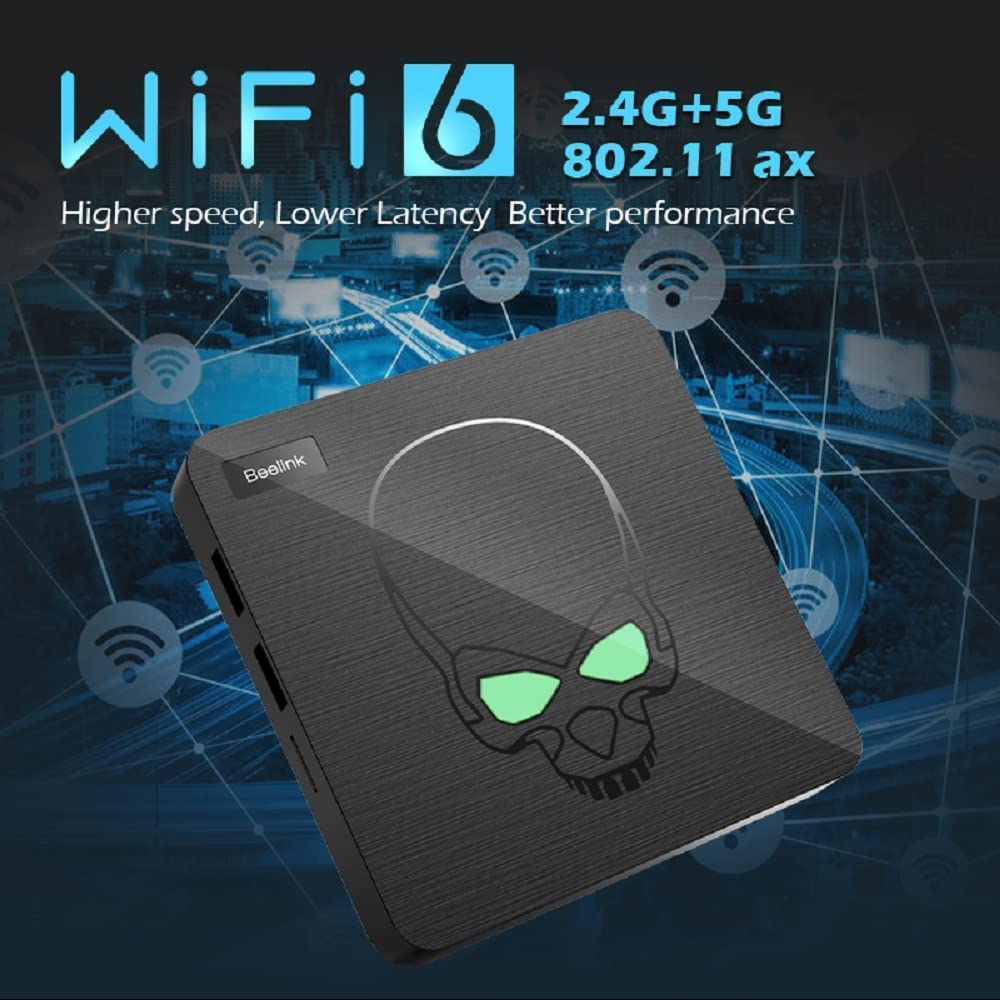
Aworan: The console unit with an overlay indicating WiFi 6 (2.4G+5G) and Gigabit Ethernet for high-speed network connectivity.
6. Atilẹyin ọja & Atilẹyin
For warranty information and technical support, please refer to the documentation included with your product or visit the official Kinhank webojula. Tọju iwe-ẹri rira rẹ bi ẹri rira fun awọn iṣeduro atilẹyin ọja.
If you encounter issues not covered in this manual, please contact customer support for assistance.