
1. Ifihan
Thank you for choosing the AUN AKEY6S Native Full HD 1080p Projector. This manual provides essential information for setting up, operating, maintaining, and troubleshooting your projector. Please read this manual thoroughly before use to ensure optimal performance and longevity of your device.
The AUN AKEY6S projector features native 1920x1080p resolution with 4K support, 8000 lumens brightness, a 12000:1 contrast ratio, and runs on Android 9.0. It offers versatile connectivity options including WiFi (2.4G/5G) and Bluetooth 5.2, making it suitable for various home cinema and presentation needs.
2. Eto
2.1 Unpacking ati Package Awọn akoonu
Ni ifarabalẹ yọ gbogbo awọn paati kuro ninu apoti. Rii daju pe gbogbo awọn nkan ti o wa ni isalẹ wa:
- 1x AUN AKEY6S Projector
- 1x Isakoṣo latọna jijin
- 1x Itọsọna olumulo (iwe yii)
- Ipese Agbara 1x
2.2 Pirojekito Placement
Position the projector on a stable, flat surface or mount it securely. Ensure there is adequate ventilation around the device. The optimal projection distance and screen size are as follows:
- Iwọn Iṣaaju: 50 to 300 inches
- Ijinna asọtẹlẹ: Approximately 1.5 meters (50 inches) to 6.2 meters (300 inches)

Image: Illustration of the AUN AKEY6S projector demonstrating adjustable projection sizes from 50 to 300 inches based on distance from the screen.
2.3 Asopọ agbara
Connect the provided power supply cable to the projector's power input port and then plug it into a standard electrical outlet.
2.4 Ibẹrẹ Agbara Lori
Press the power button on the projector or the remote control to turn on the device. The projector will boot up and display the Android 9.0 interface.
2.5 Àtúnṣe Àfojúsùn àti Ìṣàtúnṣe Òkúta
- Idojukọ: Yi òrùka ìfọwọ́sowọ́pọ̀ náà lórí lẹ́ńsì projector títí tí àwòrán tí a gbé kalẹ̀ yóò fi mọ́ kedere tí yóò sì mú.
- Atunse okuta bọtini: The AKEY6S features an electronic keystone correction of ±40°. Access this setting through the projector's menu to adjust the image shape if it appears trapezoidal.
2.6 iṣagbesori Aw
The projector supports multiple mounting configurations:
- Oke Ojú-iṣẹ: Gbe awọn pirojekito lori kan Building dada.
- Oke Oke: Secure the projector to the ceiling using a compatible projector mount (not included). Ensure the image orientation is adjusted in the projector settings if mounted upside down.

Image: Visual representation of various mounting options for the AUN AKEY6S projector, including ceiling and desktop placements.
3. Awọn ilana Iṣiṣẹ
3.1 User Interface Navigation (Android 9.0)
Navigate the Android 9.0 interface using the remote control. Use the directional buttons to move between icons and options, and the OK button to select. The Back button returns to the previous screen, and the Home button returns to the main menu.
3.2 Nsopọ Awọn ẹrọ ita
The AKEY6S projector offers multiple ports for connecting various devices:

Aworan: Alaye view of the AUN AKEY6S projector's rear panel, highlighting all available input and output ports for connectivity.
- HDMI (HD-IN): Connect devices like laptops, gaming consoles (X-BOX, PS4), TV sticks, or set-top boxes using an HDMI cable. Select the corresponding HDMI input source from the projector's menu.
- USB (USB-IN): Fi awọn awakọ filasi USB sii lati mu media ṣiṣẹ files (videos, photos, music) directly.
- AV (AV-IN): Connect older devices using an AV cable.
- SD Card (SD Card-IN): Insert an SD card to access media files.
- 3.5mm Audio Jade: So awọn agbohunsoke ita tabi awọn agbekọri.
- RJ45 (LAN): For wired internet connection (Android version only).
- VGA (VGA-IN): Connect computers or laptops using a VGA cable.
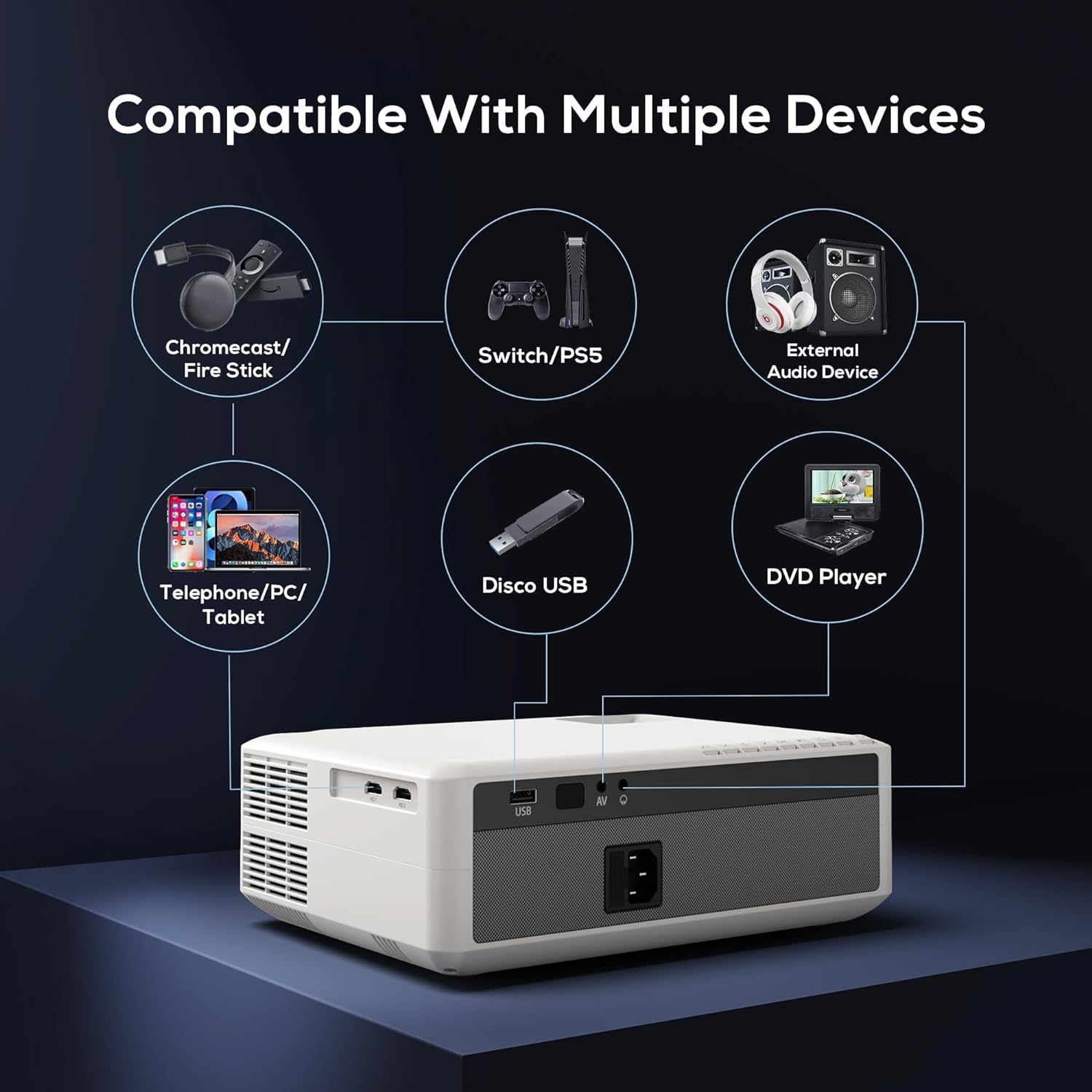
Image: Diagram illustrating the AUN AKEY6S projector's compatibility with a wide range of external devices such as streaming sticks, gaming consoles, audio systems, mobile devices, USB drives, and DVD players.
3.3 Asopọmọra Alailowaya (WiFi)
Lati sopọ si nẹtiwọki alailowaya:
- Go to the projector's settings menu.
- Yan Nẹtiwọọki & Intanẹẹti.
- Tan-an Wi-Fi and select your desired 2.4G or 5G network from the list.
- Tẹ ọrọ igbaniwọle sii ti o ba ṣetan ati sopọ.
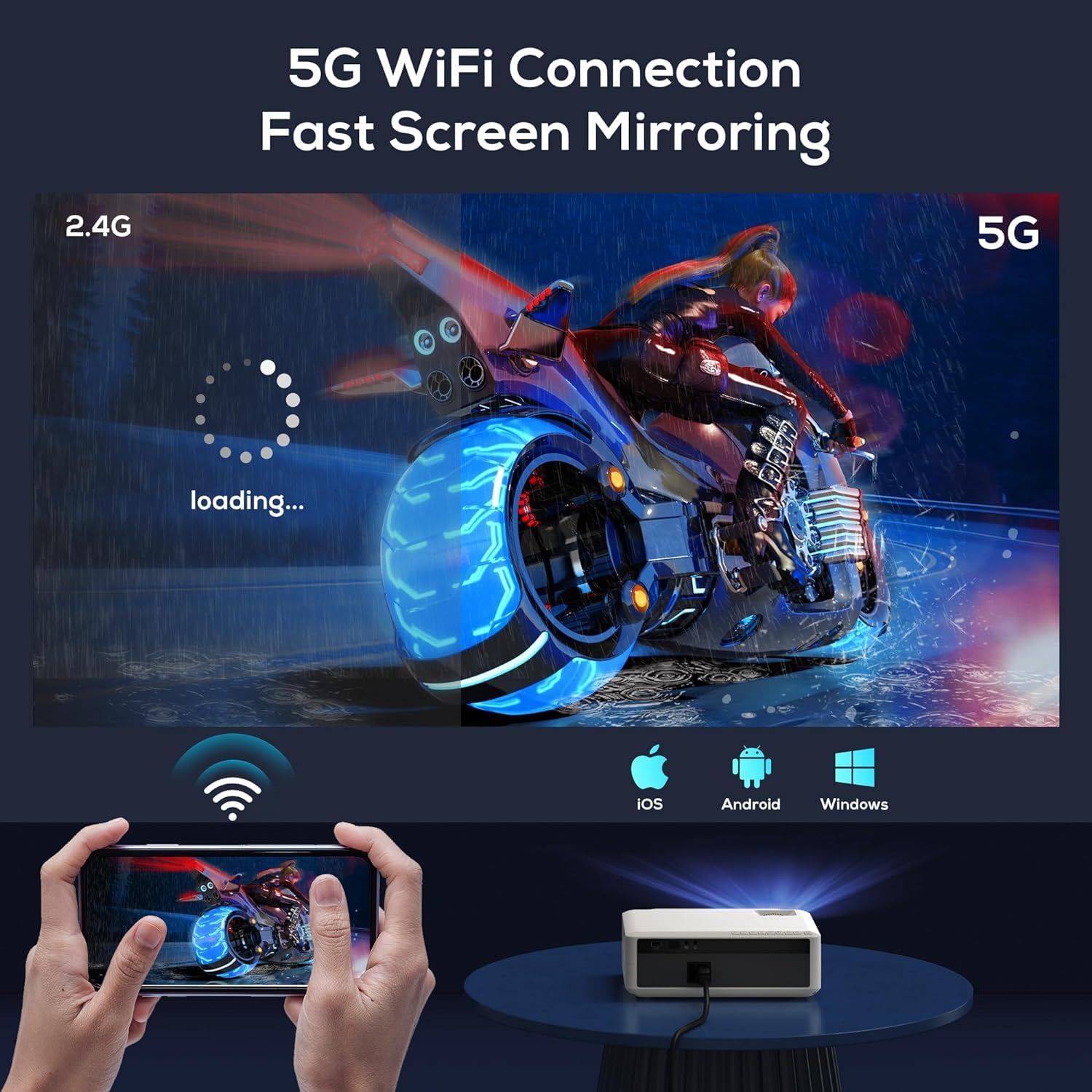
Image: The AUN AKEY6S projector displaying a loading screen, illustrating its 5G WiFi capability for fast screen mirroring from a mobile device.
3.4 Bluetooth Audio Asopọ
Pair Bluetooth speakers or headphones for enhanced audio:
- Go to the projector's settings menu.
- Yan Awọn ẹrọ ti a ti sopọ or Bluetooth.
- Turn on Bluetooth and put your audio device into pairing mode.
- Yan ẹrọ rẹ lati inu akojọ lati sopọ.
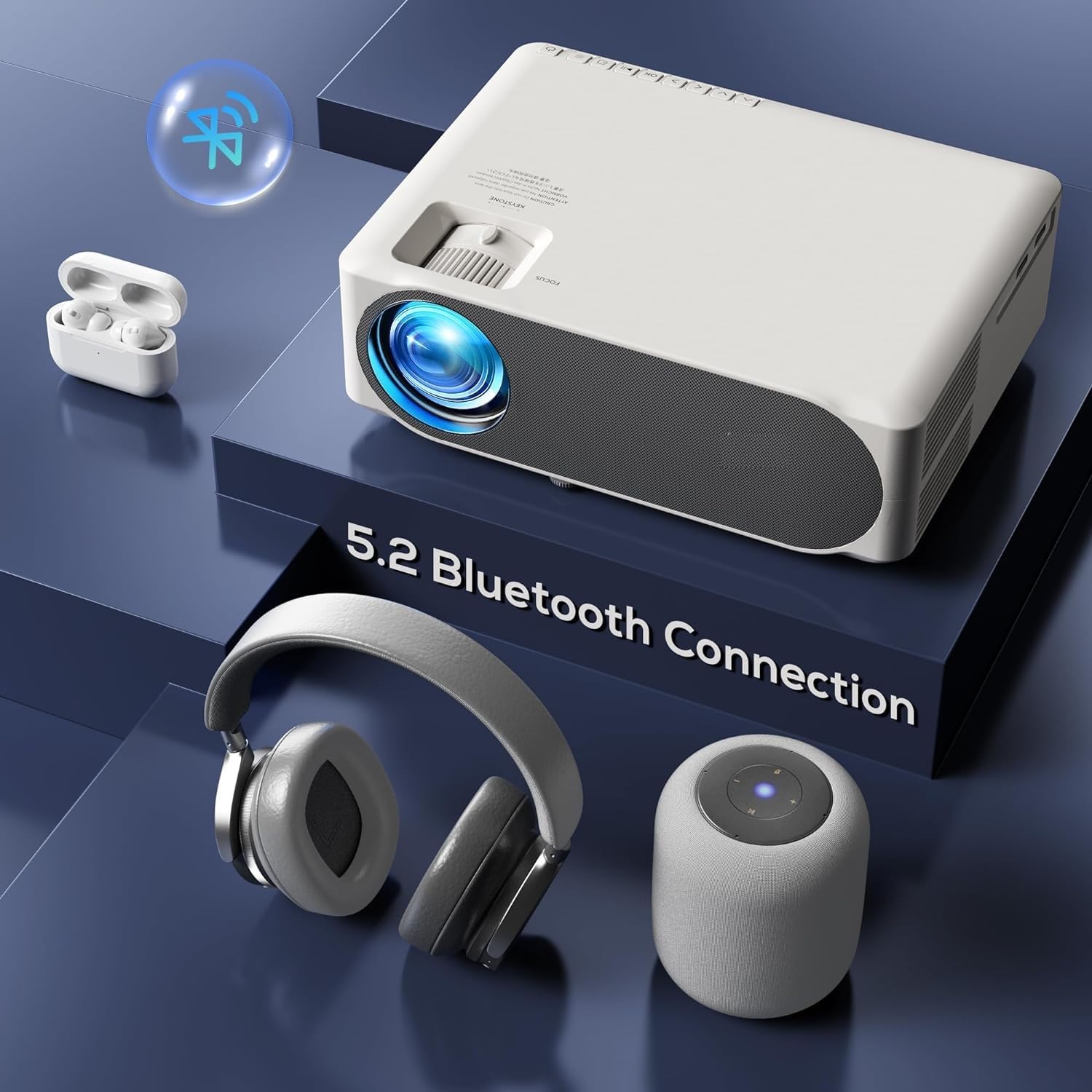
Image: The AUN AKEY6S projector shown with various Bluetooth audio devices, highlighting its Bluetooth 5.2 connectivity for wireless sound.
3.5 iboju Mirroring
The projector supports screen mirroring from iOS, Android, and Windows devices via WiFi. Refer to the specific screen mirroring application or setting on your device and follow the on-screen instructions to connect to the projector.
3.6 Ohun elo Management
The AKEY6S comes with Android 9.0 and pre-installed applications. You can also install more apps:
- Awọn ohun elo ti a ti fi sii tẹlẹ: YouTube, Netflix, Hotstar, Prime Video.
- Installing New Apps:
- The projector supports Google Play Store and APK installation.
- To install Aptoide TV App Store: Open the browser, search for "Aptoide TV APK", download the APK, then open File Manager and install.
- Download other apps like Netflix, Hotstar, Prime Video from Aptoide TV App Store if not pre-installed or if updates are needed.
4. Itọju
4.1 Ninu
- Lẹnsi: Lo asọ, asọ ti ko ni lint ti a ṣe apẹrẹ pataki fun awọn lẹnsi opiti. Maṣe lo awọn afọmọ abrasive tabi agbara ti o pọ ju.
- Ara pirojekito: Wipe the exterior with a soft, dry cloth. For stubborn dirt, slightly dampen awọn asọ pẹlu omi.
- Awọn isanwo: Regularly check and clean the ventilation openings to prevent dust buildup, which can affect cooling performance. Use a soft brush or compressed air.
4.2 Dust Protection
The AUN AKEY6S projector features an advanced dustproof design to minimize dust ingress and maintain image quality over time. Regular cleaning of external vents is still recommended.
4.3 Ibi ipamọ
When not in use for extended periods, store the projector in a cool, dry place, away from direct sunlight and extreme temperatures. Cover the lens with its cap to protect it from dust and scratches.
5. Laasigbotitusita
If you encounter issues with your AUN AKEY6S projector, refer to the following common problems and solutions:
5.1 Ko si Agbara
- Rí i dájú pé okùn agbára náà so mọ́ ẹ̀rọ ìfihàn àti ibi tí agbára náà ti ń jáde dáadáa.
- Rii daju pe iṣan agbara n ṣiṣẹ nipa pilogi sinu ẹrọ miiran.
- Ṣàyẹ̀wò bóyá iná àmì agbára tó wà lórí ẹ̀rọ ìfihàn náà wà nílẹ̀.
5.2 Kò sí Àwòrán tàbí Àwòrán Dídíẹ̀
- Ṣatunṣe oruka idojukọ lori lẹnsi titi aworan yoo fi di didasilẹ.
- Check the keystone correction settings if the image is trapezoidal.
- Ensure the input source is correctly selected (e.g., HDMI 1, USB).
- Verify that the connected source device (laptop, TV stick) is powered on and outputting a signal.
- Clean the projector lens if it appears dirty.
5.3 Ko si Ohun
- Mu iwọn didun pọ si lori pirojekito ati ẹrọ orisun ti a so pọ mọ.
- Check if external speakers or headphones are properly connected or paired via Bluetooth.
- Ensure the audio output setting on the projector is correct.
- Verify that the source video/audio file is not muted or corrupted.
5.4 Isakoṣo latọna jijin Ko fesi
- Rọpo awọn batiri ni isakoṣo latọna jijin.
- Rii daju pe ko si awọn idena laarin isakoṣo latọna jijin ati olugba IR pirojekito.
- Point the remote directly at the projector's IR receiver.
5.5 WiFi or Bluetooth Connectivity Issues
- Ensure WiFi/Bluetooth is enabled in the projector's settings.
- Tun ẹrọ pirojekito naa ati ẹrọ olulana/Bluetooth rẹ bẹrẹ.
- Check if the WiFi password is entered correctly.
- Move the projector closer to the WiFi router or Bluetooth device to improve signal strength.
5.6 App Installation Issues
For issues related to app installation, refer to the following:
- How to Install YouTube? The projector comes with a preinstalled YouTube App.
- How to install Aptoide TV App Store?
- Open the Browser.
- Type for Aptoide TV APK.
- Download the APK to the Projector.
- Ṣii awọn File Manager and Install the Aptoide TV App Store.
- How to download Netflix, Hotstar, Prime Video Apps?
- Projector comes with preinstalled Netflix, Hotstar, Prime Video Apps.
- Otherwise, download the apps from Aptoide TV App Store.
6. Awọn pato
| Ẹya ara ẹrọ | Ẹ̀kúnrẹ́rẹ́ |
|---|---|
| Brand | AUN |
| Awoṣe | AKEY6S |
| Ipinnu abinibi | 1920 x 1080p Full HD |
| 4K atilẹyin | Bẹẹni |
| Imọlẹ | 8000 Lumens |
| Ipin Itansan | 12000:1 |
| Iwọn Isọtẹlẹ | 50 - 300 inches |
| Apakan Ipin | 16:9 |
| Lamp Igbesi aye | Awọn wakati 30,000 |
| Eto isesise | Android 9.0 |
| Iranti (Ramu/ROM) | 1GB Ramu / 8GB ROM |
| Sipiyu | 4-Cores ARM 64 |
| GPU | ARM A35 GPU |
| Wi-Fi | 2.4G / 5G |
| Bluetooth | Bluetooth 5.2 |
| Asopọmọra | 2x HDMI, AV, USB, SD Card, 3.5mm Audio Out, RJ45, VGA |
| Itanna Keystone | ±40° |
| Ọja Mefa | 30 x 25 x 8 cm |
| Iwọn Nkan | 2 kg |
| Wattage | 150 Wattis |
| Oṣuwọn sọtun | 60 Hz |
Akiyesi: Specifications are subject to change without prior notice for product improvement.
7. Atilẹyin ọja ati Support
7.1 Atilẹyin ọja
The AUN AKEY6S Projector comes with a 1-odun atilẹyin ọja from the date of purchase. This warranty covers manufacturing defects and workmanship under normal use. Please retain your purchase receipt as proof of purchase.
7.2 Onibara Support
For technical assistance, warranty claims, or any product-related inquiries, please contact Megaa Electronics, the authorized support provider:
- Imeeli: support@megaaelectronics.com or megaaelectronics@gmail.com
- WhatsApp: 8328671337
Please provide your product model (AKEY6S) and purchase details when contacting support to facilitate a quicker resolution.