
1. Ifihan
This manual provides essential information for the installation, operation, and maintenance of your KAILH Low Profile CHOC Brown Mechanical Keyboard Switches. These switches are designed for mechanical keyboards, offering a tactile feedback experience with a low-profile oniru.
2. Ọja Ipariview
The KAILH Low Profile CHOC Brown switch is a tactile mechanical switch featuring a compact design suitable for slim mechanical keyboards. It provides a distinct bump during actuation without an audible click, making it a balanced choice for typing and gaming.
Awọn ẹya pataki:
- Operation Force: 50 ± 10gf
- Tactile Force: 60 ± 10gf
- Operation Travel: 1.5 ± 0.5mm
- Lapapọ Irin-ajo: 3.0 +0 / -0.5mm
- Iduroṣinṣin: Approximately 50 million keystrokes
- Iwọn: 15x15x8mm
Switch Components:
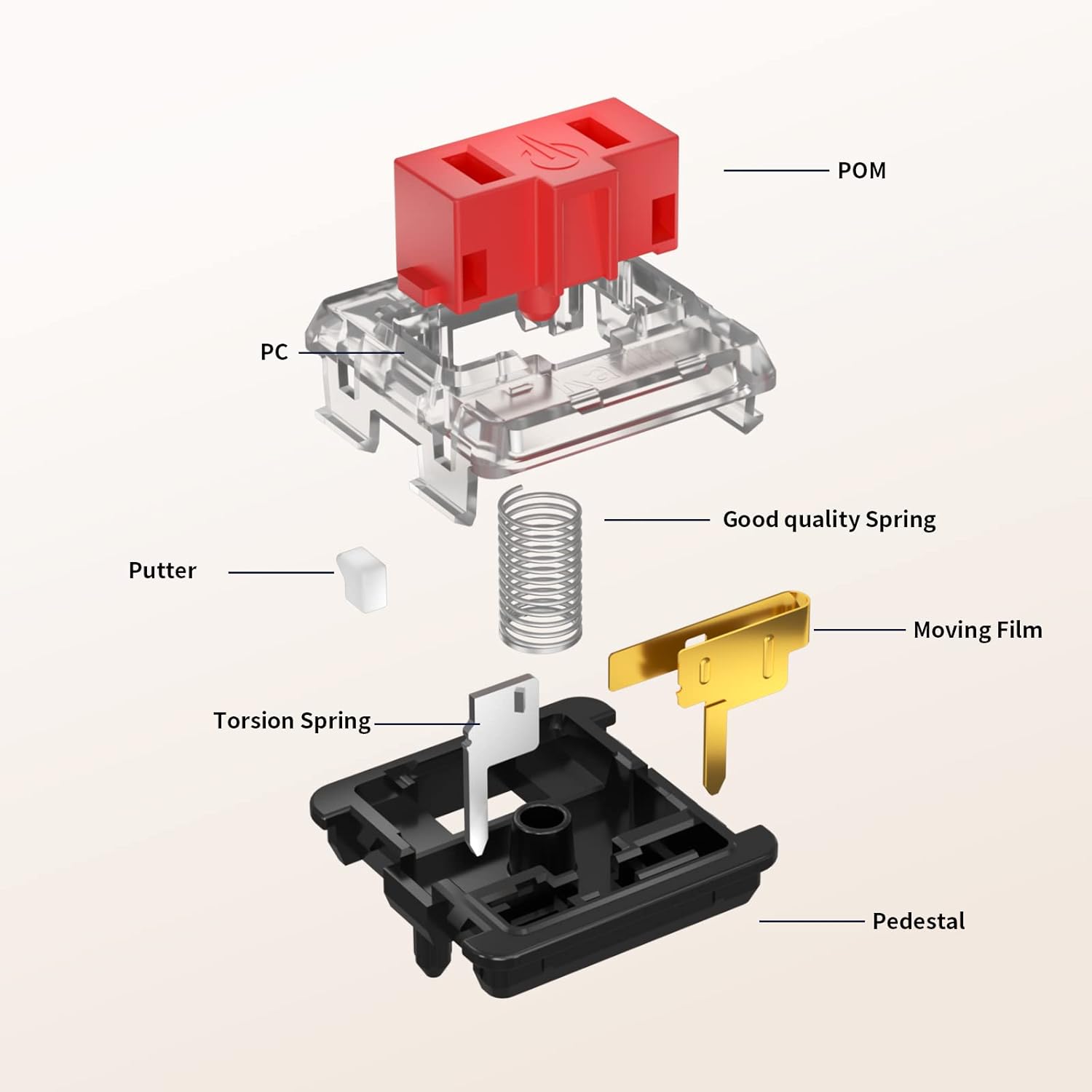

3. Fifi sori (Eto)
Installing KAILH Low Profile CHOC Brown switches typically involves soldering them onto a compatible Printed Circuit Board (PCB) of a mechanical keyboard. This process requires precision and appropriate tools.
Awọn irinṣẹ ti a beere:
- Irin tita
- Solder waya
- Desoldering pump or wick (for switch removal)
- Small pliers or tweezers
- Compatible mechanical keyboard PCB
- Keycap puller (if replacing existing switches)
Awọn igbesẹ fifi sori ẹrọ:
- Prepare the PCB: Ensure your keyboard PCB is clean and free of dust. If replacing switches, carefully desolder and remove the old switches.
- Align the Switch: Position the CHOC Brown switch over the designated slot on the PCB. Ensure the two metal pins on the bottom of the switch align with the holes on the PCB.
- Insert the Switch: Gently press the switch into place until it sits flush with the PCB. The switch should click into the plate if your keyboard has one.
- Solder the Pins: Flip the PCB over. Carefully solder each of the two metal pins to the corresponding pads on the PCB. Ensure a strong, clean solder joint.
- Iṣe idanwo: Before installing all switches, test a few to ensure they register correctly.
- Fi awọn bọtini itẹwe sori ẹrọ: Once all switches are soldered and tested, attach your compatible keycaps.
Note on Keycap Compatibility:
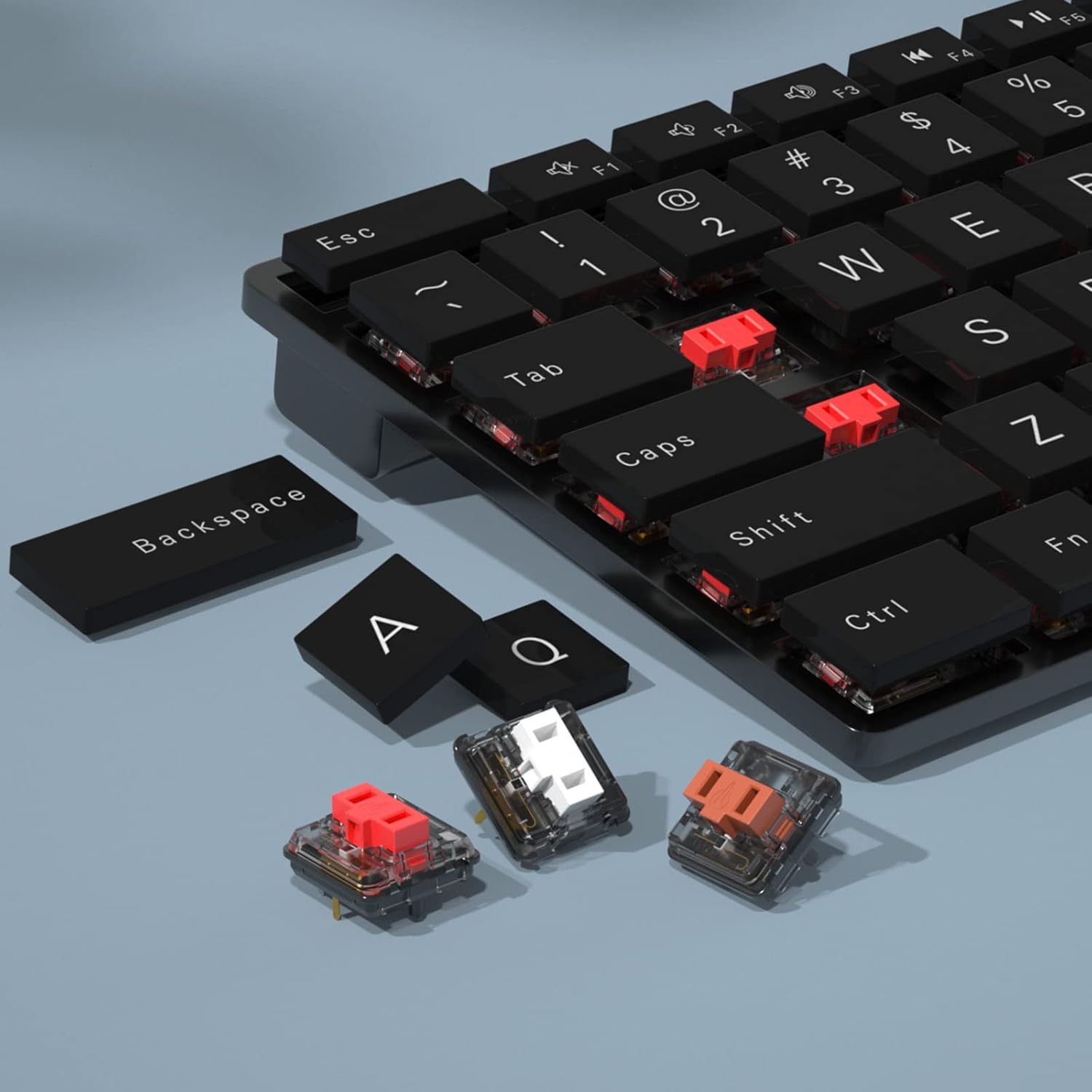
Some users have reported that keycaps from certain keyboards, such as the Logitech G915 TKL, may not fit perfectly on CHOC switches without modification due to slight differences in the keycap holder dimensions. Verify compatibility or be prepared for minor adjustments if using non-standard keycaps.
4. Operating the Switches
The KAILH Low Profile CHOC Brown switches are designed for standard mechanical keyboard operation. Each press of a keycap actuates the switch, sending an input signal to the computer.
Àbájáde tó ní ìfọwọ́kàn:
CHOC Brown switches provide tactile feedback. This means you will feel a small bump or resistance at the actuation point as you press the key. This tactile bump helps users know when a key press has registered without needing to bottom out the switch, potentially improving typing speed and accuracy.
Force-Travel Diagram:

5. Itọju
Proper maintenance can extend the lifespan and ensure optimal performance of your mechanical keyboard switches.
Ninu:
- Eruku igbagbogbo: Use compressed air to regularly clear dust and debris from around and under the keycaps.
- Yiyọkuro bọtini bọtini: Periodically remove keycaps using a keycap puller to clean the switches and keyboard plate more thoroughly.
- Parẹ́: Lo asọ rirọ, ti ko ni lint ni sere dampened with isopropyl alcohol to wipe down the switch housings if necessary. Avoid excessive moisture.
Lubrication (Advanced):
While not typically required for new switches, advanced users may choose to lubricate switches for a smoother feel or to alter acoustics. This process involves disassembling the switch and applying specialized lubricant. This should only be attempted by experienced individuals as improper lubrication can damage the switch.
6. Laasigbotitusita
If you encounter issues with your KAILH Low Profile CHOC Brown switches, consider the following common problems and solutions:
Awọn ọrọ to wọpọ:
- Switch Not Registering:
- Nitori: Poor solder joint, bent switch pin, or faulty switch.
- Ojutu: Inspect the solder joint for cold joints or bridges. Re-solder if necessary. Check for bent pins before installation. If the switch is faulty, replace it.
- Key Misfiring (Double Input/No Input):
- Nitori: Dust/debris inside the switch, worn-out switch contacts, or poor solder joint.
- Ojutu: Try cleaning the switch with compressed air. If the issue persists, the switch may need replacement. Verify solder connections.
- Keycap Not Fitting Securely:
- Nitori: Incompatible keycap stem, or slight manufacturing variance in the switch stem.
- Ojutu: Ensure your keycaps are designed for CHOC switches. If using MX-style keycaps, they are generally not compatible. For minor fit issues, some users have carefully filed the keycap stem or switch stem for a better fit, but this should be done with caution.
7. Awọn pato
| Ẹya ara ẹrọ | Ẹ̀kúnrẹ́rẹ́ |
|---|---|
| Brand | KAILH |
| Awoṣe | Pro kekerefile CHOC Brown |
| Ipo Isẹ | Ẹ̀rọ |
| Actuator Iru | Titari Bọtini |
| Olubasọrọ Iru | Ṣii ni deede |
| Agbara isẹ | 50 ± 10gf |
| Agbára Ìfọwọ́kàn | 60 ± 10gf |
| Operation Travel | 1.5 ± 0.5mm |
| Lapapọ Irin-ajo | 3.0 +0 / -0.5mm |
| Iduroṣinṣin | Approx. 50 million keystrokes |
| Iṣagbesori Iru | PCB òke |
| Ebute | Solder |
| Awọn ọna Voltage | 12 Volts |
| Ti isiyi Rating | 50 Milionuamps |
| Ohun elo olubasọrọ | Irin |
| Iwọn Nkan | 1.13 ounces (for 10 switches) |
| UPC | 701969869218 |
8. atilẹyin ọja Information
No specific warranty information is provided in the product details. For warranty inquiries, please contact the seller or manufacturer directly.
9. Atilẹyin
For further assistance, technical support, or product inquiries, please contact the KAILH Official Store or the retailer from whom you purchased the product.
O le ṣàbẹwò awọn KAILH Official Store on Amazon fun alaye siwaju sii.