
Google GX7AS
Google Pixel 6a Afowoyi olumulo
Model: GX7AS
1. Introduction to Your Google Pixel 6a
The Google Pixel 6a is a 5G Android smartphone designed for speed, security, and an exceptional user experience. Powered by the Google Tensor chip, it offers advanced features including a high-quality camera, long-lasting battery, and real-time translation capabilities. This manual provides essential information for setting up, operating, maintaining, and troubleshooting your device.
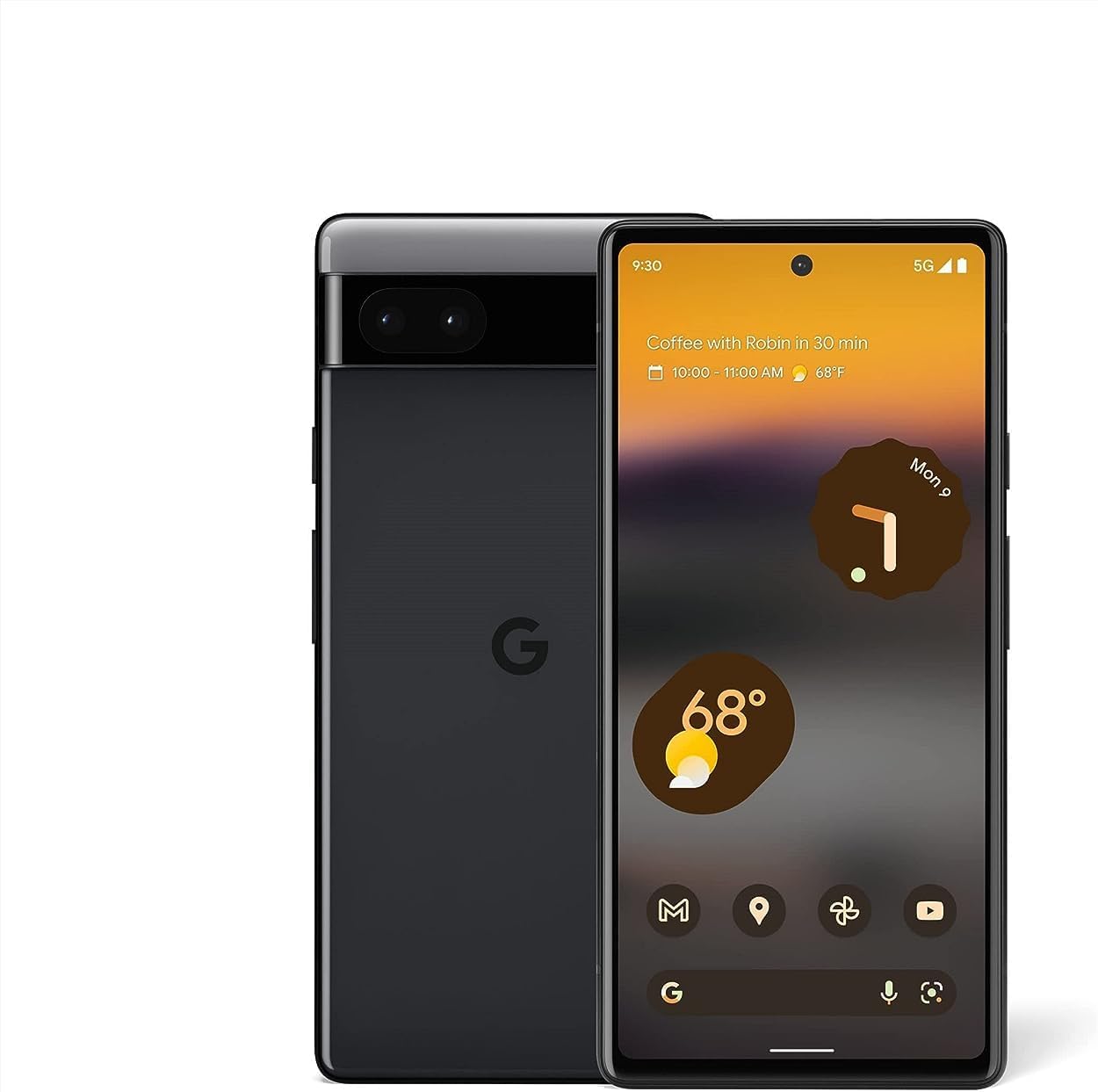
Aworan: Iwaju ati sẹhin view of the Google Pixel 6a smartphone, showcasing awọn oniwe-aso oniru ati kamẹra bar.
2. Ni ibẹrẹ Oṣo
2.1. Ohun ti o wa ninu Apoti
Ṣaaju ki o to bẹrẹ, rii daju pe gbogbo awọn eroja wa:
- Google Pixel 6a Cell Phone
- 1m USB-C to USB-C cable (USB 2.0)
- Ọpa SIM
- Awọn ọna Yipada Adapter
- Ìtọ́sọ́nà Ìbẹ̀rẹ̀ Kíákíá (kò hàn nínú àwòrán)

Image: The contents of the Google Pixel 6a box, including the phone, USB-C cable, SIM tool, and Quick Switch Adapter.
2.2. Fi kaadi SIM sii
- Wa atẹ kaadi SIM ni ẹgbẹ Pixel 6a rẹ.
- Insert the SIM tool into the small hole on the tray and press gently until the tray ejects.
- Gbe kaadi Nano-SIM rẹ sinu atẹ pẹlu awọn ohun elo goolu ti nkọju si isalẹ.
- Fi iṣọra tun fi atẹ sii sinu foonu naa.
2.3. Agbara Lori ati Iṣeto ni ibẹrẹ
Press and hold the Power button until the Google logo appears. Follow the on-screen prompts to:
- Yan ede ati agbegbe rẹ.
- Sopọ si nẹtiwọki Wi-Fi kan.
- Wọle pẹlu akọọlẹ Google rẹ tabi ṣẹda tuntun kan.
- Set up your fingerprint for secure unlocking.
- Transfer data from your old device using the Quick Switch Adapter or wirelessly.

Image: A visual representation of transferring data, including messages, contacts, and photos, from an old device to the new Google Pixel 6a.
The Pixel 6a is an unlocked Android 5G phone, providing flexibility to choose your preferred carrier and data plan. It is compatible with major carriers such as Google Fi, Verizon, T-Mobile, and AT&T.

Image: A man holding the Google Pixel 6a to his ear, demonstrating its use as an unlocked smartphone with carrier flexibility.
3. Operating Your Google Pixel 6a
3.1. Google Tensor Chip Performance
Your Pixel 6a is powered by the Google Tensor chip, designed specifically for Pixel devices. This chip ensures fast app launches, quick loading of pages and images, and overall smooth performance for all your tasks.

Image: An illustration highlighting the Google Tensor chip, emphasizing its role in making the Pixel 6a smart, secure, and fast.
3.2. Iṣakoso Batiri ati Gbigba agbara
The Pixel 6a features an adaptive all-day battery that learns your usage patterns to save power for your most used applications. It supports fast wired charging up to 18W. A few minutes of charging can provide hours of power. Adapters are sold separately and compatible with USB PD 3.0 PPS adapters.

Image: A Google Pixel 6a phone connected to a charger, illustrating its adaptive battery and fast charging capabilities.
3.3. Awọn ẹya ara ẹrọ kamẹra
Capture amazing photos with the Pixel 6a's 12-megapixel camera. Key features include:
- Idan eraser: Easily remove unwanted objects from your photos in Google Photos.
- Ipo išipopada: Capture dynamic shots with artistic blurs.
- Ipo Aworan: Create professional-looking photos with blurred backgrounds.
- Face Unblur: Make blurry faces look sharper.
- Ohun orin gidi: Ensures beautifully authentic photos of diverse skin tones.

Image: A collage demonstrating the Google Pixel 6a's camera features, including Face Unblur, Real Tone, and Magic Eraser.
3.4. Live Translate
The Live Translate feature allows you to translate live video captions, private chats, messages, and even signs in up to 55 languages directly on your phone. This feature enhances communication across language barriers.

Image: A person using the Google Pixel 6a to translate a conversation in real-time, demonstrating the Live Translate feature.
3.5. Aabo ati Asiri
Privacy and security are integral to the Pixel 6a. It incorporates the Titan M2 chip and the Google Tensor security core, providing an additional layer of hardware security to protect your device against attacks.

Image: A visual representation of the Pixel 6a's security features, including the Titan M2 chip, IP67 protection, and fingerprint unlock.
3.6. Customizable Interface and Feature Drops
The Pixel 6a offers a highly customizable Android interface, allowing you to personalize your phone's appearance and functionality. Google regularly provides "Feature Drops," delivering new features, tricks, and apps directly to your phone to enhance your experience over time.

Image: Multiple Pixel 6a screens displaying various customizable interface options and color themes.

Image: A notification on a Pixel phone screen indicating a "Feature Drop" update, highlighting continuous improvements.
4. Itọju ati Itọju
4.1. Omi ati Eruku Resistance
The Pixel 6a is designed with IP67 protection, meaning it can withstand a certain degree of water and dust exposure. While it is resistant, it is not waterproof or dustproof. Avoid intentional submersion or exposure to high-pressure water jets. Water and dust resistance may diminish over time due to normal wear and tear or physical damage.
4.2. Ninu Rẹ Device
To clean your Pixel 6a, use a soft, lint-free cloth. Avoid abrasive materials, solvents, or aerosol sprays. For stubborn smudges, slightly dampen aṣọ pẹlu omi. Rii daju pe gbogbo awọn ebute oko oju omi ti gbẹ ṣaaju gbigba agbara.
5. Laasigbotitusita wọpọ oran
This section addresses some common issues you might encounter with your Google Pixel 6a.
5.1. Fingerprint Sensor Issues
If the in-display fingerprint sensor is inconsistent or slow:
- Rii daju pe ika rẹ mọ ati gbẹ.
- Re-register your fingerprints, trying different angles and pressures.
- Clean the screen area where the sensor is located.
- If using a screen protector, ensure it is compatible with in-display fingerprint sensors and properly installed. Some screen protectors may interfere with functionality.
5.2. Battery Draining Quickly / Slow Charging
If your battery drains faster than expected or charges slowly:
- Check for background apps consuming excessive power and close them.
- Din imọlẹ iboju tabi mu Imọlẹ Adaptive ṣiṣẹ.
- Disable features like always-on display or unnecessary connectivity (Bluetooth, GPS) when not in use.
- Ensure you are using a compatible USB-C charger and cable (preferably the one included or a Google-approved adapter).
- Avoid using the phone heavily while charging.
5.3. Device Overheating
It is normal for the device to warm up during intensive use (e.g., gaming, video streaming, prolonged camera use, or fast charging). If it becomes excessively hot:
- Pa gbogbo awọn ohun elo ti n ṣiṣẹ.
- Disconnect from the charger if it's charging.
- Move to a cooler environment.
- Yago fun ifihan ti oorun taara.
- If the issue persists, consider restarting the device.
5.4. Network Connectivity Issues (Wi-Fi/Mobile Data)
If you experience problems with Wi-Fi or mobile data connectivity:
- Pa Wi-Fi tabi data alagbeka ati tan.
- Tun foonu rẹ bẹrẹ.
- For Wi-Fi, forget the network and reconnect. Ensure your router is working correctly.
- For mobile data, check your SIM card is properly inserted and your data plan is active. Contact your carrier if issues persist.
6. Imọ ni pato
| Ẹya ara ẹrọ | Ẹ̀kúnrẹ́rẹ́ |
|---|---|
| Orukọ awoṣe | Pixel 6a (GX7AS) |
| Brand | |
| Eto isesise | Android |
| Sipiyu Iyara | 2.8 GHz |
| Iwon iboju | 6.13 inches |
| Ipinnu | 1080 x 2400 |
| Oṣuwọn sọtun | 60 Hz |
| Àgbo | 6 GB |
| Agbara Ibi ipamọ Iranti | 128 GB |
| Agbara Batiri | 4410 Milionuamp Awọn wakati |
| Akoko gbigba agbara | Awọn wakati 2 (isunmọ) |
| Foonu Ọrọ Time | Awọn wakati 15 |
| Awọn ọna ẹrọ Asopọmọra | Bluetooth, Wi-Fi, NFC |
| Awọn ẹya kamẹra | Rear, Front (12 Megapixel main) |
| Jack ohun | USB-C |
| Àwọ̀ | Eedu |
| Ọja Mefa | 6 x 2.8 x 0.35 inches |
| Iwọn Nkan | 6.3 iwon (178 Giramu) |
| Ọjọ Akọkọ Wa | Oṣu Keje 18, Ọdun 2022 |

Image: A comparison chart detailing specifications between the Pixel 6 and Pixel 6a, including display, camera, memory, battery, and security features.
7. Atilẹyin ọja ati Support
7.1. Atilẹyin ọja
Your Google Pixel 6a comes with a limited manufacturer's warranty. Please refer to the warranty card included with your purchase or visit the official Google support website for detailed terms and conditions, including coverage period and what is covered.
7.2. Onibara Support
For further assistance, technical support, or service inquiries, please visit the official Google Pixel Support page. You can find FAQs, troubleshooting guides, and contact options for direct support.
Atilẹyin Google osise: support.google.com/pixelphone
Ask a question about this manual
Ask about setup, troubleshooting, compatibility, parts, safety, or missing instructions. Manuals+ will review the question and use this page’s manual context to help answer it.