
Donner NEOTRACK-LX
Donner Gaming RGB USB Condenser Microphone User Manual
Model: NEOTRACK-LX
Ọrọ Iṣaaju
The Donner NEOTRACK-LX is a versatile RGB USB condenser microphone designed for high-quality audio capture across various platforms including PC, PS4, and Mac. Featuring a cardioid pickup pattern, quick mute function, mic monitoring, and gain control, it is ideal for streaming, podcasts, Twitch, YouTube, and Discord. Its plug-and-play design ensures ease of use without requiring additional drivers.
Awọn ẹya ara ẹrọ
- Imọlẹ RGB: Dynamic dream lights with colorful ambient effects.
- Àpẹẹrẹ Gbigba Cardioid: Focuses on sound directly in front of the microphone, reducing background noise.
- Instant Touch Mute: Capacitive touch button on top for quick muting.
- Abojuto agbekọri: 3.5mm jack for real-time audio monitoring.
- Iṣakoso Iṣakoso: Adjustable knob for microphone input sensitivity.
- Asopọmọra USB: Simple plug-and-play operation via USB-C.
- Ibamu gbooro: Works with PC, PS4, and Mac.
- Exceptional Anti-Vibration: Stable metal base and design to minimize vibrations.
Package Awọn akoonu
Jọwọ ṣayẹwo apoti fun awọn nkan wọnyi:
- Donner NEOTRACK-LX USB Condenser Microphone
- Detachable Metal Base
- USB-C si okun USB-A
- USB-C to USB-A Adapter
- Lightning to USB-A Adapter
- Itọsọna olumulo

Image: The Donner NEOTRACK-LX microphone with its stand, USB-C to USB-A cable, USB-C to USB-A adapter, and Lightning to USB-A adapter.
Ṣeto
- Kó gbohungbohun jọ: Attach the microphone to its metal base by aligning the mounting points and securing it. The microphone can also be mounted on a standard 5/8-inch threaded boom arm.
- Sopọ si Ẹrọ:
- For PC/Mac: Connect the USB-C end of the provided cable to the microphone and the USB-A end to an available USB port on your computer.
- For PS4: Connect the USB-C end of the provided cable to the microphone and the USB-A end to an available USB port on your PS4 console.
- For compatible mobile devices (e.g., tablets, smartphones): Use the appropriate USB-C or Lightning adapter with the USB-A cable to connect the microphone.

Image: The microphone demonstrating compatibility with PC, laptop, tablets, and smartphones via USB-A, USB-C, and Lightning connections.
- Idanimọ eto: The microphone is plug-and-play and should be automatically recognized by your operating system (Windows, macOS) or console (PS4). No additional drivers are typically required.
- Yan gẹgẹbi Ẹrọ Agbewọle: Go to your device's sound settings and select the "Donner NEOTRACK-LX" as your default input (microphone) device.
Ṣiṣẹ gbohungbohun
- Èrè Títúnṣe: The gain knob on the back of the microphone controls the input sensitivity. Turn it clockwise to increase sensitivity (for quieter sources) and counter-clockwise to decrease sensitivity (for louder sources). Adjust this to prevent audio clipping or ensure sufficient volume.
- Iṣakoso Iwọn didun Agbekọri: The volume knob on the front of the microphone controls the output volume for the connected headphones. Plug your 3.5mm headphones into the jack on the back of the microphone for real-time monitoring.

Image: A close-up of the microphone showing the headphone jack and USB port, with a headphone cable connected.
- Instant Mute Function: Tap the top of the microphone to instantly mute or unmute. When muted, the RGB lights will turn off, indicating that the microphone is not picking up sound.

Image: A hand touching the top of the microphone to activate the mute function, showing the RGB lights turning off when muted.
- Imọlẹ RGB: The microphone features dynamic RGB lighting that cycles through various colors automatically. This provides an aesthetic enhancement to your setup. The lights cannot be manually changed or turned off, except by muting the microphone.
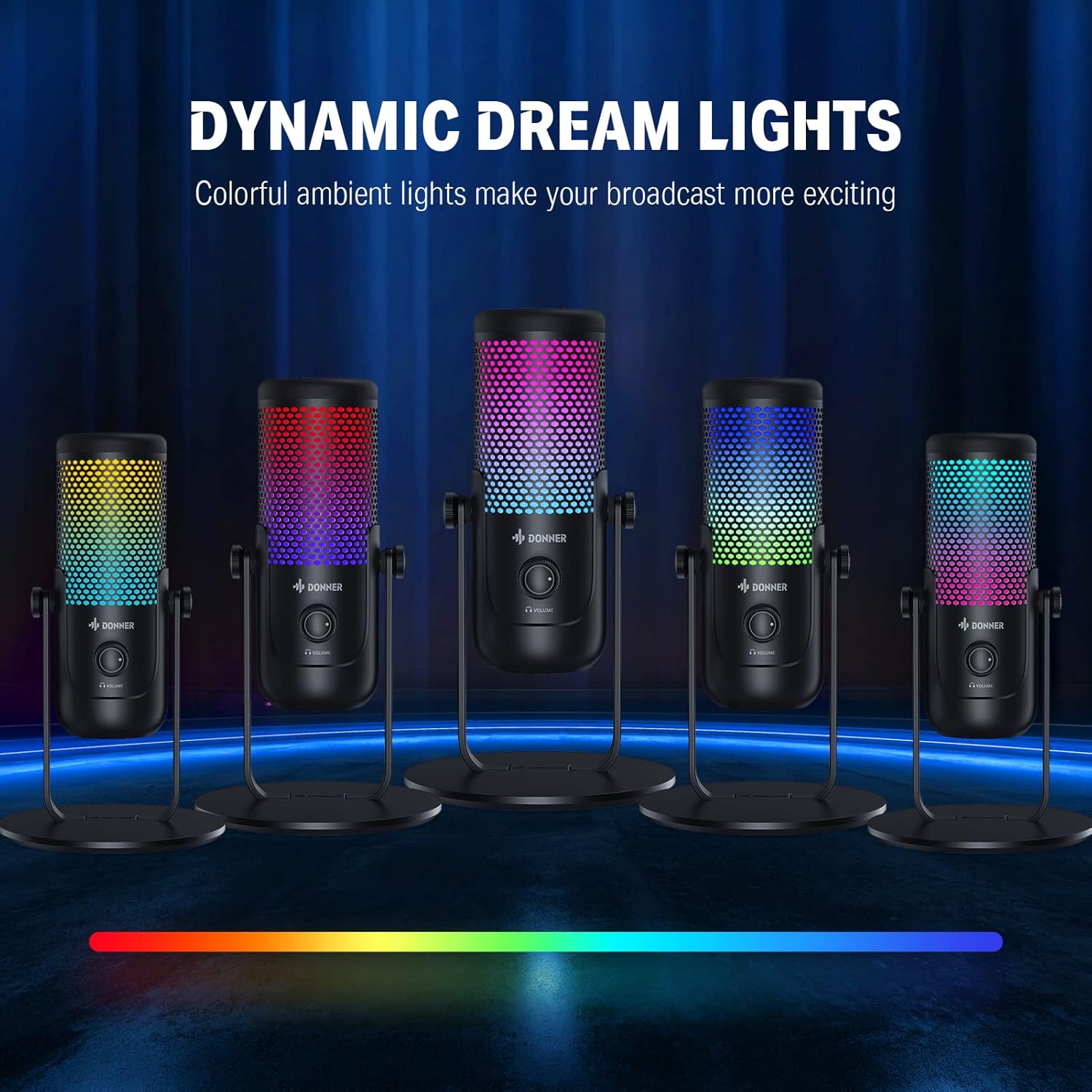
Image: Multiple Donner NEOTRACK-LX microphones showcasing the dynamic dream lights in different color combinations.
Itoju
- Ninu: Lo aṣọ rírọrùn tí ó gbẹ láti nu ìta gbohùngbohùn náà. Yẹra fún lílo àwọn kẹ́míkà líle tàbí àwọn ohun èlò ìpalára.
- Ibi ipamọ: Tọ́jú gbohùngbohùn náà sí ibi gbígbẹ tí ó tutù, tí kò sí ìmọ́lẹ̀ oòrùn tààrà àti ooru tó le koko.
- Mimu: Handle the microphone with care to avoid dropping it or subjecting it to strong impacts, which could damage internal components.
Laasigbotitusita
| Isoro | Owun to le Fa | Ojutu |
|---|---|---|
| Ko si ohun lati gbohungbohun | Gbohungbohun ko sopọ daradara A ti yan ẹ̀rọ ìtẹ̀síwájú tí kò tọ́ Gbohungbohun ti dakẹ Gain is too low | Rii daju pe okun USB ti sopọ ni aabo. Check system sound settings and select "Donner NEOTRACK-LX" as input. Tap the top of the microphone to unmute (RGB lights should turn on). Increase the gain knob on the microphone's back. |
| Daru tabi ohun koyewa | Gain is too high Gbohungbohun sunmo orisun ohun ju Ariwo ayika | Decrease the gain knob. Maintain an appropriate distance from the microphone (e.g., 6-12 inches). Ensure you are in a quiet environment. |
| RGB lights are off | Gbohungbohun ti dakẹ Microphone not powered | Tap the top of the microphone to unmute. Ensure the microphone is properly connected to a powered USB port. |
| Ko si ohun lati olokun | Headphones not properly connected Headphone volume too low | Rí i dájú pé a so àwọn agbekọri mọ́ inú jack 3.5mm náà pátápátá. Increase the headphone volume knob on the microphone's front. |
Awọn pato
- Iru gbohungbohun: Condenser
- Àpẹẹrẹ Pola: Cardioid
- Asopọmọra: USB (USB-C port on microphone)
- SampOṣuwọn: 24-bit / 96kHz

Image: The microphone with a graphic overlay indicating its 24-bit 96kHz sample rate capability.
- Agbekọri Ijade: 3.5mm Jack
- Awọn iṣakoso: Gain Knob, Headphone Volume Knob, Capacitive Mute Button
- Imọlẹ: RGB ti o ni agbara
- Ibamu: PC, PS4, Mac, compatible mobile devices
- Olupese: Donner
Atilẹyin ọja ati Support
Donner products are designed for reliability and performance. For warranty information, technical support, or service inquiries, please refer to the official Donner webojú òpó wẹ́ẹ̀bù tàbí kí o kàn sí àwọn oníbàárà wọn tààrà. Jẹ́ kí ìwé ẹ̀rí ìrajà rẹ jẹ́ ẹ̀rí ìrajà fún èyíkéyìí ẹ̀tọ́ àtìlẹ́yìn.
Fun iranlọwọ siwaju sii, jọwọ ṣabẹwo: Donner Official Store on Amazon
Ask a question about this manual
Ask about setup, troubleshooting, compatibility, parts, safety, or missing instructions. Manuals+ will review the question and use this page’s manual context to help answer it.