
Ibamu
The HOU F91 Keyboard Case is designed for specific iPad models. Please verify your iPad model number in [Settings > General > About] ṣaaju lilo.
- iPad Pro 12.9-inch: 3rd Generation (A1876 / A1983 / A1895 / A2014), 4th Generation (A2232 / A2233 / A2229 / A2069), 5th Generation (A2378 / A2379 / A2461 / A2462), 6th Generation (A2436 / A2764 / A2437 / A2766)
- iPad Air 13-inch: M2 2024 (A2898 / A2899 / A2900)
Note: This keyboard case is NOT compatible with iPad Pro 2024 M4 models.

Eto Itọsọna
1. Attaching rẹ iPad
The HOU F91 Keyboard Case features a strong magnetic design for secure attachment. Simply align your compatible iPad with the case, and the powerful magnets will firmly hold it in place. This allows for easy transformation of your iPad into a laptop-like device.

2. Powering On and Bluetooth Connection
To begin using your keyboard, locate the power switch on the side of the keyboard unit. Slide the switch to the 'ON' position. The keyboard will then enter pairing mode, indicated by a blinking light.
Lori iPad rẹ, lọ si Eto > Bluetooth. Ensure Bluetooth is enabled. Look for 'F91 Magic' in the list of available devices and tap to connect. Once connected, the indicator light on the keyboard will become solid, and you can start using your keyboard and trackpad.
Awọn ilana Iṣiṣẹ
1. Keyboard Awọn ẹya ara ẹrọ
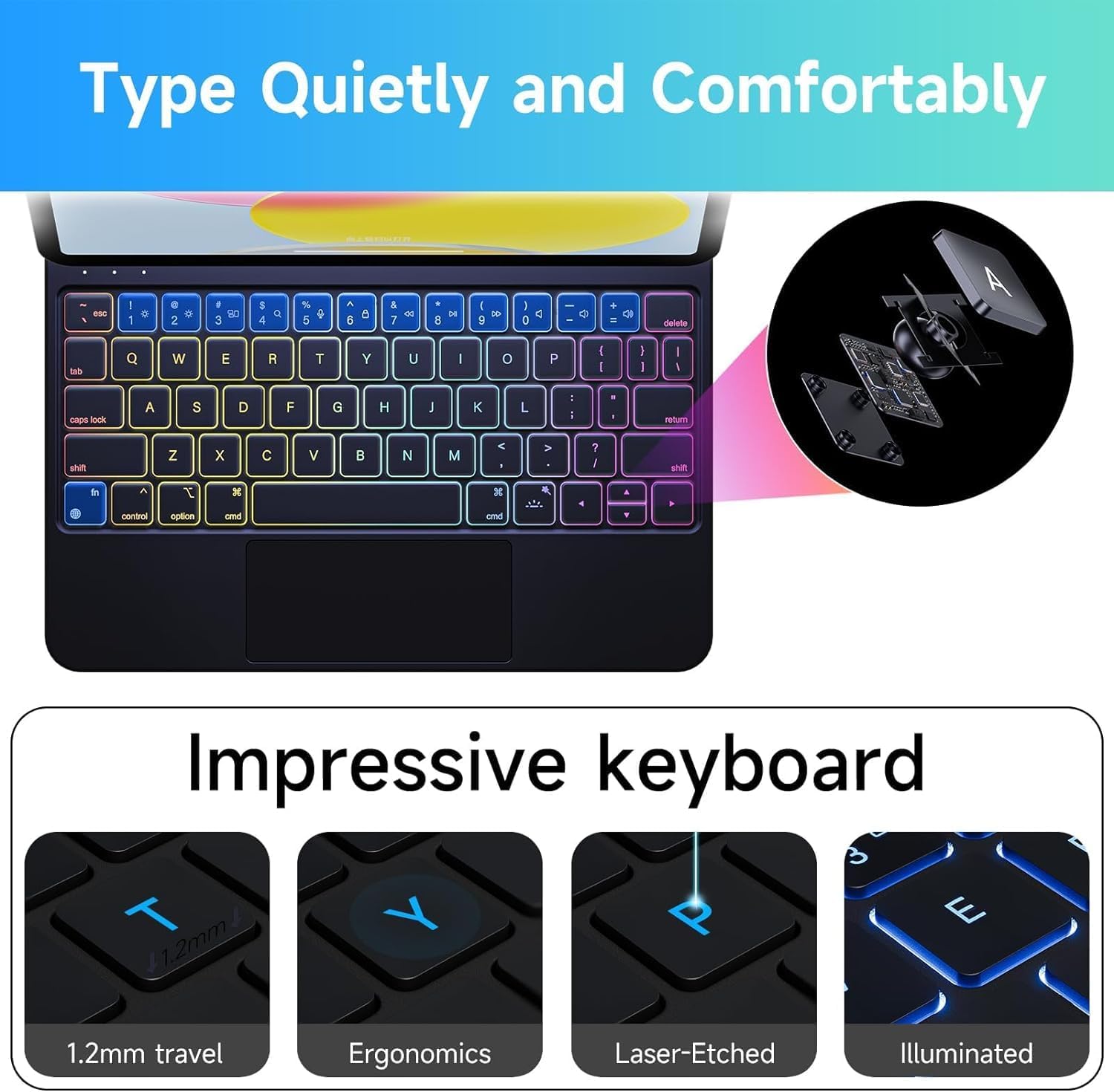
The HOU F91 Keyboard Case features a full-size keyboard with scissor-type (X-type) structural mechanical keys, providing a comfortable and responsive typing experience with powerful and easy rebound. It also includes 7-color backlighting with 3 brightness levels, allowing you to work efficiently in various lighting conditions.

2. Olona-Fọwọkan Trackpad kọju
Enhance your iPad experience with the precise, full-area multi-touch trackpad. It features an AG glass panel for greater smoothness and comfort, and supports all iOS shortcut gestures for efficient navigation and multitasking.
- Fọwọba ika-ọkan: Yan awọn ohun kan.
- Yi lọ ika meji: Yi lọ kiri ninu akoonu.
- Fun pọ lati sun -un: Sun-un sinu tabi jade lori akoonu.
- Three-finger swipe up: Lọ si Iboju ile.
- Fi ika mẹta si osi/ọtun: Switch between open applications.
- Cmd + Space: Ṣii Wa.
- Cmd + Tab: Quickly switch between apps.
- Cmd + H: Go back to the Home page.

3. A le ṣatunṣe Viewing Awọn igun
The keyboard case features a sturdy magnetic design with an adjustable hinge, allowing you to set your iPad at various viewing angles (90-130 degrees). This flexibility is ideal for typing, watching videos, reading documents, or engaging in office work, providing optimal comfort and productivity.
Itoju
Cleaning the Keyboard Case
The keyboard case is made of semi-silicone PU fabric, which offers a silky and comfortable touch while being scratch-resistant and easy to clean. For general cleaning, simply wipe the surface with a damp cloth. For tougher stains, a mild cleaning solution can be used, then wipe dry with a clean cloth.
Laasigbotitusita
Awọn oran Asopọmọra
- Keyboard ti ko sopọ: Ensure the keyboard's power switch is ON and Bluetooth is enabled on your iPad. Forget the device in iPad Bluetooth settings and try pairing again.
- Lagging trackpad/keys: Ensure the keyboard is fully charged. If issues persist, try restarting both your iPad and the keyboard.
Awọn iṣoro gbigba agbara
- Káàdì ò gba agbára: Use the provided USB-C cable and a compatible power adapter. Ensure the cable is securely connected to both the keyboard and the power source.
Awọn pato ọja
| Ẹya ara ẹrọ | Ẹ̀kúnrẹ́rẹ́ |
|---|---|
| Nọmba awoṣe | F91 |
| Ọja Mefa | 9.84 x 7.48 x 0.79 inches |
| Iwọn Nkan | 2.06 iwon |
| Olupese | HOU |
| Awọn batiri | Awọn batiri litiumu polima 1 nilo (pẹlu) |
| Asopọmọra Technology | Bluetooth, USB-C |
| Apejuwe Keyboard | Multimedia |
| Pataki Ẹya | Àwọn bọ́tìnì gbígbóná àti àwọn bọ́tìnì mídíà |
| Keyboard Backlighting Awọ Support | RGB (7-Color) |
| Ara | Igbagbogbo |
Ohun ti o wa ninu Apoti
- HOU F91 Keyboard Case (compatible with iPad Pro 12.9 inch 3rd-6th Gen and iPad Air 13 inch M2 2024)
- Okun USB
- Itọsọna olumulo
Atilẹyin ọja ati Support
For warranty information or technical support, please refer to the contact details provided in the included User Manual or visit the official HOU webojula. Tọju iwe-ẹri rira rẹ fun awọn ẹtọ atilẹyin ọja.