
VoltEdge CX40
VoltEdge CX40 Camo Blue Controller User Manual
Model: CX40 | Brand: VoltEdge
Ọrọ Iṣaaju
This manual provides detailed instructions for the setup, operation, maintenance, and troubleshooting of your VoltEdge CX40 Camo Blue Controller. Please read this manual thoroughly before using the product to ensure optimal performance and longevity.

olusin 1: Iwaju view of the VoltEdge CX40 Camo Blue Controller.
Ọja Awọn ẹya ara ẹrọ
- Gbigbọn Meji: Experience immersive feedback with built-in dual vibration motors.
- Iṣẹ Turbo: Enhance your gameplay with programmable turbo functionality.
- 2-Meter Cable: Pese ample de ọdọ fun awọn akoko ere itunu.
- Apẹrẹ Ergonomic: Engineered for comfort during extended periods of use.
- Ibamu Olona Platform: Compatible with PlayStation 4 (PS4), PlayStation 3 (PS3), and PC.
Ṣeto
Connecting to PS4/PS3:
- Ensure your console is powered on.
- Connect the USB cable of the VoltEdge CX40 controller to an available USB port on your PS4 or PS3 console.
- The controller will automatically be recognized and configured. The indicator light on the controller will illuminate once connected.
Nsopọ si PC:
- Rii daju pe PC rẹ ti wa ni titan.
- Connect the USB cable of the VoltEdge CX40 controller to an available USB port on your PC.
- The operating system will typically install the necessary drivers automatically. This may take a few moments.
- Once drivers are installed, the controller will be ready for use with compatible PC games.

Figure 2: VoltEdge CX40 Controller in its retail packaging, showing the included cable.
Awọn ilana Iṣiṣẹ
Awọn iṣakoso ipilẹ:
The VoltEdge CX40 controller features standard button layouts for intuitive gameplay.
- Awọn igi Analog: Use for movement and camera control.
- D-Pad: Fún ìtẹ̀síwájú ìtọ́sọ́nà tó péye.
- Action Buttons (X, O, Triangle, Square / A, B, X, Y): Perform in-game actions.
- Àwọn bọ́tìnì èjìká (L1, R1) àti àwọn ohun tí ń fa (L2, R2): For various in-game functions like aiming, shooting, or menu navigation.
- Bọtini PIN: (PS4/PS3) For sharing gameplay content.
- Bọtini Aṣayan: (PS4/PS3) For accessing in-game menus or pause functions.
- P4 Button: (PS4/PS3) Functions as the PlayStation button.
Turbo Function Activation:
- Tẹ mọlẹ TURBO button (if present, or a designated button for turbo activation, typically indicated in the manual or on the controller itself).
- While holding the TURBO button, press the action button you wish to apply turbo to (e.g., X, Square, R1).
- Release both buttons. The selected action button will now rapidly repeat its input when held down.
Turbo Function Deactivation:
- Tẹ mọlẹ TURBO bọtini.
- While holding the TURBO button, press the action button that currently has turbo activated.
- Release both buttons. The turbo function for that specific button will be deactivated.
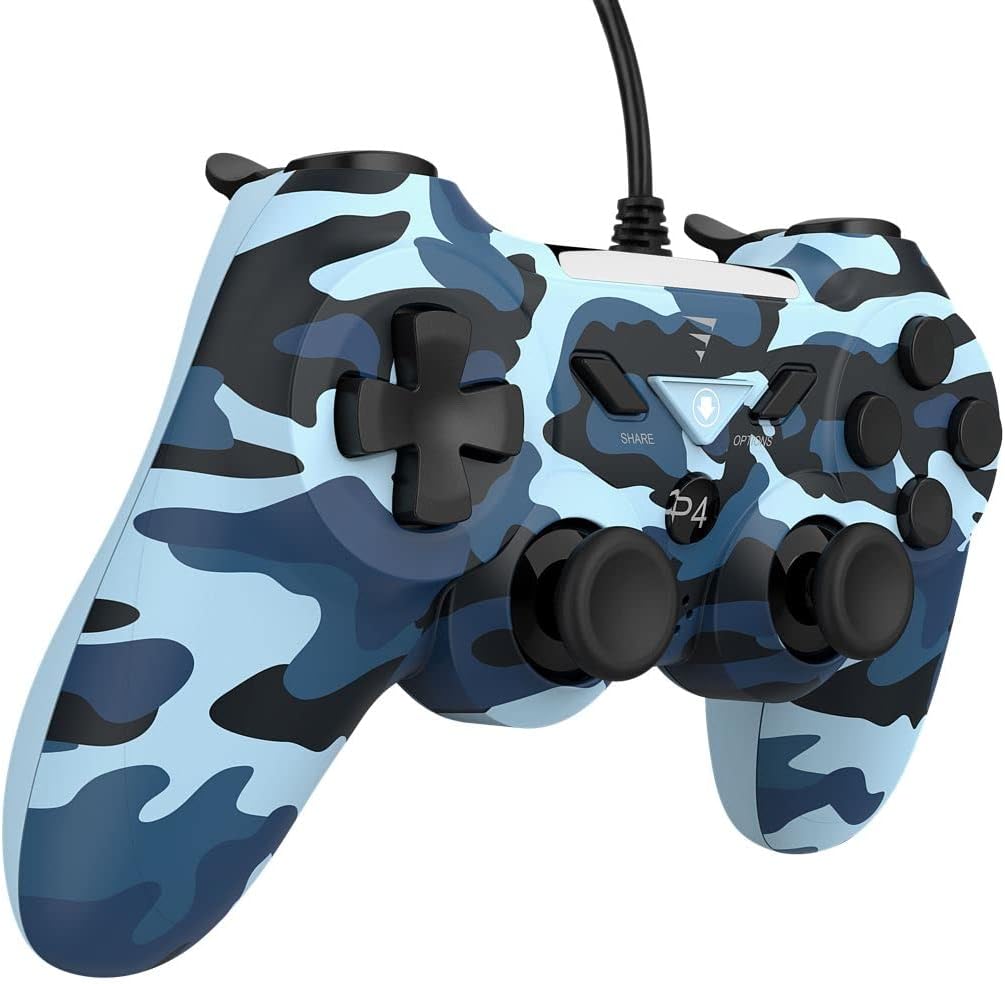
olusin 3: Apa view of the VoltEdge CX40 Controller, highlighting its ergonomic shape.
Itoju
- Ninu: Lo asọ ti o rọ, ti o gbẹ lati nu oju ti oludari naa. Fun idoti alagidi, die-die dampen aṣọ pẹlu omi. Maṣe lo awọn kẹmika ti o lewu tabi awọn afọmọ abrasive.
- Ibi ipamọ: Tọju olutọju naa ni itura, aye gbigbẹ kuro lati orun taara ati awọn iwọn otutu to gaju.
- Itọju USB: Avoid bending or twisting the cable excessively. Do not pull the controller by its cable.
- Olubasọrọ olomi: Keep the controller away from liquids. If liquid enters the controller, disconnect it immediately and allow it to dry completely before attempting to use it again.
Laasigbotitusita
| Isoro | Owun to le Fa | Ojutu |
|---|---|---|
| A kò mọ olùdarí náà nípasẹ̀ console/PC. | Asopọ USB ti o ti sọnu, ibudo USB ti ko ni abawọn, iṣoro awakọ (PC). |
|
| Gbigbọn kò ṣiṣẹ́. | Game does not support vibration, vibration setting disabled, internal fault. |
|
| Buttons or analog sticks unresponsive. | Dirt/debris under buttons, physical damage, software glitch. |
|

olusin 4: Isalẹ view of the VoltEdge CX40 Controller, showing the grip texture.
Awọn pato
- Awoṣe: VoltEdge CX40 Camo Blue
- Ibamu: PlayStation 4 (PS4), PlayStation 3 (PS3), PC
- Asopọmọra: USB ti a firanṣẹ
- Gigun USB: 2 mita
- Awọn ẹya: Dual Vibration, Turbo Function
- Awọn iwọn (Apapọ): Isunmọ 17 x 14.5 x 6.2 cm
- Ìwúwo (Apapọ): O fẹrẹ to 400 g
- ASIN: B0B4PRL244
Atilẹyin ọja ati Support
VoltEdge products are designed for durability and performance. For information regarding warranty coverage and terms, please refer to the warranty card included with your product or visit the official VoltEdge webojula.
For technical support, troubleshooting assistance beyond this manual, or inquiries about replacement parts, please contact VoltEdge customer support through their official channels. Contact information can typically be found on the product packaging or the official VoltEdge webojula.
Awọn orisun Ayelujara: For the latest drivers, firmware updates, and additional support resources, please visit the official VoltEdge support page.
Ask a question about this manual
Ask about setup, troubleshooting, compatibility, parts, safety, or missing instructions. Manuals+ will review the question and use this page’s manual context to help answer it.