
PANTUM M6500NW
PANTUM M6500NW Multifunction Laser Printer User Manual
Model: M6500NW | Brand: PANTUM
1. Ifihan
This manual provides comprehensive instructions for the PANTUM M6500NW Multifunction Laser Printer. It covers setup, operation, maintenance, and troubleshooting to ensure optimal performance of your device. The PANTUM M6500NW is designed for small home offices, offering print, copy, and scan functionalities with Ethernet, Wi-Fi, and USB 2.0 connectivity.

Image: The PANTUM M6500NW Multifunction Laser Printer, a compact black device with an open scanner lid, control panel, and paper tray.
2. Eto
2.1 Unboxing ati Igbaradi Ibẹrẹ
Carefully unpack the printer and all accessories from the box. Remove all protective packaging materials, including tapes and foam inserts, from the exterior and interior of the printer.
Video: This video demonstrates the unboxing process, removal of protective materials, and initial setup steps for the PANTUM M6500 Series printer.
2.2 Toner Katiriji fifi sori
- Ṣii ideri iwaju ti itẹwe naa.
- Locate the toner cartridge slot.
- Gently shake the new toner cartridge horizontally 5-6 times to distribute the toner evenly.
- Remove the protective seal and any orange protective covers from the toner cartridge.
- Fi káàtírì toner sínú ẹ̀rọ ìtẹ̀wé náà títí tí yóò fi tẹ ibi tí ó wà.
- Pa ideri iwaju.

Image: A PANTUM PA-210 toner cartridge next to printed documents, illustrating print quality and toner compatibility.
2.3 Iwe ikojọpọ
- Open the paper tray located at the bottom front of the printer.
- Ṣatunṣe awọn itọsọna iwe lati baamu iwọn iwe ti o n ṣajọpọ.
- Fan the paper stack to prevent jams.
- Load the paper into the tray, ensuring it is aligned with the guides.
- Pa atẹ iwe naa.
2.4 Driver fifi sori
To use your PANTUM M6500NW printer, you need to install the appropriate drivers on your computer. There are two primary methods:
- Using the included CD-ROM: Insert the driver CD into your computer's CD drive and follow the on-screen instructions.
- Downloading from the official PANTUM webojula: Ṣabẹwo global.pantum.com/support/download/driver/, search for "M6500NW", and download the latest driver for your operating system.

Image: Visual guide for installing the printer driver on a PC, showing options for USB connection, wired network, and Wi-Fi.
2.5 Asopọmọra Aw
The PANTUM M6500NW offers versatile connectivity:
- USB 2.0: Connect the printer directly to your computer using a USB cable.
- Àjọlò: Connect the printer to your network router using an Ethernet cable for shared access.
- Wi-Fi: Connect wirelessly to your network for convenient printing from multiple devices.

Image: Diagram illustrating USB, Ethernet, and Wi-Fi connectivity options for the PANTUM M6500NW printer.
2.6 Mobile App Setup (Wi-Fi)
For mobile printing, download the Pantum APP from your device's app store or the official Pantum website. Follow these steps to connect via Wi-Fi:
- Ensure your printer is powered on.
- Open the Pantum APP on your mobile device.
- Select "Add a printer" and follow the on-screen prompts to connect to the printer's Wi-Fi hotspot (e.g., "DIRECT-bc-Pantum M6500NW Series").
- Enter the default password if prompted (check printer's network configuration report for details).
- Once connected to the printer's hotspot, the app will guide you to connect the printer to your home Wi-Fi router.
- After successful connection, you can print directly from your mobile device.

Image: Steps for connecting the PANTUM M6500NW printer to a Wi-Fi router via the mobile app.
3. Awọn ilana Iṣiṣẹ
3.1 Titẹ sita
- Lati Kọmputa kan: After driver installation, select the PANTUM M6500NW from your printer list in any application and choose your desired print settings.
- Lati Ẹrọ Alagbeka: Use the Pantum APP to select documents or images for printing. Ensure your device is connected to the same Wi-Fi network as the printer.
- The printer supports monochrome printing at speeds up to 22 pages per minute.
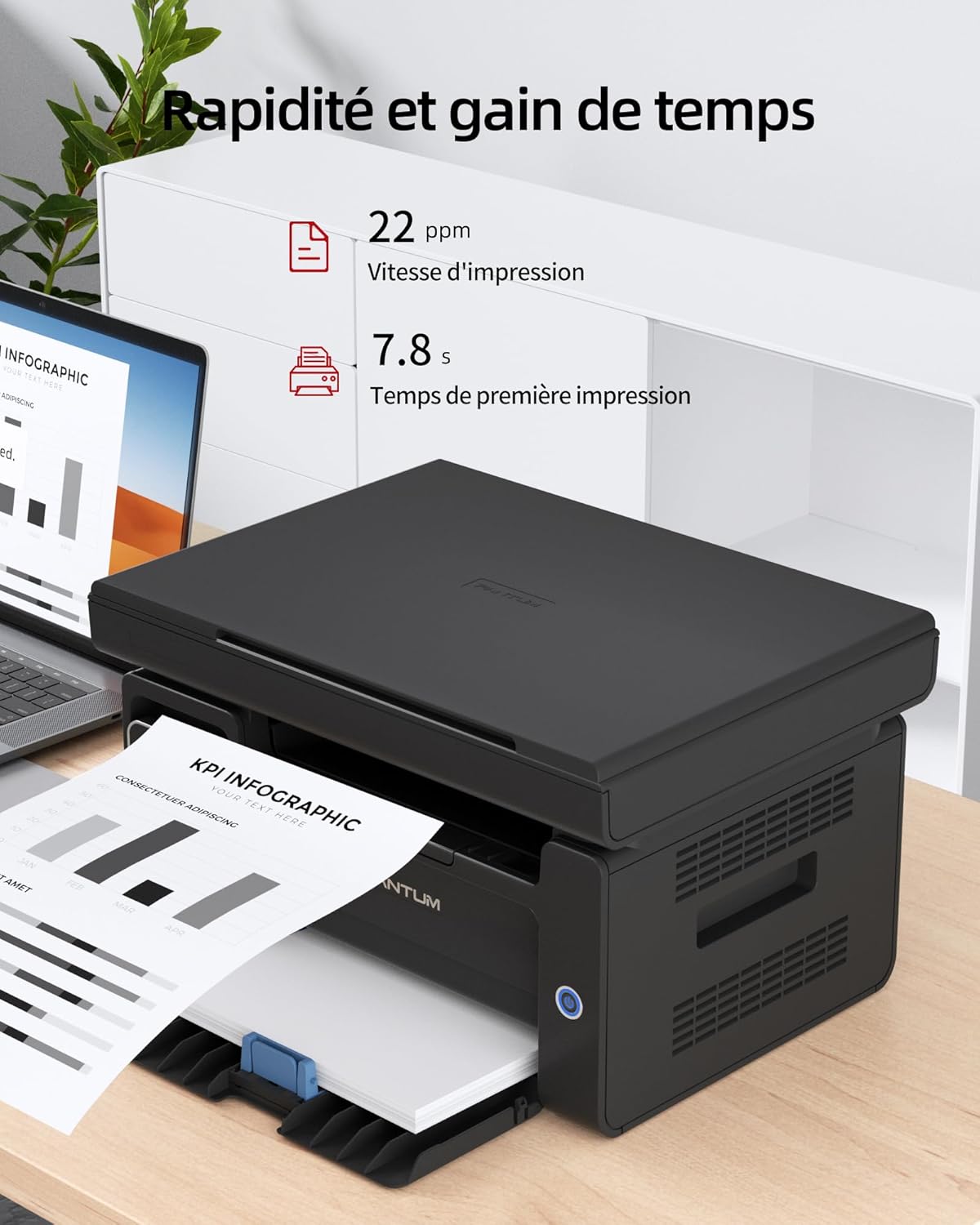
Image: Illustration highlighting the printer's speed, with 22 ppm print speed and 7.8 seconds first page out time.
3.2 didaakọ
Láti ṣe àwòkọ kan:
- Place the document face-down on the scanner glass or face-up in the Automatic Document Feeder (ADF) if available.
- Use the control panel to select the number of copies and other settings (e.g., lighten/darken).
- Press the "Copy" button to start the process.

Image: A person placing a document on the scanner glass of the PANTUM M6500NW for copying or scanning.
3.3 Ṣiṣayẹwo
To scan a document:
- Gbe iwe-ipamọ naa si-isalẹ lori gilasi ọlọjẹ naa.
- From your computer, open the scanning software (usually installed with the printer driver) or use the Pantum APP on your mobile device.
- Select scan settings such as resolution, color mode (monochrome), and destination.
- Initiate the scan. The scanned document will be saved to your specified location.
3.4 Manual Duplex Printing
The PANTUM M6500NW supports manual duplex (two-sided) printing. To use this feature:
- In your print settings, select the option for manual duplex printing.
- Print the odd-numbered pages first.
- When prompted, reload the printed pages into the paper tray according to the on-screen instructions to print the even-numbered pages on the reverse side.
4. Itọju
4.1 Toner katiriji Rirọpo
When the toner is low or depleted, the printer will indicate this. Replace the toner cartridge with a genuine PANTUM PA-210 (1,600 pages) or compatible cartridge. Follow the installation steps outlined in Section 2.2.
Akiyesi: Using non-original consumables may void your warranty and affect print quality.
4.2 Ninu itẹwe
Mimọ deede ṣe iranlọwọ lati ṣetọju didara titẹ ati fa igbesi aye itẹwe rẹ gbooro.
- Òde: Fi aṣọ rirọ, tí kò ní àwọ̀ nu òde ẹ̀rọ ìtẹ̀wé náà.
- Gilasi Scanner: Lo asọ asọ dampened with glass cleaner to clean the scanner glass. Avoid spraying cleaner directly onto the glass.
- Inu inu: Refer to the detailed cleaning instructions in the full user manual for internal components.
5. Laasigbotitusita
If you encounter issues with your PANTUM M6500NW printer, consider the following common solutions:
- Itẹwe Ko Dahun:
- Ṣayẹwo awọn asopọ agbara ati rii daju pe itẹwe ti wa ni titan.
- Verify USB or network cable connections.
- For Wi-Fi, ensure the printer is connected to the correct network and your device is also connected.
- Tun ẹrọ itẹwe naa ati kọmputa/ẹrọ alagbeka rẹ bẹrẹ.
- Awọn Jams Iwe:
- Ṣí gbogbo àwọn ìbòrí náà kí o sì yọ gbogbo ìwé tí ó ti dí.
- Rii daju pe iwe ti kojọpọ daradara ati pe ko kun.
- Didara Titẹjade Ko dara:
- Ṣàyẹ̀wò ipele toner kí o sì fi katiriji rọ́pò rẹ̀ tí ó bá kéré.
- Rí i dájú pé o ń lo ìwé tó yẹ fún iṣẹ́ ìtẹ̀wé rẹ.
- Clean the printer's internal components as per the full user manual.
- Awọn ọran Awakọ:
- Reinstall the printer drivers from the official PANTUM webojula.
- Rii daju pe ẹrọ iṣẹ rẹ ti wa ni imudojuiwọn.
For more detailed troubleshooting, refer to the comprehensive user manual available on the PANTUM support webojula.
6. Awọn pato
| Ẹya ara ẹrọ | Sipesifikesonu |
|---|---|
| Orukọ awoṣe | M6500NW |
| Print Technology | Lesa |
| Awọn iṣẹ | Tẹjade, Daakọ, Ṣayẹwo |
| Iyara Titẹjade (Monochrome) | Titi di 22 ppm |
| Ipinnu Titẹjade ti o pọju | 1200 x 600 dpi |
| Asopọmọra | Ethernet, USB 2.0, Wi-Fi |
| Ile oloke meji Printing | Afowoyi |
| Iwọn Media ti o pọju | A4 |
| Agbara Input Iwe | 150 iwe |
| Toner tó báramu | PA-210 (1,600 pages) |
| Awọn iwọn Ọja (D x W x H) | 30.5 x 41.7 x 24.4 cm |
| Iwọn Nkan | 4.8 kilo |
| Awọn ọna ṣiṣe | Android, iOS (for mobile app) |

Image: The PANTUM M6500NW printer showcasing its compact design and dimensions (24.4cm H x 30.5cm D x 41.7cm W).
7. Atilẹyin ọja ati Support
The PANTUM M6500NW Multifunction Laser Printer comes with a standard one-year warranty against manufacturing defects from the date of purchase. A manufacturer's warranty of 2 years is also mentioned in the specifications.
For customer service and technical support, please visit the official PANTUM website or contact their online customer service. Information regarding spare parts availability and software updates is not readily available in the provided product details.
Ask a question about this manual
Ask about setup, troubleshooting, compatibility, parts, safety, or missing instructions. Manuals+ will review the question and use this page’s manual context to help answer it.