
1. Ifihan
The Ricoh M 320 is a high-productivity, low-maintenance multifunction device designed for printing, copying, and scanning in workspaces with limited space. This system offers easy monitoring and management of print history, device settings, and network protocols. Featuring a 5 GHz Wi-Fi interface, it ensures a stable wireless connection by reducing bottlenecks. Its compact design makes it suitable for various office environments. Setup and operation are designed to be straightforward. The integrated scan and copy functions facilitate easy digitization and sharing of documents. The all-in-one toner cartridge is high-capacity and simple to replace. Full support is provided for Windows, Mac, and Linux operating systems, with both 2.4 GHz and 5 GHz WLAN capabilities.
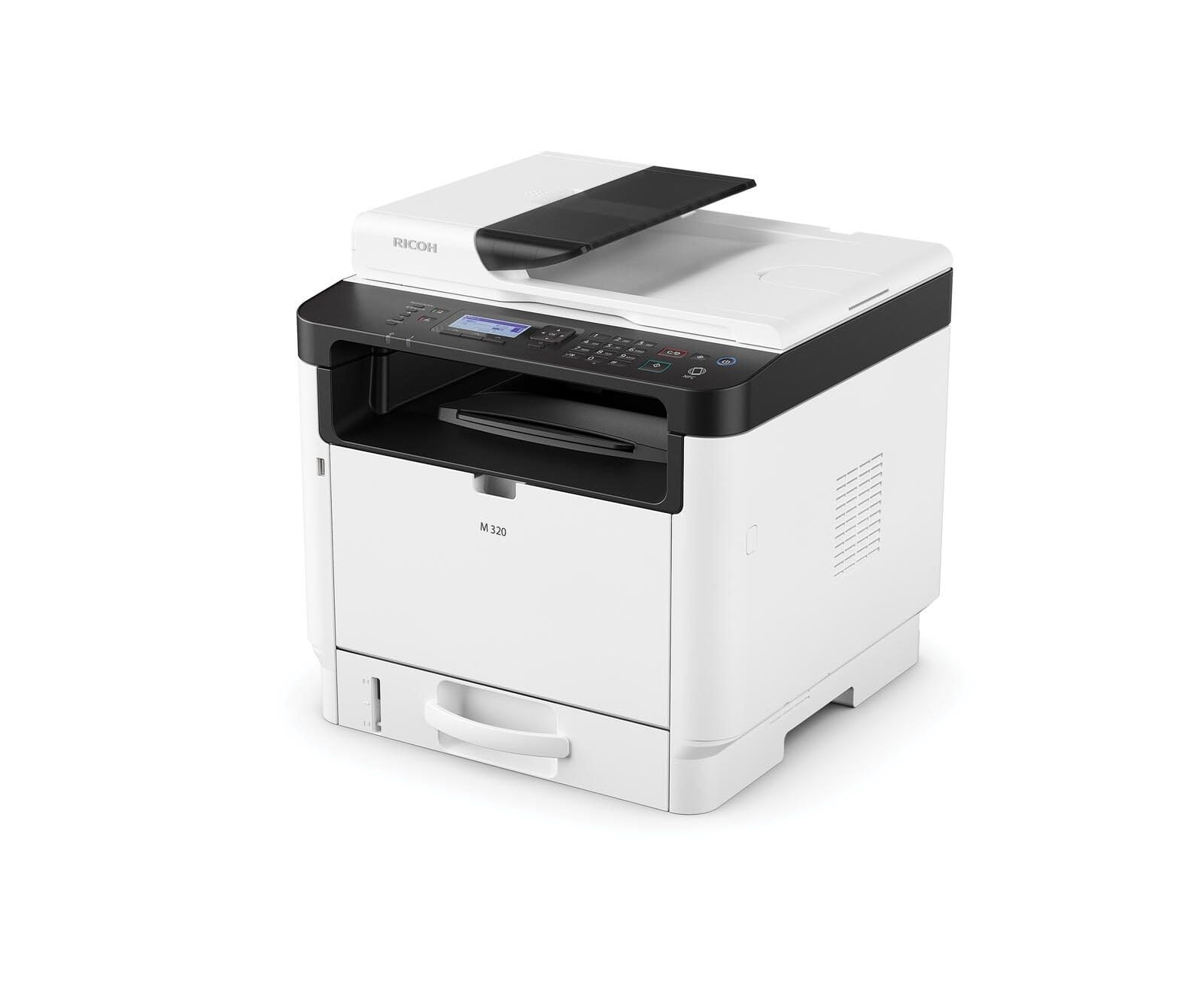
Figure 1: Ricoh M 320 Multifunction System. This image displays the compact design of the Ricoh M 320, highlighting its main components including the paper tray and control panel.
1.1 Kini ni Apoti
Jẹrisi pe gbogbo awọn ohun kan wa ninu package:
- Ricoh M 320 Multifunction System
- Okun agbara
- Starter Toner katiriji
- Eto Itọsọna
- Software CD (may vary by region)
2. Eto
2.1 Ṣiṣii ati Gbe
- Yọ itẹwe kuro ninu apoti rẹ.
- Yọ gbogbo awọn teepu aabo ati awọn ohun elo iṣakojọpọ lati ita ati inu ti itẹwe naa.
- Gbé ẹ̀rọ ìtẹ̀wé náà sí orí ilẹ̀ tí ó dúró ṣinṣin, tí ó sì tẹ́jú, tí afẹ́fẹ́ sì ń fẹ́. Rí i dájú pé àyè tó wà ní àyíká ẹ̀rọ ìtẹ̀wé náà fún ìṣiṣẹ́ àti ìtọ́jú.
2.2 Asopọ agbara
- So okun agbara pọ si titẹ agbara itẹwe.
- Pulọọgi opin miiran ti okun agbara sinu iṣan itanna ti ilẹ.
- Tẹ bọtini agbara lati tan itẹwe.
2.3 Toner Katiriji fifi sori
- Ṣii ideri iwaju ti itẹwe naa.
- Carefully remove the new toner cartridge from its packaging and gently shake it horizontally several times to distribute the toner evenly.
- Fi káàtírì toner sínú ẹ̀rọ ìtẹ̀wé náà títí tí yóò fi tẹ ibi tí ó wà.
- Pa ideri iwaju.
2.4 Iwe ikojọpọ
- Fa jade ni iwe atẹ.
- Adjust the paper guides to match the size of the paper you are loading (up to A4).
- Fi àkójọ ìwé náà sínú àwo náà, kí o rí i dájú pé ó tẹ́jú, kí ó má sì ju ìlà ìkún tó pọ̀ jù lọ lọ.
- Fi pẹ̀lẹ́pẹ̀lẹ́ tì àwo ìwé náà padà sínú ẹ̀rọ ìtẹ̀wé náà.
2.5 Asopọ Nẹtiwọọki
The Ricoh M 320 supports both Ethernet and Wi-Fi connectivity.
Asopọmọra Ethernet:
- So okùn Ethernet pọ lati olulana nẹtiwọọki rẹ tabi yipada si ibudo Ethernet ni ẹhin itẹwe naa.
- The printer will automatically attempt to obtain an IP address.
Wi-Fi Connection (2.4 GHz / 5 GHz):
- On the printer's 4-line LCD display, navigate to the Network Settings menu.
- Select "WLAN Setup" or "Wi-Fi Setup".
- Yan nẹtiwọki Wi-Fi rẹ lati atokọ ti awọn nẹtiwọọki to wa.
- Enter the Wi-Fi password (WPA/WPA2 key) using the control panel.
- Confirm the settings. The printer will connect to the network.
2.6 Fifi sori ẹrọ awakọ ati sọfitiwia
To use all functions of the Ricoh M 320, install the necessary drivers and software on your computer.
- Windows/Mac/Linux: Insert the provided software CD into your computer's CD/DVD drive and follow the on-screen instructions. Alternatively, download the latest drivers and utilities from the official Ricoh support webojula.
- Mobile Devices (iOS/Android): Download the Ricoh Smart Device Connector app from your device's app store to enable mobile printing and scanning. The printer supports AirPrint and Mopria.
3. Ṣiṣẹ itẹwe
3.1 Awọn iwe aṣẹ titẹ sita
- Ṣí ìwé tí o fẹ́ tẹ̀ jáde lórí kọ̀ǹpútà tàbí fóònù rẹ.
- Yan "Tẹjade" lati inu akojọ aṣayan ohun elo (fun apẹẹrẹ, File > Titẹjade).
- Choose "Ricoh M 320" as your printer.
- Adjust print settings such as number of copies, paper size, and duplex printing (automatic duplex is supported).
- Tẹ "Tẹjade".
The printer offers high-quality black and white printing at 1200 x 1200 dpi. Maximum print speed for black and white is 13 pages per minute, and for color is 4.5 pages per minute.
3.2 Awọn iwe aṣẹ didakọ
- Place the document face-down on the scanner glass or face-up in the Automatic Document Feeder (ADF). The ADF supports up to 35 sheets.
- Lórí ẹ̀rọ ìṣàkóṣo ẹ̀rọ ìtẹ̀wé, yan "Daakọ".
- Use the navigation buttons to adjust settings such as number of copies (up to 35 per run), copy quality, and zoom.
- Tẹ bọtini "Bẹrẹ" lati bẹrẹ didaakọ.
3.3 Awọn iwe-iṣayẹwo
Documents can be scanned to a computer or mobile device.
- Gbe iwe naa sori gilasi ọlọjẹ tabi ni ADF.
- On your computer, open the scanning software (e.g., Ricoh Scan Utility) or use the "Scan" function from the Ricoh Smart Device Connector app on your mobile device.
- Select "Ricoh M 320" as the scanner.
- Choose scan settings such as resolution (up to 1200 x 1200 dpi), color mode, and destination folder.
- Bẹrẹ ọlọjẹ naa.
3.4 Mobile Printing and Scanning
The Ricoh M 320 supports mobile printing and scanning via AirPrint, Mopria, and the Ricoh Smart Device Connector app.
- AirPrint (iOS): Ensure your iOS device is connected to the same Wi-Fi network as the printer. Open the document or photo, tap the share icon, and select "Print". Choose the Ricoh M 320.
- Mopria (Android): Ensure your Android device has the Mopria Print Service installed and is connected to the same Wi-Fi network. Open the document or photo, tap the menu icon, and select "Print". Choose the Ricoh M 320.
- Ricoh Smart Device Connector App: Use the dedicated app for advanced mobile printing, scanning, and device management features.
4. Itọju
4.1 Rirọpo Toner Katiriji
When the toner level is low, a message will appear on the printer's display. Use only genuine Ricoh standard laser toner cartridges.
- Rii daju pe itẹwe ti wa ni titan.
- Ṣii ideri iwaju ti itẹwe naa.
- Carefully pull out the used toner cartridge.
- Tú káàtírììjì tónẹ́ẹ̀tì tuntun náà kí o sì fì pẹ̀lẹ́pẹ̀lẹ́ mì í ní ìpele ní ọ̀pọ̀ ìgbà.
- Fi katiriji toner tuntun sinu ẹrọ itẹwe titi ti yoo fi tẹ sinu ipo rẹ.
- Close the front cover. The printer will calibrate the new cartridge.
4.2 Ninu itẹwe
Mimọ deede ṣe iranlọwọ lati ṣetọju didara titẹ ati fa igbesi aye itẹwe naa pọ.
- Òde: Mu ese ita gbangba pẹlu asọ, damp, lint-free asọ. Ma ṣe lo abrasive ose tabi epo.
- Gilasi Scanner: Gently clean the scanner glass with a soft, lint-free cloth moistened with glass cleaner. Ensure no residue remains.
- Inu inu: Periodically open the front cover and gently remove any paper dust or toner residue with a dry, lint-free cloth. Avoid touching the drum unit.
5. Laasigbotitusita
This section addresses common issues you might encounter with your Ricoh M 320.
5.1 Wọpọ Oran ati Solusan
- Itẹwe Ko Dahun:
- Check if the printer is powered on and connected to the power outlet.
- Verify network connectivity (Ethernet cable or Wi-Fi signal).
- Tun ẹrọ itẹwe naa ati kọmputa/ẹrọ alagbeka rẹ bẹrẹ.
- Ensure the correct printer driver is installed and selected.
- Awọn Jams Iwe:
- Pa ẹrọ atẹwe naa kuro ki o yọọ kuro.
- Open all covers and carefully remove any jammed paper, pulling in the direction of the paper path.
- Rí i dájú pé ìwé náà wà ní oríṣiríṣi ọ̀nà tí ó yẹ kí ó wà, kí ó má sì bàjẹ́ tàbí kí ó bàjẹ́.
- Close all covers and restart the printer.
- Didara Titẹjade Ko dara:
- Ṣàyẹ̀wò ìpele káàtírììjì tónẹ́ẹ̀tì kí o sì fi rọ́pò rẹ̀ tí ó bá kéré.
- Ensure you are using genuine Ricoh toner cartridges.
- Clean the interior of the printer, especially around the drum unit (refer to maintenance section).
- Adjust print quality settings in your printer driver.
- Scanner kò ṣiṣẹ́:
- Ensure the printer is connected to the network and recognized by your computer/mobile device.
- Restart the scanning application and the printer.
- Verify that the scanner glass and ADF are clean.
- Awọn ọran Isopọ Wi-Fi:
- Rii daju pe ọrọ igbaniwọle Wi-Fi ti wa ni titẹ ni deede.
- Check if the printer is within range of your Wi-Fi router.
- Restart your Wi-Fi router and the printer.
- Try connecting to the 2.4 GHz band if experiencing issues with 5 GHz, or vice-versa.
For more detailed troubleshooting, refer to the comprehensive user manual available on the Ricoh support webojula.
6. Awọn pato
| Ẹya ara ẹrọ | Sipesifikesonu |
|---|---|
| Orukọ awoṣe | M 320 (9P01749) |
| Awọn iṣẹ | Print, Copy, Scan (3-in-1 Multifunction) |
| Print Technology | Lesa |
| Titẹjade Ijade | Color (Note: Primarily a mono laser printer, color output refers to specific elements or capabilities) |
| Ìpinnu Ìtẹ̀wé Tó Pọ̀ Jùlọ (B&W) | 1200 x 1200 dpi |
| Ìpinnu Ìtẹ̀wé Tó Pọ̀ Jùlọ (Àwọ̀) | 1200 x 1200 dpi |
| Max Print Speed (B&W) | 13 ojúewé fun iseju |
| Iyara Titẹjade ti o pọju (Awọ) | 4.5 ojúewé fun iseju |
| First Page Jade Time | 4.62 aaya |
| Ile oloke meji Printing | Laifọwọyi |
| Scanner Iru | Ifunni iwe aladaaṣe (ADF) |
| Agbara ADF | 35 iwe |
| Ipinnu Scanner | 1200 x 1200 dpi |
| Max Copies per Run | 35 |
| Asopọmọra | Ethernet, Wi-Fi (2.4 GHz / 5 GHz) |
| Mobile Printing Support | AirPrint, Mopria, Ricoh Smart Device Connector App |
| Ibamu Awọn ọna ṣiṣe | Windows, Mac, Linux, iOS, Android |
| Iwọn Iwe ti o pọju | A4 |
| Agbara Ìwé Ìṣíwọlé | 35 iwe |
| O wu Sheet Agbara | 35 iwe |
| Ifihan Iru | 4-ila LCD |
| Katiriji ibaramu | Ricoh standard laser toner cartridges |
| Iwọn Nkan | 21 kilo |
7. Atilẹyin ọja ati Support
7.1 Atilẹyin ọja to lopin
The Ricoh M 320 Multifunction System comes with a limited warranty. Please refer to the warranty documentation included with your product or visit the official Ricoh website for detailed terms and conditions, including coverage period and service procedures. Keep your proof of purchase for warranty claims.
7.2 Onibara Support
For technical assistance, product inquiries, or service requests, please contact Ricoh customer support.
- Atilẹyin Ayelujara: Visit the official Ricoh support website for FAQs, driver downloads, and digital manuals.
- Atilẹyin foonu: Contact numbers for your region can be found on the Ricoh webojula.
When contacting support, please have your product model (M 320) and serial number ready.