
1. Ifihan
This manual provides detailed instructions for the installation, operation, and maintenance of your XENOCAM A6504LME-5 4-Channel 5M-N/1080N Hybrid Digital Video Recorder (DVR). This DVR is a versatile 5-in-1 system compatible with AHD, TVI, CVI, analog, and IP cameras, offering advanced H.265 video compression for efficient surveillance. Please read this manual thoroughly before using the device to ensure proper setup and functionality.
2. Awọn ẹya Ọja
- 5-in-1 Hybrid Compatibility: Supports CVBS 5MP/4MP/1080P AHD, 1MP/2MP TVI, 1MP/2MP CVI, IP, and 960H cameras.
- Fidio Itumọ giga: Supports 5M-N/1080N resolution (1280x1920) for clear video capture.
- Advanced H.265 Compression: Provides smoother video recordings and optimizes hard drive storage space.
- Awọn abajade fidio lọpọlọpọ: Equipped with HDMI and VGA ports, supporting up to 1080p output.
- P2P Remote Access: View live or playback video remotely via the XMeye app on Android and iOS devices by scanning a QR code.
- Iwari išipopada & Awọn titaniji: Configurable motion detection zones with instant email and app notifications.
- Flexible Recording Modes: Manual, alarm, motion detection, and scheduled recording options.
- Multiple Backup Options: Network, USB portable HDD, and USB DVD-RW.
3. Package Awọn akoonu
Daju pe gbogbo awọn nkan ti a ṣe akojọ rẹ si isalẹ wa ninu package rẹ:
- 1 x XENOCAM 4-Channel 5MP-N Digital Video Recorder (HDD not included)
- 1 x Agbara Adapter
- 1 x Asin USB
- 1 x Itọsọna olumulo
- Mounting Screws for HDD (typically included)
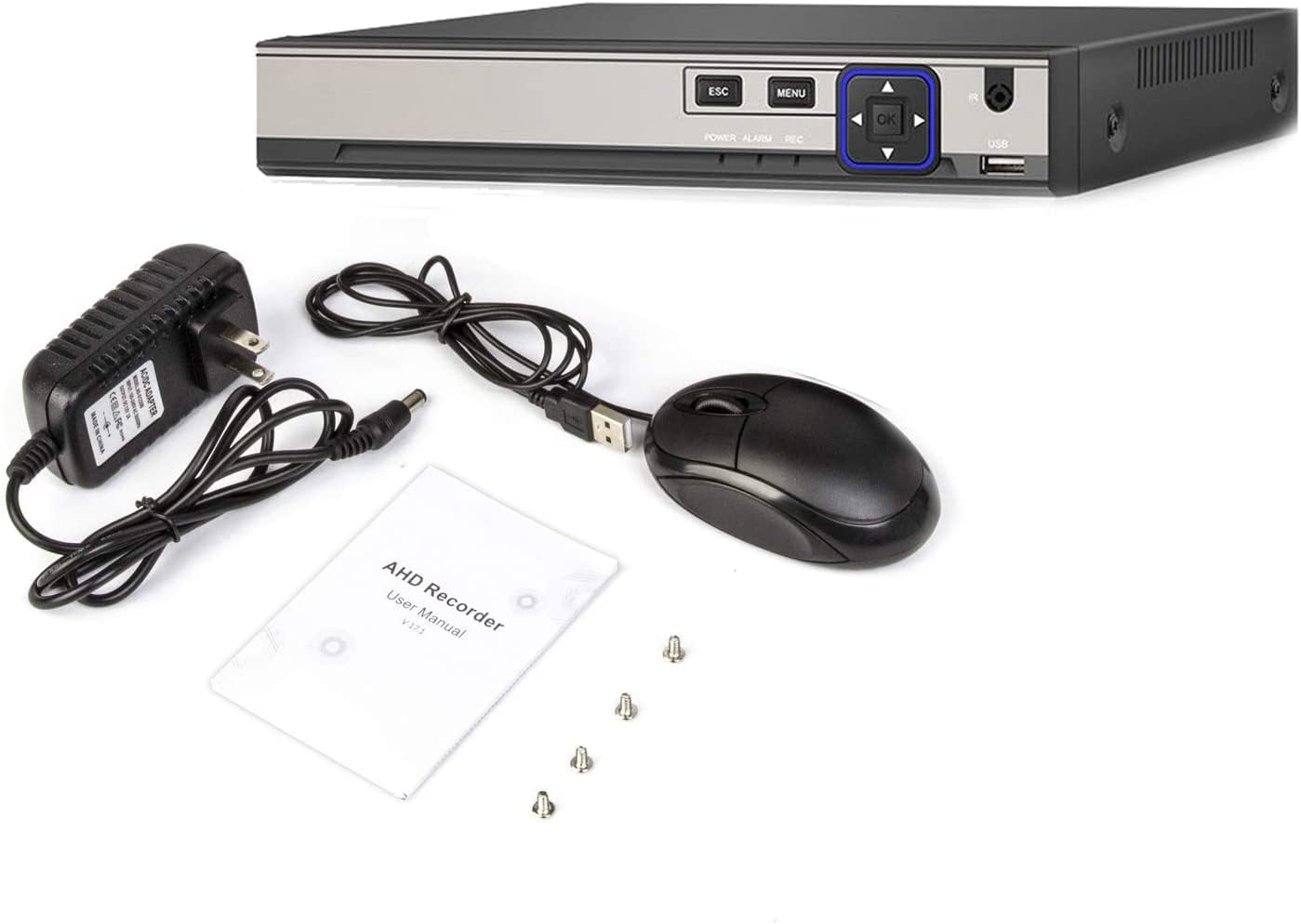
Image: The XENOCAM A6504LME-5 DVR unit shown with its power adapter, USB mouse, user manual, and mounting screws.
4. Eto
4.1 Fifi sori ẹrọ Hardware
- Install Hard Drive (HDD): Open the DVR casing. Connect a SATA hard drive (up to 6TB, not included) to the internal SATA power and data cables. Secure the HDD using the provided screws.
- Sopọ Awọn kamẹra: Connect your AHD, TVI, CVI, or analog cameras to the BNC video input ports on the rear panel. For IP cameras, ensure they are on the same network as the DVR.
- Asopọmọra Ifihan: So iboju kan pọ mọ ibudo HDMI tabi VGA ti DVR.
- So Asin: Pulọọgi USB Asin sinu ọkan ninu awọn ebute oko USB lori DVR.
- So Nẹtiwọọki pọ: For remote access and network features, connect an Ethernet cable from the DVR's RJ-45 port to your router or network switch.
- So agbara: Plug the power adapter into the DVR's power input and then into an electrical outlet.

Aworan: Iwaju ati ẹhin views of the XENOCAM A6504LME-5 DVR, showing control buttons, USB ports, BNC video inputs, HDMI/VGA outputs, and network port.
4.2 Agbara akọkọ-On ati iṣeto ni
- Power on the DVR. The system will boot up and display on the connected monitor.
- Upon first boot, you will be prompted to set a password for the default 'Admin' user. This is crucial for system security.
- Follow the on-screen wizard to configure basic settings such as date, time, network settings, and video output resolution.
- Format the installed hard drive through the system settings menu to ensure it is ready for recording.
5. Awọn ilana Iṣiṣẹ
5.1 Lilọ kiri Akojọ aṣyn
Use the connected USB mouse to navigate the DVR's graphical user interface (GUI). Right-click to access the main menu, and use the left-click to select options and confirm settings. The front panel buttons (ESC, MENU, OK, directional arrows) can also be used for navigation.
5.2 Awọn ọna Gbigbasilẹ
DVR ṣe atilẹyin awọn ọna gbigbasilẹ lọpọlọpọ:
- Gbigbasilẹ pẹlu ọwọ: Start and stop recording manually.
- Gbigbasilẹ Eto: Set specific times for continuous recording.
- Gbigba Iwari išipopada: Àwọn ìgbàsílẹ̀ nìkan ni a bá rí ìṣípo nínú kámẹ́rà view.
- Gbigbasilẹ Itaniji: Records when an external alarm input is triggered.
Configure these settings in the 'Record' section of the main menu.
5.3 Sisisẹsẹhin
Wiwọle gba silẹ footage through the 'Playback' option in the main menu. You can search by date, time, and event type (e.g., motion detection). Use the on-screen controls to play, pause, fast forward, and rewind.
5.4 Afẹyinti Awọn ilana
To back up important footage:
- Afẹyinti USB: Connect a USB flash drive or external hard drive to a USB port. Select the desired footage in the 'Backup' menu and transfer it to the USB device.
- Afẹyinti nẹtiwọki: Footage can be downloaded to a PC via the network using the CMS/VMS software.
- USB DVD-RW: Connect a compatible USB DVD-RW drive for burning footage to discs.
6. Remote Access (P2P)
6.1 Mobile App sori
To access your DVR remotely, download the 'XMeye' app on your smartphone or tablet (Android/iOS).
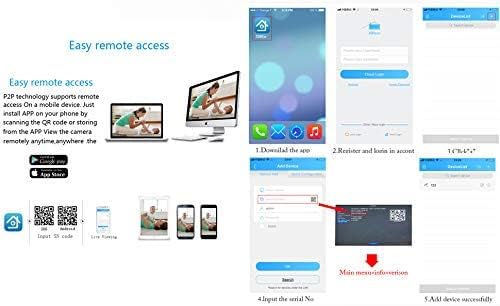
Image: Visual guide for downloading the XMeye app and the steps involved in registering an account and adding a device using a QR code.
6.2 Isọpọ ẹrọ
- Ensure your DVR is connected to the internet.
- Open the XMeye app and register a new account or log in.
- Select 'Add Device' and choose the option to scan a QR code.
- Locate the unique QR code on your DVR (usually found in the network settings or device info menu) and scan it with the app.
- Follow the prompts to add the device. Once successfully added, you can view live feeds and playback recordings from your mobile device.
7. Wiwa Iṣipopada ati Awọn itaniji
7.1 Tito leto išipopada erin
To set up motion detection:
- Navigate to the 'Alarm' or 'Motion Detection' settings in the main menu.
- Select the camera channel you wish to configure.
- Define the motion detection area by drawing a grid on the camera's view. You can customize sensitivity levels.
- Enable motion detection recording for the selected channel.

Image: Illustration showing how motion detection triggers recording, with a timestamp indicating the start of recording upon detecting movement.
7.2 Ṣíṣeto Àwọn Ìkìlọ̀
Once motion detection is configured, you can set up alerts:
- Awọn Itaniji Imeeli: Enter your email address and SMTP server details in the network settings to receive email notifications with snapshots when motion is detected.
- Awọn iwifunni Titari App: Ensure push notifications are enabled for the XMeye app on your mobile device to receive instant alerts.
8. Itọju
- Ninu igbagbogbo: Keep the DVR free from dust. Use a soft, dry cloth to clean the exterior. Do not use liquid cleaners.
- Awọn imudojuiwọn famuwia: Lorekore ṣayẹwo olupese ká website for firmware updates to ensure optimal performance and security. Follow update instructions carefully.
- Ilera Wakọ lile: Monitor the health of your hard drive through the DVR's system information. Replace the HDD if signs of failure appear.
- Aabo ọrọ igbaniwọle: Regularly change your DVR's password and use strong, unique combinations to prevent unauthorized access.
9. Laasigbotitusita
| Oro | Owun to le Fa | Ojutu |
|---|---|---|
| Ko si ifihan lori atẹle | Ìsopọ̀ okùn tí kò ní ìfọ́, àwọn ètò ìjáde fídíò tí kò tọ́, ìṣòro àbójútó. | Check HDMI/VGA cable connections. Ensure monitor is powered on and set to correct input. Try a different monitor or cable. |
| Ko si igbasilẹ | No HDD installed, HDD not formatted, recording schedule not set, motion detection not configured. | Install and format an HDD. Check recording schedules and motion detection settings. |
| Kò le wọlé láti ọ̀nà jíjìn | DVR ko sopọ si netiwọki, awọn eto nẹtiwọọki ti ko tọ, app ko tunto ni deede. | Ensure Ethernet cable is connected. Verify network settings (DHCP/Static IP). Re-add device in XMeye app. Check router firewall settings. |
| Gbagbe ọrọ aṣina bi | Ọrọigbaniwọle ti sọnu. | Contact XENOCAM support for password reset procedures. Do not attempt unauthorized resets. |
| IP Camera not detected | IP camera not ONVIF compatible, incorrect network settings, camera not powered. | Ensure IP camera is ONVIF compliant. Verify camera and DVR are on the same network segment. Check camera power. |
10. Awọn pato
| Ẹya ara ẹrọ | Ẹ̀kúnrẹ́rẹ́ |
|---|---|
| Nọmba awoṣe | A6504LME-5 |
| Iṣawọle fidio | 4-channel BNC input |
| Ijade fidio | HDMI, VGA (up to 1080p) |
| Ohun Input/O wu | 1-channel RCA input / 1-channel RCA output |
| Fidio funmorawon | H.265 |
| Ṣaajuview Ipinnu | 4x5M-N@12fps (6-in-1); 4x4M-N@15fps (6-in-1); 8x1080p (6-in-1) |
| Ipinnu Gbigbasilẹ | 4x5M-N@8fps (6-in-1); 4x4M-N@8fps (6-in-1); 8x1080p@15fps (6-in-1) |
| Ipinnu Sisisẹsẹhin | 2x5M-N@8fps (6-in-1); 4x4M-N@8fps (6-in-1); 4x1080p@15fps (6-in-1) |
| HDD Interface | 1 SATA port (supports up to 6TB HDD) |
| Ọlọpọọmídíà Nẹtiwọọki | 1 x RJ-45 10M/100Mbps Ethernet port |
| USB Interface | 2 x USB 2.0 awọn ibudo |
| DVR Input Modes | DVR Mode: 4x5M-N; 4x1080p Hybrid Mode: 2ch 1080p AHD + 2ch 1080p IP NVR Mode: 8x1080p; 4x5M |
| Awọn ẹrọ ibaramu | Smartphone, Tablet (for remote viewing) |
| PC Software | CMS, VMS |
| IP Camera Compatibility | ONVIF only |

Image: Diagram illustrating the efficiency of H.265 compression compared to normal compression, showing clearer image quality with less bandwidth usage.
11. atilẹyin ọja Information
Warranty terms and conditions for the XENOCAM A6504LME-5 DVR are subject to the policies of the retailer and manufacturer at the time of purchase. Please refer to your purchase documentation or contact your seller for specific warranty details. Keep your proof of purchase for any warranty claims.
12. Atilẹyin
For technical assistance, troubleshooting beyond this manual, or inquiries regarding your XENOCAM A6504LME-5 DVR, please contact the seller or manufacturer directly. Refer to the contact information provided with your product packaging or on the official XENOCAM webojula.