
Ọrọ Iṣaaju
The Philips Hue Smart 85W BR30 LED Bulb offers a personalized lighting experience with its white and color ambiance capabilities. This smart bulb allows you to transform your living space with a wide spectrum of colors and shades of white, creating various moods and atmospheres. This manual provides essential information for setting up, operating, and maintaining your Philips Hue BR30 LED bulbs.
Ohun ti o wa ninu Apoti
Each package includes:
- Four (4) Philips Hue White and Color Ambiance smart 85W-equivalent BR30 color-changing light bulbs.
Awọn ilana iṣeto
Follow these steps to set up your Philips Hue Smart BR30 LED Bulbs:
- Step 1: Install Your Lighting
Screw the Philips Hue BR30 LED bulbs into your existing E26 light fixtures. Ensure the power is off before installation.

Image: Philips Hue BR30 LED Bulb showing its physical dimensions.

Image: Visual guide for starting with Philips Hue, either with a starter kit or individual lights and a Bridge.
- Step 2: Connect the Philips Hue Bridge (Optional for full features)
For advanced features like automations, control from anywhere, and a stable connection, connect a Philips Hue Bridge to your Wi-Fi router. The Bridge creates a dedicated network for your smart lights, preventing disruption to your home Wi-Fi.

Image: Diagram illustrating how to connect the Philips Hue Bridge to your home network for comprehensive control.
Fidio: Ipariview of the Philips Hue smart lighting system, demonstrating its versatility and ease of use for various daily activities and moods.
- Step 3: Download the Philips Hue App
Download the Philips Hue app from the App Store or Google Play. Follow the in-app instructions to connect your bulbs and Bridge (if applicable).

Image: Guide to downloading the Philips Hue app from major app stores.
Awọn ilana Iṣiṣẹ
Controlling with the Hue App
The Philips Hue app provides comprehensive control over your smart bulbs:
- Awọ ati Atunṣe Imọlẹ: Easily dim, brighten, and change the color of your lights using the intuitive app interface. Choose from millions of colors and a wide range of warm-to-cool white shades.
- Àwọn Ìṣẹ̀lẹ̀ Tí A Ti Ṣètò: Select from pre-defined scenes to instantly set the mood for any occasion, or create your own custom scenes.
- Routines and Automations: Schedule your lights to turn on/off, change color, or adjust brightness at specific times or based on events (e.g., sunrise/sunset).

Image: Demonstrates easy smart lighting control via the Philips Hue app, allowing users to set the mood with 16 million colors.

Image: Shows the Philips Hue app's color selection interface, highlighting the ability to choose from 16 million colors and shades of white.

Image: Visual representation of selecting different lighting scenes within the Philips Hue app.
Iṣakoso ohun
Integrate your Philips Hue bulbs with voice assistants like Amazon Alexa, Google Assistant, and Apple HomeKit for convenient hands-free control. Use simple voice commands to turn lights on/off, change colors, or activate scenes.

Image: Demonstrates easy voice control of Philips Hue lights using Amazon Alexa or Google Assistant.
Video: This video highlights the comprehensive capabilities of the Philips Hue smart lighting system, showcasing its use for entertainment, wellbeing, ambiance, and security, all managed through the Hue Bridge.
Adaṣe Adaṣe
The adaptive lighting feature automatically adjusts the color temperature of your lights throughout the day to mimic natural daylight. This can help support your natural circadian rhythm, promoting focus during the day and relaxation in the evening.
Entertainment Sync
Enhance your entertainment experience by syncing your Philips Hue lights with movies, music, and games. The lights will dynamically change color and brightness to match the on-screen action or audio, creating an immersive environment.

Image: Illustrates how Philips Hue smart lights can sync with movies, games, and music to create immersive lighting experiences.
Advanced Features with Philips Hue Bridge
While basic control is available via Bluetooth, adding a Philips Hue Bridge unlocks the full potential of your smart lighting system:
- Full Home and Outdoor Control: Manage all your Philips Hue lights, both indoors and outdoors, from a single system.
- Ibi ti o gbooro sii: The Bridge extends the control range, allowing you to manage lights throughout your entire home.
- Smart Switches and Motion Sensors: Integrate additional smart accessories like switches and motion sensors for enhanced convenience and automation.
- Iṣakoso kuro-Lati-Ile: Control your lights remotely from anywhere in the world using the Hue app.
- Home Security Integration: Connect Philips Hue secure cameras to your system for integrated smart home security and lighting. Use lights to deter intruders with light and sound alarms.
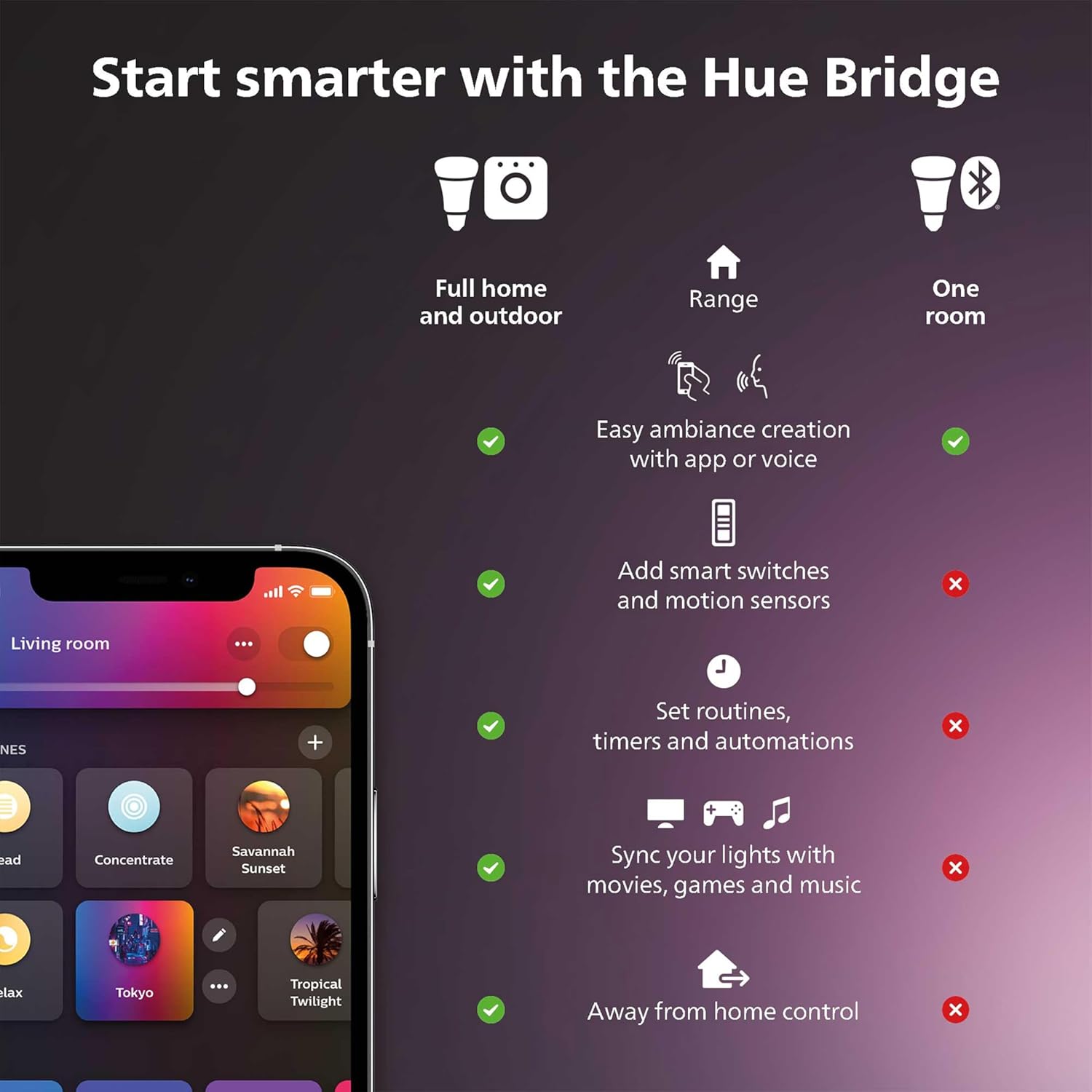
Image: Feature comparison between using Philips Hue lights with and without the Hue Bridge.

Image: Illustrates how Philips Hue lighting can be integrated with home security systems to deter intruders.
Awọn pato
| Ẹya ara ẹrọ | Sipesifikesonu |
|---|---|
| Brand | Philips Hue |
| Imọlẹ Iru | LED |
| Pataki Ẹya | Smart Home Connectivity, Color Changing, Dimmable, Wide Range of Shades |
| Wattage | 85 watts (deede) |
| Boolubu Apẹrẹ Iwon | BR30 |
| Bulb Base | E26 |
| Imọlẹ | Lumen 1200 (o pọju) |
| Awọ Imọlẹ | Multicolor (White and Color Ambiance) |
| Voltage | 100 to 120 Volts, 60 Hertz |
| inu ile / ita gbangba Lilo | Ninu ile |
| Ọna Iṣakoso | Ohun, App |
| Agbara agbara | 11.5 Wattis |
| Iwọn Nkan | 7.2 iwon |
| Ọja Mefa | 3.7"W x 5.2"H |
| Orukọ awoṣe | Philips Hue CFH BLE |
| UPC | 190096161225 |
Laasigbotitusita
If you encounter issues with your Philips Hue Smart BR30 LED Bulbs, consider the following:
- Gílóòbù tí kò dáhùn: Ensure the bulb is securely screwed into the fixture and the power switch is on. Check if the bulb is within range of your Philips Hue Bridge or Bluetooth device.
- Awọn oran Asopọmọra: If using a Hue Bridge, ensure it is properly connected to your router and powered on. Restarting your router and Bridge can often resolve connectivity problems.
- App Not Detecting Bulbs: Try resetting the bulbs (power cycle them off and on five times) and then search for them again in the Philips Hue app.
- Awọn iṣoro Iṣakoso ohun: Verify that your voice assistant (Alexa, Google Assistant, HomeKit) is properly linked to your Philips Hue account and that your commands are clear.
For more detailed troubleshooting, refer to the Philips Hue support webojú òpó wẹ́ẹ̀bù tàbí apá ìrànlọ́wọ́ inú-app.
Atilẹyin ọja ati Support
The Philips Hue Smart 85W BR30 LED Bulb comes with a 3-odun atilẹyin ọja.
For technical support, warranty claims, or additional product information, please visit the official Philips Hue webojula tabi kan si wọn onibara iṣẹ.