
1. Ifihan
The Black Box Boxilla KVM Manager, model BXAMGR-R2-ULT, is a robust and TAA-compliant KVM management solution designed to streamline network operations. This device allows for efficient management and control of an unlimited number of devices within your KVM infrastructure, eliminating the need for multiple licenses. It ensures compliance with government and public sector standards, providing a secure and reliable platform for KVM management.
This manual provides comprehensive instructions for the setup, operation, maintenance, and troubleshooting of your Boxilla KVM Manager.
2. Alaye Aabo
Please read and understand all safety instructions before operating this device. Failure to follow these instructions may result in electric shock, fire, or damage to the product.
- Ensure the device is connected to a grounded power outlet.
- Ma ṣe fi ẹrọ naa han si omi tabi ọrinrin pupọ.
- Ma ṣe ṣi ẹrọ naa casing. Tọkasi gbogbo iṣẹ si oṣiṣẹ oṣiṣẹ.
- Ṣiṣẹ ẹrọ naa laarin iwọn otutu ti a sọ ati awọn sakani ọriniinitutu.
- Ge agbara kuro ṣaaju ki o to nu tabi gbe ẹrọ naa.
3. Package Awọn akoonu
Jẹrisi pe gbogbo awọn ohun kan wa ninu package:
- Black Box Boxilla KVM Manager (BXAMGR-R2-ULT)
- Adapter agbara
- Quick Bẹrẹ Itọsọna
- Ohun elo iṣagbesori (ti o ba wulo)
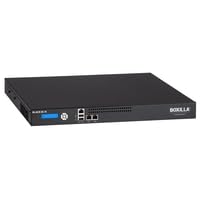
Image of the Black Box Boxilla KVM Manager, model BXAMGR-R2-ULT, showing its front panel and compact design.
4. Eto
Follow these steps for initial setup of your Boxilla KVM Manager:
- Yọ Ẹrọ naa kuro: Carefully remove the KVM manager and all accessories from its packaging.
- Ibi: Place the device on a stable, flat surface or mount it in a rack using the provided hardware. Ensure adequate ventilation around the unit.
- So Awọn okun Nẹtiwọọki pọ: Connect the KVM manager to your network infrastructure using standard Ethernet cables. Refer to your network topology for specific port connections.
- So agbara: Plug the power adapter into the KVM manager's power input, then connect it to a grounded electrical outlet. The device will power on automatically.
- Iṣeto akọkọ: Wọle si ẹrọ naa web ni wiwo nipasẹ a web browser using its default IP address (refer to the Quick Start Guide for default IP and login credentials). Follow the on-screen prompts to configure network settings, user accounts, and initial KVM device discovery.
5. Awọn ilana Iṣiṣẹ
Once the Boxilla KVM Manager is set up, you can begin managing your KVM devices. The primary interface for operation is the web-based management console.
- Wọle: Ṣii a web browser and navigate to the IP address or hostname of your Boxilla KVM Manager. Enter your username and password.
- Awari Ẹrọ: Use the discovery tools within the interface to find and add KVM transmitters and receivers to your management system.
- Isakoso olumulo: Create and manage user accounts, assigning appropriate access levels and permissions for KVM control.
- Session Management: Initiate, monitor, and terminate KVM sessions to connected devices.
- Abojuto eto: Review system logs, device status, and network performance metrics through the dashboard.
- Awọn imudojuiwọn famuwia: Regularly check for and apply firmware updates to ensure optimal performance and security.
6. Itọju
Regular maintenance ensures the longevity and optimal performance of your Boxilla KVM Manager.
- Ninu: Lo asọ ti o tutu, ti o gbẹ lati nu ita ti ẹrọ naa. Maṣe lo awọn olutọpa olomi tabi awọn aerosols.
- Afẹfẹ: Ensure that ventilation openings are clear of dust and obstructions to prevent overheating.
- Firmware: Keep the device firmware updated to the latest version. Refer to the Black Box support website for updates and instructions.
- Iṣeto Afẹyinti: Periodically back up your device configuration settings to prevent data loss in case of an unforeseen issue.
7. Laasigbotitusita
This section addresses common issues you might encounter with the Boxilla KVM Manager.
| Isoro | Owun to le Fa | Ojutu |
|---|---|---|
| Ẹrọ naa ko ṣiṣẹ. | No power supply, faulty power adapter, or power outlet issue. | Check power cable connection. Verify power outlet functionality. Try a different power adapter if available. |
| Ko le wọle si web ni wiwo. | Àdírẹ́sì IP tí kò tọ́, ìṣòro ìsopọ̀ mọ́tò nẹ́tíwọ́ọ̀kì, tàbí ìdènà wíwọlé sí ogiriina. | Verify the device's IP address. Check network cable connections. Ensure your computer is on the same network segment. Temporarily disable firewall for testing. |
| KVM devices not discovered. | Network configuration issues, KVM devices not powered on, or incorrect discovery settings. | Ensure KVM transmitters/receivers are powered and connected. Verify network settings on Boxilla and KVM devices. Check discovery range settings in the web ni wiwo. |
| O lọra išẹ. | Network congestion, outdated firmware, or high CPU/memory usage. | Check network bandwidth. Update firmware to the latest version. Monitor system resources via the web ni wiwo. |
8. Awọn pato
Detailed specifications for the Black Box Boxilla KVM Manager BXAMGR-R2-ULT:
- Nọmba awoṣe: BXAMGR-R2-ULT
- ASIN: B0BCX8GNRR
- Awọn iwọn ọja: 11 x 10 x 6 inches
- Olupese: Black Box Network
- Akọkọ Wa: Oṣu Karun ọjọ 30, Ọdun 2023
- Iwe-aṣẹ: Unlimited Device License
- Ibamu: TAA ni ibamu
9. Atilẹyin ọja ati Support
For warranty information and technical support, please refer to the official Black Box Network webojula tabi kan si wọn onibara iṣẹ Eka. Tọju iwe-ẹri rira rẹ fun awọn ẹtọ atilẹyin ọja.
Black Box Network Official Webojula: www.blackbox.com