
1. Ifihan
Thank you for choosing the YENKEE YMS 3030BK RGB Gaming Mouse Ultra Light Shotgun. This manual provides detailed instructions for setting up, operating, and maintaining your new gaming mouse. Please read this manual carefully before use to ensure optimal performance and longevity of your device.
The YENKEE YMS 3030BK RGB Gaming Mouse features an ergonomic design for comfortable use. Its unique ultra-light perforated construction promotes airflow, helping to keep your palm cool during extended use. Equipped with an accurate IC 6651 sensor, it offers precise tracking with a resolution of up to 6400 DPI, and includes customizable RGB backlighting.
2. Package Awọn akoonu
Jọwọ ṣayẹwo package fun awọn nkan wọnyi:
- 1 x YENKEE YMS 3030BK RGB Gaming Mouse Ultra Light Shotgun
- Afowoyi Olumulo (iwe-ipamọ yii)
3. Ọja Ipariview
3.1 Key Awọn ẹya ara ẹrọ
- Unique ultra-light perforated construction for improved airflow
- Ergonomic design for comfortable grip and to prevent palm sweat
- Customizable RGB backlight
- Accurate IC 6651 sensor with up to 6400 DPI resolution
- Wired USB connectivity
3.2 Àwọn Ẹ̀yà Asin
The YMS 3030BK mouse typically includes the following components:
- Osi Tẹ Bọtini
- Ọtun Tẹ Bọtini
- Yi lọ Wheel / Arin Tẹ Bọtini
- Bọ́tìnì Àtúnṣe DPI (tí ó sábà máa ń wà lẹ́yìn kẹ̀kẹ́ yípo)
- Forward/Backward Side Buttons (typically on the left side)
- Optical Sensor (on the underside)
- Okun USB
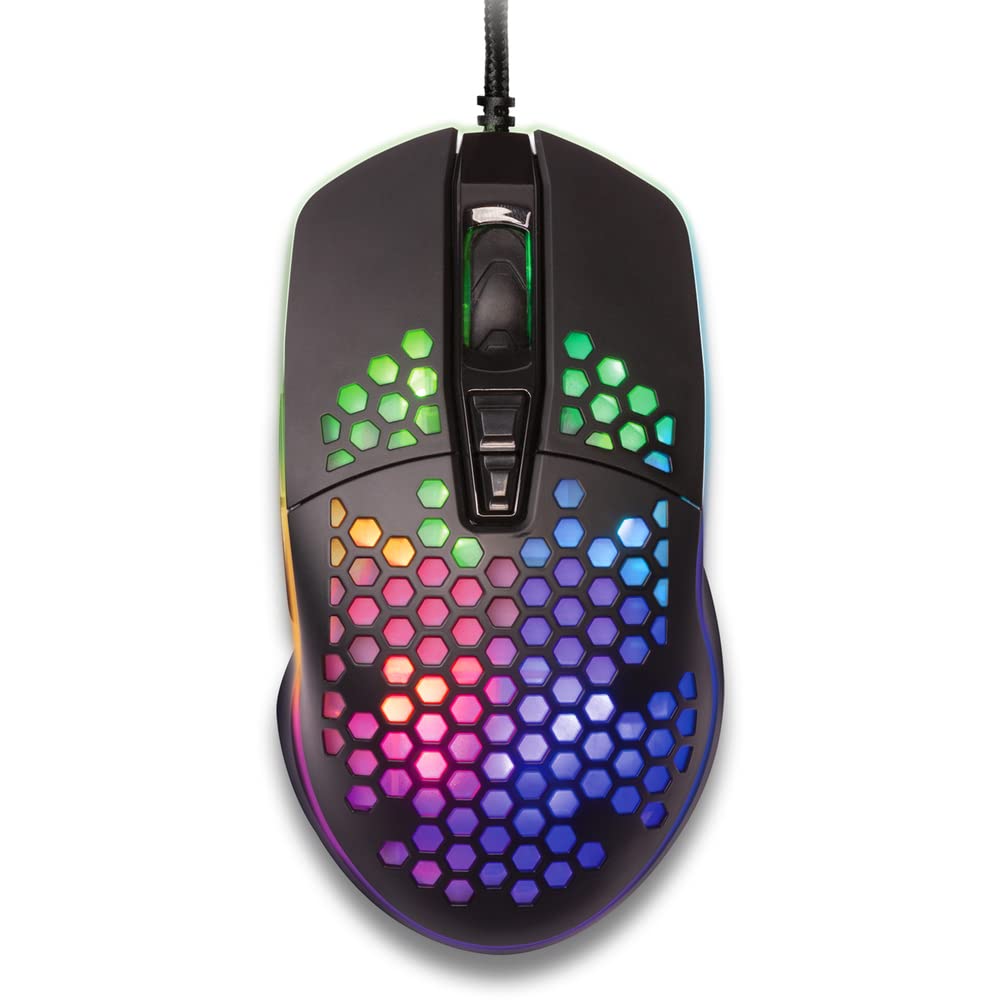
olusin 1: Top-isalẹ view of the YENKEE YMS 3030BK RGB Gaming Mouse, highlighting its ultra-light perforated design and ergonomic contours.
4. Eto
Follow these steps to set up your YENKEE YMS 3030BK gaming mouse:
- So Asin naa pọ: Pulọọgi asopo USB ti Asin sinu ibudo USB ti o wa lori kọnputa rẹ.
- Fifi sori Awakọ: Your operating system (Windows 7, 8, Vista, XP) should automatically detect and install the necessary drivers. No additional software installation is typically required for basic functionality.
- Software iyan: For advanced customization of RGB lighting and button assignments, please visit the official YENKEE website to check for any dedicated software for the YMS 3030BK model.
5. Awọn ilana Iṣiṣẹ
5.1 Ipilẹ isẹ
- Tẹ osi: Iṣe akọkọ, aṣayan.
- Tẹ-ọtun: Akojọ ọrọ, iṣẹ keji.
- Yi lọ Kẹkẹ: Scroll up/down, middle click for specific functions (e.g., opening links in new tabs).
- Awọn bọtini ẹgbẹ: Default functions are typically 'Forward' and 'Backward' in web aṣàwákiri tabi file Àwọn olùṣàwárí. A lè ṣe àtúnṣe àwọn wọ̀nyí nípasẹ̀ sọ́fítíwọ́ọ̀kì.
5.2 DPI Atunṣe
The YMS 3030BK mouse features an IC 6651 sensor with a maximum resolution of 6400 DPI. You can adjust the DPI (Dots Per Inch) sensitivity on-the-fly using the dedicated DPI button, usually located behind the scroll wheel. Pressing this button will cycle through preset DPI levels, indicated by changes in the mouse's RGB lighting color or pattern. Refer to the optional software for precise DPI level configuration and customization.
5.3 RGB Lighting isọdi
The RGB backlight of your mouse can be customized to match your preferences. While some mice offer onboard controls for basic lighting effects, full customization of colors, patterns, and brightness is typically achieved through the dedicated YENKEE software (if available). Please download and install the software from the official YENKEE website for advanced lighting options.
6. Itọju
To ensure the longevity and optimal performance of your gaming mouse, follow these maintenance guidelines:
- Ninu: Use a soft, dry cloth to wipe the surface of the mouse. For perforated areas, a soft brush or compressed air can help remove dust. Avoid using harsh chemicals or abrasive materials.
- Sensọ Cleaning: Occasionally clean the optical sensor on the underside of the mouse with a cotton swab lightly dampened with isopropyl alcohol. Ensure it is completely dry before use.
- Itọju USB: Yago fun awọn atunse didasilẹ tabi fifaju iwọn lori okun USB lati yago fun ibajẹ.
- Ibi ipamọ: Tọju Asin ni agbegbe ti o mọ, ti o gbẹ nigbati ko si ni lilo.
7. Laasigbotitusita
If you encounter issues with your YENKEE YMS 3030BK mouse, refer to the table below for common problems and solutions:
| Isoro | Owun to le Fa | Ojutu |
|---|---|---|
| Asin ko dahun | Asopọ USB alaimuṣinṣin, ibudo USB ti ko tọ, ọran awakọ. | Rí i dájú pé okùn USB ti so mọ́ ara rẹ̀ dáadáa. Gbìyànjú ibudo USB mìíràn. Tun kọmputa rẹ bẹ̀rẹ̀. Ṣàyẹ̀wò Olùṣàkóso Ẹ̀rọ fún ipò awakọ̀. |
| Gbigbe kọsọ jẹ aiṣiṣẹ tabi fo | Idọti opitika sensọ, unsuitable Asin pad dada. | Clean the optical sensor. Use a clean, uniform mouse pad. |
| Atunṣe DPI ko ṣiṣẹ | Ìjàkadì sọ́fítíwètì, àìṣiṣẹ́ bọ́tìnì. | Ensure no conflicting software is running. If using custom software, check its settings. |
| Ina RGB ko ṣiṣẹ tabi di | Software issue, power issue. | Check the YENKEE software settings. Unplug and replug the mouse. Restart your computer. |
8. Awọn pato
| Ẹya ara ẹrọ | Ẹ̀kúnrẹ́rẹ́ |
|---|---|
| Brand | YENKEE |
| Nọmba awoṣe | YMS 3030BK |
| Asopọmọra Technology | USB (Electric ti o ni okun) |
| Imọ-ẹrọ Iwari išipopada | Optical (IC 6651 Sensor) |
| Iye ti o ga julọ ti DPI | 6400 DPI |
| Pataki Awọn ẹya ara ẹrọ | Ergonomic Design, Lightweight, Perforated Construction, RGB Backlight |
| Àwọ̀ | Dudu |
| Iwọn Nkan | 4.2 iwon (nipa 119 giramu) |
| Awọn iwọn Ọja (LxWxH) | 5.43 x 2.44 x 9.06 inches (iwọn 13.8 x 6.2 x 23 cm) |
| Hardware Platform | Ere |
| Ibamu System isẹ | Windows 7, Windows 8, Windows Vista, Windows XP |
9. Atilẹyin ọja ati Support
Alaye Atilẹyin ọja: For detailed warranty terms and conditions, please refer to the warranty card included with your product or visit the official YENKEE website. Warranty periods may vary by region and retailer.
Atilẹyin Onibara: If you require technical assistance or have questions regarding your YENKEE YMS 3030BK gaming mouse, please contact your retailer or visit the support section of the official YENKEE webAaye fun alaye olubasọrọ ati FAQs.