
1. Ifihan
The Google Pixel Watch 1st Gen is an advanced Android smartwatch designed to seamlessly integrate with your daily life, offering comprehensive health and fitness tracking powered by Fitbit, alongside the convenience of Google's ecosystem. Its elegant circular, domed design and Wear OS by Google provide an intuitive and responsive user experience. This manual provides essential information for setting up, operating, maintaining, and troubleshooting your device.

Image: Google Pixel Watch 1st Gen, showcasing its circular, domed design with a polished silver case and a light-colored active band.
2. Ohun ti o wa ninu Apoti
Upon unboxing your Google Pixel Watch, ensure all the following components are present:
- Google Pixel Watch (with large active band attached)
- Additional Active Band (small)
- USB-C oofa Ngba agbara Cable
- Quick Bẹrẹ Itọsọna
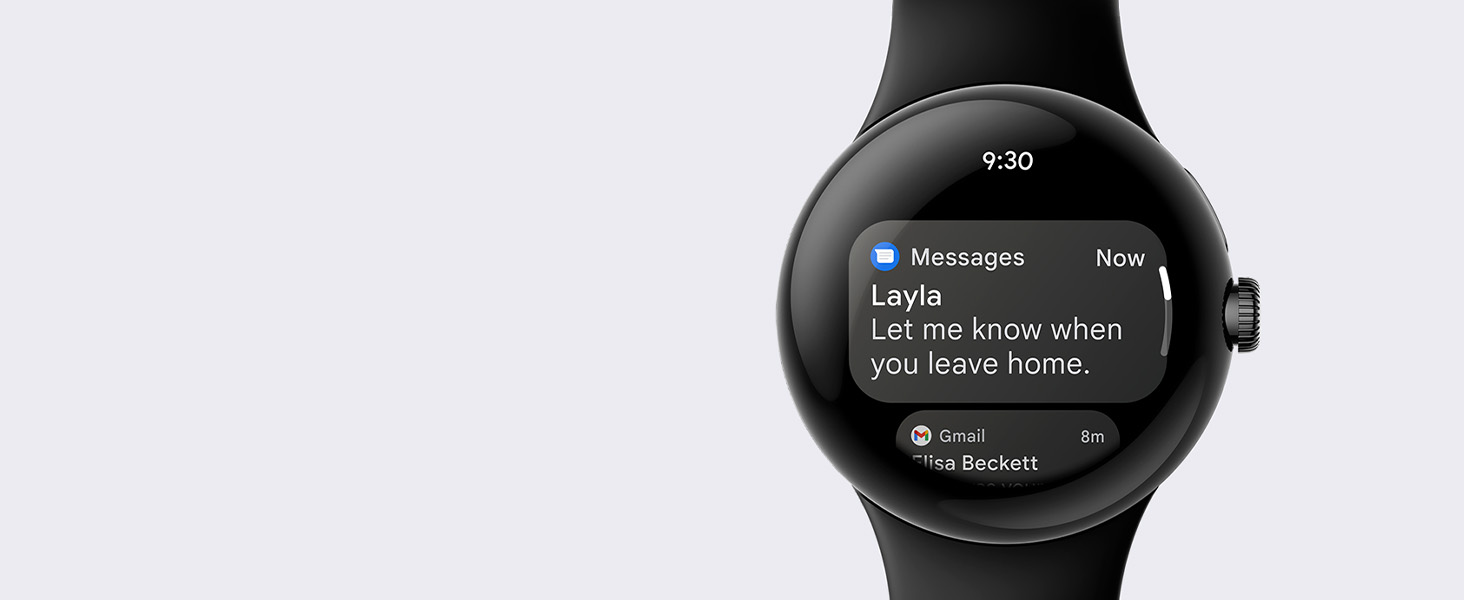
Image: The contents of the Google Pixel Watch box, including the watch with a large band, an additional small band, and the USB-C magnetic charging cable.
3. Eto
3.1 Initial Pairing with Android Phone
- Ensure your Android phone is running Android 8.0 or newer and has Bluetooth enabled.
- Power on your Google Pixel Watch by pressing and holding the crown button.
- On your Android phone, open the Google Pixel Watch app. If you don't have it, download it from the Google Play Store.
- Follow the on-screen instructions in the app to pair your watch. This typically involves confirming a code displayed on both devices.
- Complete the setup process, including signing into your Google Account and setting up a Fitbit account.

Image: A user pairing their Google Pixel Watch with an Android smartphone, showing the watch and phone displaying connection prompts.
3.2 Fitbit Account Setup
During the initial pairing, you will be prompted to set up or link a Fitbit account. This is essential for activity, sleep, and heart rate tracking features. Some features may require a Fitbit account and mobile app.
3.3 Google Account Integration
Your Google Account will be integrated to enable features like Google Assistant, Google Maps, Google Wallet, Google Calendar, and Gmail directly from your watch.
3.4 LTE Activation (Optional)
If you have the LTE model, you can activate 4G LTE service through your compatible wireless carrier. This allows your watch to stay connected even when your phone is not nearby. Data rates may apply, and a compatible 4G LTE wireless service plan is required.
4. Awọn ẹya ara ẹrọ Loriview
The Google Pixel Watch 1st Gen offers a robust set of features:
- Apẹrẹ: Beautiful circular, domed design with Corning Gorilla Glass 5 and a polished stainless steel case.
- Wọ OS nipasẹ Google: A new experience with Google's smartwatch operating system, providing intuitive navigation and access to Google apps.
- Fitbit Activity Tracking: Comprehensive tracking of activity, calories burned, steps, heart rate, and sleep. Includes 6 months of Fitbit Premium.
- Ilera Ọkàn: Track your heart rate and assess your heart rhythm for AFib with the ECG app (available in select countries, not for users under 22).
- Awọn iṣẹ Google: Access Google Wallet for contactless payments, turn-by-turn directions with Google Maps, event notifications from Google Calendar, and manage Gmail.
- Ibaraẹnisọrọ: Respond to messages, manage your inbox, and make calls directly from your wrist.
- Pajawiri SOS: Provides personal safety features (requires location enabled and 4G LTE service or internet connection).
- Omi Resistance: Designed to comply with a water protection rating of 5 ATM under ISO standard 22810:2010. Suitable for shallow water use.
5. Awọn ilana Iṣiṣẹ
5.1 Ifihan ati Lilọ kiri
The Google Pixel Watch features a vibrant AMOLED display and a digital crown for navigation.
- Afi ika te: Swipe left, right, up, or down to navigate through tiles, notifications, and quick settings.
- Crown oni-nọmba: Rotate to scroll through lists and content. Press once to open the app drawer or return to the watch face.
- Bọtini ẹgbẹ: Located above the crown, this button provides quick access to recently used apps or can be customized for other functions.

Image: The Google Pixel Watch display showing a watch face with heart rate information and time.
5.2 Fitness Tracking with Fitbit
Leverage Fitbit's powerful tracking capabilities directly from your watch:
- Àtòjọ iṣẹ́: The watch automatically tracks your steps, distance, calories burned, and active zone minutes throughout the day.
- Abojuto Oṣuwọn Ọkàn: Continuous heart rate tracking provides insights into your cardiovascular health.
- Titele orun: Bojuto orun rẹ stages (light, deep, REM) and receive a daily sleep score.
- Ohun elo ECG: Use the ECG app to assess your heart rhythm for signs of Atrial Fibrillation (AFib). Follow the app's instructions for accurate readings.
- Awọn ọna adaṣe: Choose from over 40 exercise modes to track specific workouts, including running, cycling, swimming, and more.
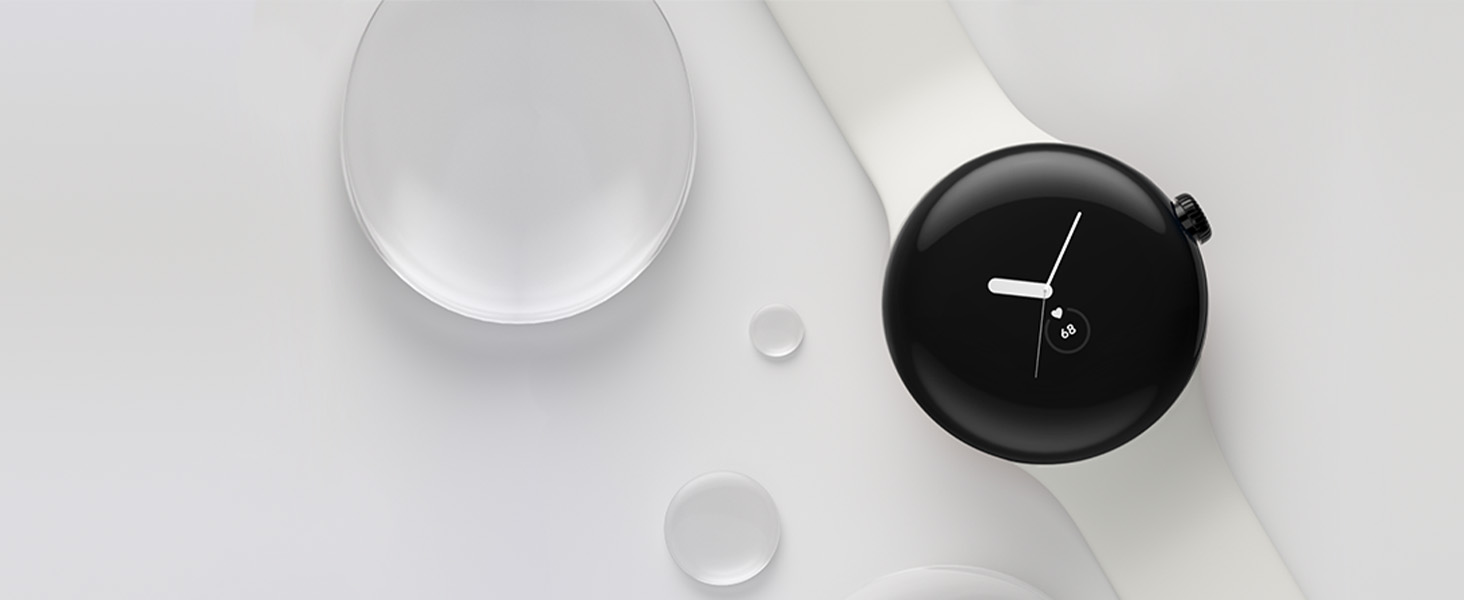
Image: A person using the Google Pixel Watch during a workout, demonstrating its fitness tracking capabilities.
5.3 Smartwatch Functions
Your Pixel Watch keeps you connected and productive:
- Awọn iwifunni: Receive and manage notifications from your phone directly on your wrist.
- Oluranlọwọ Google: Access Google Assistant for voice commands, questions, and smart home control.
- Google Maps: Get turn-by-turn navigation on your wrist.
- Àpò owó Google: Make contactless payments quickly and securely.
- Calls & Messages: Make and receive calls, and send/reply to messages.

Image: The Google Pixel Watch displaying incoming messages and other notifications.
5.4 Aye batiri ati gbigba agbara
The Google Pixel Watch is equipped with a 294 mAh rechargeable lithium-ion battery, offering up to 24 hours of typical use. Charging is done via the included USB-C magnetic charging cable.
- Gbigba agbara: Place the watch on the magnetic charging cable. It takes approximately 90 minutes for a full charge.
- Imudara Batiri: To maximize battery life, consider disabling the 'Always On Display' feature and managing notification frequency.
Video: A alaye review of the Google Pixel Watch, including discussions on its design, interface, battery life, and overall performance as an Android smartwatch.
6. Itọju
- Ninu: Regularly clean your watch and band with a soft, lint-free cloth. For stubborn dirt, use a slightly damp asọ. Yago fun awọn kẹmika lile.
- Omi Resistance: The watch has a 5 ATM water resistance rating, suitable for shallow water activities. It is not recommended for high-velocity water sports or hot water environments. Water resistance is not a permanent condition and may decrease over time.
- Itọju Ẹgbẹ: Ensure the active band is clean and dry to prevent skin irritation. Replace worn or damaged bands.
Fidio: A review and installation guide for a tempered glass screen protector for the Google Pixel Watch. Note: The video concludes that tempered glass protectors may not adhere well due to the watch's curved display.
7. Laasigbotitusita
- Wo Ko Dahun: Try restarting the watch by holding down the crown and side button simultaneously until the Google logo appears.
- Awọn oran Isopọpọ: Ensure Bluetooth is enabled on your phone and watch. Try unpairing and re-pairing the devices through the Google Pixel Watch app.
- Titọpa aipe: Ensure the watch is worn snugly on your wrist. Check for software updates for both the watch and the Fitbit app.
- Sisun Batiri Ni kiakia: Review your watch settings to disable features like 'Always On Display' or frequent heart rate monitoring if not needed. Reduce notification frequency.
- Ko si Awọn iwifunni: Check notification settings in the Google Pixel Watch app on your phone to ensure desired apps are enabled.
8. Awọn pato
| Ẹya ara ẹrọ | Ẹ̀kúnrẹ́rẹ́ |
|---|---|
| Ọja Mefa | 10.81 x 0.55 x 1.69 inches |
| Iwọn Nkan | 10.2 iwon |
| Nọmba Awoṣe Nkan | GWT9R; G943M;G77PA |
| Awọn batiri | Awọn batiri Lithium Ion 1 nilo (pẹlu) |
| Eto isesise | Android (Wear OS by Google) |
| Awọn Imọ-ẹrọ Ibaraẹnisọrọ Alailowaya | Cellular (LTE model), Bluetooth, Wi-Fi |
| GPS | GPS ti a ṣe sinu |
| Pataki Awọn ẹya ara ẹrọ | Activity Tracker, Always On Display, Notifications, Text Messaging, Heart Rate Tracking, Sleep Tracking, ECG |
| Human Interface Input | Afi ika te |
| Iwon iboju | 41 millimeters |
| Agbara Ibi ipamọ Iranti | 32 GB |
| Agbara Batiri | 294 mAh |
| Omi Resistance | 5 ATM |
9. Atilẹyin ọja ati Support
Your Google Pixel Watch 1st Gen is covered by a manufacturer's warranty. For specific warranty details, please refer to the documentation included with your product or visit the official Google support website. For technical assistance, troubleshooting, or service requests, please contact Google Support.
Awọn orisun Ayelujara:
- Google Pixel Watch Help Center: support.google.com/pixelwatch
- Fitbit Help: iranlọwọ.fitbit.com