
Sharp 32FG6EA
Sharp 32FG6EA 32-inch HD Android TV User Manual
Model: 32FG6EA
1. Ifihan
This manual provides essential information for the proper setup, operation, and maintenance of your Sharp 32FG6EA 32-inch HD Android TV. The Sharp 32FG6EA offers a wide range of connection options and features the Android TV operating system, providing a modern and intuitive television experience. It functions as an all-in-one entertainment hub, integrating Google Assistant for a smarter viewing experience. Users can quickly access entertainment, control smart devices, and obtain on-screen information using voice commands.
2. Alaye Aabo
Jọ̀wọ́ ka gbogbo ìlànà ààbò dáadáa kí o tó lo tẹlifíṣọ̀n. Pa ìwé ìtọ́ni yìí mọ́ fún ìtọ́kasí ọjọ́ iwájú.
- Ibi ti ina elekitiriki ti nwa: Rí i dájú pé TV náà so mọ́ orísun agbára pẹ̀lú vol tó tọ́tage. Má ṣe ju àwọn ibi ìpèsè agbára lọ.
- Afẹfẹ: Ma ṣe dina awọn ṣiṣi atẹgun. Gba aaye to peye ni ayika TV fun sisan afẹfẹ to dara lati ṣe idiwọ igbona.
- Omi ati Ọrinrin: Do not expose the TV to rain, moisture, or excessive humidity. Avoid placing objects filled with liquids on or near the TV.
- Ninu: Yọ TV kuro ṣaaju ṣiṣe mimọ. Lo asọ asọ ti o gbẹ. Maṣe lo awọn olutọpa olomi tabi awọn sprays aerosol.
- Ibi: Gbé TV sori oju ilẹ ti o duro ṣinṣin, ti o si dada. Ti o ba ni ogiri, rii daju pe a fi sori ẹrọ ti o wa ni aabo ati pe o le gba iwuwo TV naa.
- Ṣiṣẹ: Maṣe gbiyanju lati ṣe iṣẹ TV funrararẹ. Tọkasi gbogbo iṣẹ si awọn oṣiṣẹ iṣẹ ti o peye.
3. Package Awọn akoonu
Daju pe gbogbo awọn nkan wa ninu apoti:
- Sharp 32FG6EA 32-inch HD Android TV
- Iṣakoso latọna jijin (pẹlu awọn batiri AAA 2)
- Stand Type Base
- Ilana itọnisọna
- Okun agbara
4. Eto
4.1 Ṣiṣii silẹ
Fi ìṣọ́ra yọ TV àti gbogbo àwọn ohun èlò ìtọ́jú kúrò nínú àpótí náà. Pa àwọn ohun èlò ìtọ́jú náà mọ́ fún ìrìnàjò tàbí ìtọ́jú ọjọ́ iwájú.
4.2 So Iduro
If you are not wall-mounting the TV, attach the included stand base:
- Gbe iboju TV si isalẹ lori rirọ, dada alapin lati yago fun ibajẹ.
- Ṣe deede ipilẹ iduro pẹlu awọn ihò fifi sori isalẹ ti TV.
- Ṣe aabo iduro ni lilo awọn skru ti a pese. Rii daju pe iduro ti wa ni ṣinṣin.
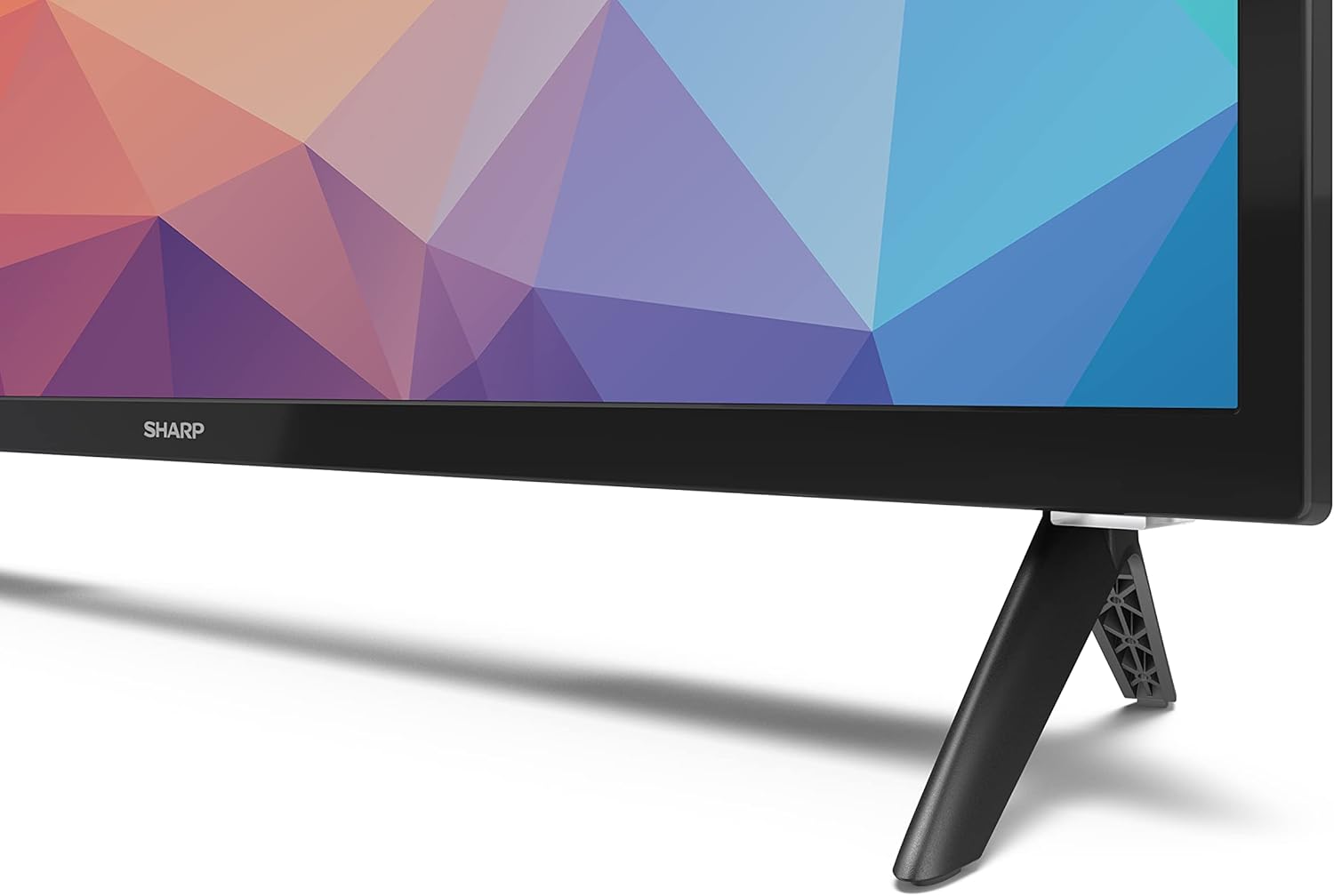
Image: Close-up of the TV stand attachment.
4.3 odi iṣagbesori
The Sharp 32FG6EA supports VESA wall mounts with dimensions of 75 x 75 mm. Wall mount hardware is not included. Follow the instructions provided with your wall mount kit.
4.4 Nsopọ Awọn ẹrọ ita
TV rẹ ṣe ẹya awọn ebute oko oju omi pupọ fun sisopọ awọn ẹrọ oriṣiriṣi:
- HDMI: Connect Blu-ray players, game consoles, or set-top boxes to the 2 HDMI ports.
- USB: Connect USB storage devices for media playback to the 2 USB ports.
- Antenna/Cable: So eriali tabi orisun TV okun pọ fun awọn ikanni igbohunsafefe.
- Àjọlò: Fun asopọ intanẹẹti ti a firanṣẹ.
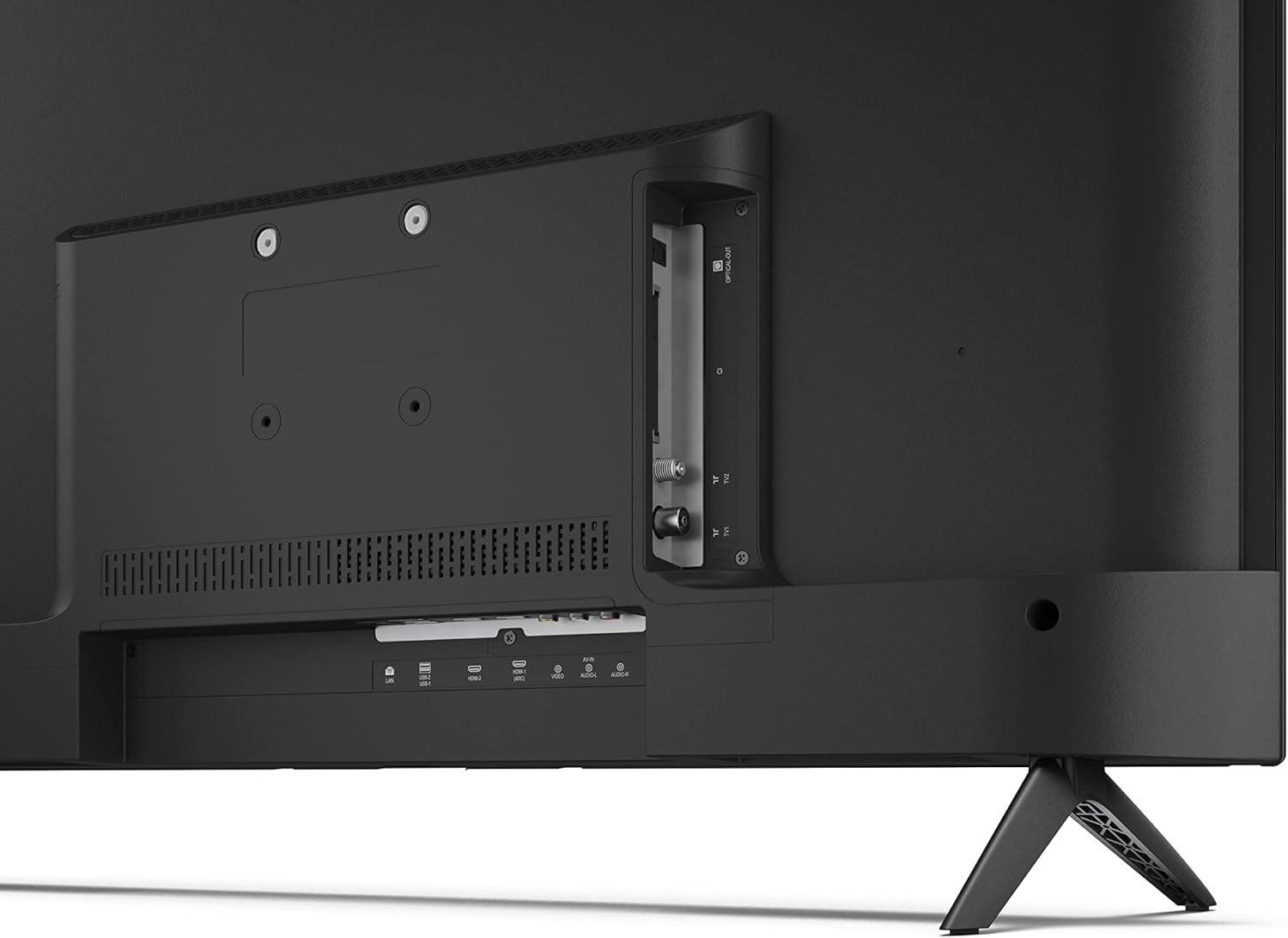
Aworan: Ẹyin view ti TV pẹlu awọn ibudo asopọ.
4.5 Asopọ agbara
After connecting all necessary devices, plug the power cable into the TV and then into a wall outlet.
4.6 Oṣo oluṣeto akọkọ
Nígbà tí o bá ti kọ́kọ́ tan-an, TV náà yóò tọ́ ọ sọ́nà láti ṣe àtúnṣe sí i ní ìbẹ̀rẹ̀. Èyí ní nínú:
- Aṣayan ede.
- Asopọ nẹtiwọki (Wi-Fi tabi Ethernet).
- Google account sign-in (required for full Android TV features).
- Ṣiṣayẹwo ikanni.
5. Ṣiṣẹ
5.1 Iṣakoso latọna jijin Loriview
Iṣakoso latọna jijin ti o wa ninu rẹ yoo fun ọ laaye lati lo awọn ẹya TV naa. Fi awọn batiri AAA meji sinu iṣakoso latọna jijin ṣaaju lilo.
- Bọtini agbara: Tan TV si tan tabi paa.
- Pádì ìtọ́sọ́nà (D-Pad) & Bọ́tìnì DÁRA: Lilọ kiri awọn akojọ aṣayan ki o jẹrisi awọn aṣayan.
- Bọtini Pada: Pada si iboju ti tẹlẹ.
- Bọtini Ile: Wọle si iboju ile Android TV.
- Iwọn didun Soke/Isalẹ: Ṣe atunṣe iwọn didun ohun.
- Ikanni Soke/Isalẹ: Ayipada TV awọn ikanni.
- Bọtini Iranlọwọ Google: Mu iṣakoso ohun ṣiṣẹ.
- Awọn bọtini Ọna abuja App: Dedicated buttons for popular streaming services like Netflix, Prime Video, and YouTube.
5.2 Android TV Interface Navigation
The Android TV home screen provides access to your installed apps, recommended content, and settings. Use the directional pad on your remote to navigate through the interface.
5.3 Iranlọwọ Google
Press the Google Assistant button on your remote and speak into the microphone to:
- Wa fun movies, shows, or information.
- Ṣakoso awọn ẹrọ ile ọlọgbọn.
- Ṣí àwọn ohun èlò ìṣiṣẹ́.
- Ṣàtúnṣe àwọn ètò TV.
5.4 Chromecast -Itumọ ti ni
The TV includes Chromecast built-in, allowing you to cast content from compatible apps on your smartphone, tablet, or computer directly to the TV screen.
5.5 Bluetooth Asopọmọra
Connect Bluetooth devices such as headphones or speakers to your TV for a personalized audio experience. Navigate to the TV's settings menu to pair new Bluetooth devices.
5.6 Eto ohun
The TV supports Dolby Audio with 2 x 6 W RMS speakers. You can adjust audio settings, including sound modes and equalizer, through the TV's settings menu.
6. Itọju
6.1 Ninu TV
Láti nu ibojú tẹlifíṣọ̀n àti kábìnẹ́ẹ̀tì:
- Yọọ okun agbara lati inu iṣan ogiri.
- Use a soft, lint-free cloth to gently wipe the screen and surfaces.
- Fun awọn ami alagidi, die-die dampfi omi tàbí ohun èlò ìfọmọ́ ìbòjú pàtàkì kan aṣọ náà (fi sí aṣọ náà, kìí ṣe sí aṣọ náà tààrà).
- Ma ṣe lo awọn afọmọ abrasive, waxes, tabi awọn nkanmimu.
6.2 Software imudojuiwọn
Android TV rẹ le gba awọn imudojuiwọn sọfitiwia lorekore lati mu iṣẹ ṣiṣe dara si ati lati ṣafikun awọn ẹya tuntun. Rii daju pe TV rẹ sopọ mọ intanẹẹti lati gba awọn imudojuiwọn wọnyi. O le ṣayẹwo fun awọn imudojuiwọn pẹlu ọwọ ninu akojọ eto TV naa.
7. Laasigbotitusita
Ti o ba pade awọn ọran pẹlu TV rẹ, tọka si awọn iṣoro ti o wọpọ ati awọn ojutu wọnyi:
- Ko si Agbara: Rii daju pe okun agbara ti wa ni edidi ni aabo sinu TV mejeeji ati iṣan ogiri ti n ṣiṣẹ. Gbiyanju iṣan ti o yatọ.
- Ko si Aworan/Ohun: Ṣàyẹ̀wò pé a yan orísun ìtẹ̀wọlé tó tọ́. Rí i dájú pé gbogbo àwọn okùn (HDMI, eriali) so pọ̀ dáadáa.
- Iṣakoso latọna jijin Ko Ṣiṣẹ: Check the batteries and ensure they are inserted correctly. Point the remote directly at the TV's IR sensor.
- Didara Aworan Ko dara: Check antenna/cable connections. Adjust picture settings in the TV menu. For streaming content, ensure a stable internet connection.
- Ko si Asopọ Ayelujara: Verify Wi-Fi password or Ethernet cable connection. Restart your router and the TV.
- Apps Not Working: Ensure the TV's software is up to date. Try clearing the app's cache or reinstalling the app.
If problems persist, consult the Sharp support webojula tabi olubasọrọ onibara iṣẹ.
8. Awọn pato
| Ẹya ara ẹrọ | Sipesifikesonu |
|---|---|
| Nọmba awoṣe | 32FG6EA |
| Brand | Dinku |
| Iwon iboju | 32 inches (aguntan 81 cm) |
| Ifihan ọna ẹrọ | LED |
| Ipinnu | 720p (1366 x 768 awọn piksẹli) |
| Apakan Ipin | 16:9 |
| Oṣuwọn sọtun | 50 Hz |
| Eto isesise | Android TV 11 |
| Pataki Awọn ẹya ara ẹrọ | Android TV, Google Assistant, Chromecast built-in |
| Ijade ohun | 2 x 6 W RMS, Dolby Audio |
| Awọn ibudo HDMI | 2 |
| Awọn ibudo USB | 2 |
| Asopọmọra | Wi-Fi, Bluetooth, àjọlò |
| VESA Odi Oke | 75 x 75 mm |
| Awọn iwọn pẹlu Iduro (W x H x D) | 731 x 486 x 177 mm |
| Awọn iwọn laisi Iduro (W x H x D) | 731 x 433 x 68 mm |
| Awọn iwọn Ọja (D x W x H) | 16 x 73 x 46.4 cm (approximate, with stand) |
| Iwọn | 3.9 kg |
| Agbara Agbara Kilasi | E |

Image: TV dimensions diagram.

Image: Energy Label. For more details, visit EPREL aaye data.
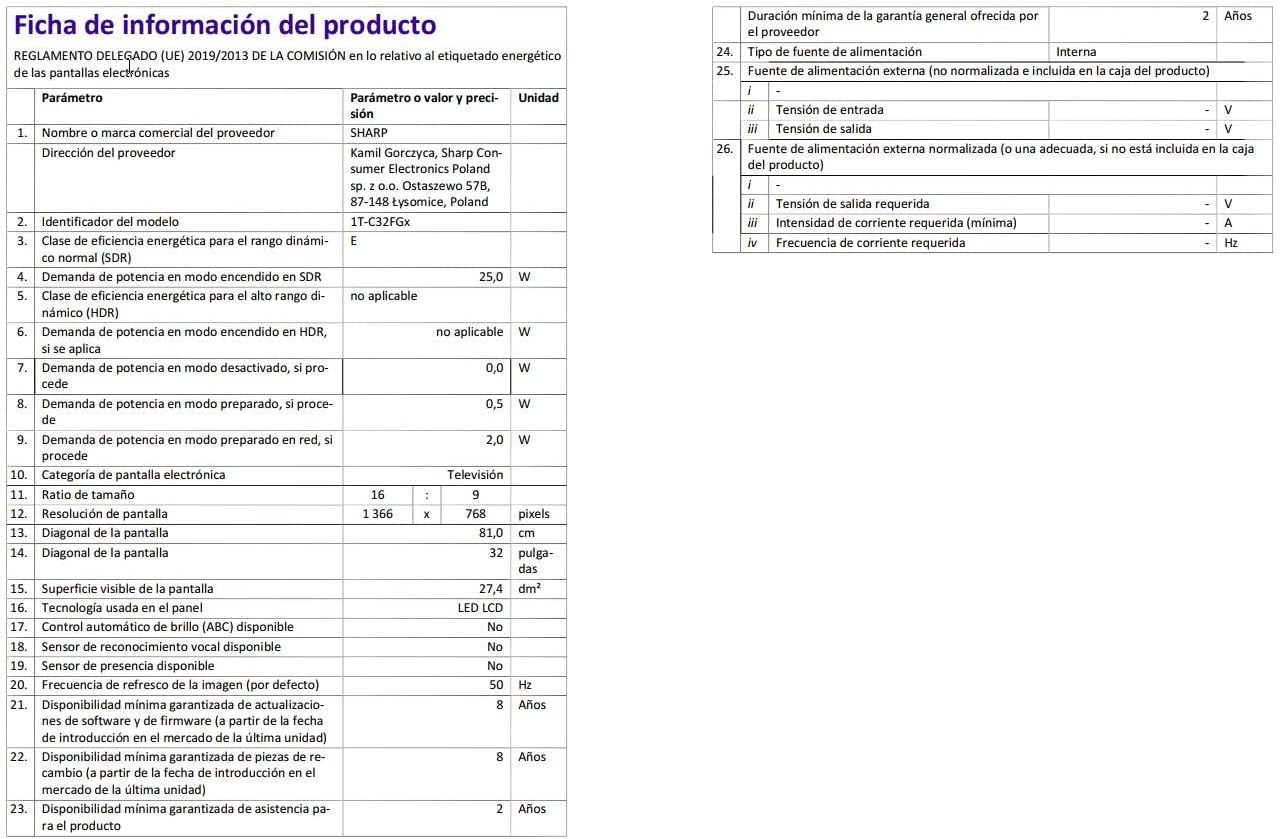
Image: Detailed product information sheet.
9. Atilẹyin ọja ati Support
The Sharp 32FG6EA television comes with a minimum general warranty duration of 2 years from the provider.
For technical support, warranty claims, or further assistance, please refer to the contact information provided with your purchase documentation or visit the official Sharp support webaaye fun agbegbe rẹ.