
1. Ti pariview
The ASRock X670E PG Lightning is a high-performance motherboard designed to support AMD AM5 Ryzen 7000 Series Processors. It features advanced connectivity, robust power delivery, and extensive expansion options, making it suitable for demanding computing tasks and gaming. This manual provides essential information for the proper installation, operation, and maintenance of your motherboard.
Awọn ẹya pataki:
- Supports AMD AM5 Ryzen 7000 Series Processors
- AMD X670 Chipset
- Dual Channel DDR5 Memory, up to 128GB
- Multiple PCIe 5.0 and PCIe 4.0 slots for expansion
- Integrated AMD RDNA2 Graphics (actual support varies by CPU)
- 7.1-CH HD Audio (Realtek ALC897)
- Realtek 2.5G lan
- Six SATA3 ports and three Hyper M.2 slots
- Extensive I/O with USB 3.2 Gen2x2 Type-C, HDMI, and DisplayPort
2. Eto ati fifi sori
Before beginning installation, ensure your workspace is clean and static-free. Always handle components by their edges to avoid damage from electrostatic discharge.
2.1. Fifi sori ẹrọ isise
Carefully open the CPU socket lever. Align the triangular mark on your AMD AM5 Ryzen processor with the corresponding mark on the socket. Gently place the CPU into the socket without applying force. Close the lever to secure the processor.

Aworan: Oke-isalẹ view of the ASRock X670E PG Lightning motherboard, showing the CPU socket ready for processor installation.
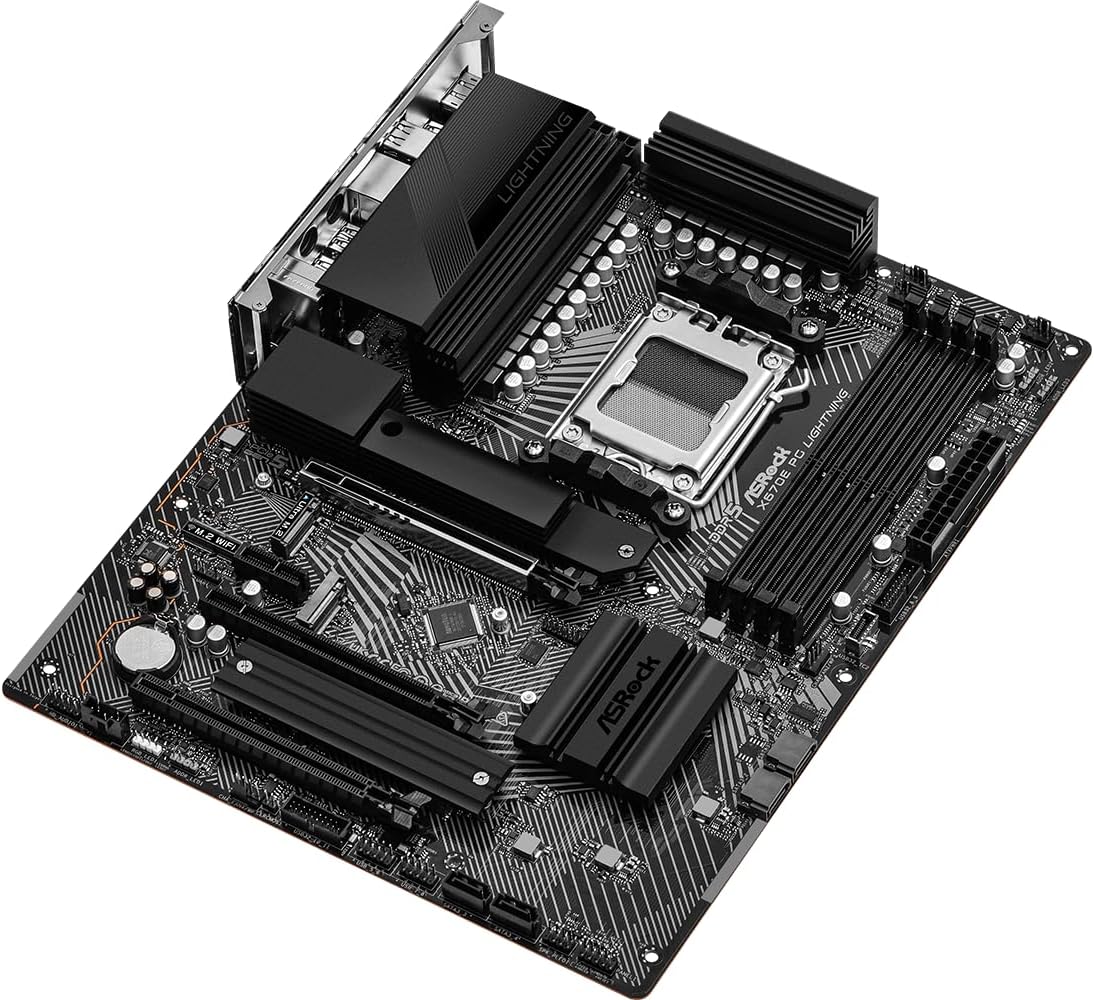
Image: Close-up of the CPU socket on the ASRock X670E PG Lightning motherboard with the retention arm open, illustrating the installation readiness.
2.2. Fifi sori iranti
The motherboard supports DDR5 memory. For optimal performance, install memory modules in a dual-channel configuration. Refer to the motherboard manual for specific slot population guidelines. Open the clips on the DIMM slots, align the memory module notch with the slot key, and press down firmly on both ends until the clips snap into place.
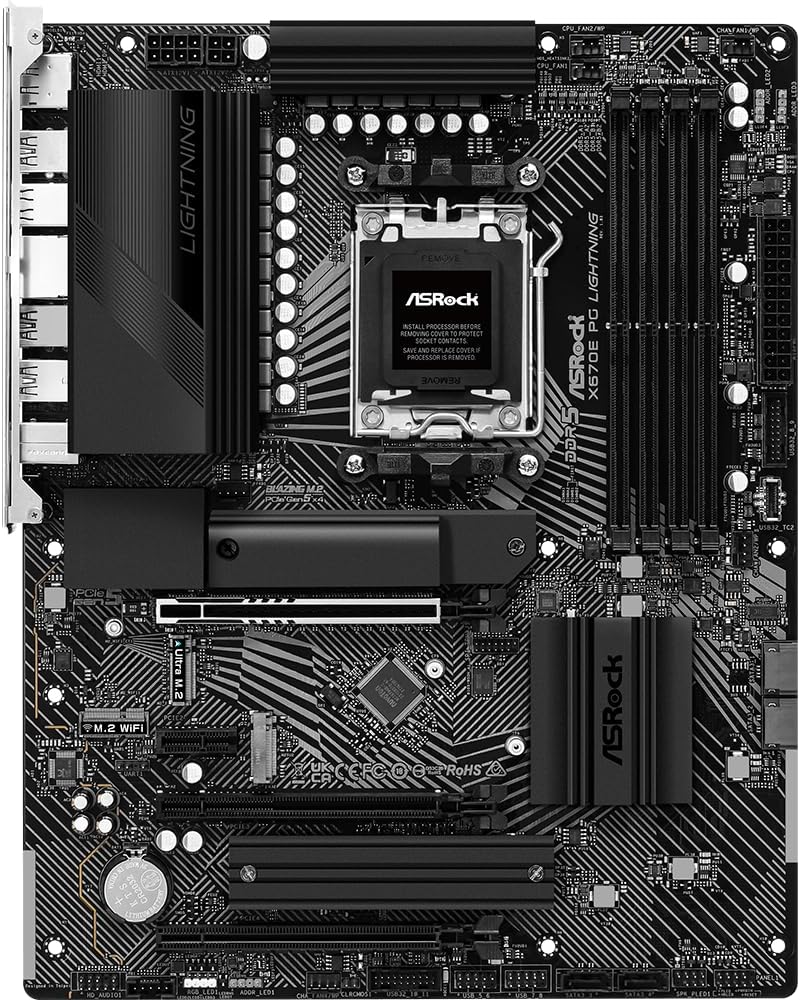
Aworan: Angled view of the ASRock X670E PG Lightning motherboard, showing the four DDR5 memory slots and the CPU socket area.
2.3. Fifi sori ẹrọ ẹrọ ipamọ
Install M.2 NVMe SSDs into the available M.2 slots. Secure them with the provided screws or standoffs. For SATA drives, connect the SATA data cables to the motherboard's SATA ports and the power cables from your power supply to the drives.

Aworan: Isunmọ view of the ASRock X670E PG Lightning motherboard, detailing the M.2 slots, heatsinks, and chipset area.
2.4. Graphics Kaadi fifi sori
Insert your PCIe graphics card into the primary PCIe 5.0 x16 slot. Ensure it is seated firmly and secure it with the case screw. Connect the necessary PCIe power cables from your power supply to the graphics card.
2.5. Asopọ Ipese Agbara
Connect the 24-pin ATX power connector and the 8-pin (or 4+4-pin) CPU power connector from your power supply to the corresponding headers on the motherboard. Ensure all connections are secure.
3. Awọn ilana Iṣiṣẹ
3.1. Bata akọkọ
After assembling your system, connect your monitor, keyboard, and mouse. Power on the system. The first boot may take longer than usual due to memory training. If the system does not display, check all power connections and component seating.
3.2. BIOS / UEFI iṣeto ni
Press the 'Delete' or 'F2' key during startup to enter the BIOS/UEFI setup utility. Here you can configure boot order, enable XMP/EXPO profiles for memory, adjust fan speeds, and monitor system status. Save changes before exiting.
3.3. Fifi sori awakọ
After installing your operating system, install the latest drivers for your motherboard's chipset, LAN, audio, and any other integrated components. These can typically be found on the ASRock support webojula fun rẹ kan pato awoṣe.
4. Itọju
4.1. Awọn imudojuiwọn BIOS
Nigbagbogbo ṣayẹwo ASRock website for BIOS/UEFI updates. Updates can improve system stability, compatibility, and performance. Follow the provided instructions carefully when performing a BIOS update to avoid system damage.
4.2. Ninu
Periodically clean your computer's interior to prevent dust buildup, which can lead to overheating and reduced performance. Use compressed air to remove dust from fans, heatsinks, and other components. Ensure the system is powered off and unplugged before cleaning.
4.3. Àwọn Àyẹ̀wò Àwọn Ẹ̀yà Ara
Occasionally inspect all internal connections (power cables, data cables, expansion cards) to ensure they are securely seated. Loose connections can cause intermittent issues or system instability.
5. Laasigbotitusita
5.1. Awọn ọrọ ti o wọpọ
- Ko si Ifihan: Verify monitor connection, graphics card seating, and power cables. Try reseating RAM modules.
- Boot Loops/System Instability: Reset BIOS to default settings. Check memory compatibility and seating. Ensure CPU cooler is properly installed.
- A ko rii Agbeegbe: Ensure USB devices are connected to the correct ports. Update chipset drivers.
5.2. Diagnostic LEDs
The motherboard features four single LEDs to indicate the boot state (CPU, DRAM, VGA, BOOT). If an issue occurs during startup, the corresponding LED will remain lit, helping to identify the problematic component.
5.3. Olubasọrọ Support
If you encounter persistent issues that cannot be resolved using the troubleshooting steps, please contact ASRock technical support for further assistance.
6. Awọn pato
| Ẹya ara ẹrọ | Sipesifikesonu |
|---|---|
| Brand | ASRock |
| Orukọ awoṣe | X670E PG LIGHTNING |
| Sipiyu Socket | Iho AM5 |
| Awọn isise ibaramu | AMD Ryzen 7000 Series isise |
| Chipset Iru | AMD X670 |
| Ramu Memory Technology | DDR5 |
| Iho iranti Wa | 4 |
| Max RAM Memory Size | 128 GB |
| Graphics Card Interface | Integrated (actual support varies by CPU) |
| Total PCIe Ports | 4 (1x PCIe 5.0 x16, 1x PCIe 4.0 x16, 1x PCIe 4.0 x1, 1x M.2) |
| Total SATA Ports | 6 |
| Lapapọ Awọn ibudo USB | 16 (including USB 3.2 Gen2x2 Type-C) |
| Nọmba ti Ethernet Ports | 1 (2.5G LAN) |
| Awọn iwọn Nkan L x W x H | 11.7"L x 2.8"W x 13.8"H |
7. Atilẹyin ọja ati Support
This ASRock motherboard comes with a 3-odun atilẹyin ọja. For detailed warranty terms and conditions, please refer to the official ASRock webojula tabi kan si wọn onibara iṣẹ.
For technical support, driver downloads, and further product information, visit the official ASRock support page: ASRock itaja lori Amazon
8. Awọn wiwo ọja
8.1. Awọn aworan ọja

Image: Rear I/O panel of the ASRock X670E PG Lightning motherboard, featuring multiple USB ports, 2.5G LAN, HDMI, DisplayPort, and audio jacks.

Aworan: Angled view of the ASRock X670E PG Lightning motherboard, showcasing the overall layout and design from the top-right perspective.
8.2. Awọn fidio ọja osise
Video: A product demonstration video showcasing the features and design of the ASRock X670E PG Lightning motherboard.