
Renkchip Renkchip
Renkchip Wireless HDMI Display Adapter User Manual
Model: Renkchip
Ọrọ Iṣaaju
Thank you for choosing the Renkchip Wireless HDMI Display Adapter. This device allows you to effortlessly mirror the screen of your mobile phones, tablets, or laptops to a larger display such as a TV, monitor, or projector, providing a seamless 1080P/60Hz real-time transmission experience. Designed for simplicity, it requires no apps, drivers, or complex software setup, making it truly plug-and-play.
Alaye Aabo pataki
Please read and follow all safety instructions carefully before using this product to ensure safe operation and prevent damage.
- Jeki ẹrọ naa kuro ni omi, ọrinrin, ati awọn iwọn otutu to gaju.
- Ma ṣe gbiyanju lati tunto tabi tun ẹrọ naa funrararẹ. Tọkasi gbogbo iṣẹ si oṣiṣẹ oṣiṣẹ.
- Use only the provided power cable (5V/1A) to power the device.
- Rii daju pe fentilesonu to dara ni ayika ẹrọ lakoko iṣẹ.
Package Awọn akoonu
Daju pe gbogbo awọn nkan wa ninu apo rẹ:
- Renkchip Wireless HDMI Display Adapter
- USB Power Cable (5V/1A)
- Okun HDMI
- AV Cable
- Afowoyi Olumulo (iwe-ipamọ yii)
Ọja Pariview
The Renkchip Wireless HDMI Display Adapter is a compact device designed for easy screen mirroring. Below are its key components and dimensions.

Image: The Renkchip Wireless HDMI Display Adapter, a black square device with an antenna, designed for wireless display.

Image: Diagram showing the dimensions of the Renkchip Wireless HDMI Display Adapter: 6cm x 6cm base, 1.5cm height, and 9cm antenna height.

Image: Close-up of the Renkchip Wireless HDMI Display Adapter's ports, indicating the Switch button (for iOS/Android mode), POWER (5V/1A) input, and HDMI output.

Image: Illustration of the included cables: an HDMI cable (53cm), a 5V/1A USB power cable (88cm), and an AV cable (18cm).
Eto Itọsọna
Follow these steps to set up your Renkchip Wireless HDMI Display Adapter:
- Sopọ si Ifihan: Plug the HDMI cable from the Renkchip adapter into an available HDMI port on your TV, monitor, or projector.
- Agbara Tan: Connect the USB power cable to the adapter's POWER (5V/1A) port and plug the other end into a USB power source (e.g., a USB wall adapter or a USB port on your display device). Ensure the device receives stable power.
- Yan Igbewọle: On your display device, switch the input source to the HDMI port where the Renkchip adapter is connected. You should see the adapter's standby screen.
- Choose Mode (iOS/Android): The adapter has a switch button to toggle between iOS and Android modes. Press this button to select the appropriate mode for your source device. The standby screen will indicate the current mode.

Image: A visual representation of the plug-and-play setup, showing the Renkchip adapter connected to a TV via HDMI and powered by a USB adapter, ready to receive signals from various mobile devices and laptops.
Awọn ilana Iṣiṣẹ
Screen Mirroring (Plug and Play)
The Renkchip adapter is designed for one-click connection without complex setup. Ensure the adapter is powered on and connected to your display.

Image: A family watching a movie mirrored from a mobile phone to a large TV screen using the Renkchip Wireless HDMI Display Adapter, illustrating the mirror mode functionality.
For iOS Devices (iPhone/iPad):
- Ensure the adapter is in iOS mode (check the display screen).
- On your iOS device, swipe down from the top-right corner (or up from the bottom for older models) to open Control Center.
- Tap on "Screen Mirroring" or "AirPlay Mirroring".
- Select "Renkchip-XXXX" from the list of available devices. Your screen will now be mirrored.
Fun Awọn ẹrọ Android:
- Ensure the adapter is in Android mode (check the display screen).
- On your Android device, navigate to "Settings" and look for "Wireless Display", "Cast", "Smart View", "Screen Mirroring", or similar options. The exact name may vary by device manufacturer.
- Enable the feature and select "Renkchip-XXXX" from the list of detected devices. Your screen will now be mirrored.
For Windows Devices:
- On your Windows laptop or desktop, press the Bọtini Windows + P nigbakanna.
- Select "Connect to a wireless display".
- Choose "Renkchip-XXXX" from the list of available devices.
For MacOS Devices:
- On your Mac, click the AirPlay icon in the menu bar (it looks like a rectangle with an upward-pointing arrow).
- Select "Renkchip-XXXX" from the AirPlay menu.

Image: A diagram illustrating the wide compatibility of the Renkchip adapter, showing connections from Android phones, Windows laptops, iPhones, iPads, and MacBooks to TVs, monitors, and projectors.

Image: Step-by-step visual guide for connecting iOS and Android devices to the Renkchip adapter, showing the process of accessing screen mirroring/wireless projection settings and selecting the device.

Image: Step-by-step visual guide for connecting MacOS and Windows devices to the Renkchip adapter, demonstrating the AirPlay menu for Mac and the Windows+P shortcut for Windows to connect to a wireless display.
DLNA Function (Advanced)
The Renkchip Wireless Display Adapter also supports DLNA for more advanced streaming needs. To use DLNA, the device needs to be connected to your home Wi-Fi network.
Setting up Network Connection for DLNA:
- Ensure the adapter is in Android/Windows system dedicated mode (check the display screen).
- On your phone, open Wi-Fi settings and find the "Renkchip-XXXX" hotspot. Connect to it using the password: 12345678.
- Once connected, open your phone's web kiri ati ki o tẹ awọn URL 192.168.49.1. Press "Enter".
- Lori awọn webpage, click "SCAN" and wait for your phone to search for surrounding router hotspots.
- Select your router's name from the list and enter your router's Wi-Fi password.
- Wait for a moment for the device to complete the network connection. The adapter will automatically connect to this Wi-Fi network in the future after being powered on.
Akiyesi: For optimal performance, connect the device to a 5G Wi-Fi network if available.
Using DLNA Function:
After the adapter is connected to your Wi-Fi network:
- Open an audio or video application on your mobile phone (e.g., YouTube, a media player).
- Select the content you wish to play.
- While the content is playing, look for the DLNA/Airplay screen projection button (often in the upper right corner of the video player).
- Tap the button and select "Renchip-XXXX" to stream the content via DLNA/Airplay.
Screen Orientation (Flip the Screen)
When the wireless HDMI adapter is successfully mirrored to a large screen, you can switch the screen orientation between landscape and portrait modes using the switch button on the device. This feature is useful for various scenarios, such as webcasting or game recording.
Business and Presentation Use
The Renkchip Wireless HDMI Display Adapter is ideal for business meetings and presentations, allowing for easy projection of documents and content to a large screen.

Image: A business meeting scenario where a laptop screen is wirelessly projected onto a large screen using the Renkchip Wireless HDMI Display Adapter, facilitating easy display of documents and presentations.
Ibamu
The Renkchip Wireless HDMI Display Adapter offers broad compatibility with various devices and display types:
- Awọn ọna ṣiṣe: iOS, MacOS, Android, Windows, HarmonyOS.
- Awọn ẹrọ orisun: Mobile phones, tablets, laptops, desktop computers.
- Awọn ẹrọ Afihan: Televisions, monitors, projectors.
Important Note on Content Protection:
Due to copyright protection protocols (HDCP), this device KO NI atilẹyin mirroring content from applications such as Netflix, Amazon Video, HULU, Prime Video, Sky Go, iTunes, Comcast TV, Xfinity, HBO Go, DIRECTV, and other apps that require paid subscriptions or have strict content protection measures.
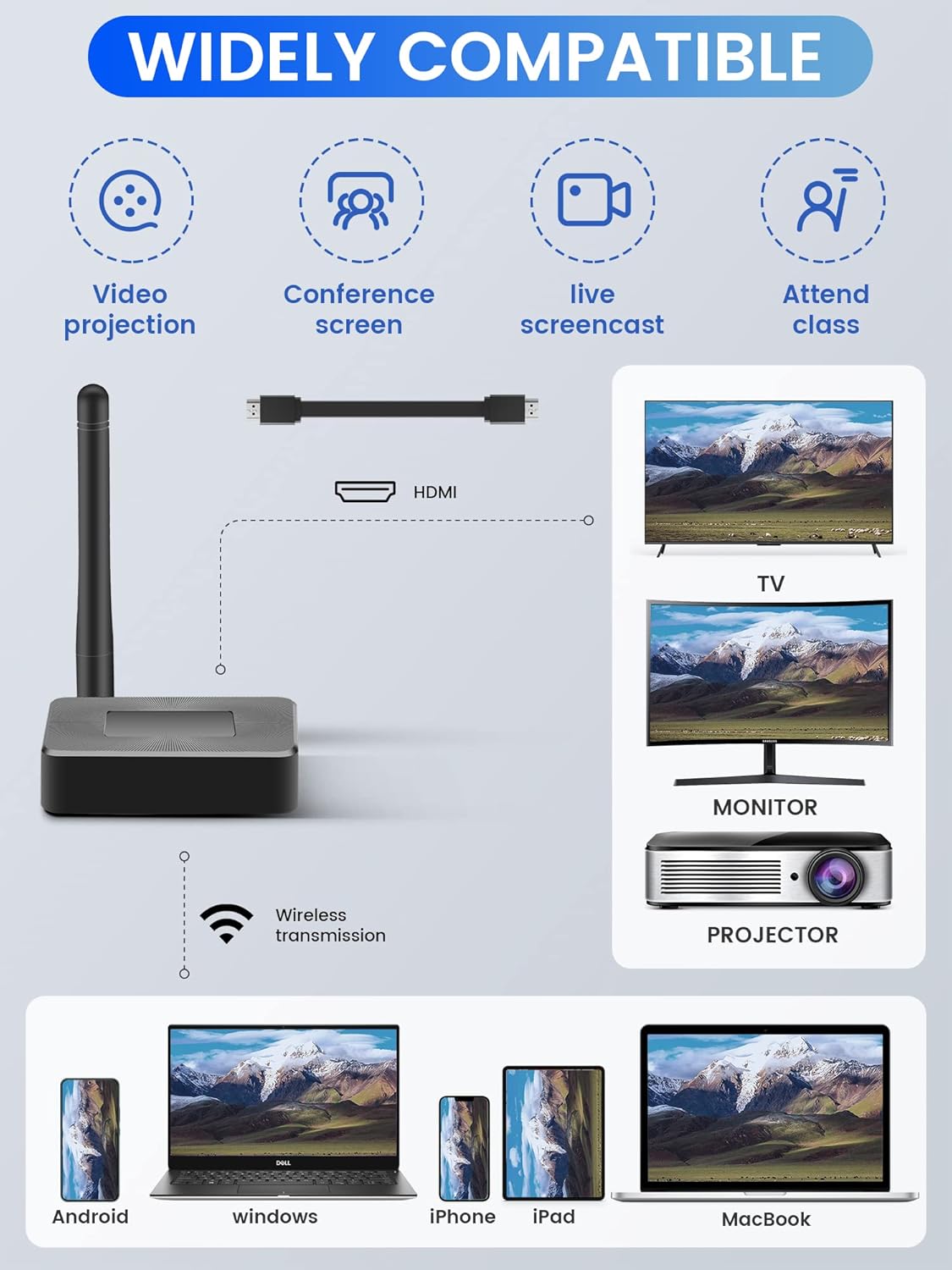
Image: A visual guide showing applications that work with the Renkchip adapter (e.g., Chrome, Spotify, Office, YouTube) and those that are not supported due to HDCP (e.g., Amazon, Hulu, Netflix).
Itoju
To ensure the longevity and optimal performance of your Renkchip Wireless HDMI Display Adapter, follow these simple maintenance guidelines:
- Ninu: Lo asọ asọ ti o gbẹ lati nu ẹrọ naa. Maṣe lo awọn olutọpa olomi tabi awọn aerosols.
- Ibi ipamọ: Nigbati o ko ba wa ni lilo fun awọn akoko ti o gbooro sii, fi ẹrọ naa pamọ si ibi ti o tutu, ibi gbigbẹ kuro lati orun taara.
- Mimu: Yago fun sisọ silẹ tabi tẹriba ẹrọ si awọn ipa to lagbara.
Laasigbotitusita
If you encounter issues with your Renkchip Wireless HDMI Display Adapter, refer to the following common problems and solutions:
| Isoro | Owun to le Fa | Ojutu |
|---|---|---|
| Ko si ifihan loju iboju. | Incorrect HDMI input selected; insufficient power; loose cable connection. | Ensure your display is set to the correct HDMI input. Check that the USB power cable is securely connected and the adapter is receiving sufficient power (5V/1A). Reconnect HDMI cable. |
| Screen mirroring is laggy or choppy. | Interference from other wireless devices; distance from adapter; low signal strength. | Reduce distance between source device and adapter. Minimize interference from other Wi-Fi devices. Ensure your source device has a strong Wi-Fi signal. For DLNA, connect to a 5G Wi-Fi network if possible. |
| Cannot find "Renkchip-XXXX" in mirroring options. | Adapter not powered on; incorrect mode selected (iOS/Android); device not discoverable. | Verify the adapter is powered on and its standby screen is visible. Press the switch button to ensure the correct iOS or Android mode is selected. Restart both the adapter and your source device. |
| Cannot mirror certain apps (e.g., Netflix, Prime Video). | Content protection (HDCP) restrictions. | This is expected behavior. The adapter does not support content from apps with HDCP protocols due to copyright protection. |
| DLNA function not working. | Adapter not connected to home Wi-Fi; incorrect DLNA setup steps. | Ensure the adapter is successfully connected to your home Wi-Fi network via the 192.168.49.1 setup page. Verify your phone is on the same Wi-Fi network as the adapter. |
Awọn pato
Detailed technical specifications for the Renkchip Wireless HDMI Display Adapter:
- Brand: Renkchip
- Nọmba awoṣe: Renkchip
- ASIN: B0BJ29QLYG
- UPC: 726361401453
- Ipinnu: 1080P/60Hz
- Asopọmọra: Wireless (Wi-Fi), HDMI, USB (for power)
- Awọn ọna ṣiṣe ibaramu: Android, iOS, Windows, MacOS, HarmonyOS
- Iṣagbewọle agbara: 5V/1A
- Ìwọ̀n Nkan: 5 iwon
- Awọn iwọn idii: 7.87 x 3.82 x 0.91 inches
- Ọjọ akọkọ ti o wa: Oṣu Kẹfa Ọjọ 29, Ọdun 2022
Atilẹyin ọja ati Support
Renkchip products are designed for reliability and performance. For any questions, technical support, or warranty inquiries, please refer to the contact information provided with your purchase or visit the official Renkchip webojula. Jọwọ ṣe idaduro ẹri rira rẹ fun awọn iṣeduro atilẹyin ọja.
Ask a question about this manual
Ask about setup, troubleshooting, compatibility, parts, safety, or missing instructions. Manuals+ will review the question and use this page’s manual context to help answer it.