
1. Ifihan
This manual provides essential information for the setup, operation, maintenance, and troubleshooting of your Blackview MP60 Mini PC. The Blackview MP60 is a compact desktop computer designed for home and business use, featuring an Intel N5095 processor, 16GB DDR4 RAM, and a 512GB M.2 SSD. It supports 4K HD dual display output and offers various connectivity options.
2. Ohun ti o wa ninu Apoti
Upon opening the Blackview MP60 Mini PC package, you should find the following items:
- Duduview Ẹrọ PC kekere MP60
- Adapter agbara (12V)
- Okun HDMI
- Àmì ìfàmọ́ra VESA pẹ̀lú àwọn skru
- Afowoyi Olumulo (iwe-ipamọ yii)

Àwòrán: Àwọn Àkóónú ti Dúdúview MP60 Mini PC package, including the mini PC, power adapter, HDMI cable, VESA mount, and user manual.
Fidio: Ipariview ti Duduview MP60 Mini PC, ifihanasing its unboxing, included accessories, and various ports. This video provides a visual guide to the product's physical features and what to expect in the package.
3. Ọja Ipariview
3.1. Front and Side Ports
Awọn Blackview MP60 Mini PC features a compact design with strategically placed ports for easy access and connectivity.
- Bọtini agbara: Located on the side for easy power on/off.
- Awọn ibudo USB 3.0 (x2): Fun gbigbe data iyara-giga pẹlu awọn ẹrọ ibaramu.
- Ibudo USB 2.0 (x1): For connecting standard USB peripherals.
3.2. Ru Ports
The rear panel provides essential ports for display, networking, and audio.
- DC Jack: Fun sisopọ ohun ti nmu badọgba agbara.
- Ibudo USB 2.0 (x1): Additional port for peripherals.
- HDMI 1.4b Ports (x2): Supports dual 4K (60Hz) display output.
- Ibudo Ethernet RJ45 Gigabit: Fun asopọ nẹtiwọki ti firanṣẹ.
- 3.5mm Audio-in/out Jack: Fún sísopọ̀ agbekọri, agbohunsoke, tàbí gbohungbohun.
- Iho titiipa Kensington: Fun aabo ti ara.

Aworan: Alaye view of the various input/output ports available on the Blackview MP60 Mini PC, highlighting its comprehensive connectivity options.
4. Eto
Follow these steps to set up your Blackview MP60 Mini PC:
- Sopọ si Agbara: Plug the power adapter into the DC jack on the rear of the Mini PC, then plug the adapter into a power outlet.
- Sopọ si Ifihan: Use the provided HDMI cable to connect the Mini PC to your monitor or TV. If using dual monitors, connect a second display to the other HDMI port.
- Awọn Agbeegbe Sopọ: So keyboard rẹ, makusi, ati awọn ẹrọ USB miiran pọ mọ awọn ibudo USB ti o wa.
- Sopọ si Nẹtiwọọki (Aṣayan): For wired internet, connect an Ethernet cable to the RJ45 port. For wireless, the Mini PC supports 2.4G+5.0G dual-band WiFi.
- Agbara Tan: Press the power button on the side of the Mini PC. The system will boot up, and you will see the Windows 11 Pro setup screen or desktop.
- Eto Windows akọkọ: Follow the on-screen instructions to complete the Windows 11 Pro setup, including language, region, network, and user account creation.
4.1. Ṣíṣe VESA
Awọn Blackview MP60 Mini PC can be mounted to the back of a VESA-compatible monitor using the included bracket and screws. This helps save desk space and creates a cleaner workspace.
5. Awọn ilana Iṣiṣẹ
Awọn Blackview MP60 Mini PC comes pre-installed with Windows 11 Pro, offering a familiar and user-friendly operating environment.
- Titan/Apapa: Press the power button once to turn on the device. To shut down, use the Windows Start menu options (Start > Power > Shut down). A short press on the power button can also initiate sleep mode.
- Tun bẹrẹ: Use the Windows Start menu options (Start > Power > Restart) to restart the system.
- Ifihan Meji: Connect two monitors to the HDMI ports. Windows 11 Pro will automatically detect both displays. You can configure display settings (extend, duplicate, etc.) via Display Settings in Windows.
- Asopọ Alailowaya: Connect to Wi-Fi networks via the network icon in the taskbar. Bluetooth 4.2 allows connection to wireless peripherals like keyboards, mice, and headphones.
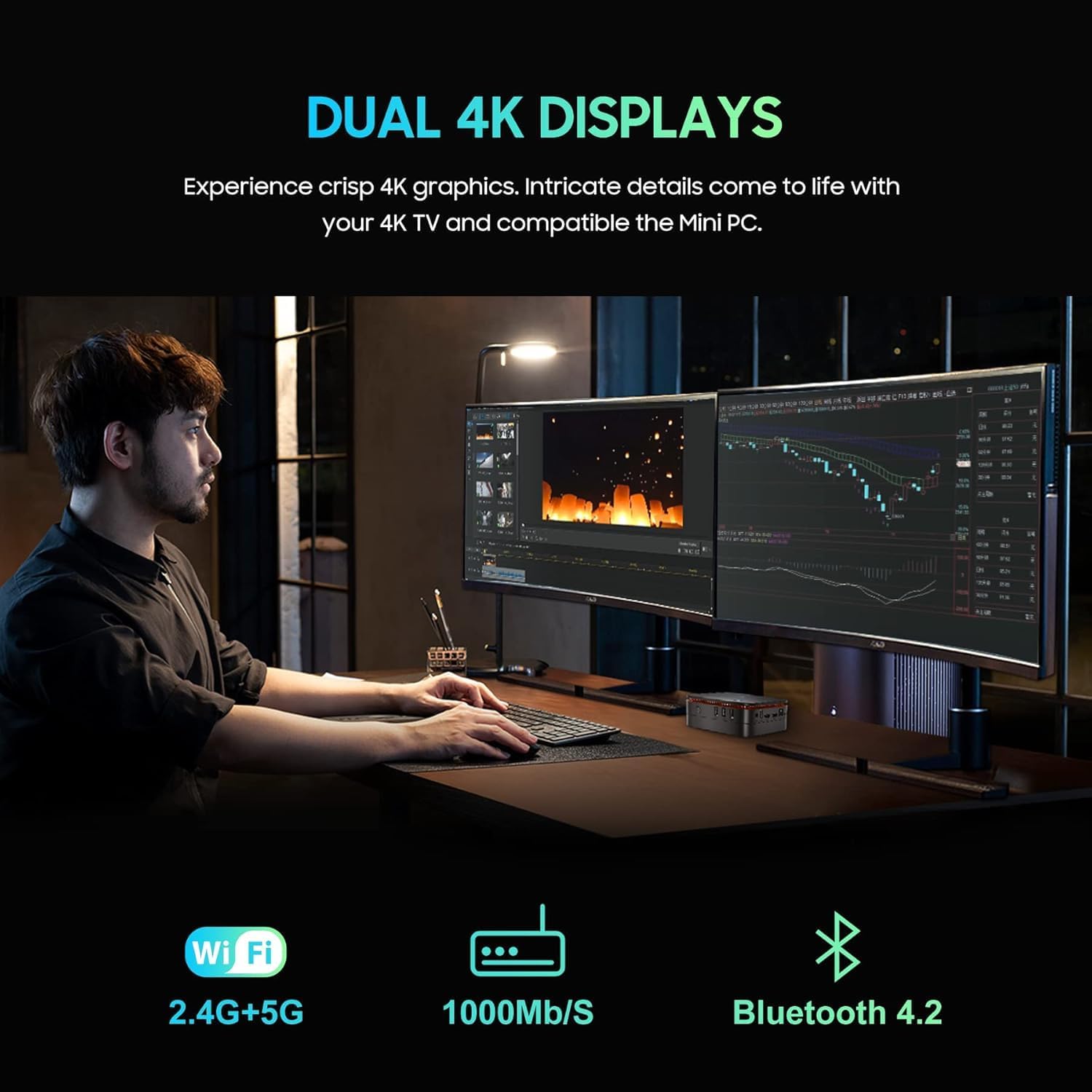
Àwòrán: Dúdúview MP60 Mini PC in a dual-monitor setup, illustrating its capability to support extended desktop environments for enhanced productivity.
6. Itọju
Regular maintenance ensures optimal performance and longevity of your Mini PC.
- Ninu: Keep the Mini PC clean and free from dust. Use a soft, dry cloth for external surfaces. For internal components, especially the fan and vents, use compressed air periodically to prevent dust buildup, which can affect cooling efficiency.
- Awọn imudojuiwọn sọfitiwia: Regularly update Windows 11 Pro and device drivers to ensure security, stability, and performance.
- Afẹfẹ: Ensure the Mini PC is placed in a well-ventilated area. Do not block the air vents to allow for proper heat dissipation by the internal fan and heat sink.
- Isakoso Ibi ipamọ: Lorekore nu soke kobojumu files ati awọn ohun elo lati ṣetọju iṣẹ ipamọ to dara julọ.
7. Laasigbotitusita
Ti o ba pade awọn iṣoro pẹlu dudu rẹview MP60 Mini PC, refer to the following common troubleshooting steps:
- Ko si Agbara: Rí i dájú pé ohun tí a fi ń so agbára pọ̀ mọ́ Mini PC àti ibi tí ó ń ṣiṣẹ́. Gbìyànjú ibi tí ó yàtọ̀ síra tí ó bá pọndandan.
- Ko si Ifihan: Verify that the HDMI cable is firmly connected to both the Mini PC and the monitor. Ensure the monitor is set to the correct input source. Try a different HDMI cable or monitor if possible.
- Ko si Asopọ Ayelujara: Fún àwọn ìsopọ̀ onírin, ṣàyẹ̀wò ipò okùn Ethernet àti réùtà. Fún Wi-Fi, rí i dájú pé adapter Wi-Fi náà ṣiṣẹ́ àti pé o ti so mọ́ nẹ́tíwọ́ọ̀kì tó tọ́ pẹ̀lú ọ̀rọ̀ìpamọ́ tó tọ́.
- Iṣẹ ṣiṣe ti o lọra: Close unnecessary applications. Check for background processes consuming high CPU or RAM. Ensure sufficient free storage space. Consider running a disk cleanup.
- A ko rii Agbeegbe: Ensure USB devices are properly plugged in. Try connecting them to a different USB port. Update or reinstall device drivers if needed.
- Eto Didi/Awọn jamba: Restart the Mini PC. If issues persist, check for recent software installations or updates that might be causing conflicts. Consider performing a system restore or reinstalling Windows if necessary (back up your data first).
8. Awọn pato
Awọn alaye imọ-ẹrọ alaye fun Duduview MP60 Mini PC:
| Brand | Duduview |
| Nọmba awoṣe | MP60 |
| isise | Intel Celeron N5095 (4C/4T, 4 MB L3 Cache, 2.0GHz base, up to 2.9 GHz burst) |
| Awọn aworan | Àwọn àwòrán Intel UHD (750 MHz) |
| Àgbo | 16GB DDR4 (Soldered, not upgradeable) |
| Ibi ipamọ | 512GB M.2 2280 SSD (Upgradeable to 2TB) |
| Imugboroosi ipamọ | Supports additional 2.5-inch SATA SSD/HDD up to 2TB |
| Eto isesise | Windows 11 Pro |
| Ijade fidio | 2 x HDMI 1.4b (Supports Dual 4K@60Hz) |
| Awọn ibudo USB | 2x USB 3.0, 2x USB 2.0 |
| Nẹtiwọọki | RJ45 Gigabit Ethernet, 2.4G+5.0G Dual Band WiFi (802.11ac) |
| Bluetooth | Bluetooth 4.2 |
| Ohun | 3.5mm Audio-in/out Jack |
| Ọna Itutu | Air Cooling (Fan and Heat Sink) |
| Awọn iwọn | Isunmọ. 5 x 5 x 2.1 inches |
| Iṣagbesori | VESA Mountable |
9. Storage Expansion and Upgrades
Awọn Blackview MP60 Mini PC offers options for storage expansion:
- M.2 SSD: The pre-installed 512GB M.2 2280 SSD can be upgraded to a larger capacity, up to 2TB. Note that replacing the primary SSD will require reinstalling the operating system.
- 2.5-inch SATA Drive: An empty bay is available for adding an additional 2.5-inch SATA SSD or HDD, supporting up to 2TB of extra storage. This allows for significant expansion without replacing the primary drive.
- Ramu: The 16GB DDR4 RAM is soldered onto the motherboard and is not user-upgradeable.
To access the internal components for storage upgrades, you will need to carefully remove the bottom panel. This involves unscrewing the two visible screws and then removing the four sticky feet to reveal additional screws. Once these are removed, the bottom panel can be detached to access the M.2 slot and the 2.5-inch drive bay.

Aworan: inu view ti Duduview MP60 Mini PC, illustrating the layout of the motherboard, M.2 SSD, cooling fan, and other components relevant for potential upgrades.
10. Atilẹyin ọja ati Support
For warranty information, technical support, or service inquiries, please refer to the warranty card included in your product packaging or visit the official Blackview atilẹyin webojula. Tọju iwe-ẹri rira rẹ bi ẹri rira fun awọn iṣeduro atilẹyin ọja.